
- How to define Takt Zones?
- Create Takt Zones
- Automatically generate Takt Zones
- Edit Takt Zones
- Remove Takt Zones
How to define Takt Zones?
A Takt Zone is a Takt Type that is locally assigned to a Subarea.
The relevant Takt Zones can be defined in the Takt Zones library.
In order to create a Takt Zone, the Area, Subarea, Zone Types and Takt Types should be defined.
Example: The hotel (Area) has 6 floors (Subareas), each floor has 1 hotel suite, which are identical in terms of process sequence (Zone Type). However they differ in terms of size. There are small, medium-sized and large hotel suites (Takt Types). There are 2 small hotel suites, one on the ground floor and one on the first floor, 2 medium-sized hotel rooms one on the third and one on the fourth floor and 2 large hotel rooms one on the fourth and one on the fifth floor (Takt Zones).
| Zone Types: | Takt Types: | Takt Zones: |
| Office | Small Office | Small Office |
| Ground Floor | Big Office | Small Office |
| 1st Floor | Small Office | |
| 1st Floor | Multizone | |
| 1st Floor | Corner Office 2nd Floor |

Create Takt Zones
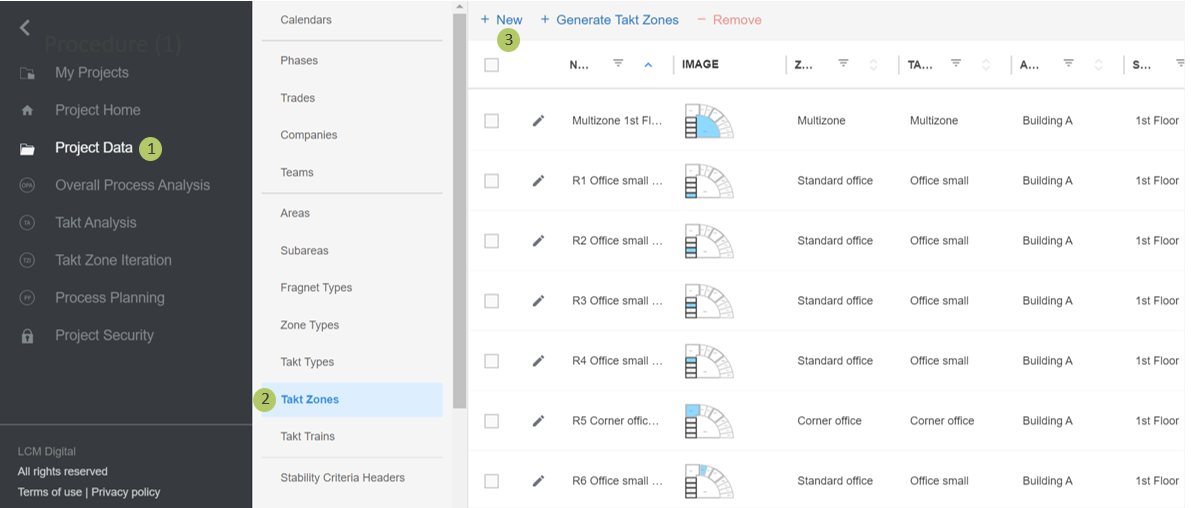
1. Go to Select Project Data from the Main Menu.
2. Go to Takt Zones from the list of Project Data.
3. Click on New to create a new Takt Zone.
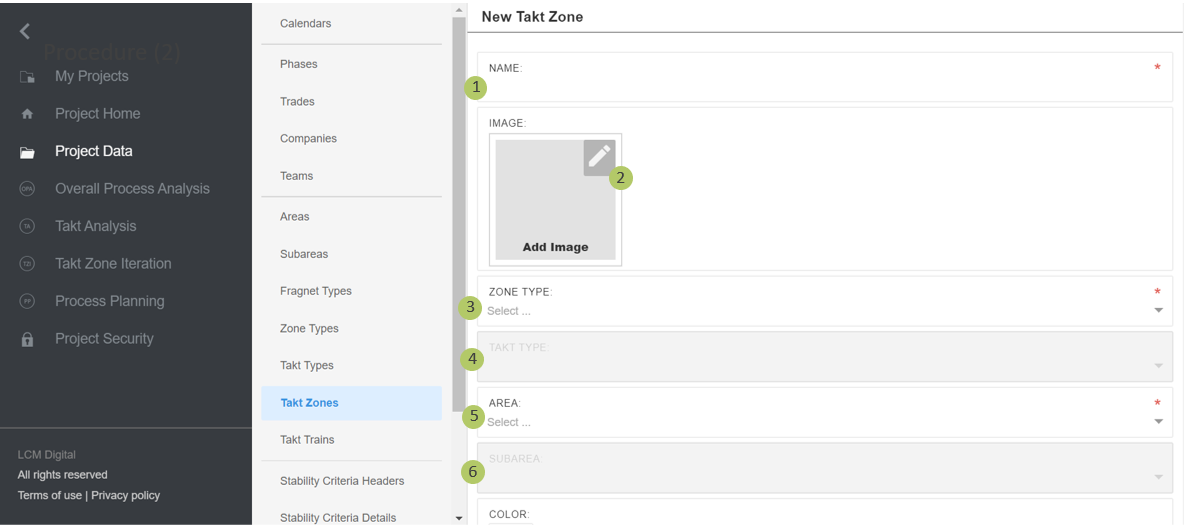
1. Type in the name of the Takt Zone.
2. Insert a picture, plan or section of the Takt Zone. You can highlight the Takt Zone for further visualization. The image of each Takt Zone will be shown next to the PP for that Takt Zone.
3. Select an already defined Zone Type, to which this Takt Zone belongs.
4. Select an already defined Takt Types, to which this Takt Zone belongs.
5. Select an already defined Area, to which this Takt Zone belongs.
6. Select an already defined Subarea, to which this Takt Zone belongs.
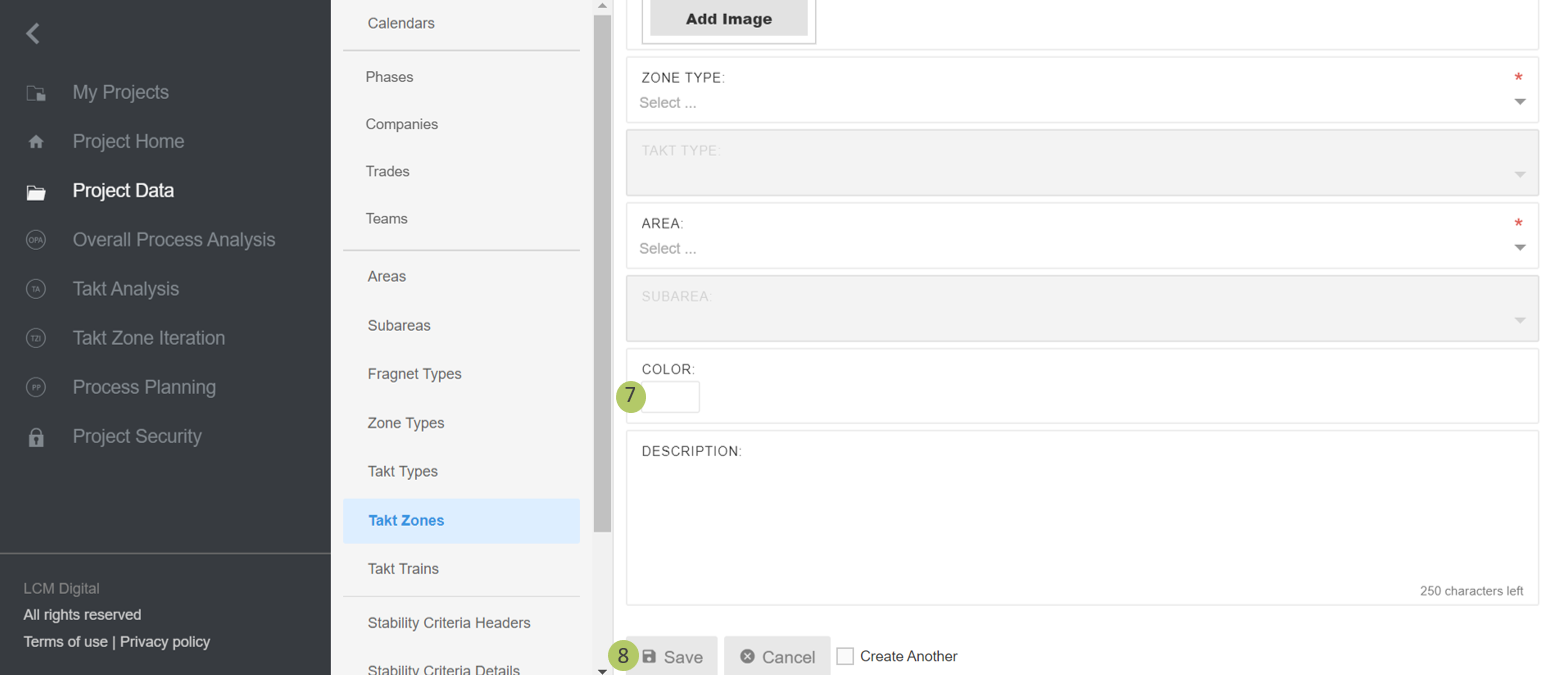
7. If desired, select a color for this Takt Zone. This helps for further visualization of Takt Zones in the TZI and PP and quicker identification of Takt Zones in the TZI and PP by their color instead of searching for them.
8. Click on Save to save the information and proceed.
Automatically generate Takt Zones
- Automatic Takt Zones Generation is an optional step, which can be taken to speed up the process of creating Takt Zones in a project.
- This function is particularly useful when Takt Zones are repeated many times in a project.
- To automatically generate Takt Zones the user needs to access this option from the Takt Zones library.
- The Takt Zones can also be automatically generated directly in the TZI. Please refer to Takt Zones Generation in the TZI.
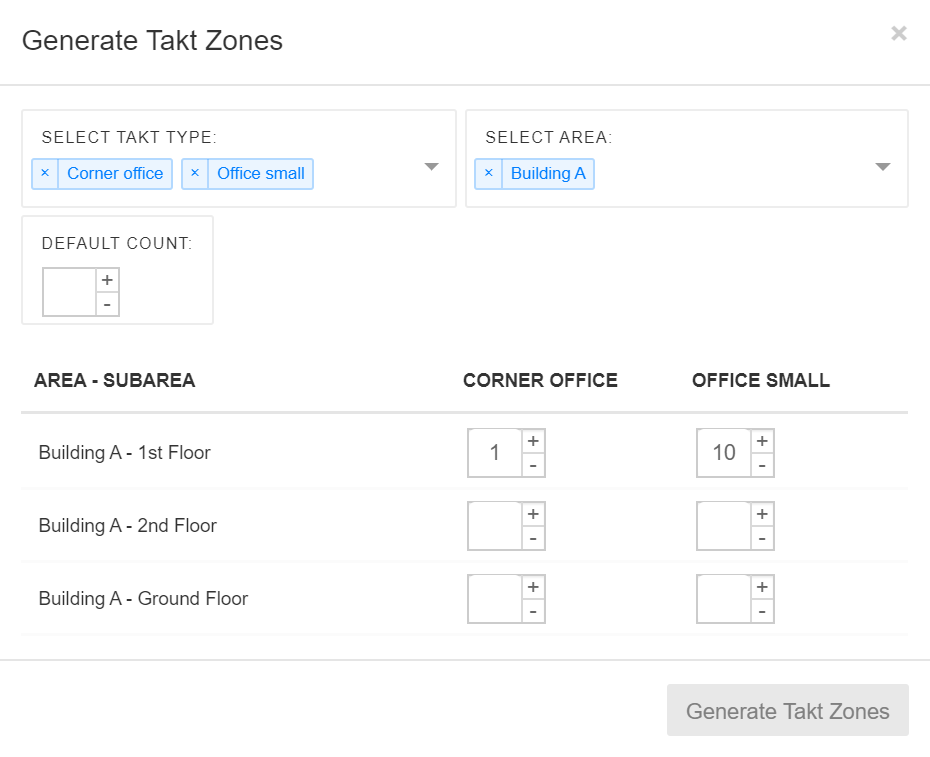
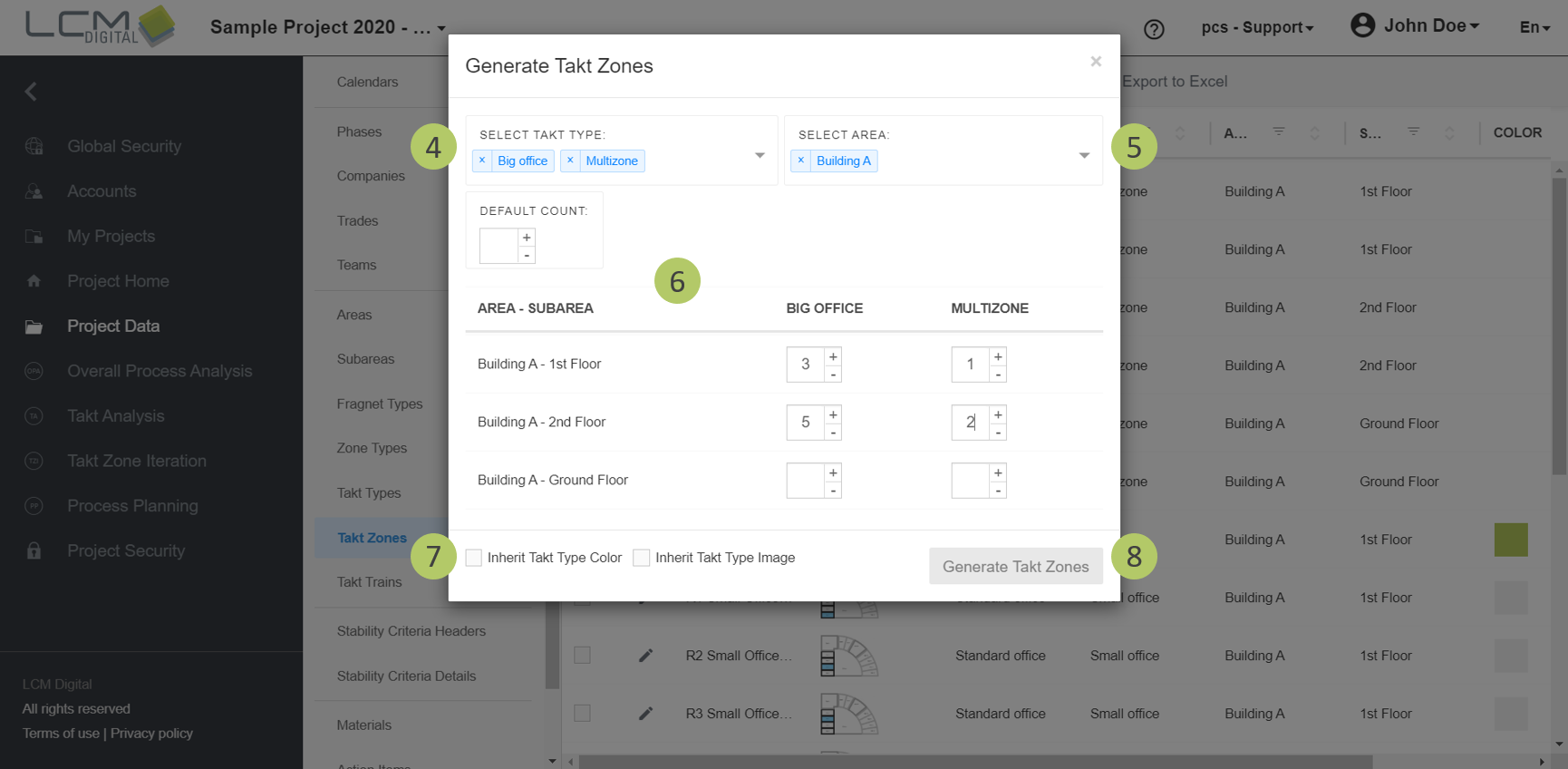
Example: As shown in this figure, small Offices / Corner Offices are on the Ground Floor, 1st floor and 2nd floor. The numbers indicate that the automatic generation of (n) Takt Zones. For instance, 10 small offices and 1 corner Office on the 1st floor will be automatically generated. This helps to speed up the process of generating the Takt Zones one by one.
1. Select Project Data from the Main Menu.
2. Go to Takt Zones from the list of Project Data.
3. Click on Generate Takt Zones.
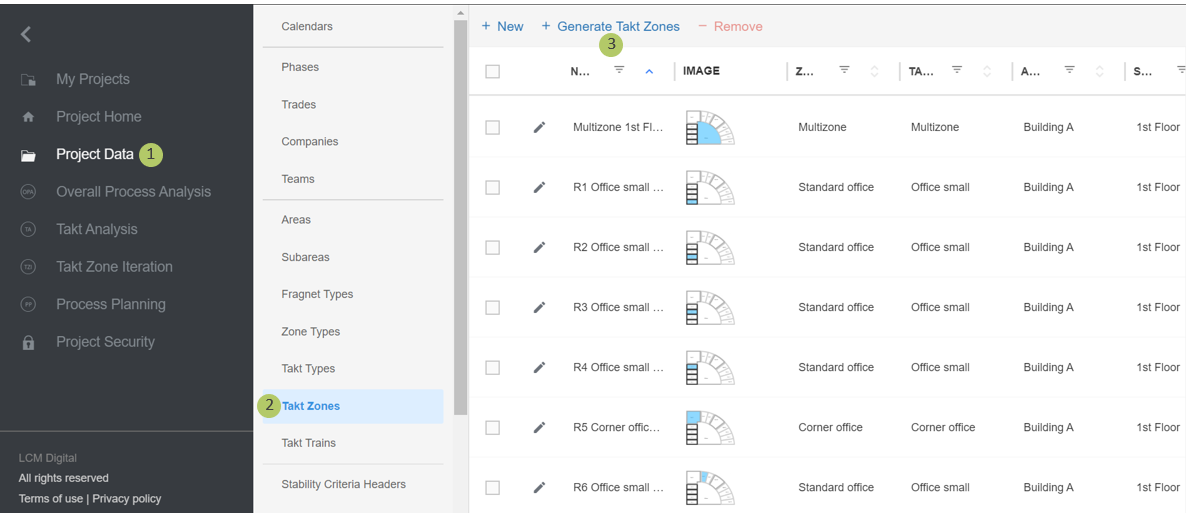
4. Select an already defined Takt Type, for which Takt Zones are to be generated.
5. Select an already defined Area, in which the Takt Zones are located.
6. If Takt Types are repeated n times in every Subarea,
set the default count as n. This generates n Takt Zones
for each Subarea. For instance 10 Corner Offices on every floor.
If the number of Takt Types in every Subarea is different, set the frequency for the individual Subareas. For instance, 5 Corner Offices on the 2nd Floor and 10 Corner Offices on the 5th Floor.
7. If the color or image of the respective takt type should be inherited, check the corresponding box/es.
8. Click on “Generate Takt Zones” to proceed.
Edit Takt Zones
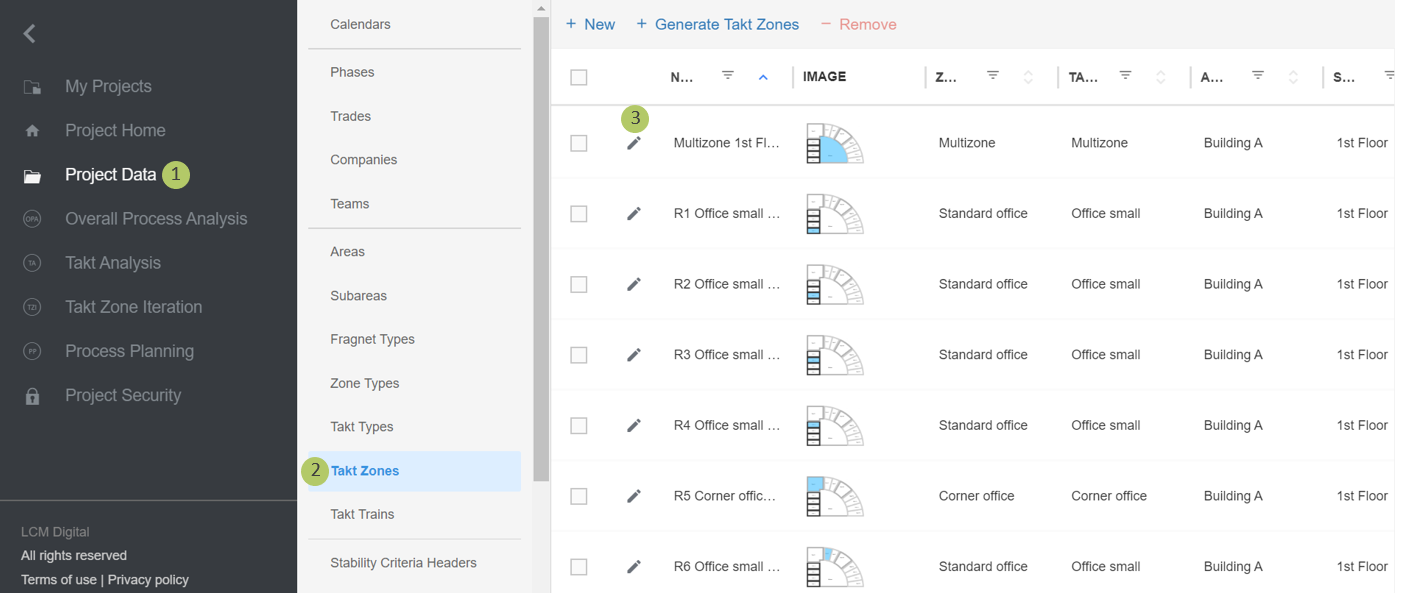
1. Select Project Data from the Main Menu.
2. Go to Takt Zones from the list of Project Data.
3. Click on the pencil to edit the individual Takt Zones.
Remove Takt Zones
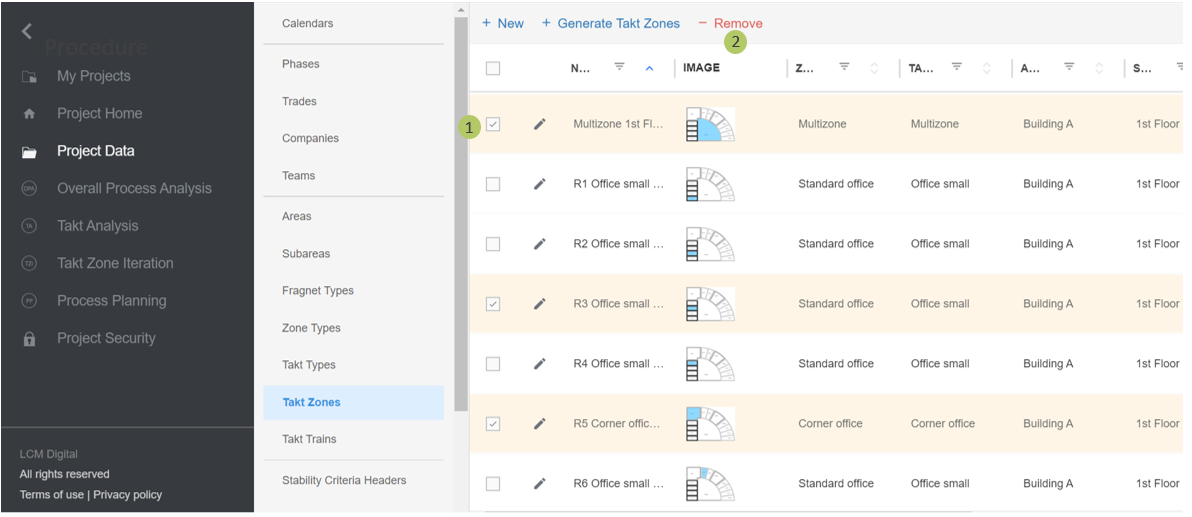
1. Select the item/s from the list of Takt Zones by clicking on the checkbox.
2. Click on Remove to delete the selected Takt Zone/s.
|
|
Please note: a Takt Zone cannot be deleted if in use (Takt Zone Iteration or Process Plan). |