oben
oben
- What are Action Itemns?
- Add Action Item to fragnet step
- Open Action List
- Edit Action Item
- Change the status of an Action Item
- Delete Action Item
- Export Action List as CSV
What are Action Items?
Action Items mark tasks that are assigned to certain fragnet steps and that need to be resolved until a specific date.
Action items can be assigned to fragnet steps in the OPA, TA and PP and can there be managed with the Action List. In this article Action Items and the Action List are explained in the OPA, but they work just the same in the TA and PP.

Add Action Item to a Fragnet Step
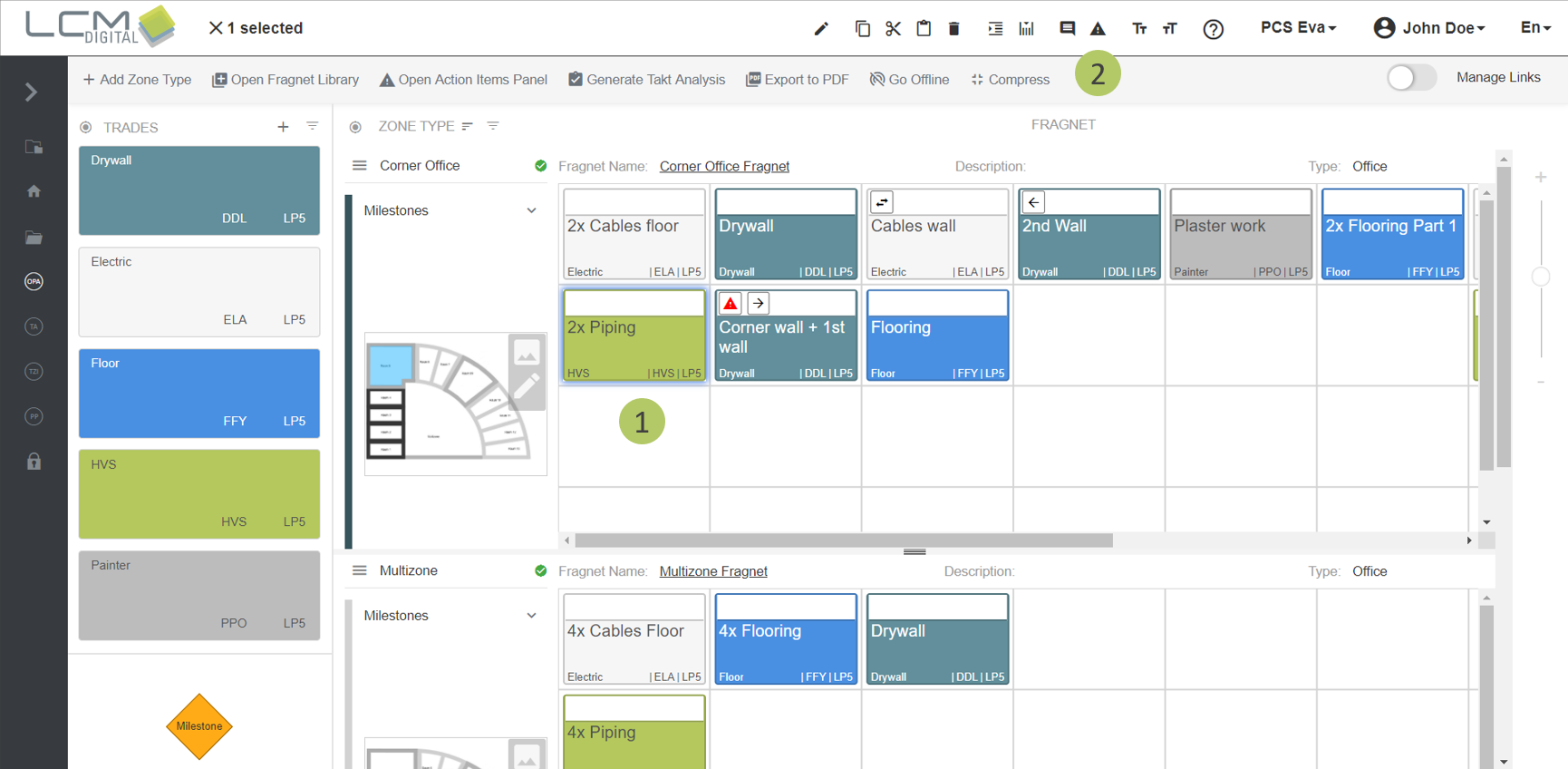
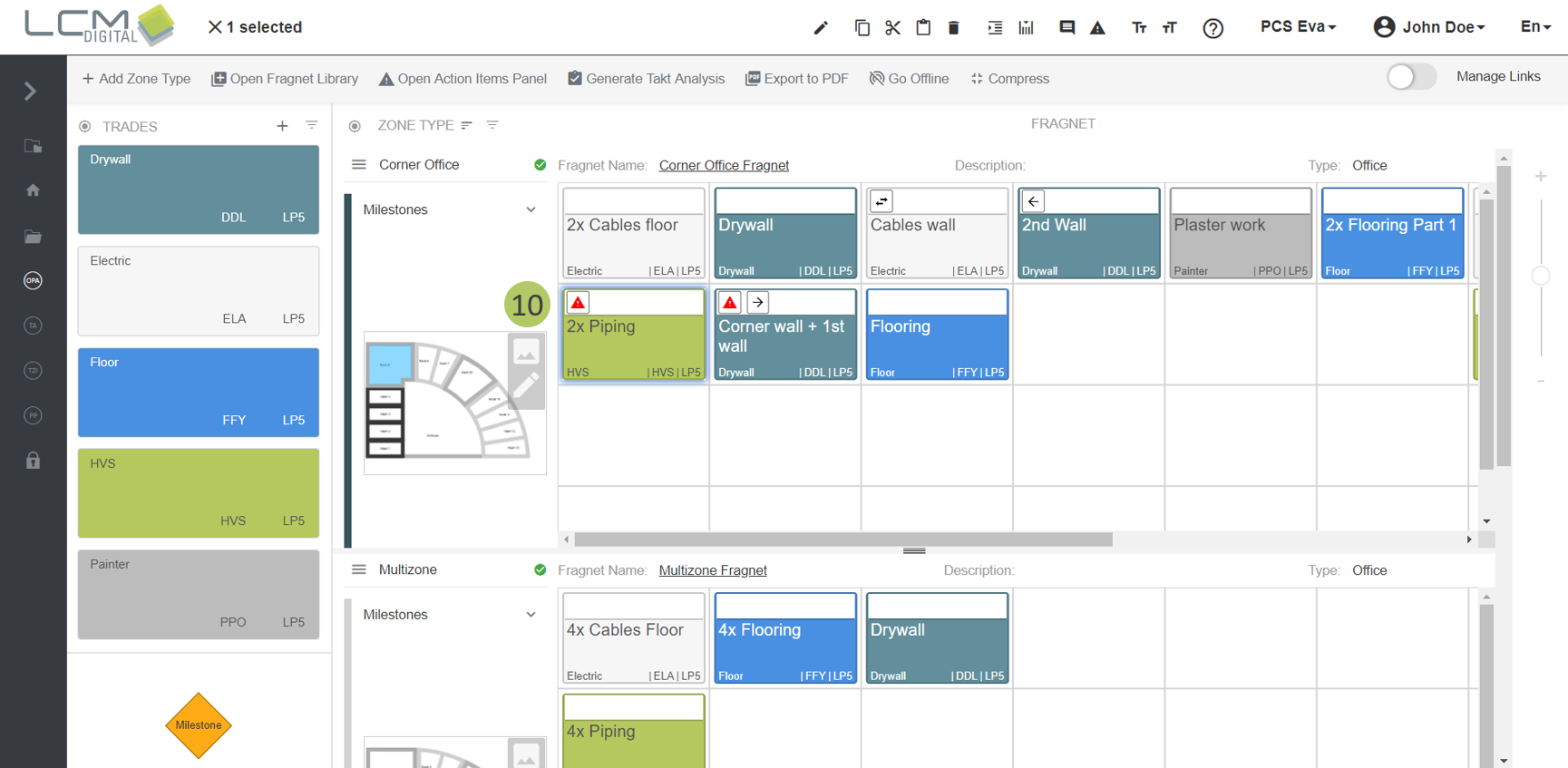
1. Select the Fragnet Steps to which the Action Item is to be added.
2. Click on the Action Item icon on the toolbar.
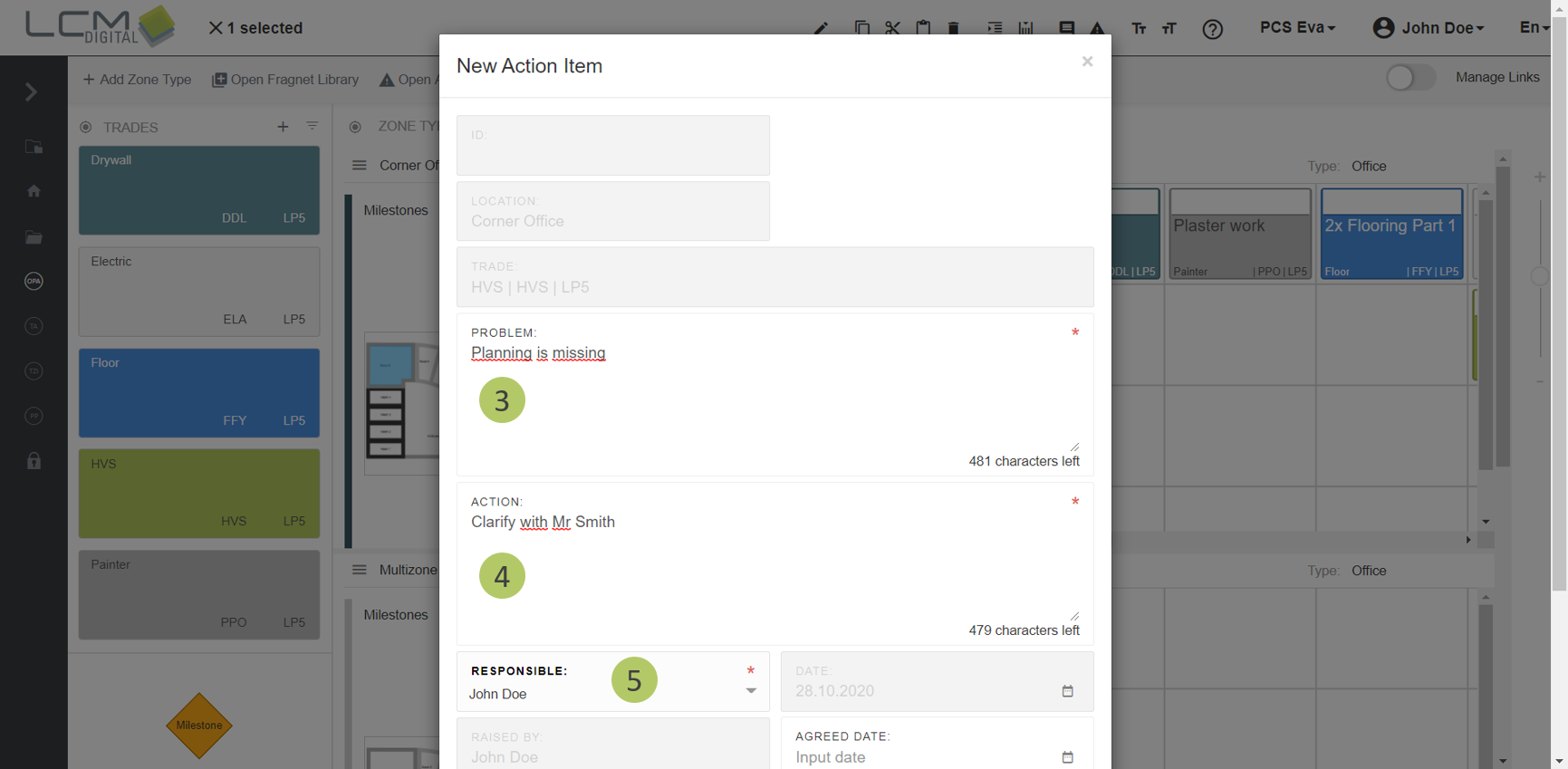
3. Type in the problem.
4. Type in the action to be taken.
5. Select a responsible person to follow up on this Action Item. The dropdown list here is a list that contains those users with update permission on the OPA.
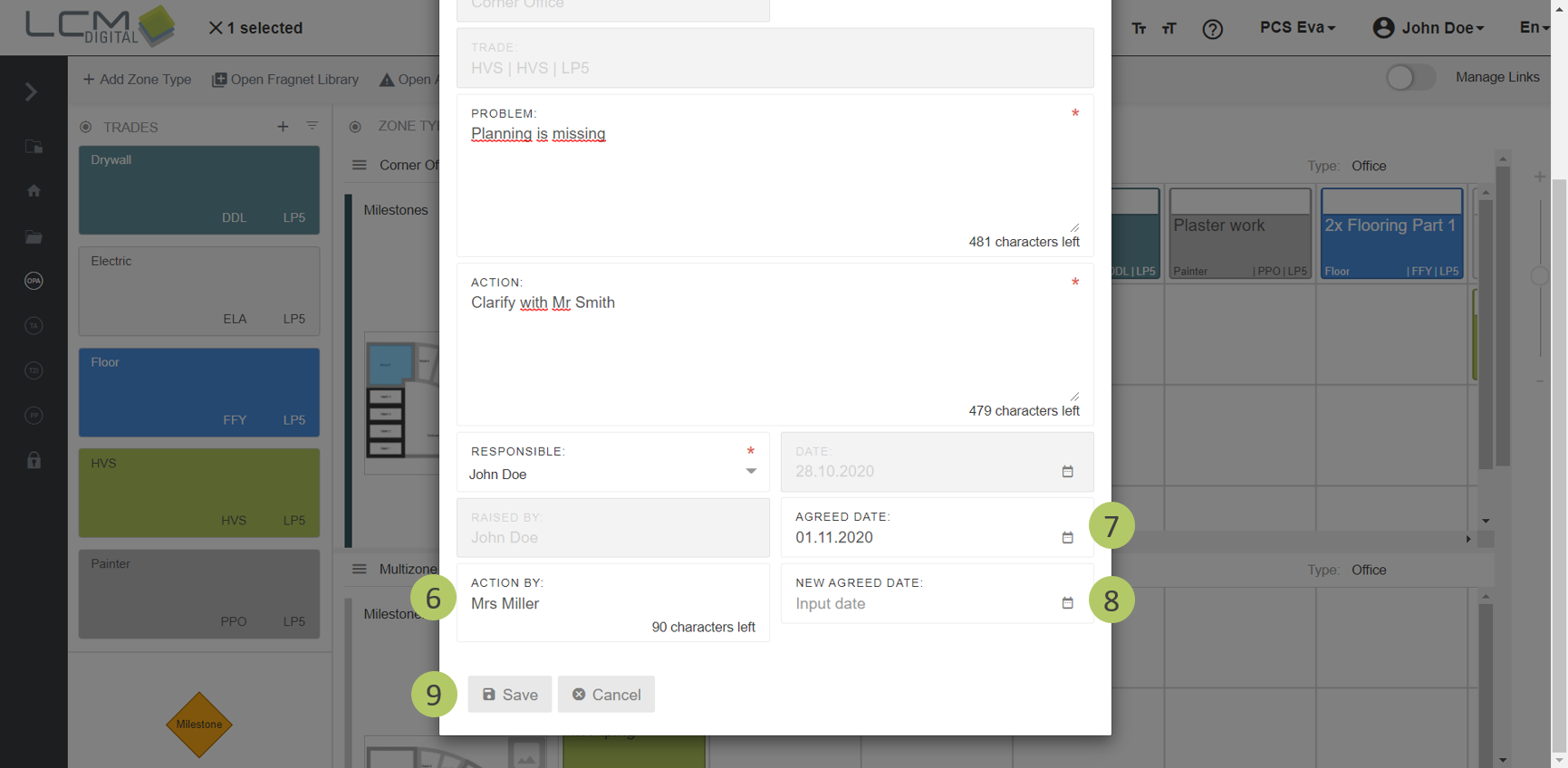
6. Select, which person will be the one taking action. This field allows text input as not all project members are registered in the system.
7. Select the date until when this Action Item should be solved.
8. Select a new date if the Action Item is not solved until the date agreed initially.
9. Click on “Save” to save the information and proceed.
10. The Action Item symbol appears on the Fragnet Step to which the Action Item was added.
Open Action List
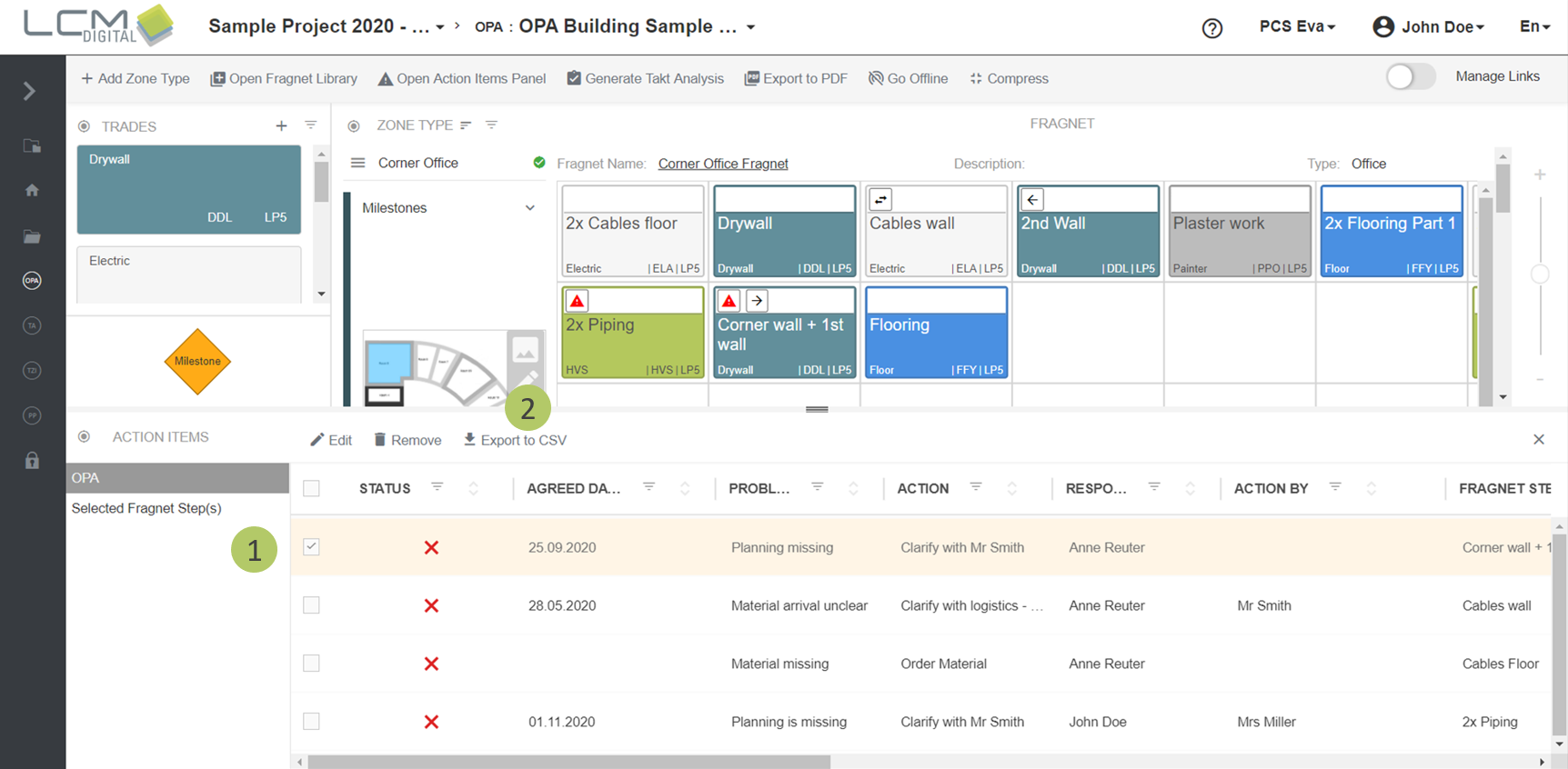
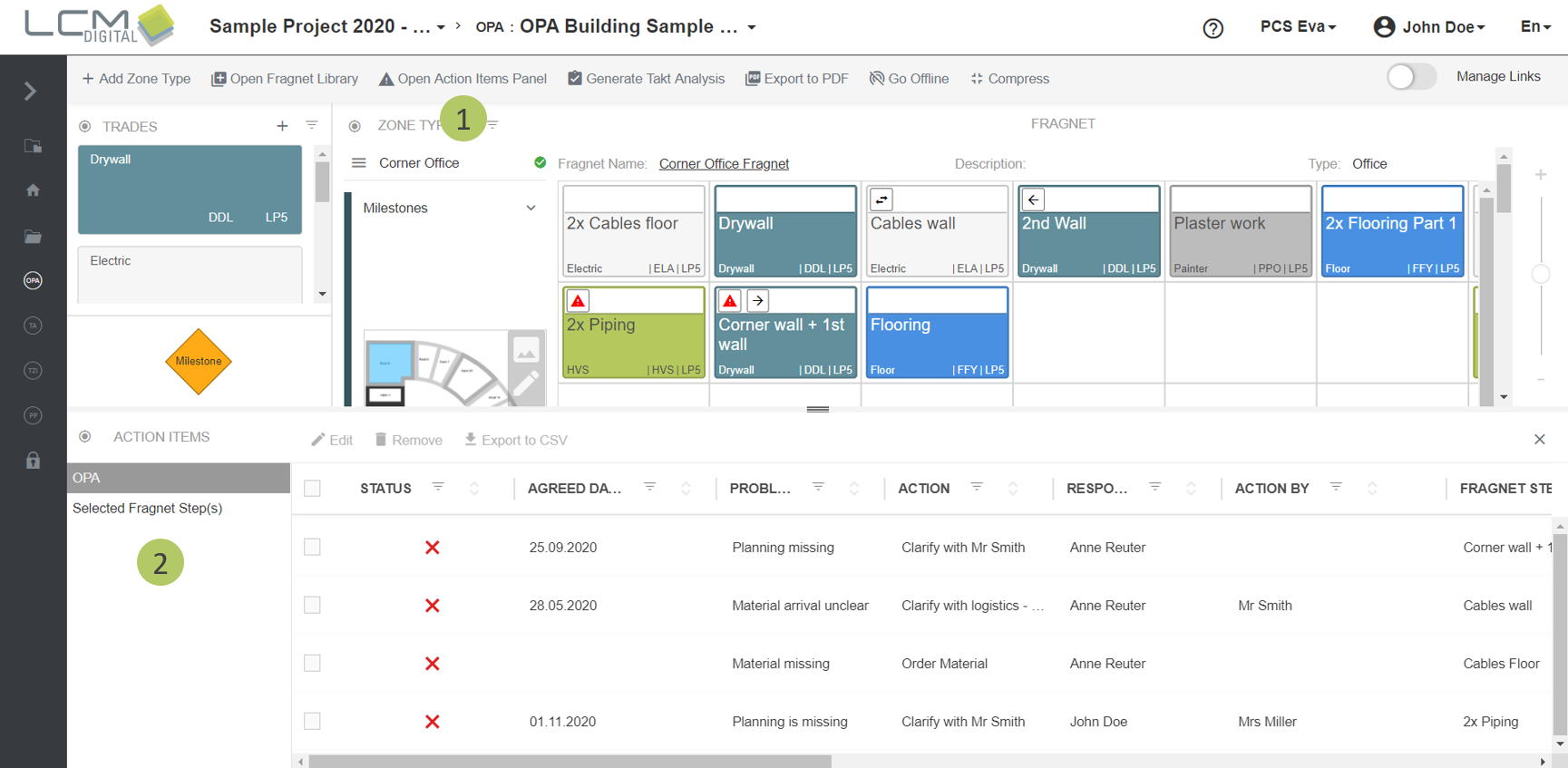
1. Click on “Open Action Item Panel” on the toolbar.
2. The Action Item Panel appears at the bottom of the screen. Choose which list is to be viewed in the Action Item Panel. i.e. all the Action Items in the OPA or only the Action Items for the Selected Fragnet Steps.
Edit Action Items
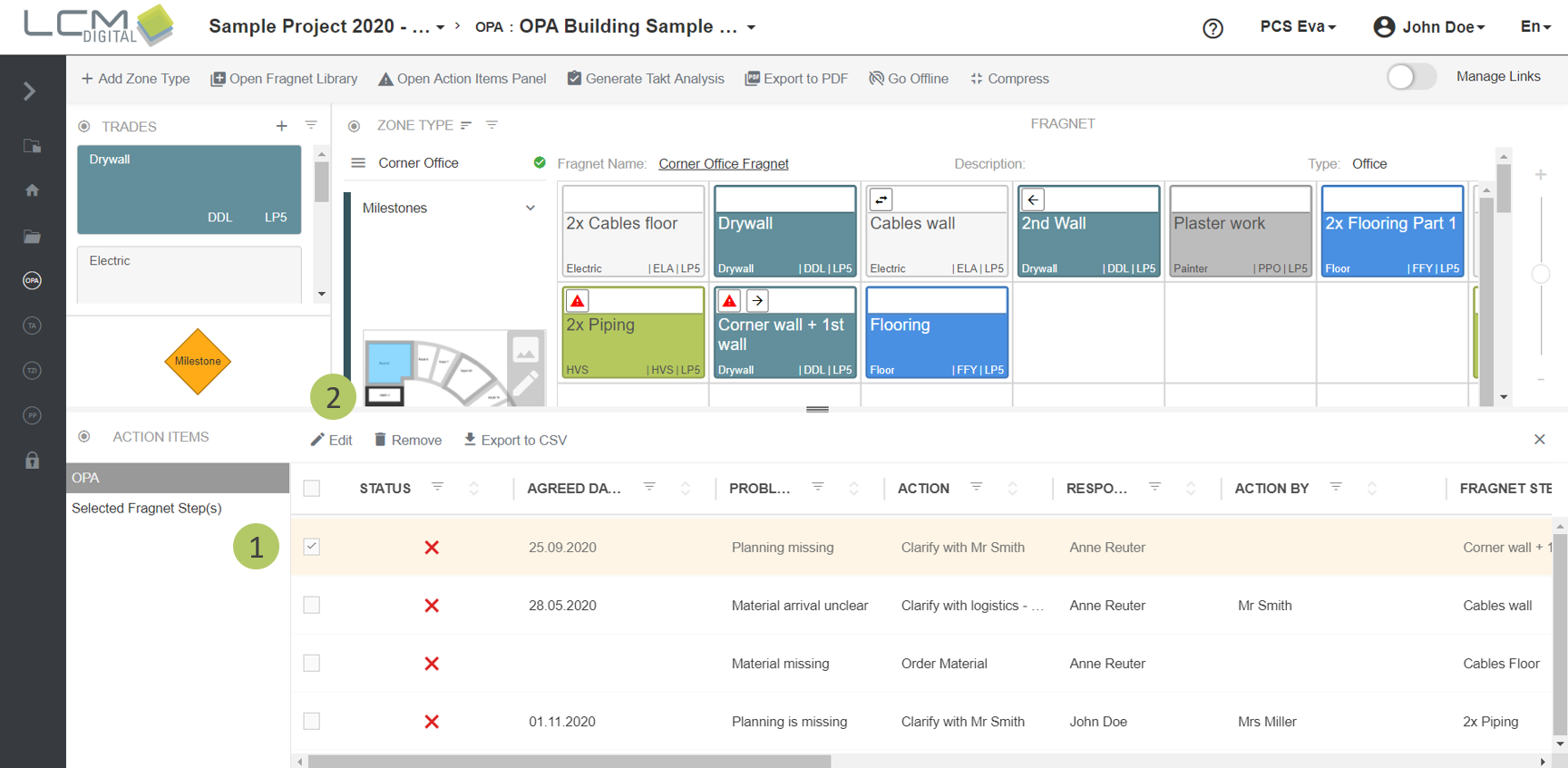
1. Select an Action Item/s by checking the checkbox next to it.
2. Click on “Edit” in the tool bar.
Change status of an Action Item
Option A:
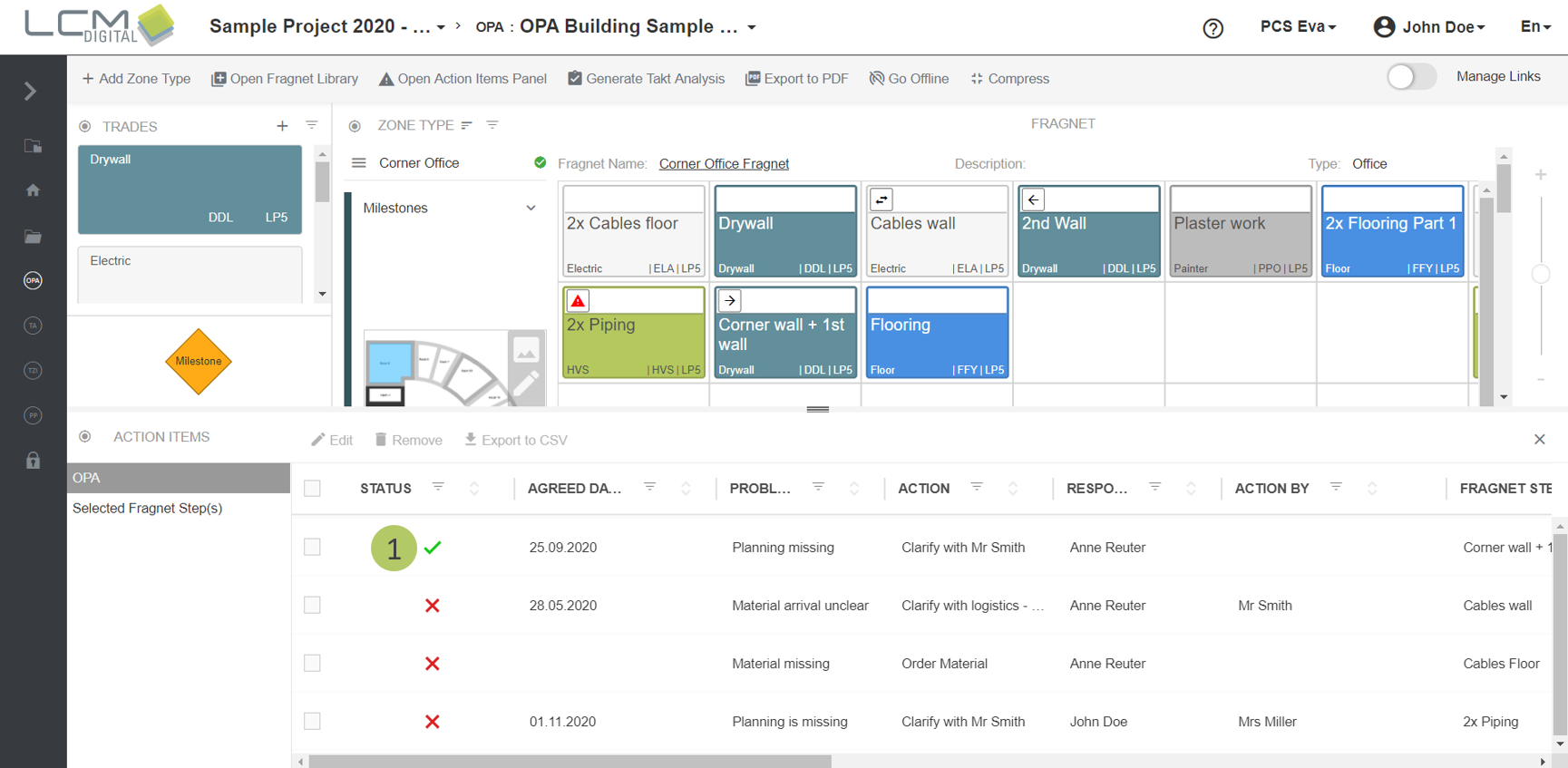
1. In the column „Status“ click on this symbol to change from red (un-solved) to green (solved) (gelöst)
or vice versa.
Option B:
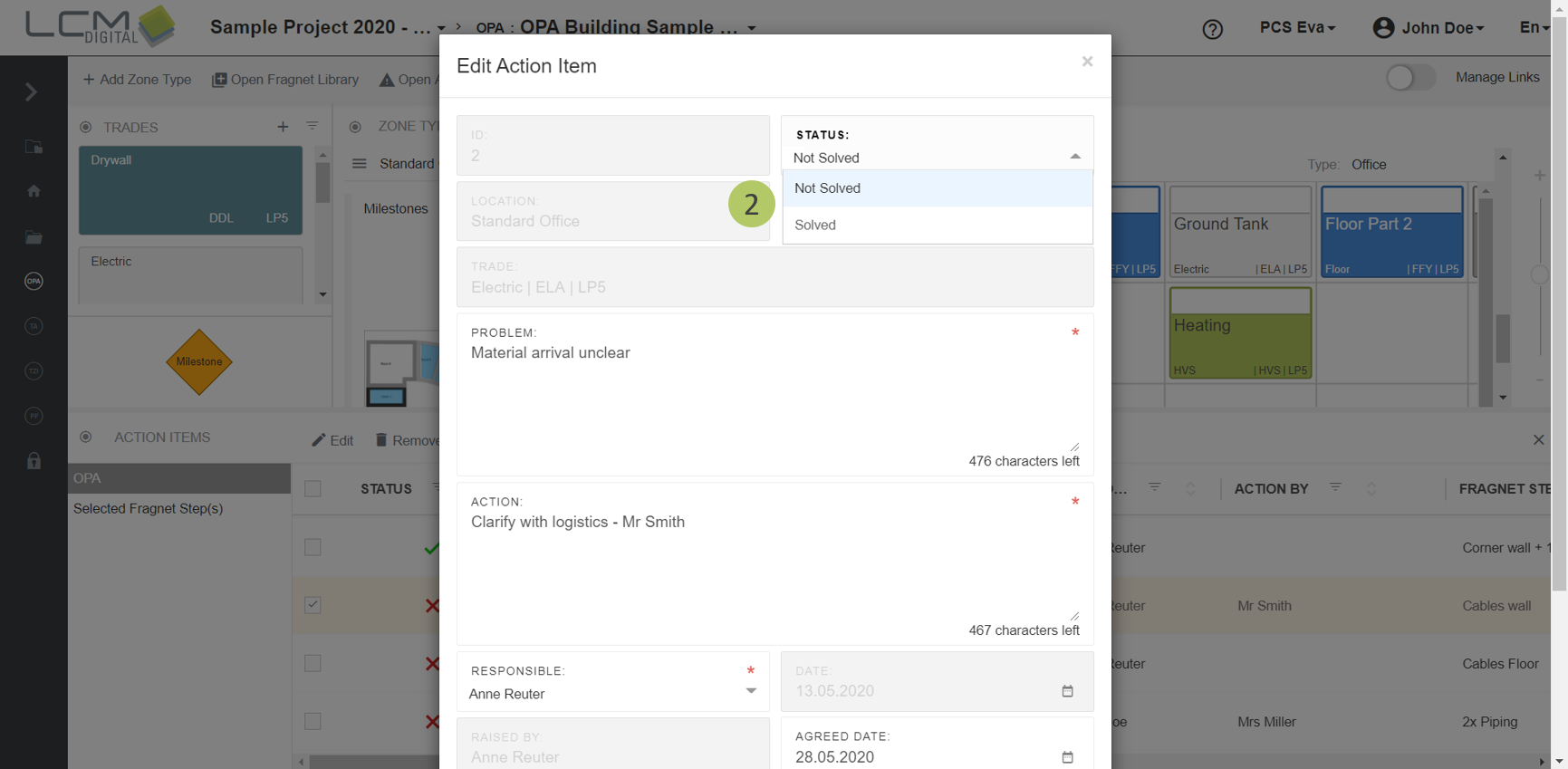
1. Select the action item that you want to edit via the checkbox and click on „Edit“ in the toolbar, like described before.
2. Select a status from the dropdown list.
3. Scroll down and click on „Save“ to save the information and proceed.
Delete Action Item
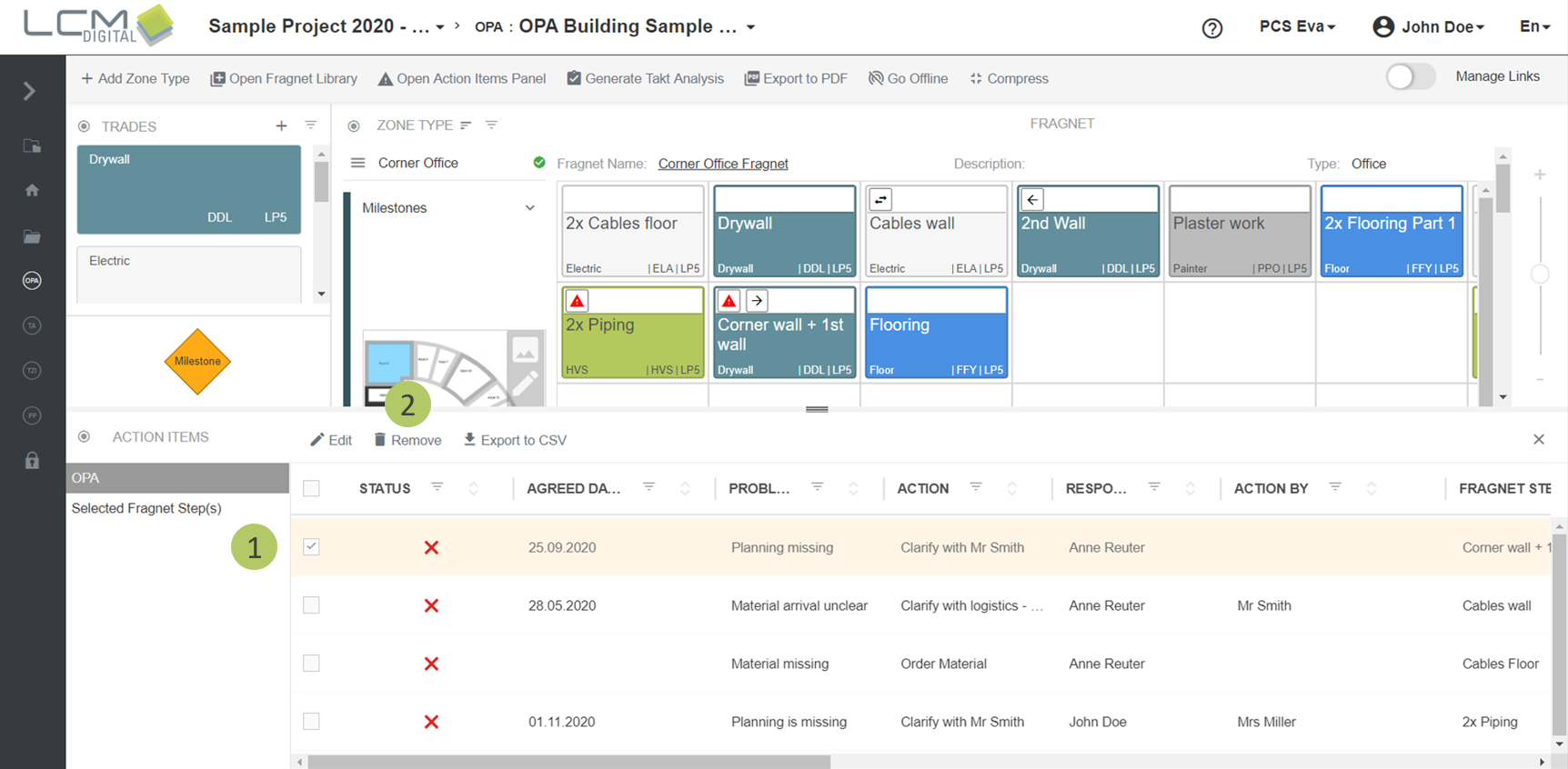
1. Select an Action Item/s by checking the checkbox next to it.
2. Click on “Remove”.
Export Action List as CSV
1. Select all Action Items by checking this checkbox or by single selection.
2. Click on “Export to CSV”.
The file gets downloaded in your browser, you can find it in your Downloads folder. The file can be formatted as desired.