|
Video: In the video tutorials you can find a video about the Takt Analysis. |
The process chains generated in the overall process analysis are still without durations and resources or material. In collaborative workshops or from experience, this information is added in the Takt Analysis. You benefit from the direct and transparent coordination of interface topics of the participants and have directly digitally implemented the results with LCM Digital.
A Takt Analysis is always created based on Overall Process Analysis.
- Generate a Takt Analysis for a single Zone Type
- Generate the Takt Analysis for the whole Overall Process Analysis
- Where do I find my Takt Analysis?
- User Interface
You will be supported by some functions of the view in your work with the clock analysis.
To get a baseline of your Takt Analysis, you will schedule and edit processes. See here how to create, delete and edit processes.
You can drag and drop process chains that you have already created and want to reuse from the Fragnet Library into the process plan.

Generate a Takt Analysis for a single Zone Type
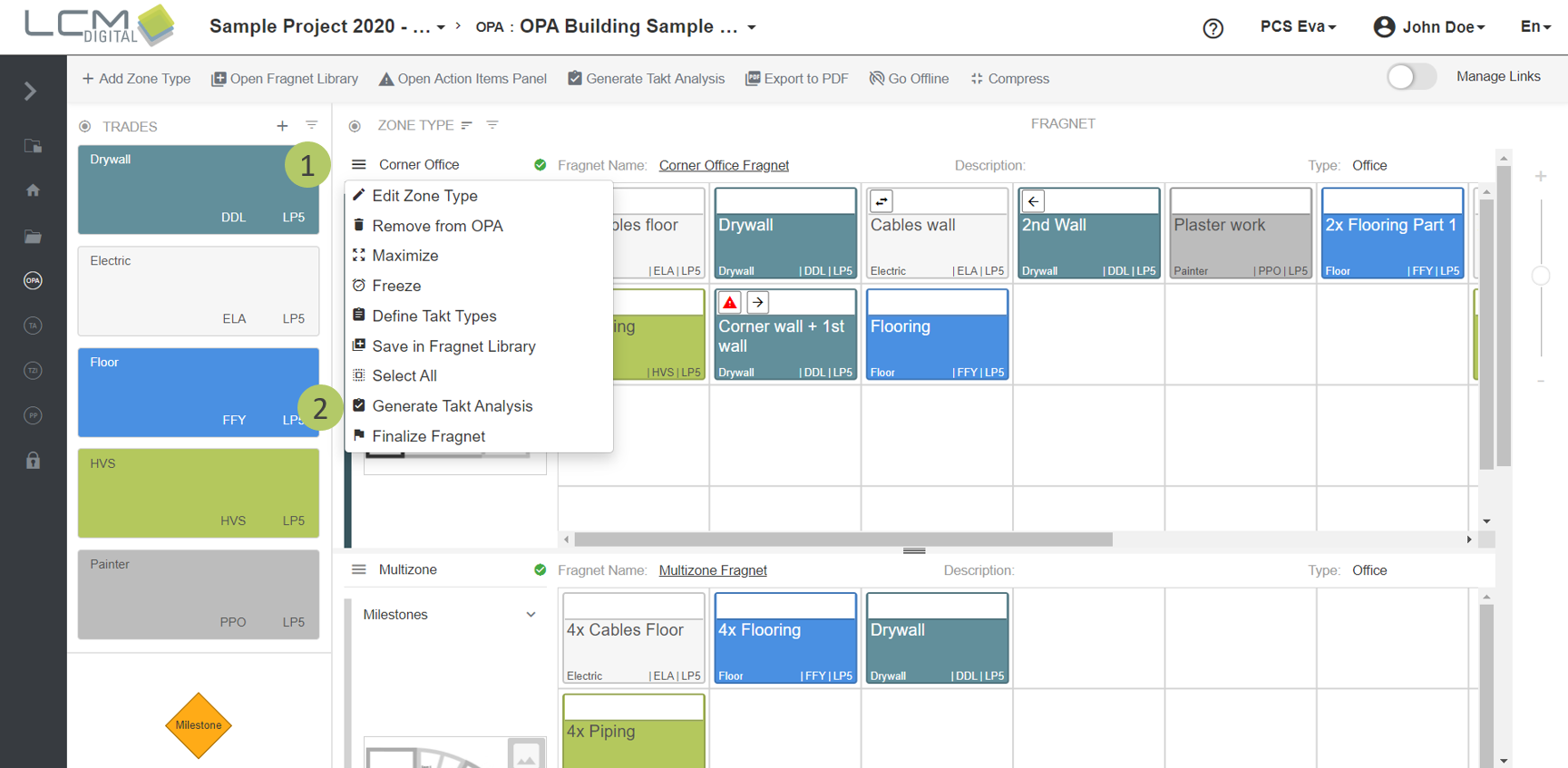
1. Click on this icon next to the name of the Zone Type.
2. Generate a Takt Analysis via „Generate Takt Analysis“.
|
|
Important: Takt Zones without assigned Takt Types get assigned an automatically created Takt Type. |
Generate a Takt Analysis for a whole Overall Process Analysis
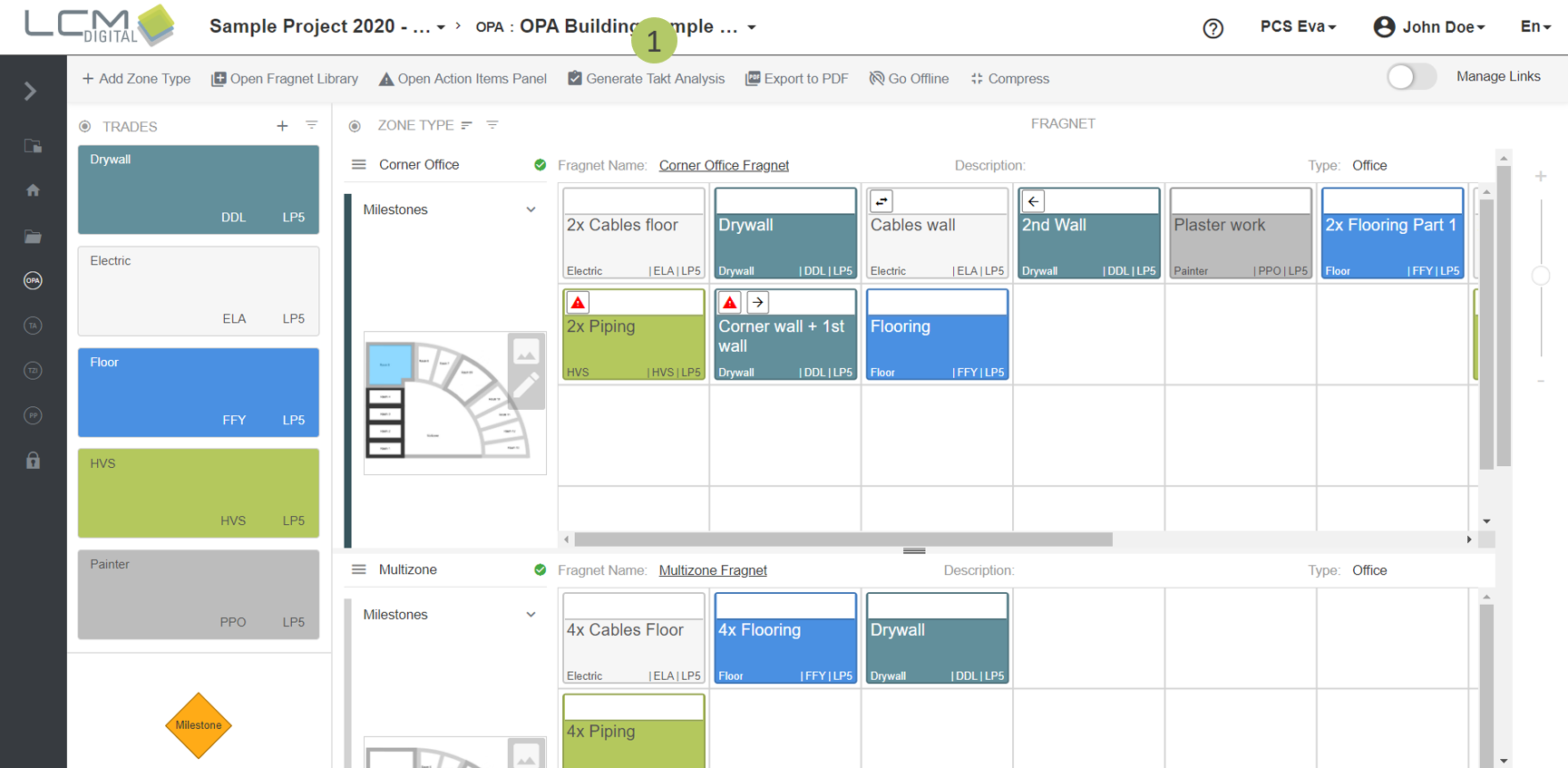
1. Click on „Generate Takt Analysis“.
|
|
Important: Takt Zones without assigned Takt Types get assigned an automatically created Takt Type. |
You can create and add Takt Types manually, for example, if you want to create multiple Takt Types for the same Zone Type (different suite sizes in the hotel with the same process flow in the same Zone Type).
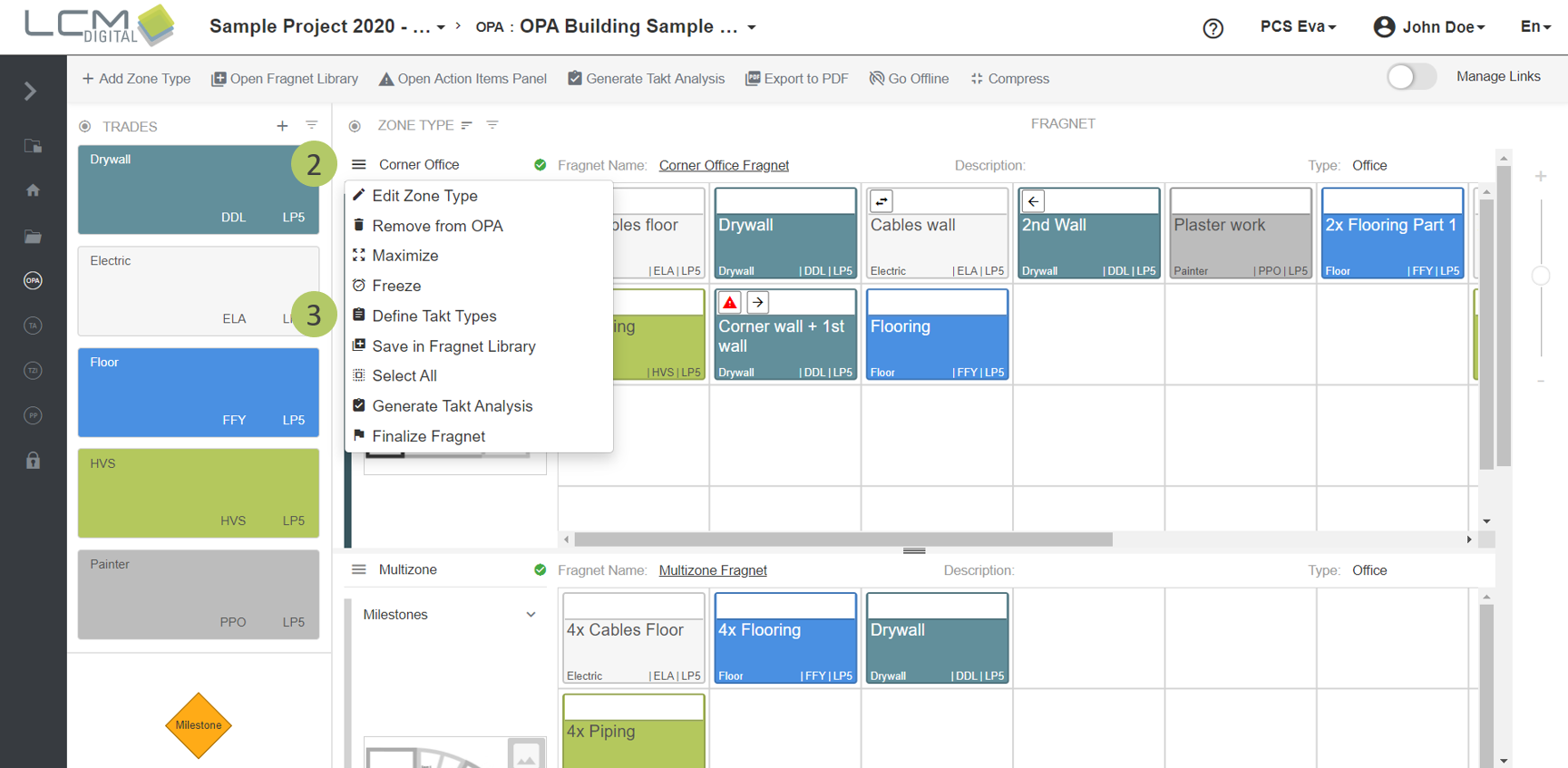
Define Takt Types for a Zone Type
1. This icon next to the name of a Zone Type shows whether there has been a Takt Type defined for this Zone Type or not
.
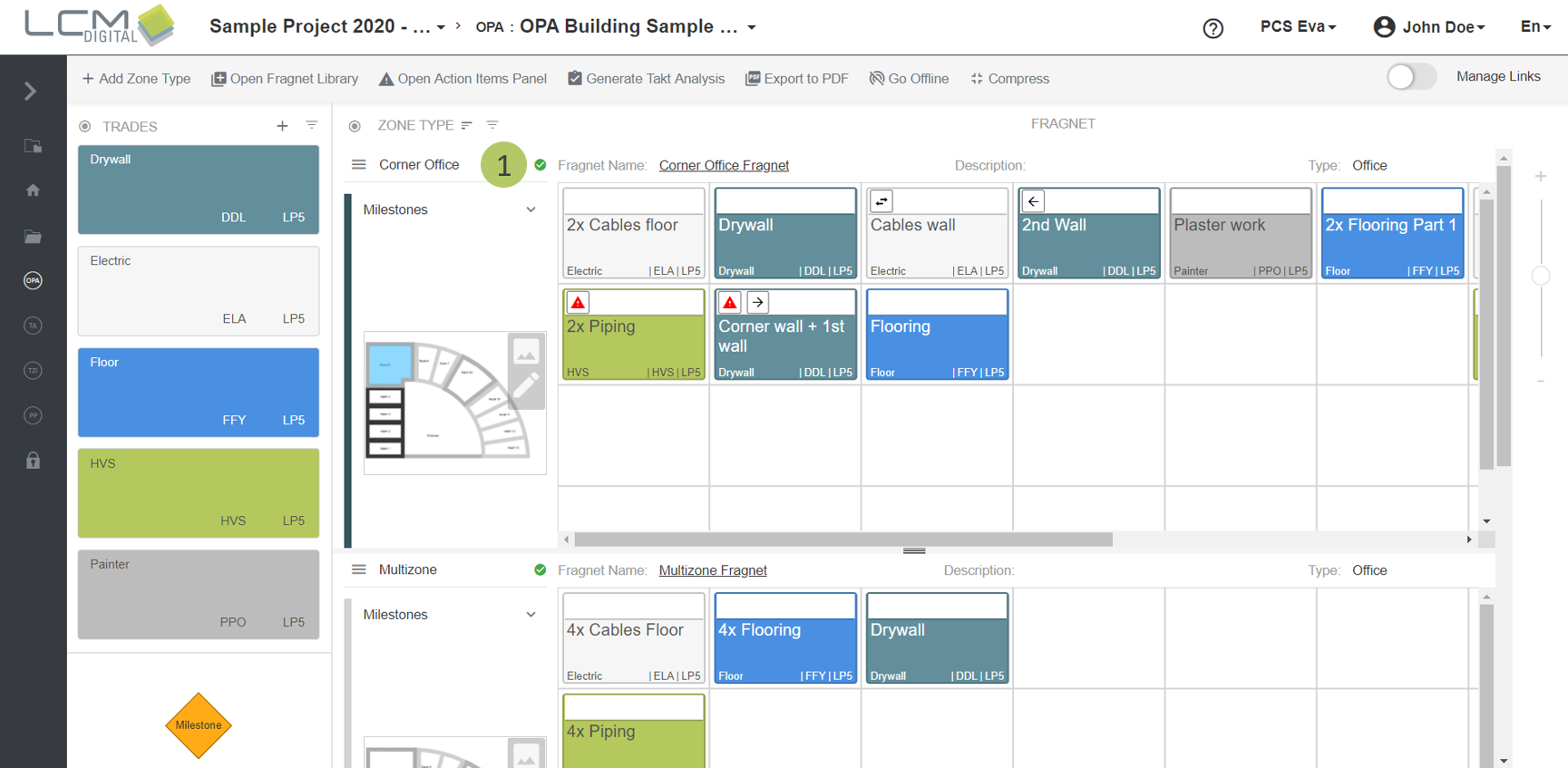
2. Click on this icon next the Zone Type’s name.
3. Click on this icon  to define takt types for this zone type.
4. Follow the same procedure as defining a new Takt Type in Project Data.
Where do I find my Takt Analysis?
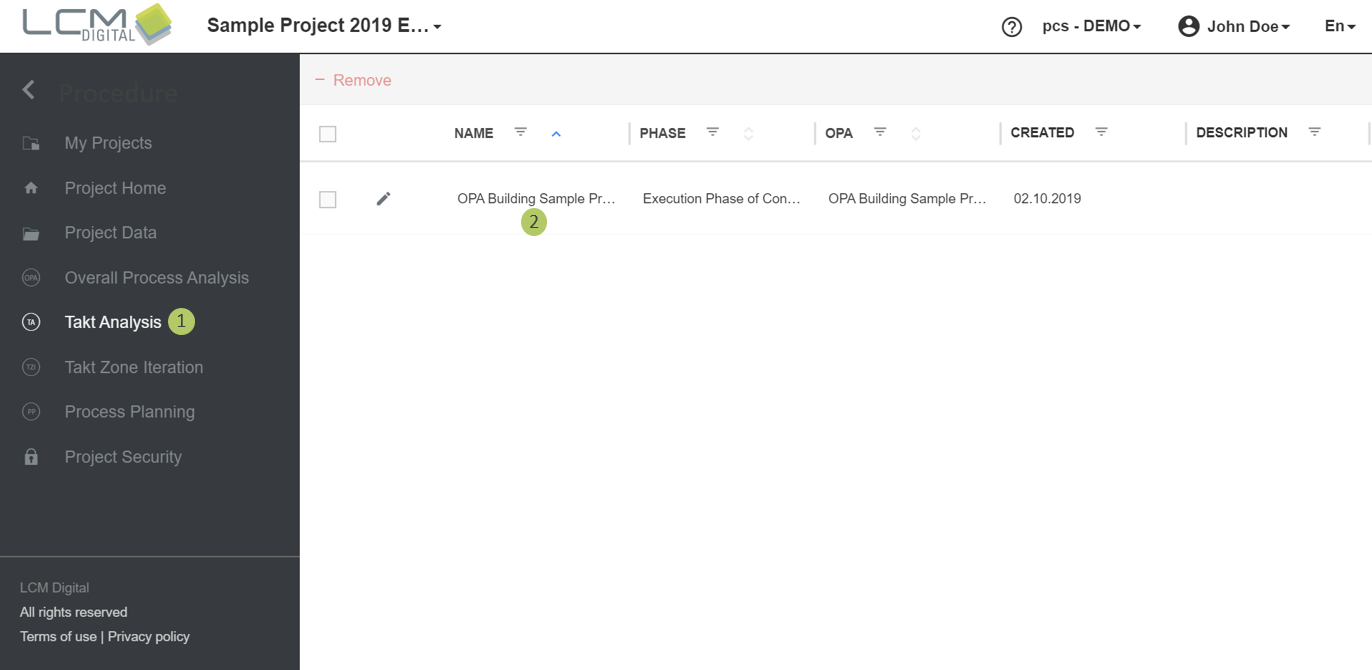
1. Select "Takt Analysis" from the Main Menu.
2. Click on the Takt Analysis to open it.
User Interface
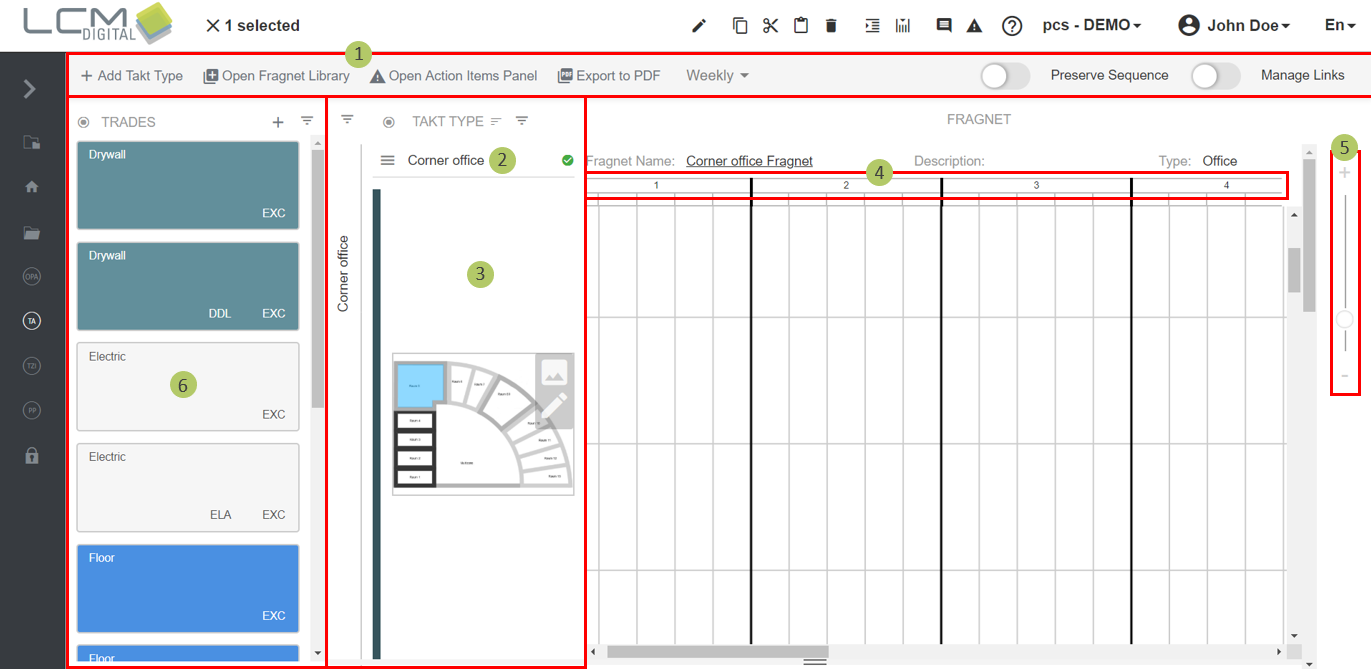
1. Toolbar
2. Takt Type panel
3. Zone Type
4. Time interval
5. Zoom in/Zoom out
6. Trade panel
Change the order of Takt Types
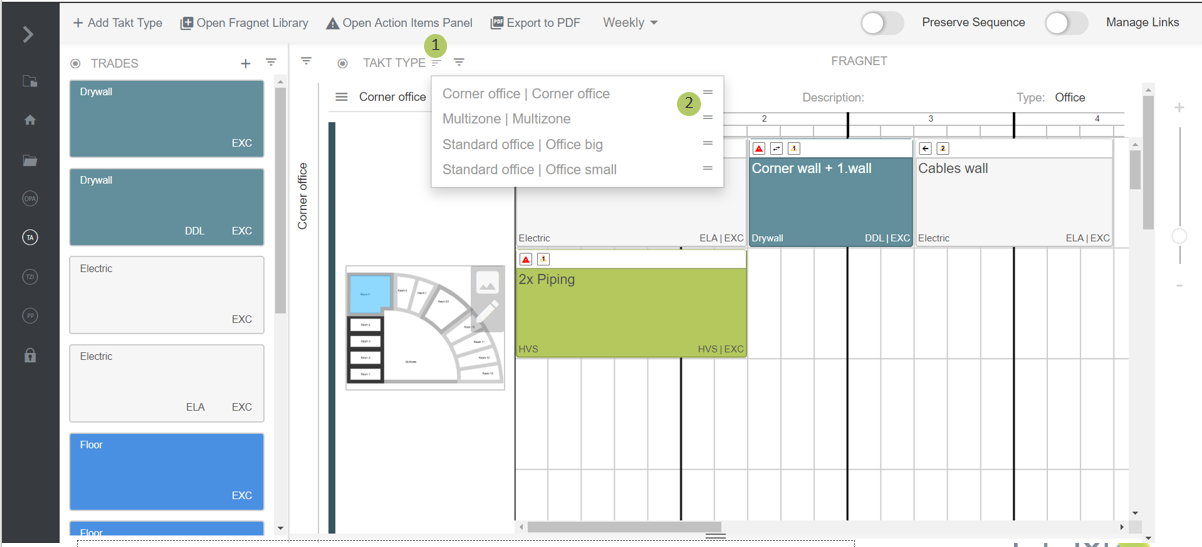
1. Click on this icon  .
.
2. Drag and drop the Takt Types into any position (upper on the list or lower) to get the desired order.
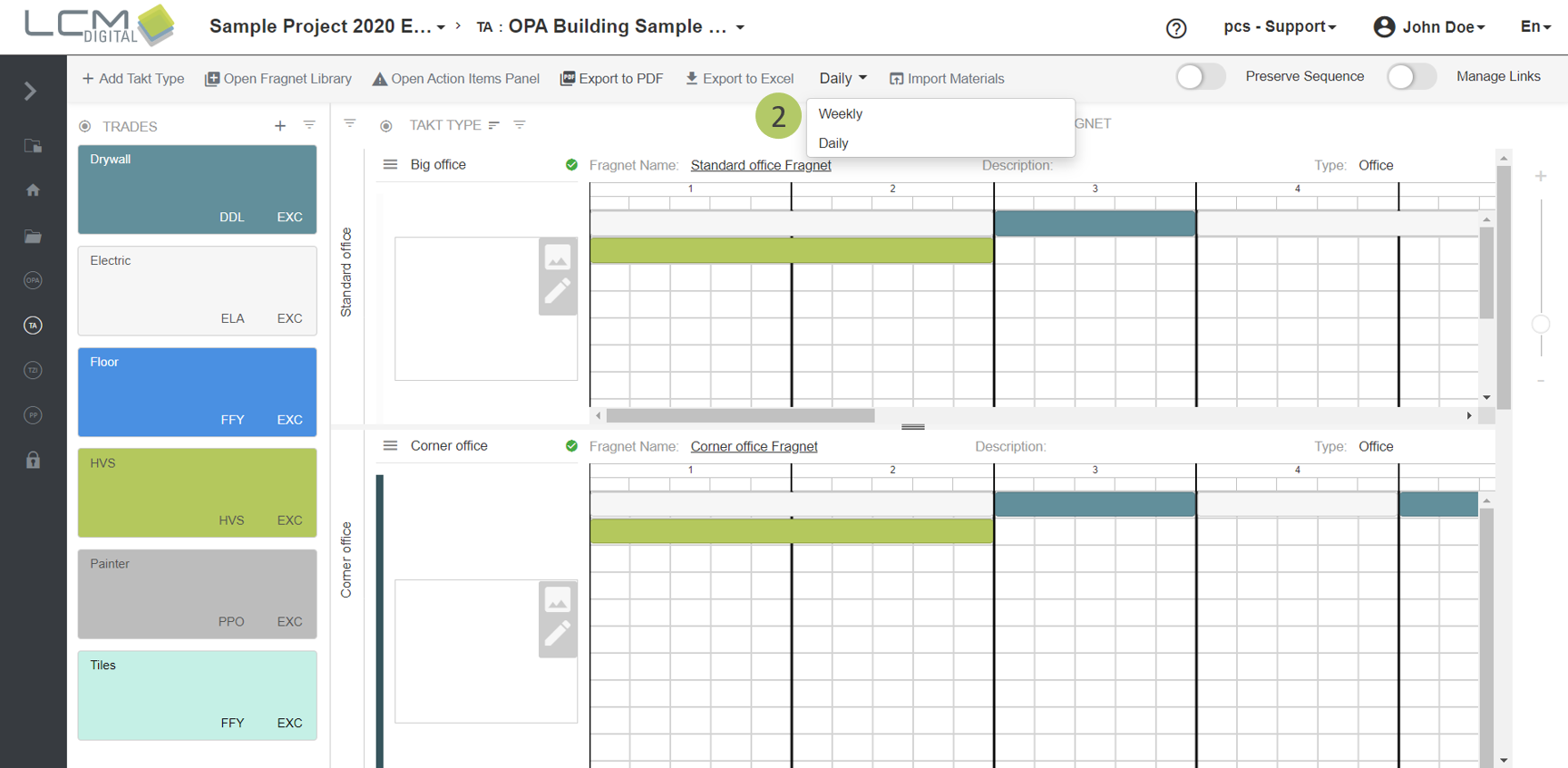
Weekly view/Daily view
The "Day/Week" selection field is used to allow the user to switch from the "Daily View" to the "Weekly View" in the TA.
In the "Weekly View", the dimensions of the cell are changed.
Compared to the daily view, the weekly view offers larger process steps, but fewer Takt Types on the display (at the same zoom level).
1. To work in the Daily View, select "Daily" from the dropdown.
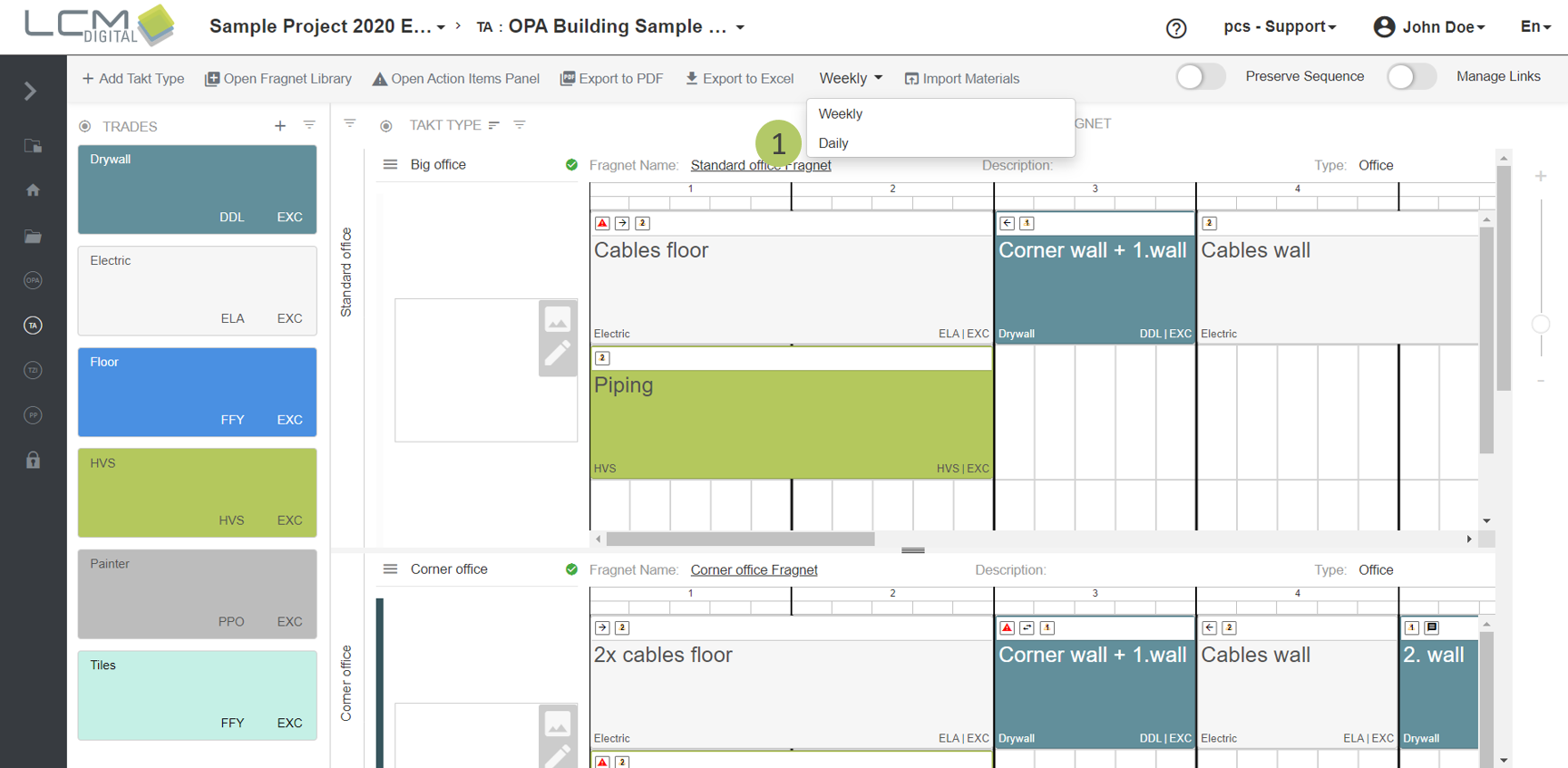
2. To work in the Weekly View, select "Weekly View" from the dropdown.
The process steps can be moved as usual.