
How to define Companies?
The term Company refers to an organization that is involved in the project.
Companies can be defined for Clients, Consultant, Contractors and Subcontractor.
One or more Trades can be assigned to a Company. For instance, Company A does both the civil works and drywall construction.
When defining companies you can:
- Assign a previously defined Trade to the Company. This is particularly important when exporting Job Cards. As explained in the exporting Job Cards section of this Users Guide, Job Cards can be only exported when their Fragnet Steps are assigned to a Company and its Team. Please refer to exporting Job Cards section of this Users Guide for further explanation.
- Assign logos to Companies. The logos for Clients and Consultant will appear when exporting OPA, TA and PP into PDF.
- Assign a previously defined Calendar or one of the standard LCM Digital Calendars to the Company.
Example: Drywall contractors Ltd is a Subcontractor, which does drywall construction therefore, the Trade Drywall is assigned to this company.

Create Companies
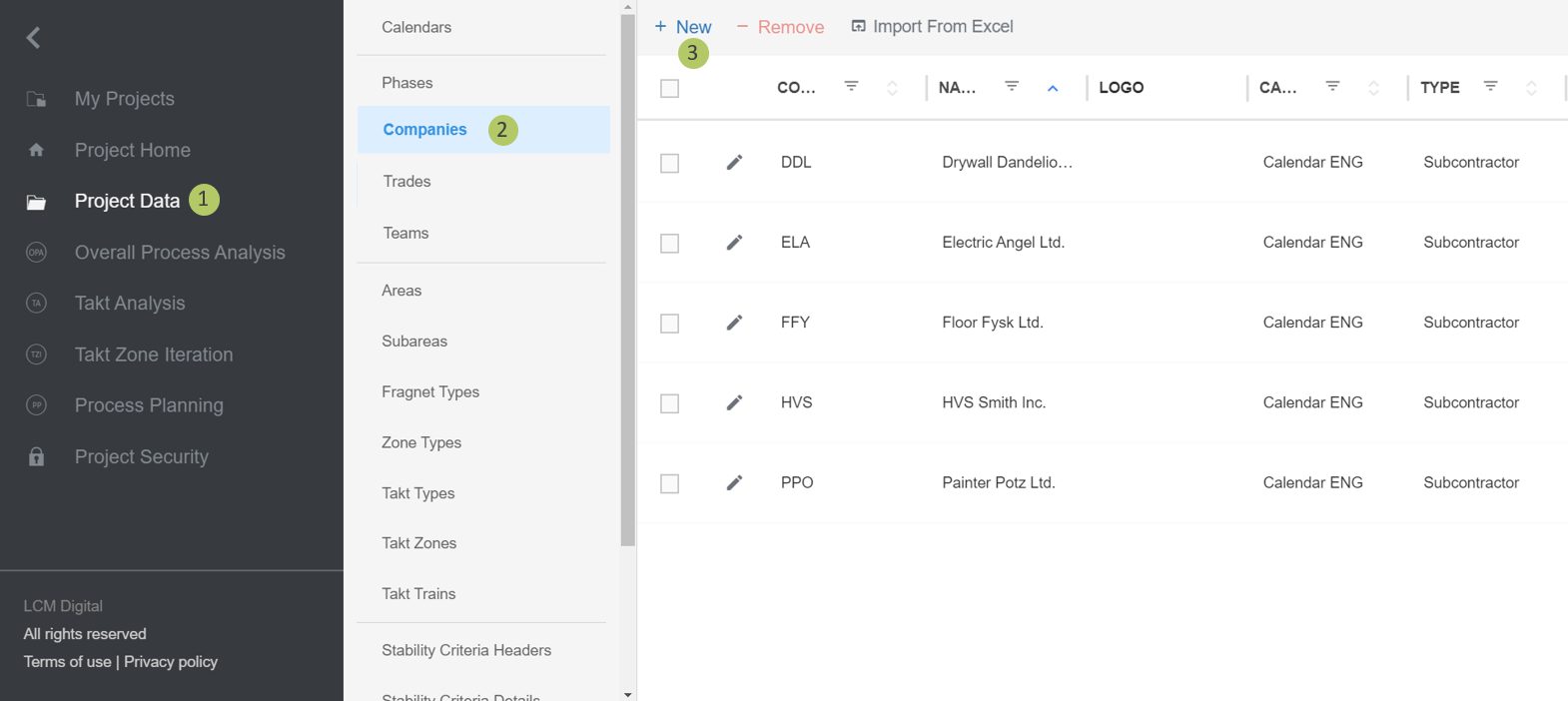
1. Go to Select Project Data from the Main Menu.
2. Go to Companies from the list of Project Data.
3. Click on New to create a new Company.
Edit Companies
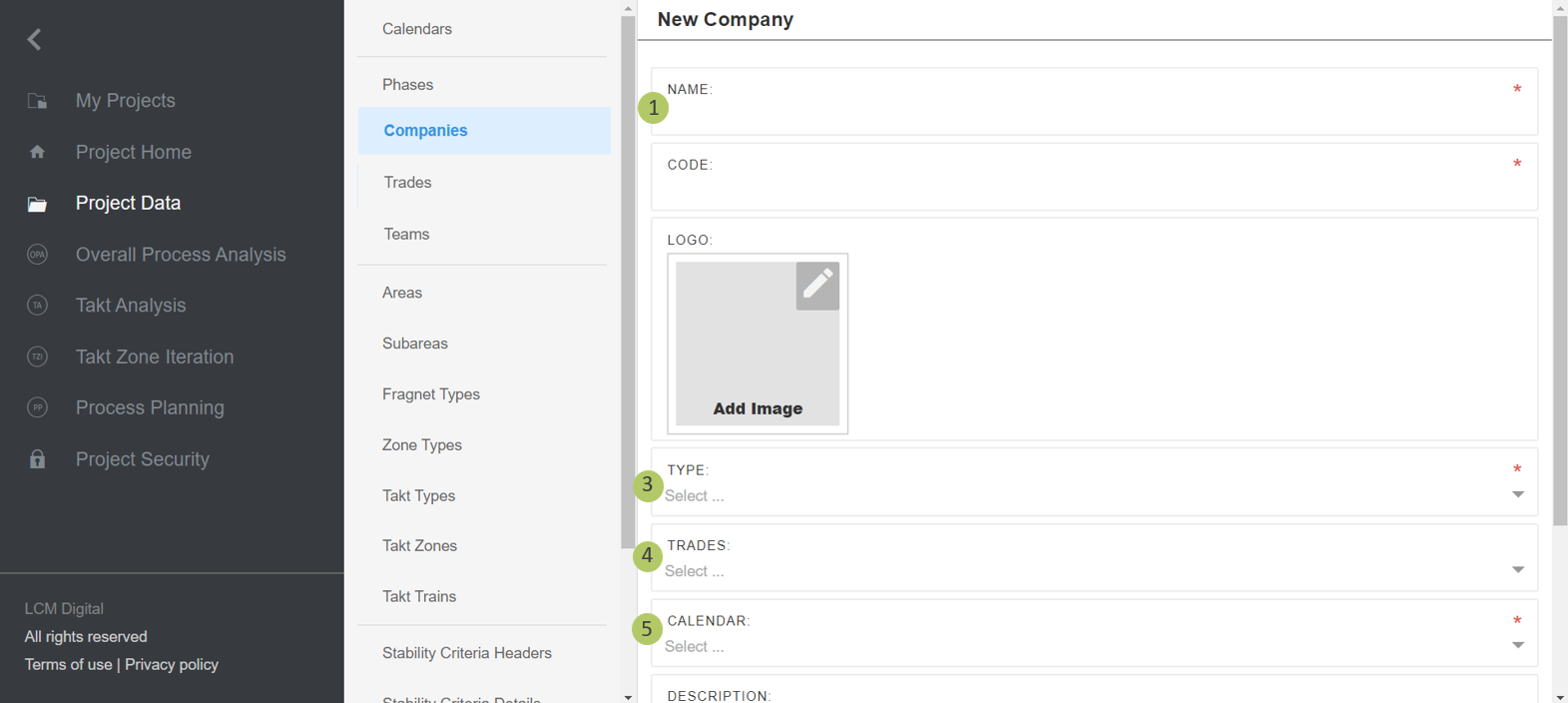
1. Write the name and the Company Code. The Code is a short term for the Company and appears as information on Fragnet Steps in the OPA, TA and PP and on the Job Cards.
2. If desired insert an image for the Company’s logo.
3. Select the Type of company namely a client, consultant, contractor or subcontractor.
4. Select the Trades for this company if needed.
5. Select the Calendar, which should be assigned to this company.
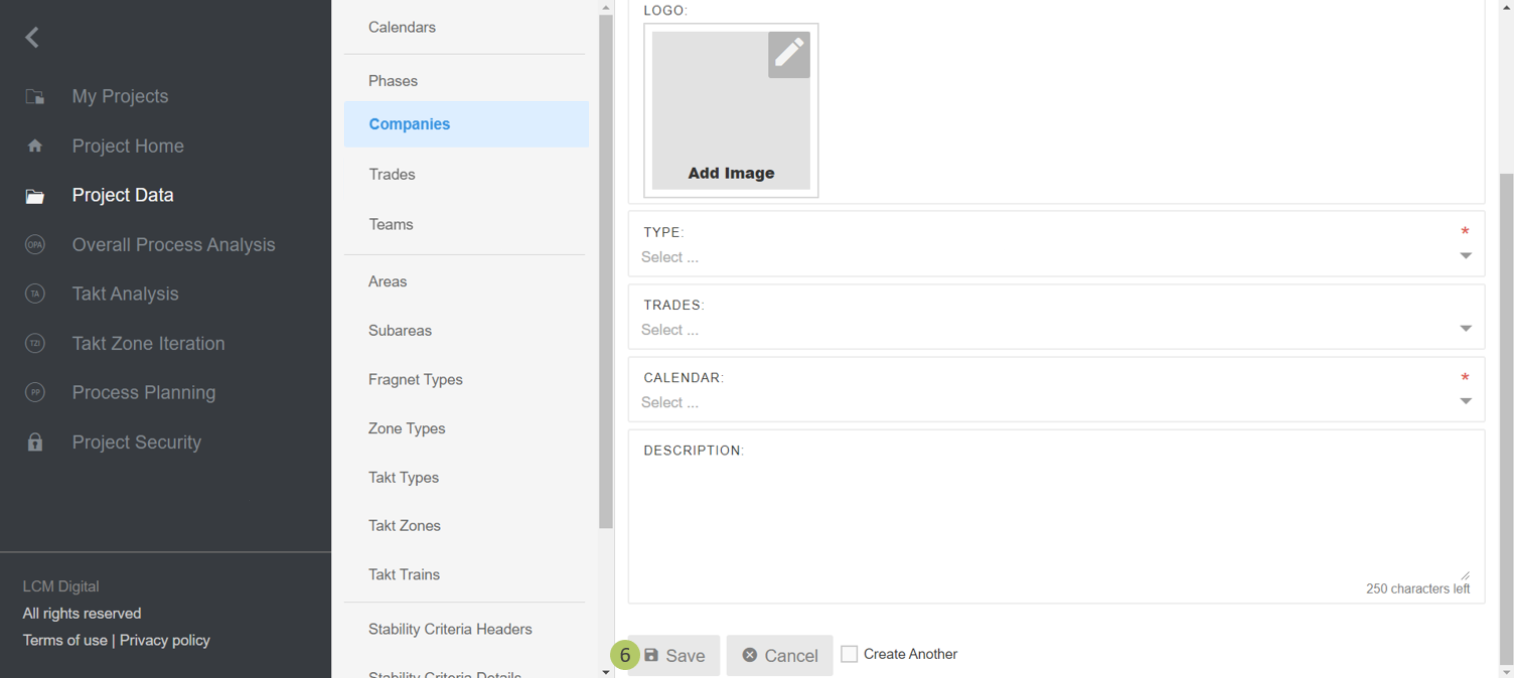
6. Click on Save to save the information and proceed.
Remove Companies
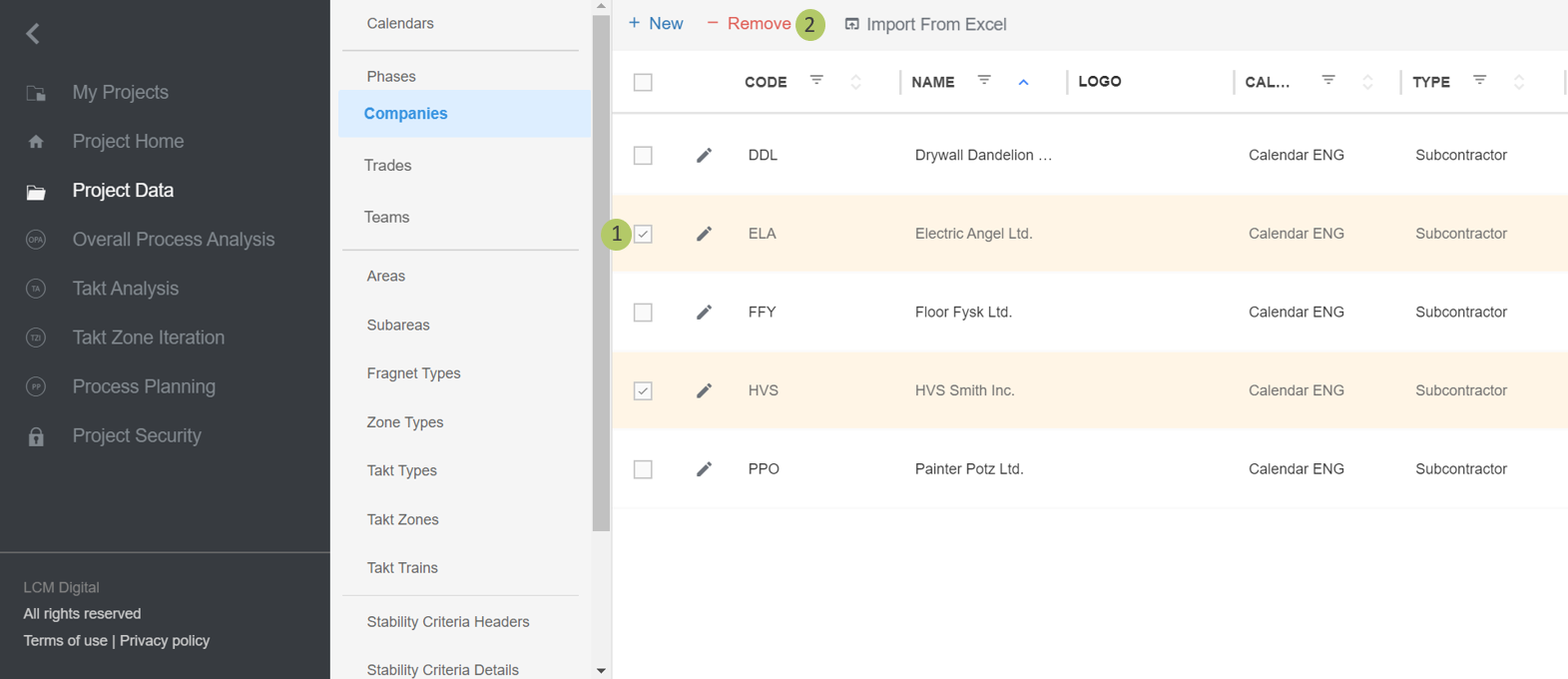
1. Select the item/s from the list of Companies by clicking on the checkbox.
2. Click on Remove to delete the selected Companies
|
|
Please note: a Company cannot be deleted if it has corresponding Fragnet Steps in the OPA, TA, PP or is used in other sections in the Project Data for example Materials. |