
How are Trades defined?
A trade defines a type of work in a project.
In the Trades library the relevant information about trades can be defined, viewed and managed.
Each defined Trade can be given the following information:
- Name
- Phase
- Description
- Background color
- Text color
Trades can also be defined directly from the OPA, TA and PP screens. Please refer to the Overall Process Analysis, Takt Analysis and Process Planning section of this users Guide for further information.
Examples: electrical, mechanical, HVAC, STR, Finishing, Dry Walls, Painting, Plaster, etc.

Create Trades
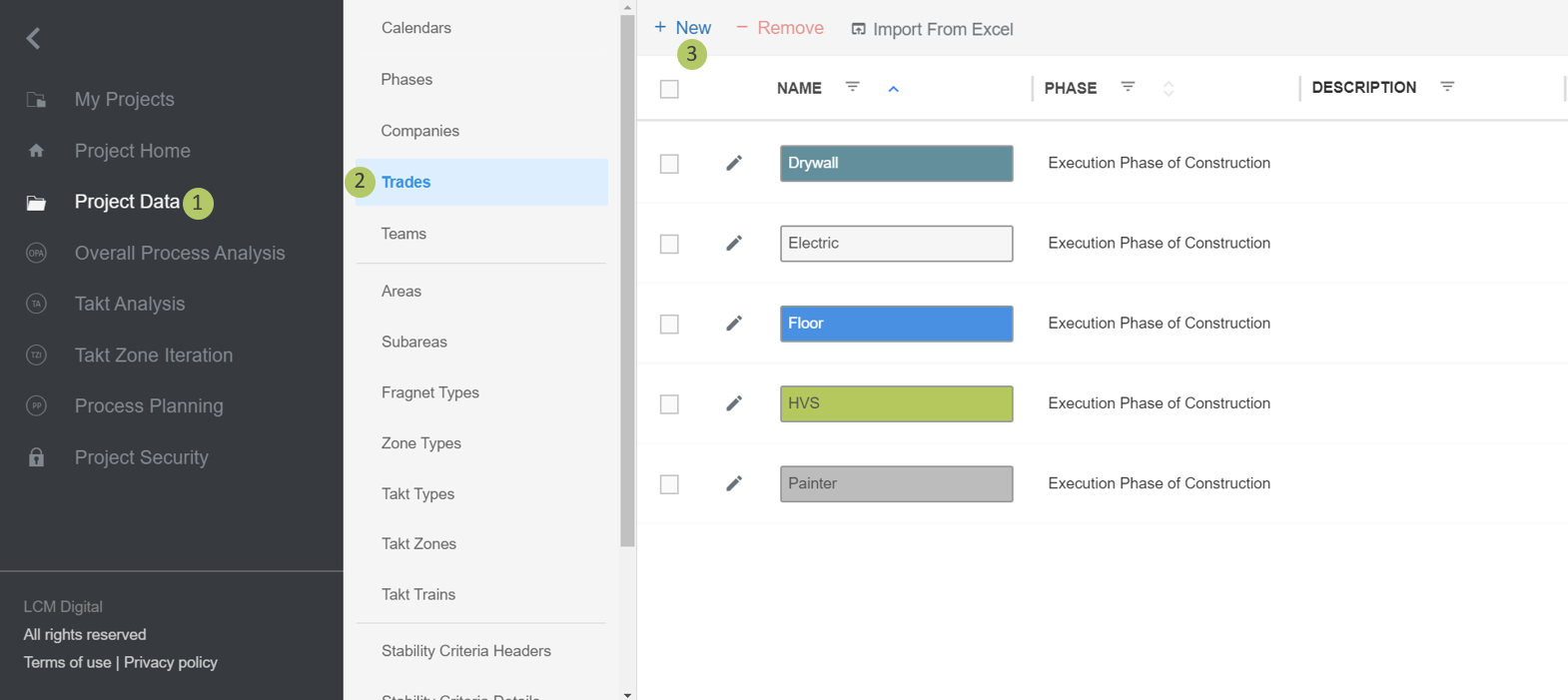
1. Click on Select Project Data from the Main Menu.
2. Click on Trades from the list of Project Data.
3. Click on New to create a new Trade.
Edit Trades
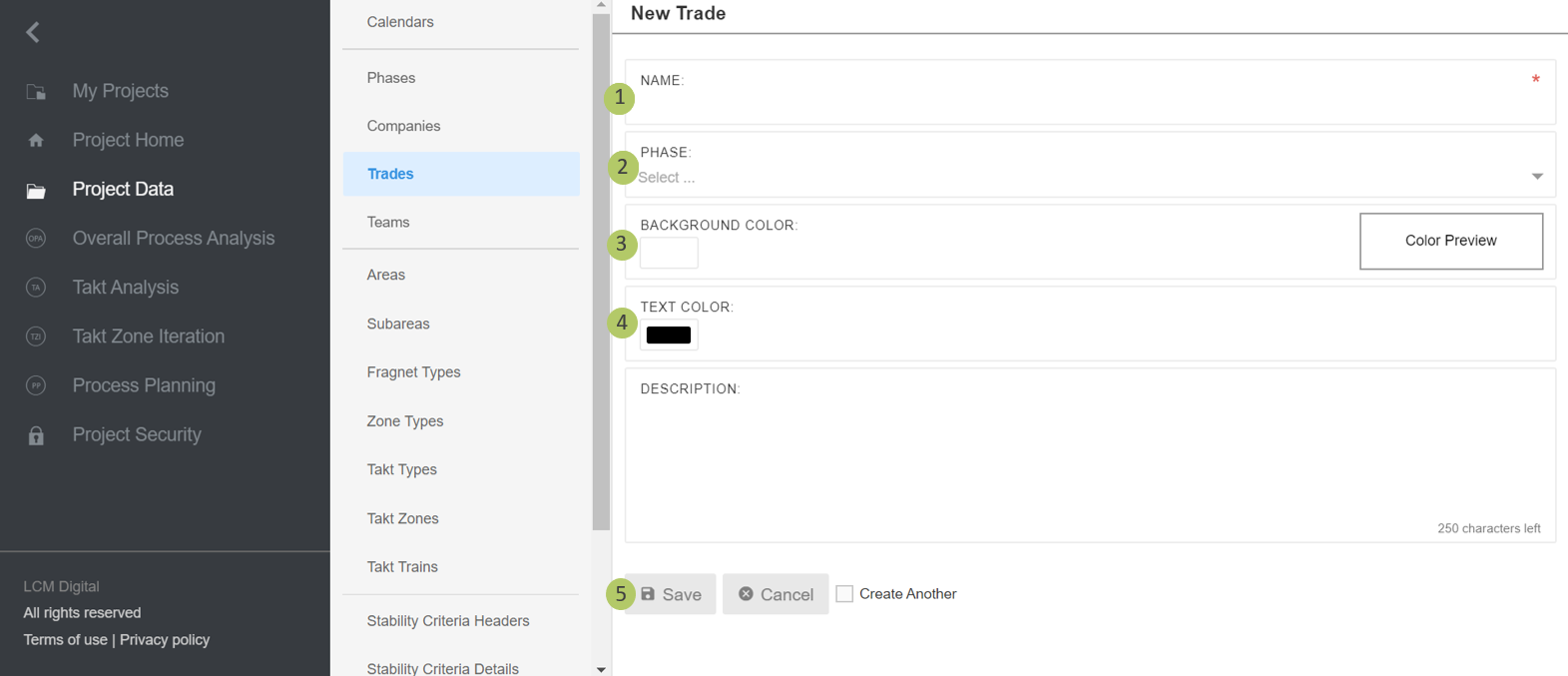
1. The Trade name is the unique name given to each trade and is a property that appears as information on Fragnet Steps in the OPA, TA, PP and Job Cards.
2. If desired assign one of the already created phases to this trade.
3. The color assigned to this Trade, helps to visualize the Fragnet Steps assigned to this Trade.
4. Change the text color to give a contrast with the background color.
5. Click on Save to save the information and proceed.
Remove Trades
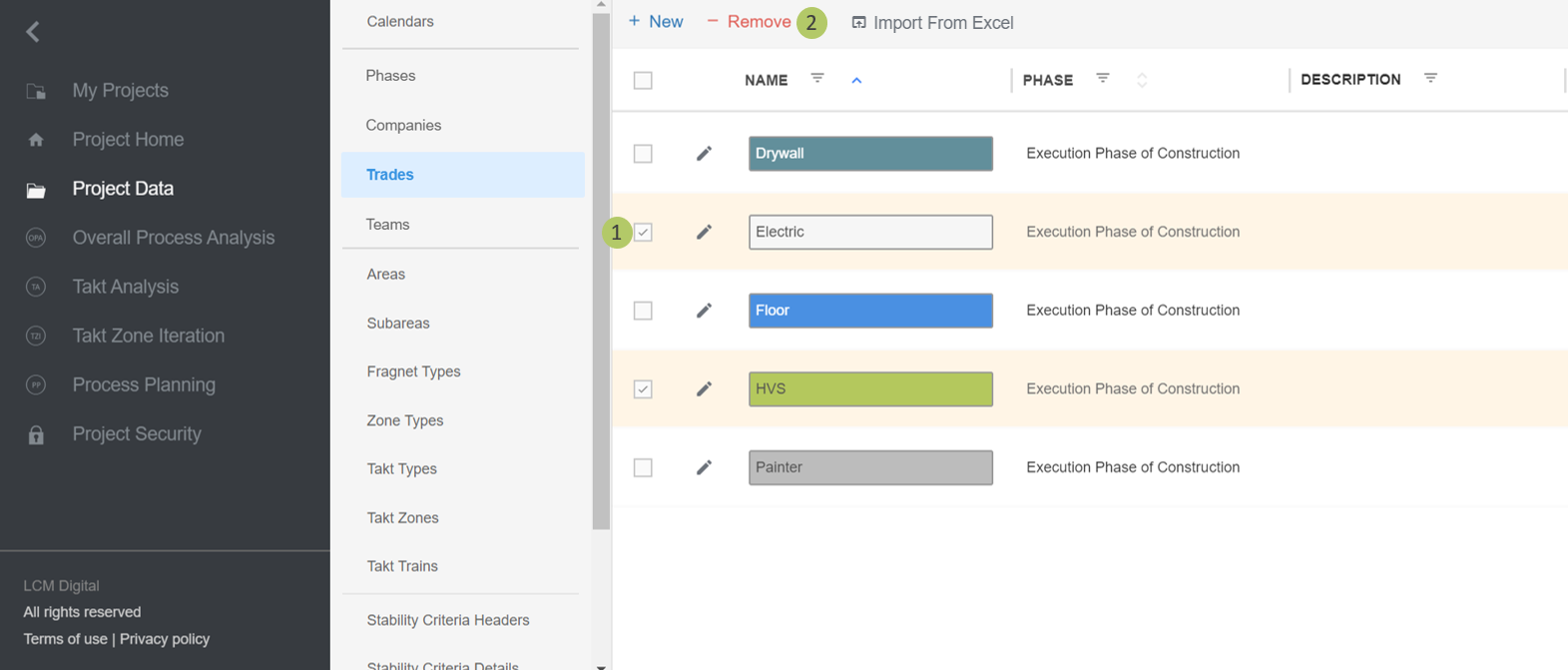
1. Select the item/s from the list of Trades by clicking on the checkbox.
2. Click on Remove to delete this Trade.
|
|
Please note: a Trade cannot be deleted if it has corresponding Fragnet Steps in the OPA, TA, PP or is used in other sections in the Project Data for example Companies. |