
- What are Fragnets?
- Open the Fragnet Library in the Project Data
- Save Fragnets in the Fragnet Library
- Reuse Fragnets from the Fragnet Library
What are Fragnets?
Fragnets are a chain of process steps (Fragnet Steps) that are created in the OPA, TA and PP.
It is possible to save Fragnets from the OPA, TA and PP as standards to the Fragnet Library and display them as guidelines at the bottom of the OPA, TA and PP screen.
In the Fragnets library all the Fragnets that have been added to the Fragnet Library in the OPA, TA and PP can be viewed. Refer to viewing Fragnets Library in the OPA for further information.
Example: The Fragnet Steps in the Conference Room is very similar to that of the Office Rooms. The Conference Room Fragnet Steps can be used as a guideline to analyze the Fragnet Steps in for the Office Rooms with minor changes and alternations in sequence of steps.

Open the Fragnet Library in the Project Data
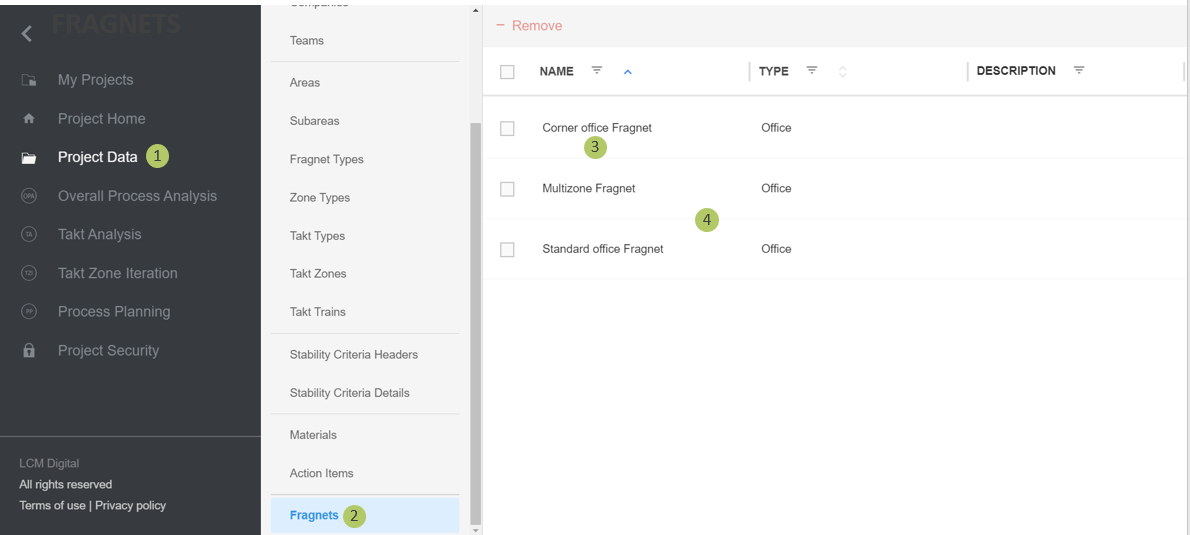
1. Go to Select Project Data from the Main Menu.
2. Go to Fragnets from the list of Project Data.
3. The Fragnets added to the Fragnet Library in the OPA, TA, PP can be viewed here.
Save Fragnets in the Fragnet Library
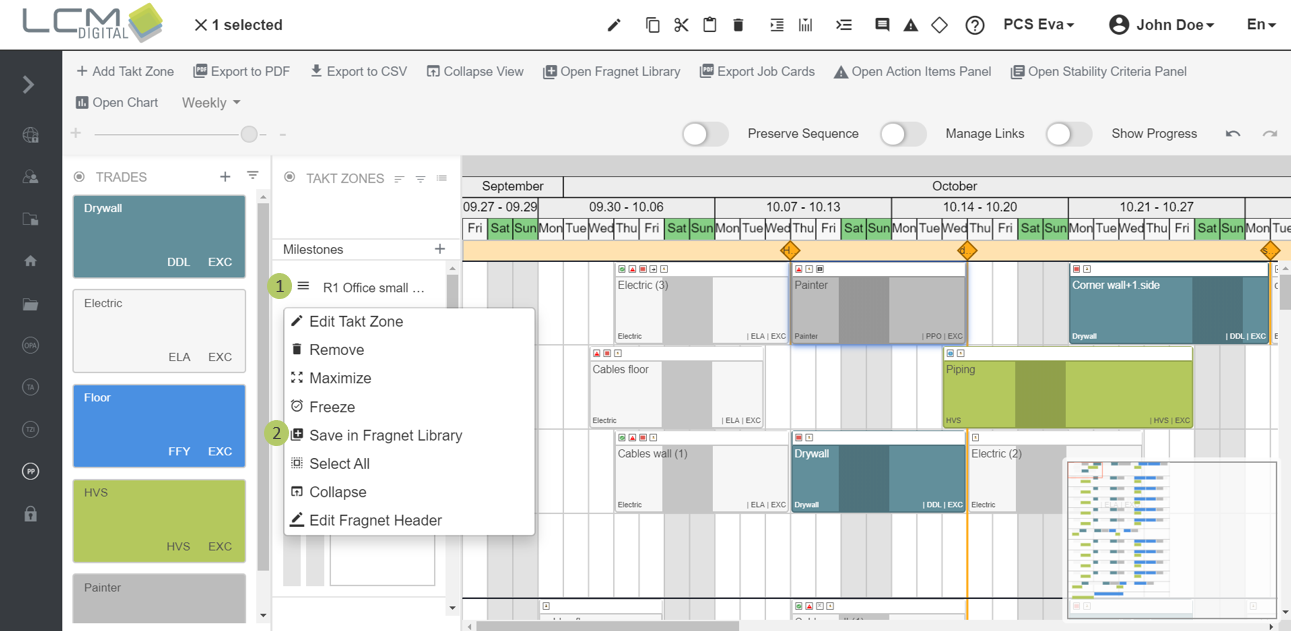
You can save Fragnets from The OPA, TA and PP in the Fragnet Library. In the following the procedure is explained for the OPA, but it works just the same in the TA and PP.
1. Click on this symbol next to the Zone Type name.
2. Click on this symbol "Save in Fragnet Library" to save this Fragnet in the Fragnet Library.
Reuse Fragnets from the Fragnet Library
1. In the tool bar, click on „Open Fragnet Library“.
2. The Fragnet Library appears at the bottom of the page.
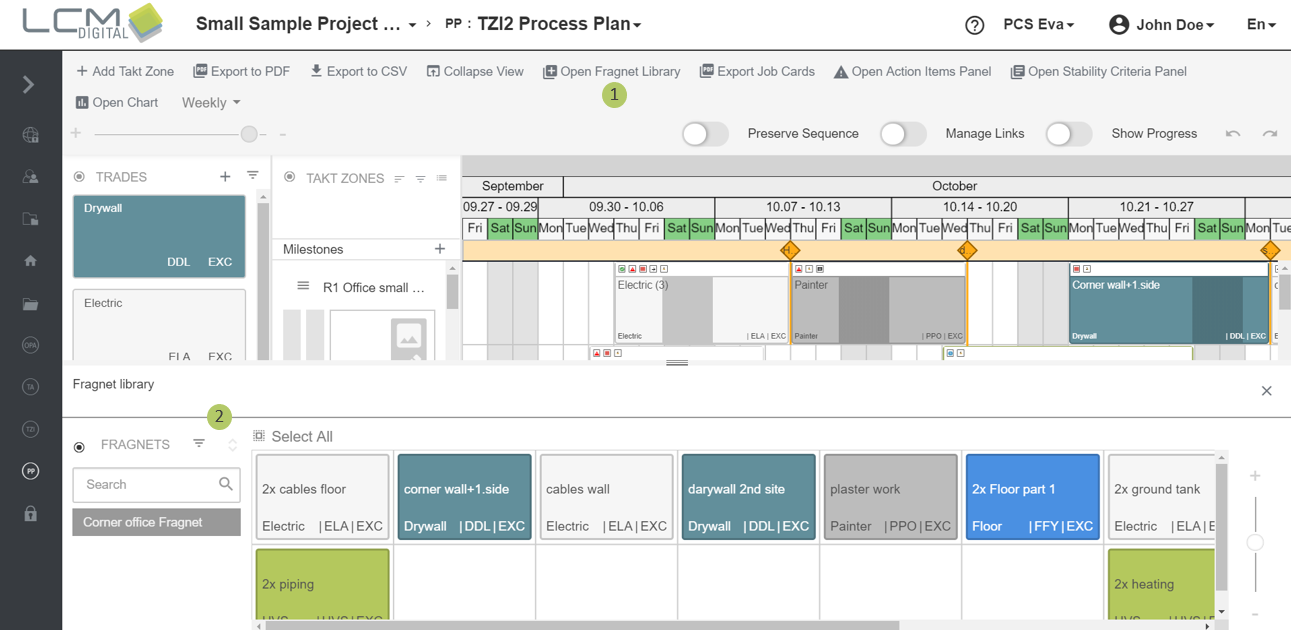
3. Select All Fragnet Steps or individually select Fragnet Steps in the Fragnet.
4. Copy the selected Fragnet Steps and paste the Fraget Steps with CTRL+V or the tool bar into the grid.