|
Video: In the video tutorials you can find a video about the Process Plan. |
- Add Milestones to the Process Plan
- Add Milestones to a Fragnet Step
- Open the Milestone Panel
- Navigate to Milestones
- Select milestones
- Edit milestones
- Link/unlink fragnet steps to/from milestones
- Delete milestones
- Export milestones to Excel
- Export linked fragnet steps to Excel
Add Milestones to the Process Plan
|
|
You can find information about adding milestones to the processplan in the article about How to manage your project with the Process Plan or in the video tutorial about the Process Plan. |

Add Milestones to a Fragnet Step
|
|
You can find information about adding milestones to fragnet steps in the article about Fragnet Steps. |
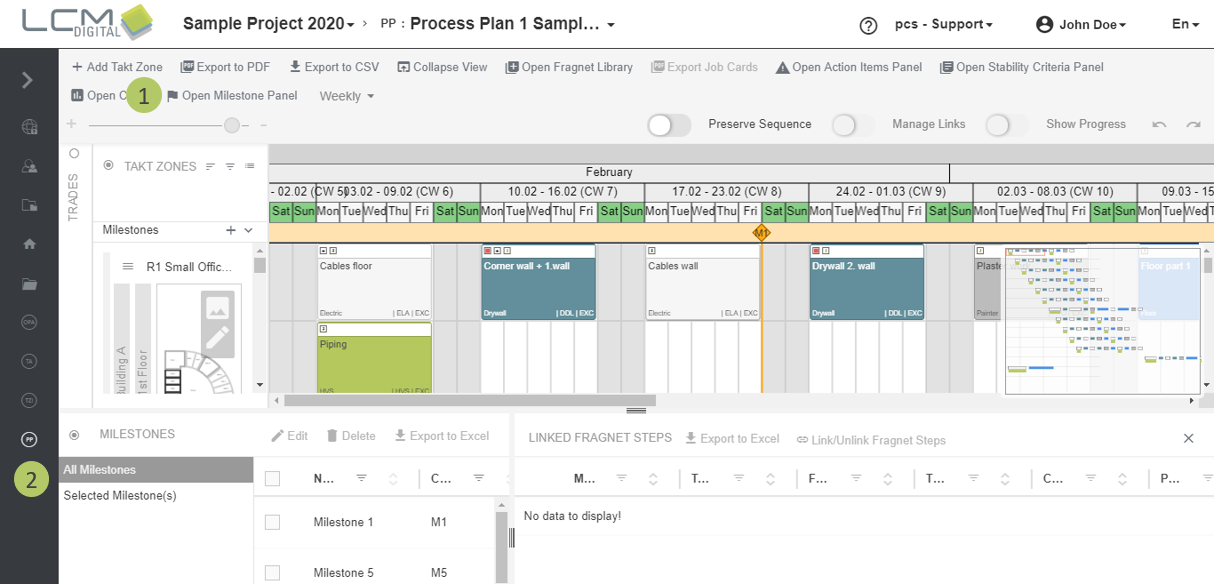
Open the Milestone Panel
Option 1:
1. Click on „Open Milestone Panel" in the toolbar.
2. The Milestone Panel opens and shows the "All Milestones" tab. In this tab, all existing milestones from the process plan are listed.
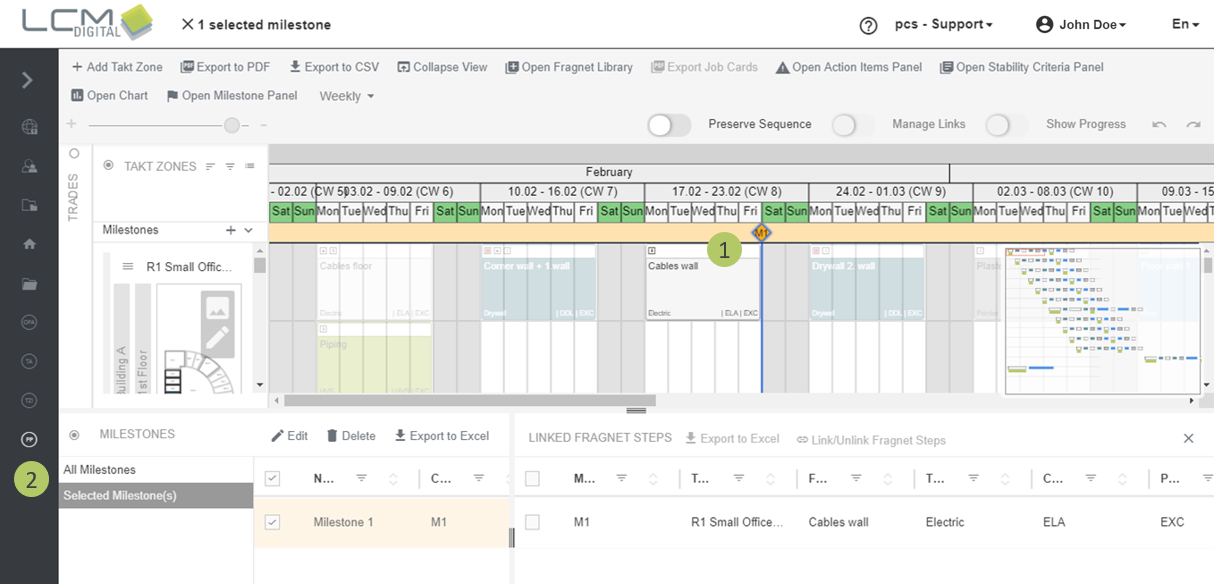
Option 2:
1. Click on a milestone on the process plan.
2. The Milestone Panel opens and shows the "Selected Milestone(s)" tab. This tab shows all currently selected milestones.
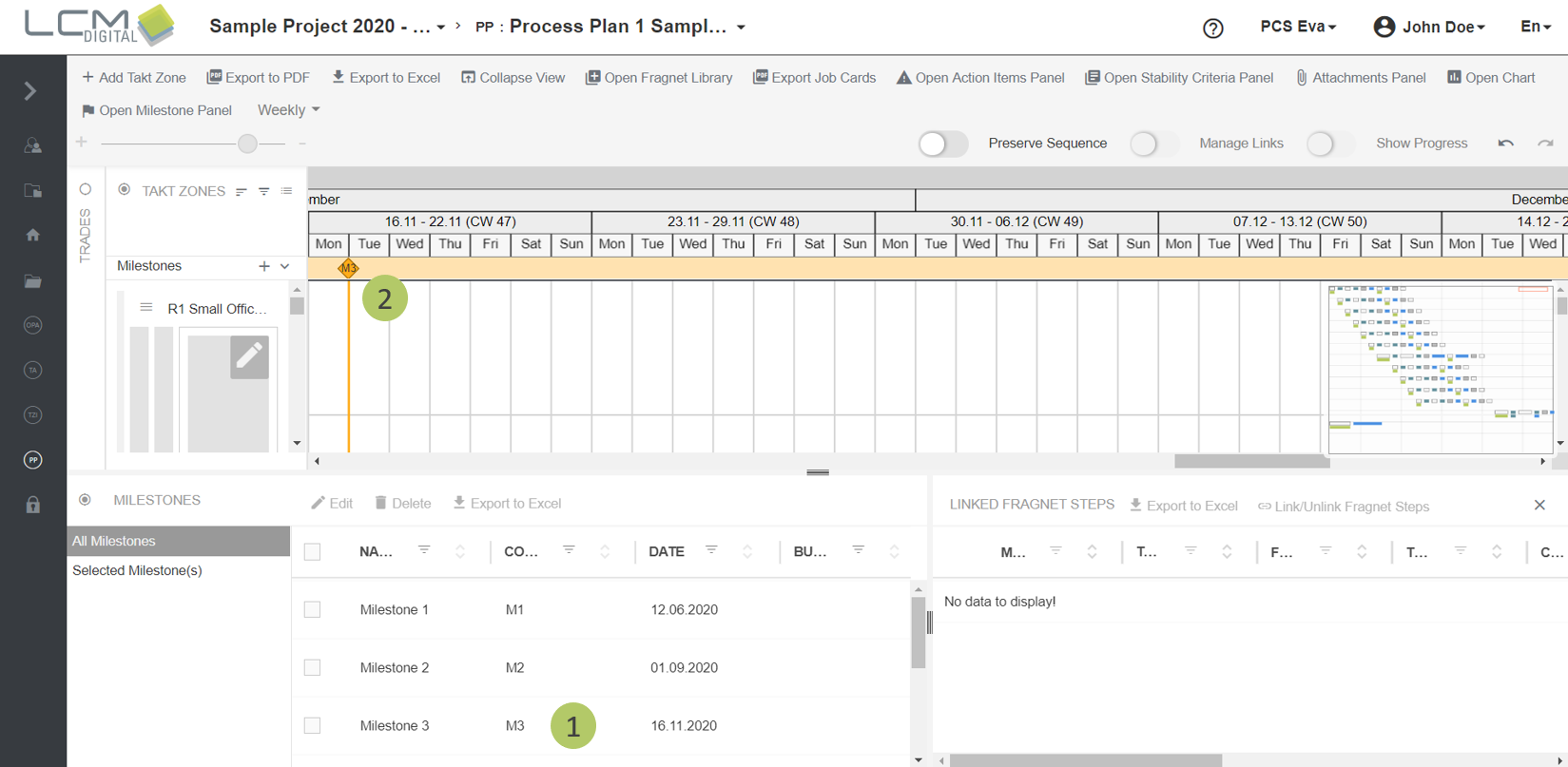
Navigate to Milestones
1. To navigate to a milestone in the grid, click on the row of the respective milestone in the milestone panel.
2. The view will navigate to the corresponding milestone and show it in the upper left corner.
Select milestones
1. To select one or more milestones, click on the corresponding checkboxes.
2. The selected milestones are highlighted blue on the process plan.
3. All fragnet steps that are attached to currently selected milestones are listed in this table.
4. All fragnet steps that are not attached to a selected milestone are transparent.
5. Fragnet steps that have overrun the date of the milestone they are attached to get a red border.

Edit Milestones
1. Select on or more milestones via the checkboxes or on the process plan.
Option 1:
2. If one or more milestones are selected, the toolbar of the milestone panel becomes enabled and the milestones can be edited. To edit, click on „Edit“.
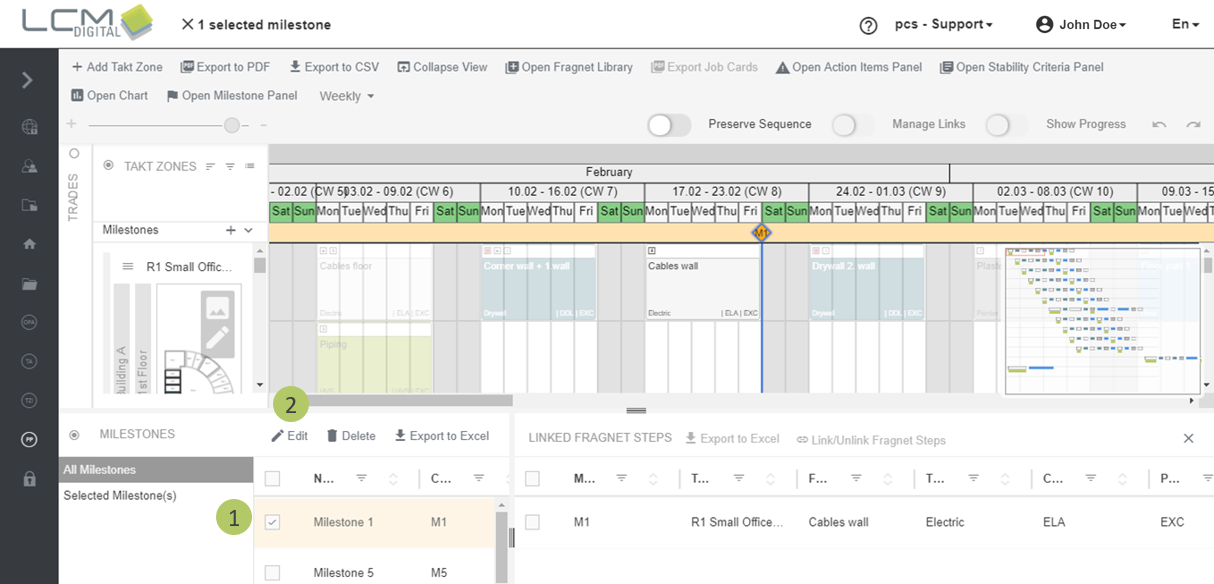
Option 2:
2. If one or more milestones are selected, the edit icons appear in the toolbar appear. To edit, click on the edit icon .
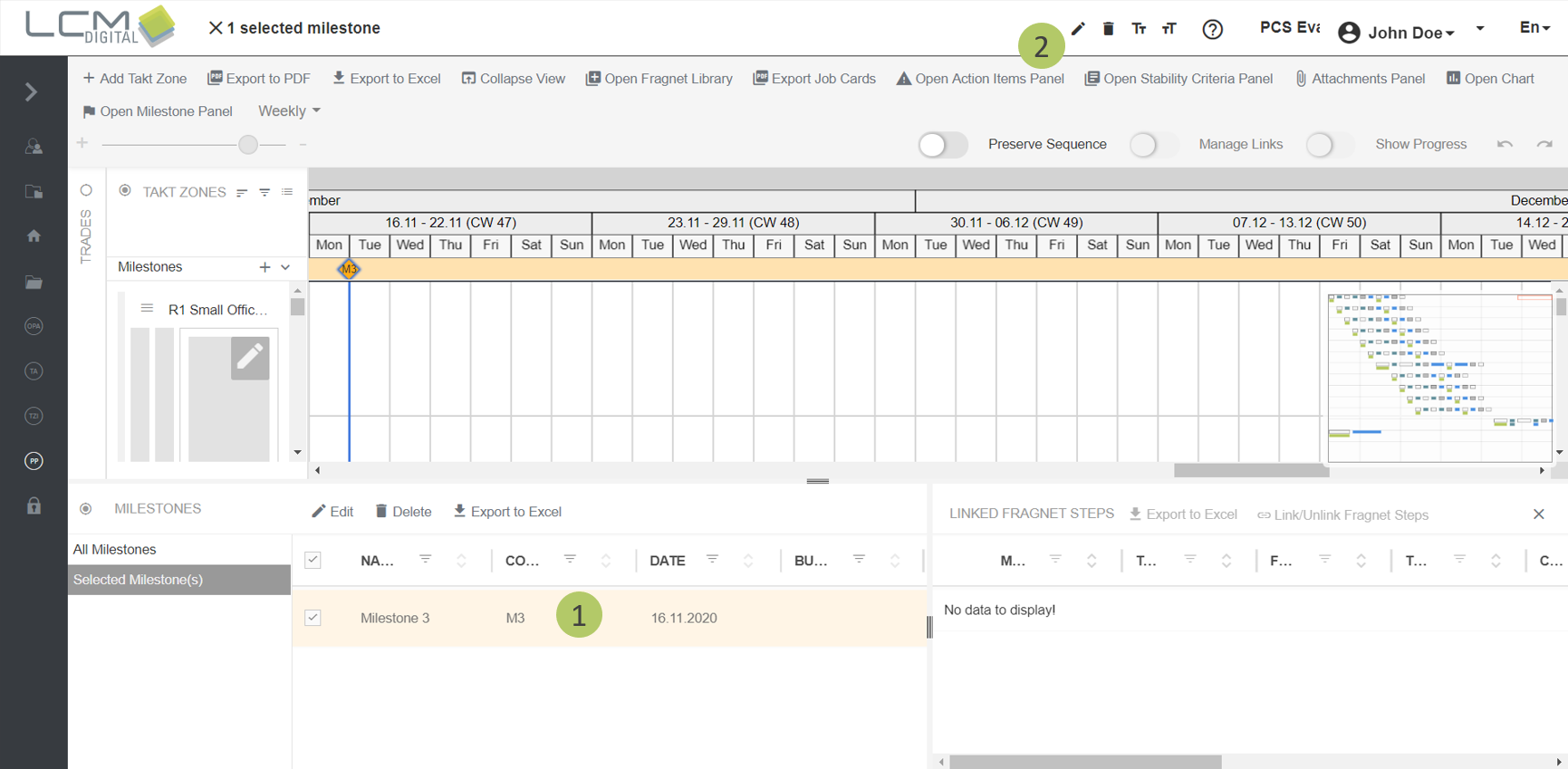
|
|
Edit more than one selected Milestone: |
Link and unlink Milestones to/from Fragnet-Steps
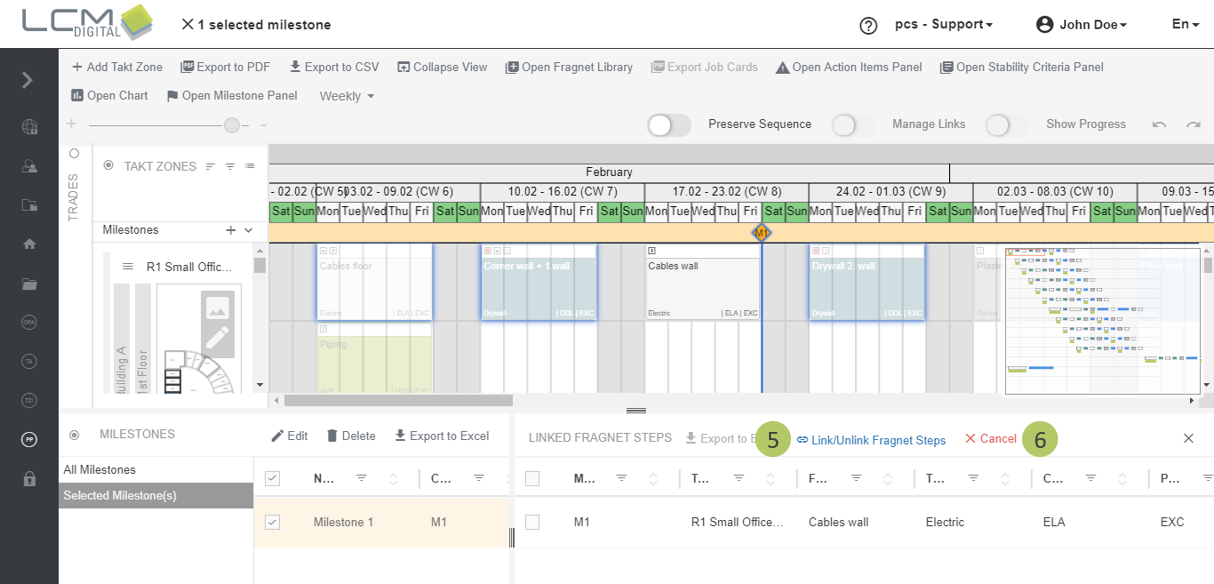
1. To attach fragnet steps to a milestones, only this milestones has to be selected.
2. Fragnet steps that are already attached to a selected milestones, are listed in this table.
3. Fragnet steps that are already attached to the selected milestone are shown opaque, whilst non-attached fragnet steps are shown transparent.
4. The selected milestones is highlighted in blue.
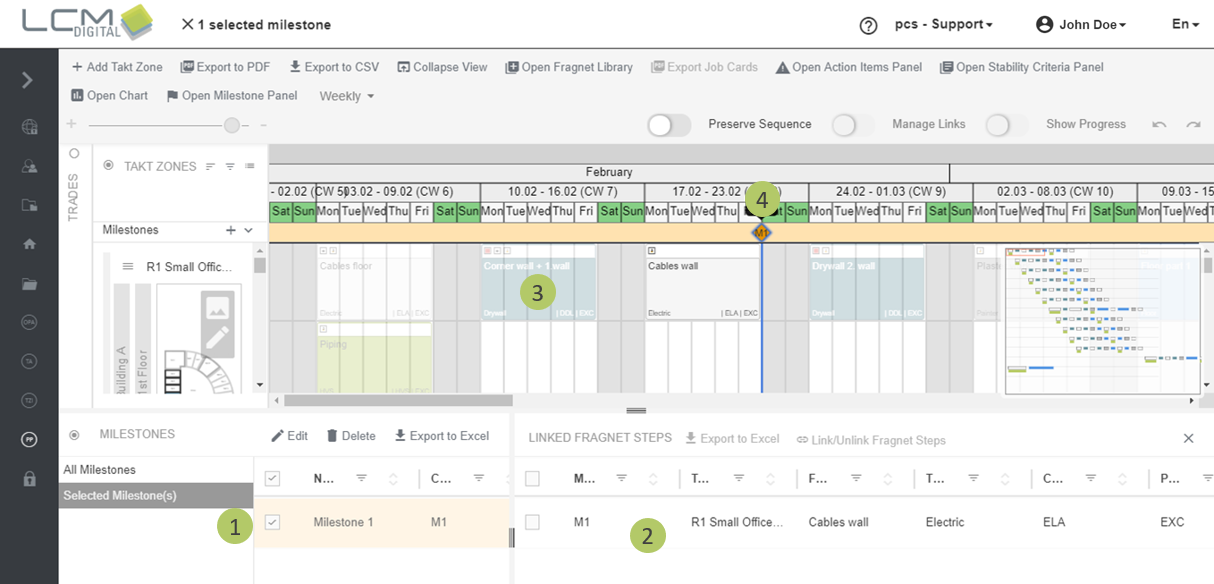
There are several ways to select Fragnet Steps, that should be attached:
1. Click on fragnet steps to select them. Selected fragnet steps are highlighted blue.
2. To select several fragnet steps, you can draw a frame around them with the right mouse button pressed.
3. To select all fragnet steps of a takt zone, you can use the context menu. Click on „Select All“.
4. With CTRL+A you can select all fragnet steps of the process plan.
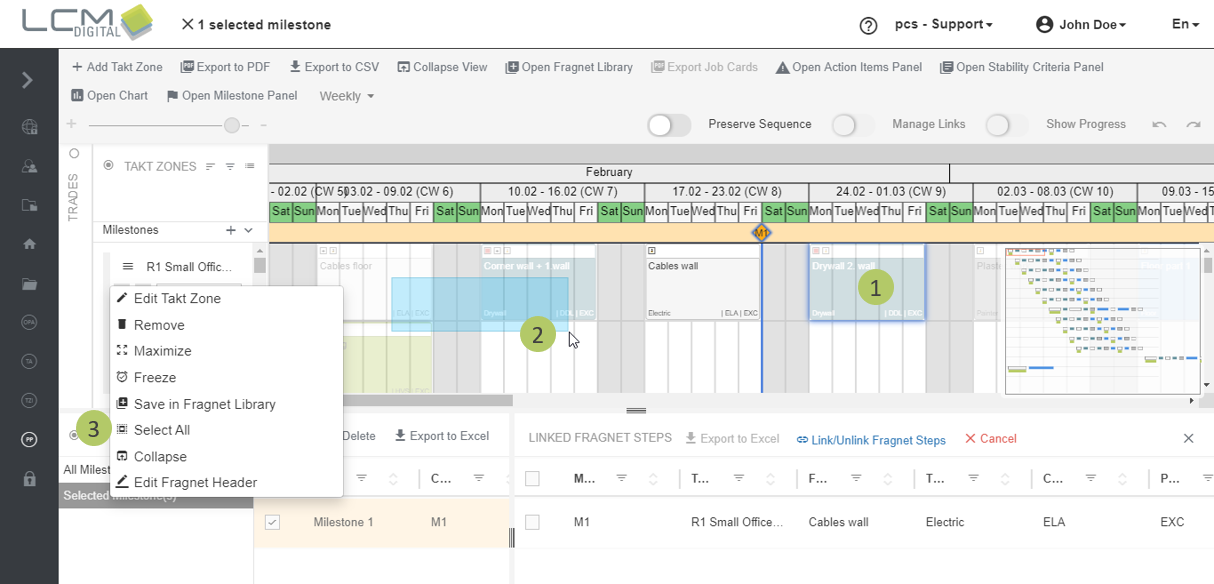
5. To attach selected fragnet steps that are not already attached or to detach selected fragnet steps that are currently attached to the selected milestone, click on the „Link/Unlink Fragnet Steps“ button.
6. To quit linking mode, click on "Cancel".
Delete Milestones
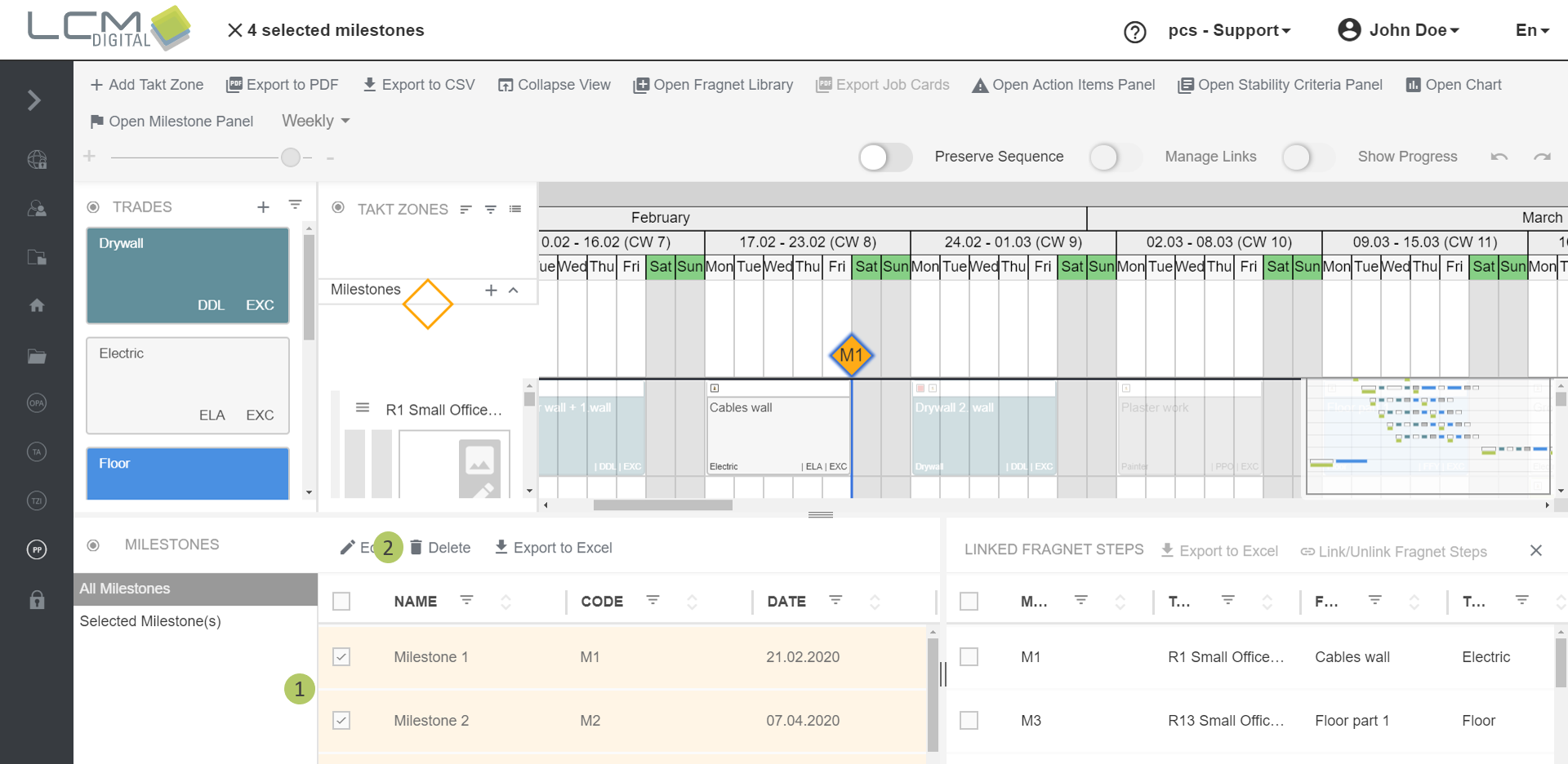
1. Select on or more milestones via the checkboxes or on the process plan.
2. If one or more milestones are selected, the toolbar becomes enabled and the milestones can be edited. To delete, click on „Delete“.
|
|
Remove Milestones that have Fragnet Steps attached: |
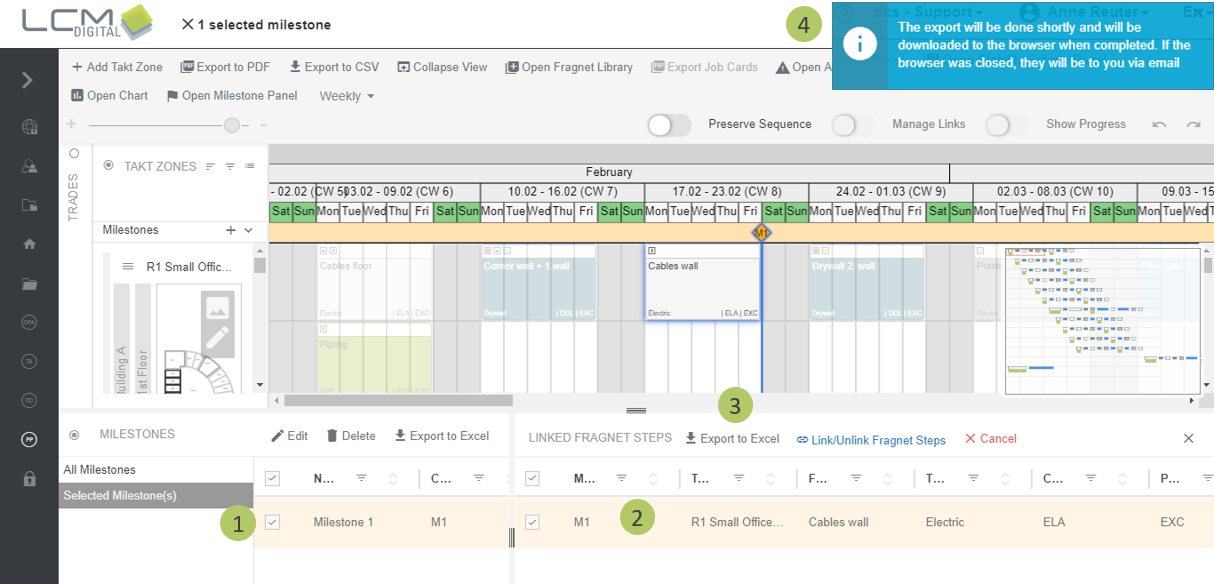
Export milestones to Excel
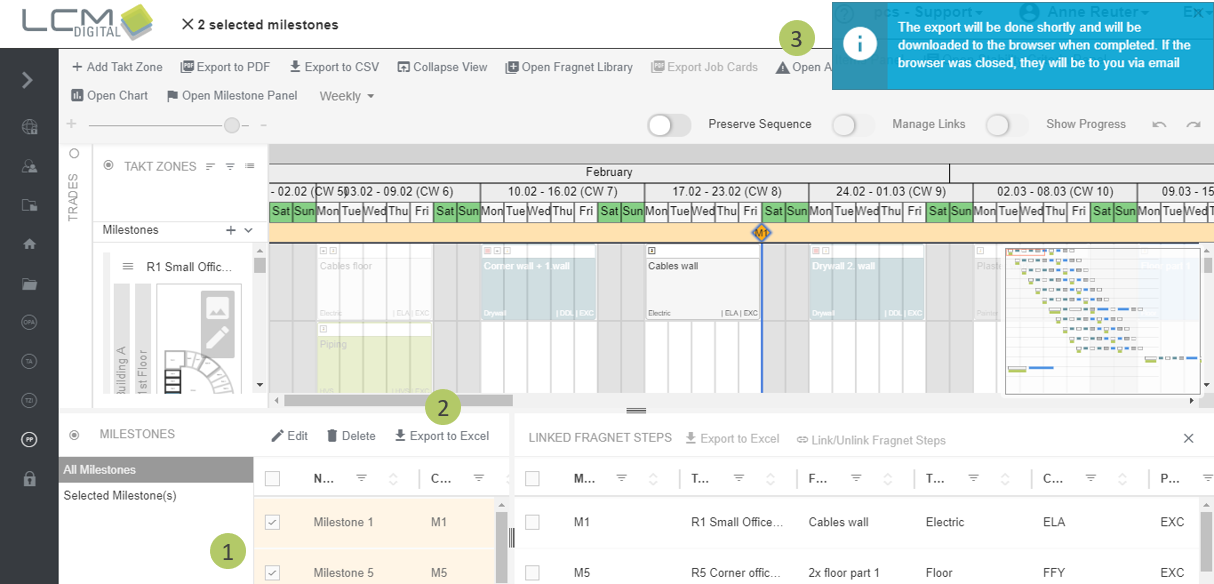
1. Select on or more milestones via the checkboxes or on the process plan.
2. Click on the „Export to Excel“ button.
3. You will be informed via a popup that your browser will download the file automatically into your Download folder. To be able to download the file manually, you will receive an e-mail with a corresponding link.
Export linked fragnet steps to Excel
1. Select on or more milestones via the checkboxes or on the process plan.
2. Select the attached fragnet steps you want to export via the checkboxes.
3. Click on the „Export to Excel“ button.
4. You will be informed via a popup that your browser will download the file automatically into your Download folder. To be able to download the file manually, you will receive an e-mail with a corresponding link.