
 |
Video: In the video tutorials you can find a video about the Process Plan. |
You can extend your process plan data with other data that you have available in Excel, or edit it in Excel and import it again. Of course, the Excel export from LCM Digital contains a lot of information that you can share and forward or use to link to external tools, e.g. to the BIM application.

Import Process Plan from Excel
1. Click on „Import from Excel“.
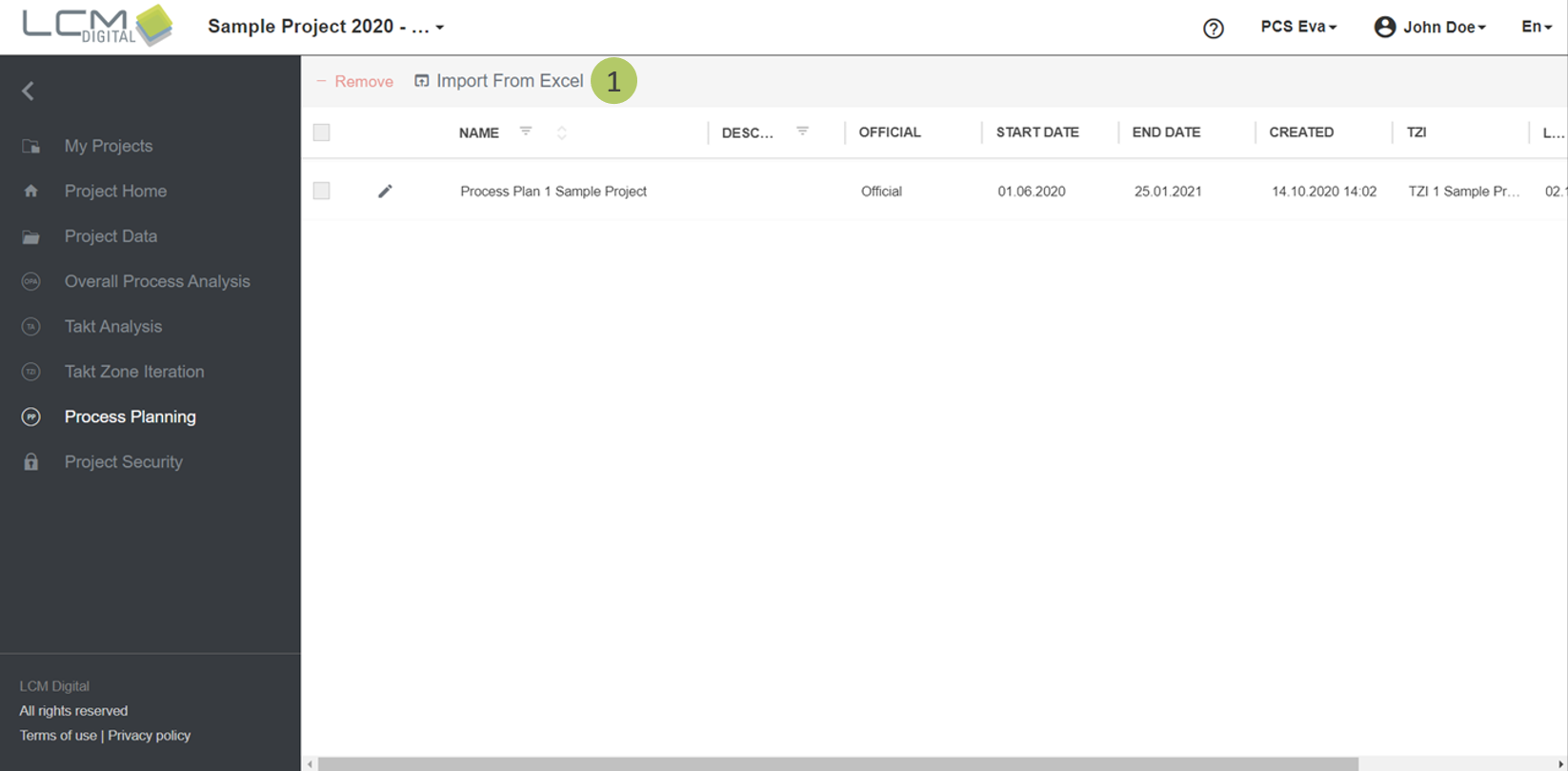
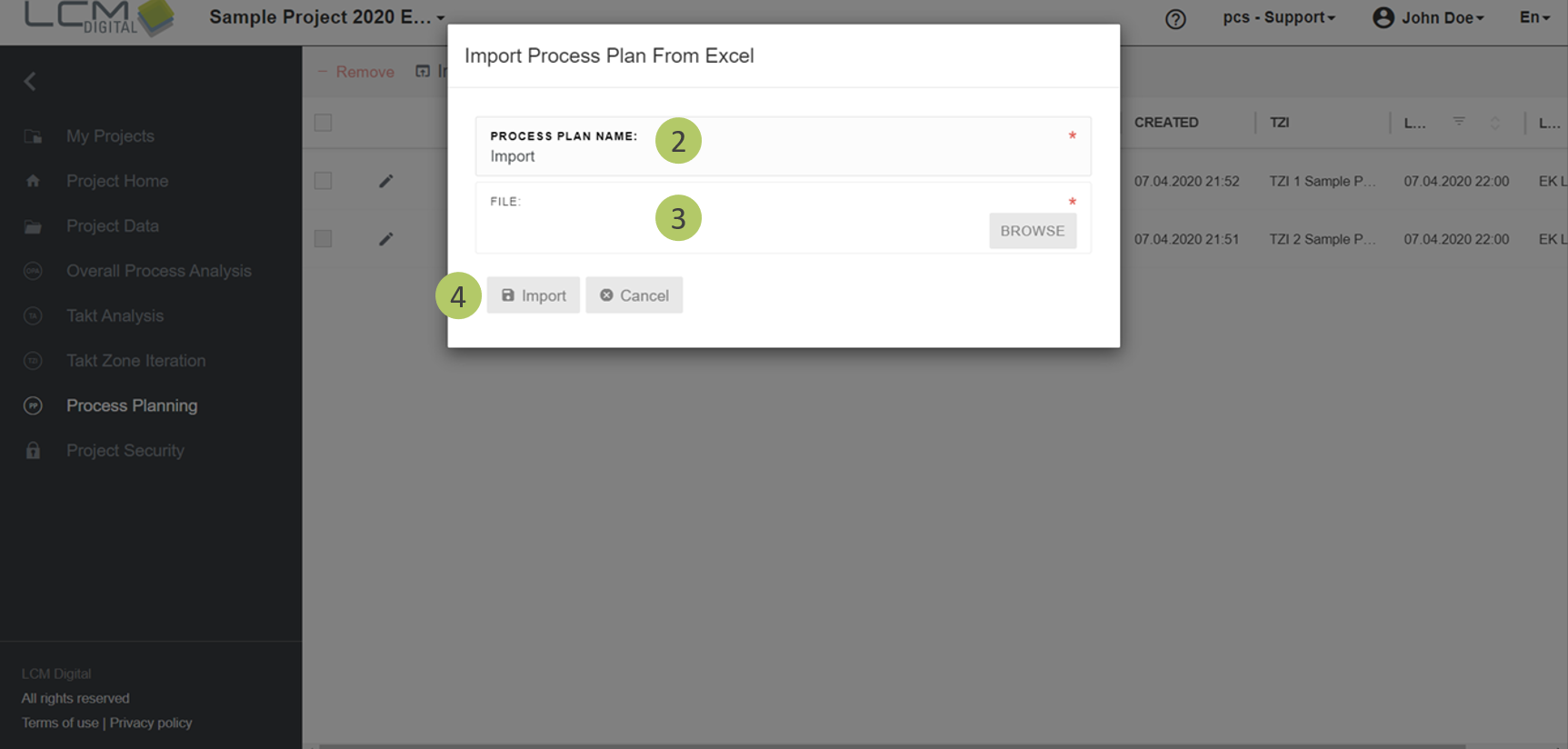
2. Select a name for the process plan that is to be imported.
3. Click on „Browse“ and select the file that should be imported from your file system.
4. Click on „Import“ to import the process plan from the Éxcel file.
You will receive a mail that informs you whether the import has succeeded or why it has failed.
|
|
Note: Information about how to format your Excel file for the import can be found in the article Process Plan - Import from Excel. Please pay particular attention to the Import of the company code. |
Export the Process Plan to Excel
1. To export the fragnet steps of a process plan to Excel, click on "Export to Excel" in the menu bar.
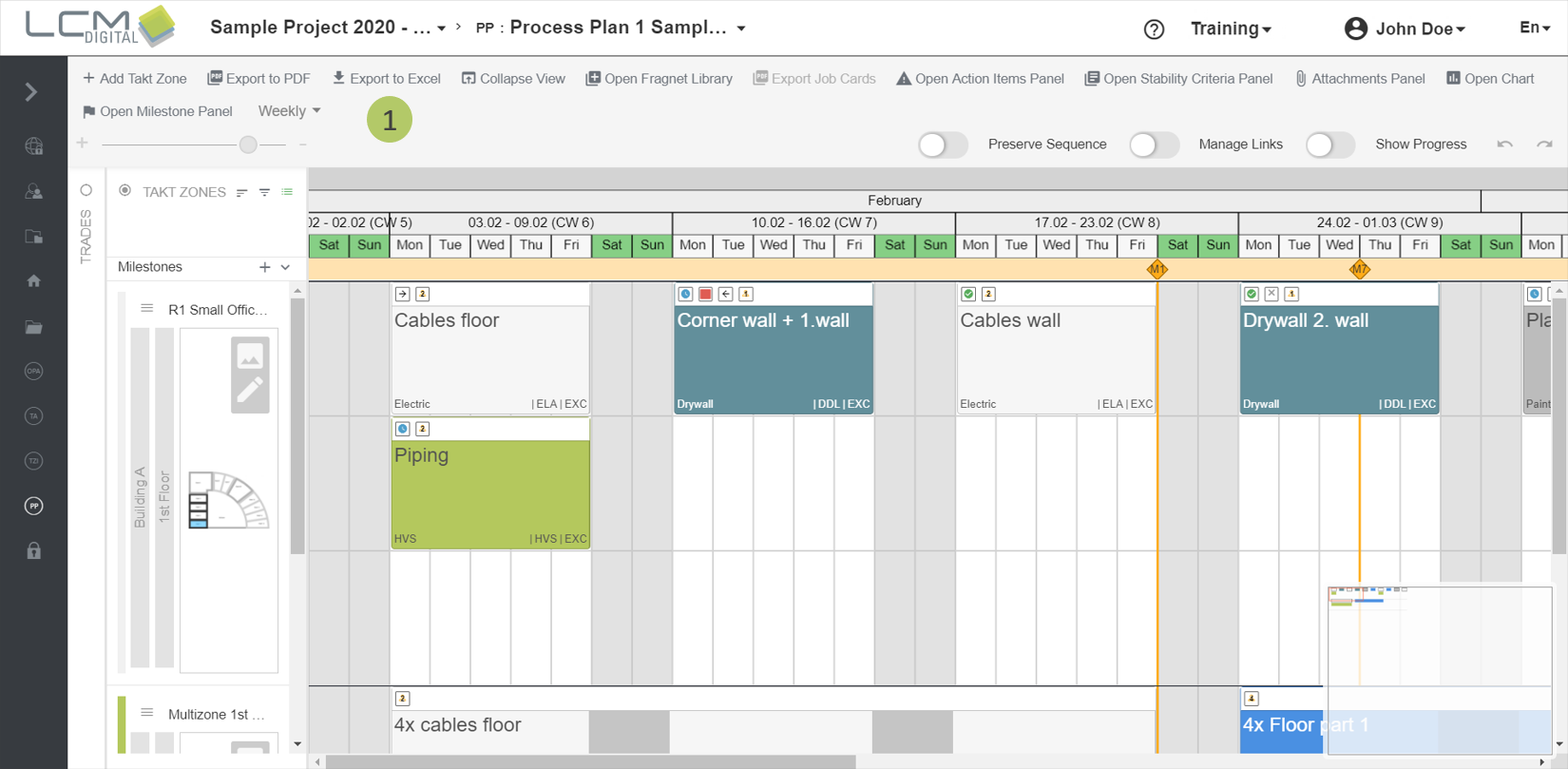
You will be informed that your browser downloads the file as soon as the export is finished. You will then find the file in your Downloads folder. Additionally, you will receive an E-Mail with a link so you can download the file manually as well.
The file will contain the following columns:
|
Localization of the fragnet step. |
|
Assignment of the fragnet step to a zone type of the GPA, a takt type of the TA and a takt zone of the PP. |
|
Assigment of the fragnet step to a trade and the corresponding background color and text color. |
|
Assignment of the fragnet step to a company. |
|
Assignment of the fragnet step to a phase. |
|
Assignment of the fragnet step to a team of the assigned trade. |
|
Amount of manpower assigned to this fragnet step. |
|
Name and description of the fragnet step and its classification in the calendar by start date, end date and duration. |
|
Progress of the fragnet step. The Actual Start Date is the date when the status of the fragnet step was set to "In Progress". The Actual End Date is the time when the process step was set to "Done". |
|
|
Note: Currently, no links, milestones and their linked fragnet steps as well as comments are exported. These functions are planned for future releases. |