oebn
oebn
| |
Video: In the video tutorials you can find a video about My Projects. |
- Open My Projects
- User Interface
- Editing Project Information
- Removing Project Information
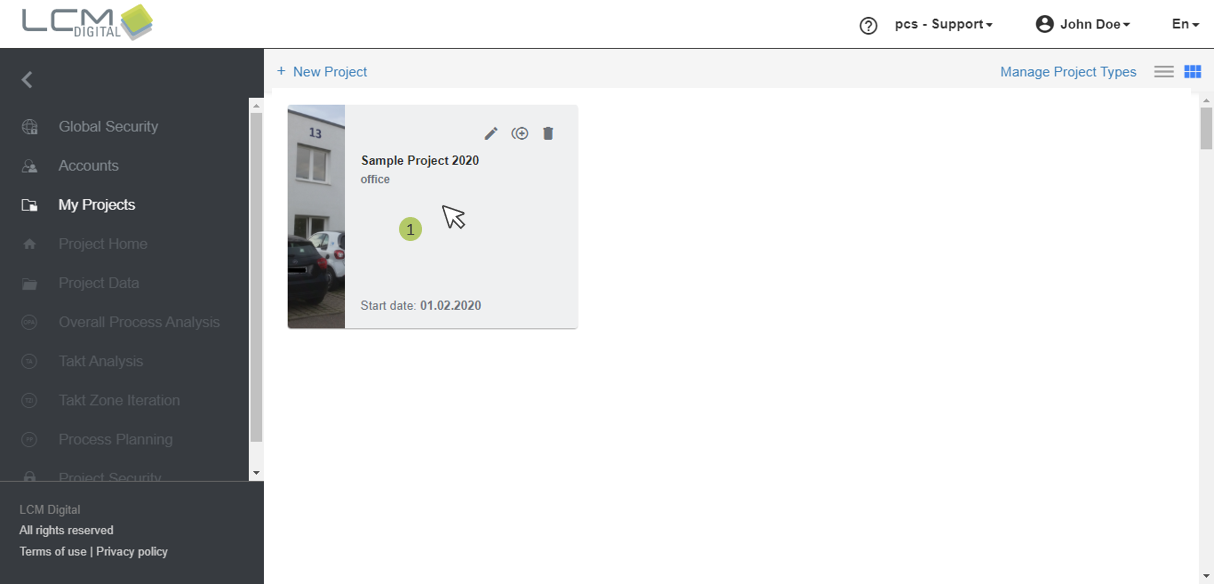
- Tile View for the List of Projects
- Open a Project
Open My Projects
1. In the main menu, click on "My Projects".
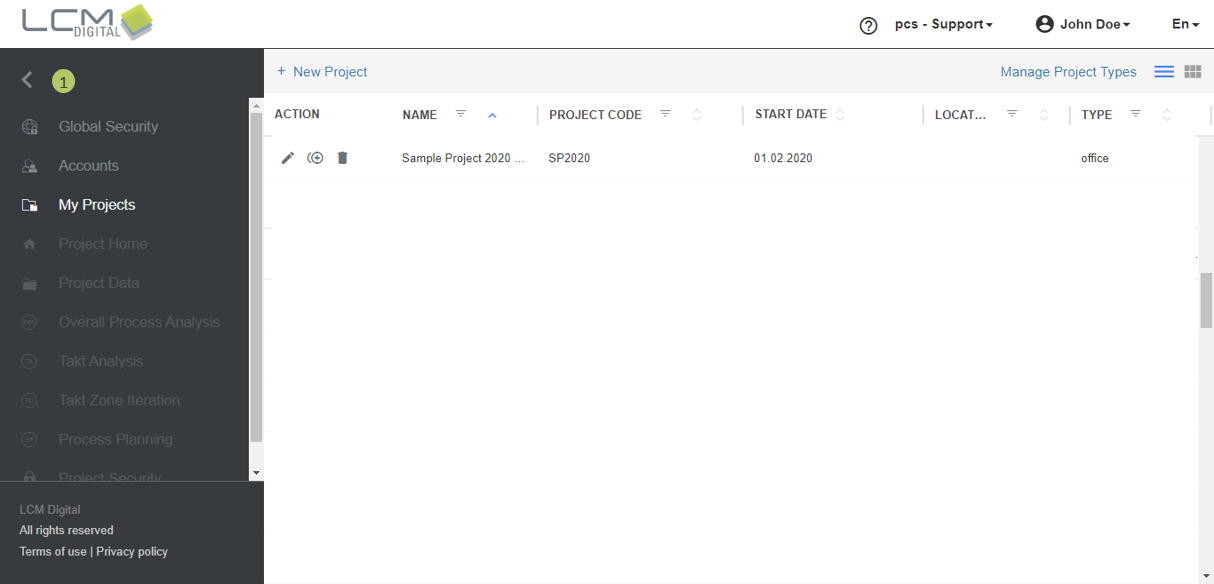

My Projects Screen - User Interface
1. The name of the project is shown.
2. Click on this icon to edit the project information.
3. Click on this icon to delete the corresponding project.
4. Each column can be filtered via this icon.
5. Each column can be sorted in ascending or descending order via this icon.
6. Click on this icon to change from list view to tile view.
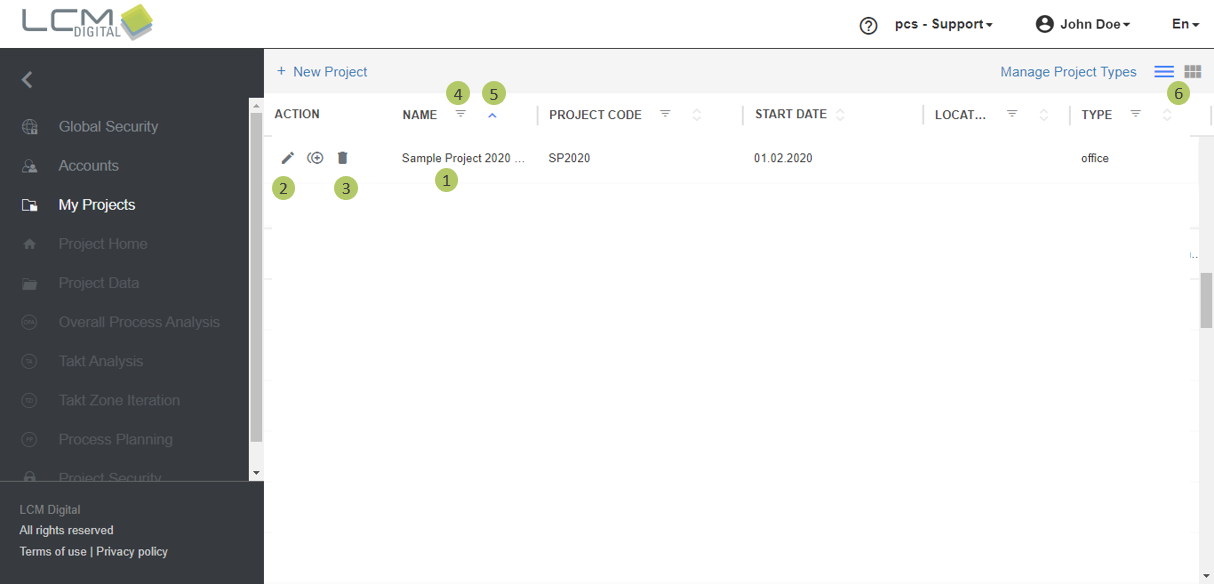
Edit Project Information
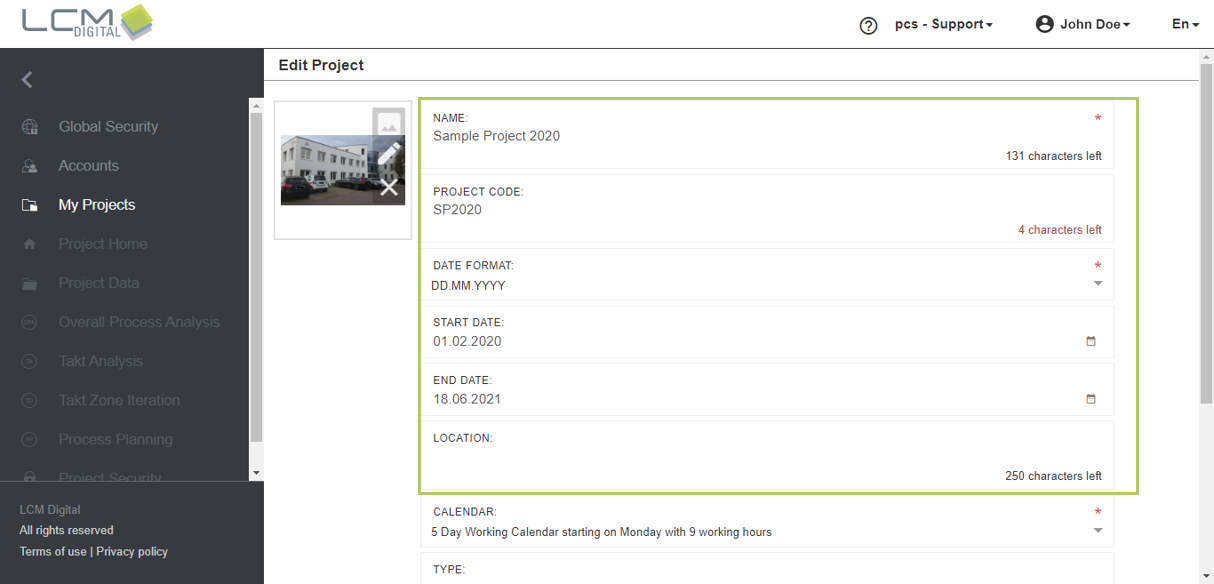
1. Click on this symbol  to edit the project details.
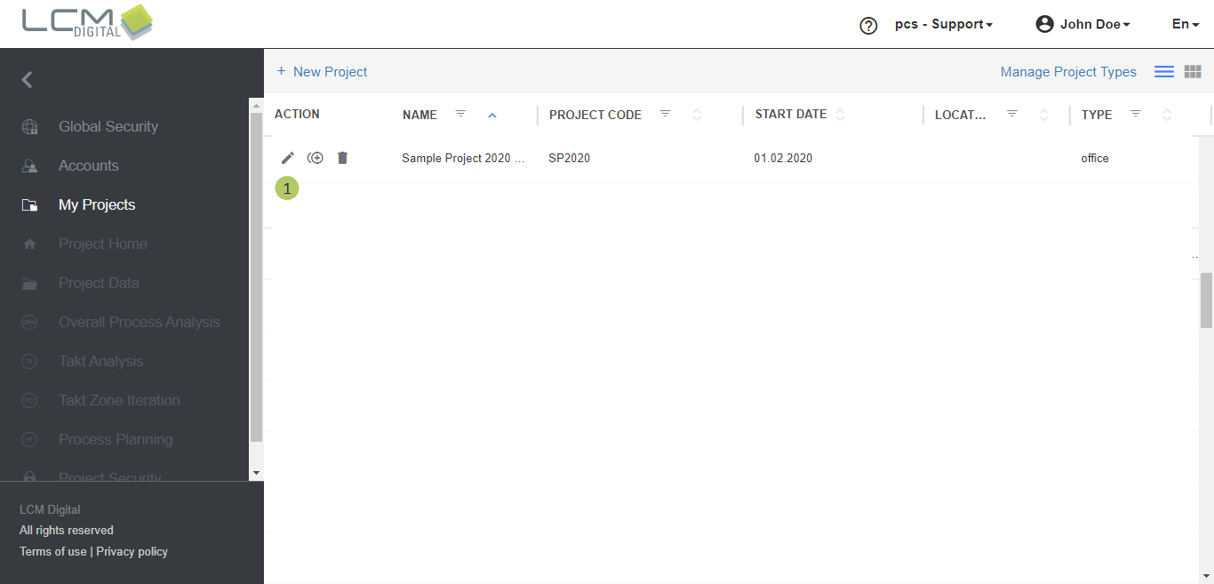
2. Start with entering the base project dates and adding a picture.
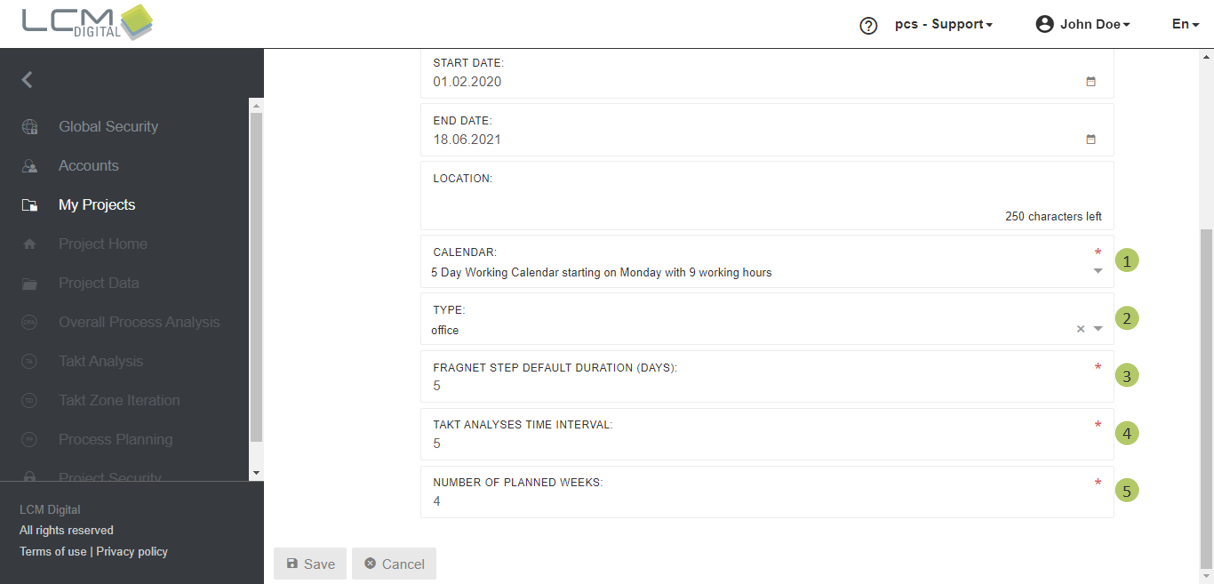
1. Choose a calendar that fits your project. You can assign a customized calendar to this project. Please refer to Calendars section under Project Data of this Users Guide for further information.
2. Choose a suitable project type such as Residential, Commercial, etc. The project type is used for categorization and facilitates the later use of standard libraries when reusing similar construction sequences.
3. Define the standard duration of a Fragnet Step. When creating the Takt Analysis, all Fragnet Steps have a standard duration (for example: 5 days = 1 working week). The given standard duration will be considered when dragging Trades from the Trade Panel into the TA (Takt Analysis) and PP (Process Plan) grid. Please refer to the TA section or the PP section of this Users Guide to view this visualization.
4. Classification for the Takt Analysis - Defines the number of days in each interval in the takt Analysis.
5. Generating job cards for the specified number of weeks.
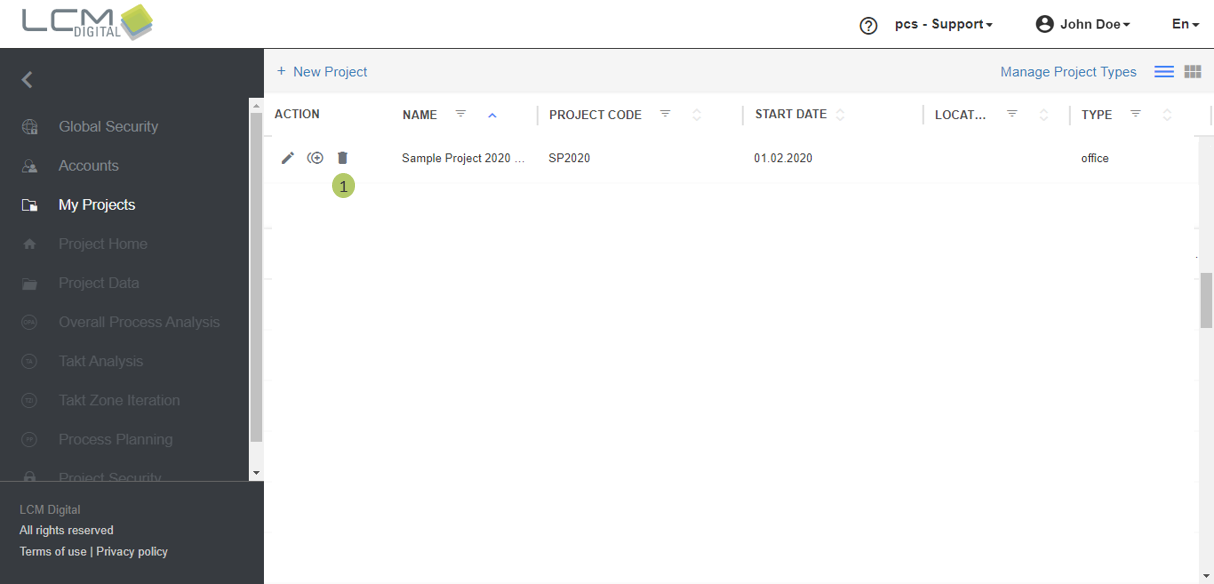
Remove a Project
1. Click on this symbol to delete the project.
|
|
Removing a project: |
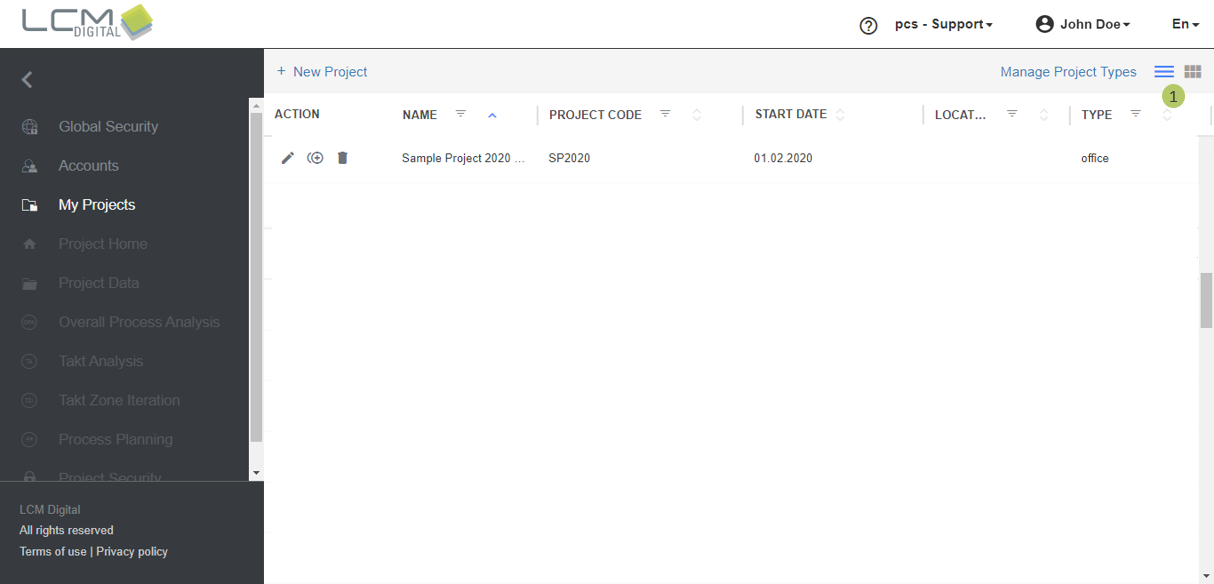
Tile view for the list of projects
1. Click on this symbol  for the tile view of the projects.
Open a project
1. Click on the project.