
 |
Video: In the video tutorials you can find a video about über the Takt Zone Iteration. |
- What is the TZI?
- Create and open a new TZI
- User Interface of the TZI
- Add Takt Trains
- Functions and Properties of Takt Trains
- Attach Takt Zones to Takt Trains
- Create Takt Zones on the TZI screen
- Change Lead Time between Takt Trains
- Expand and collapse Takt Trains
- Expand Takt Zones in the TZI
- Define links between two Takt Zones
- Define links between two fragnet steps
- Generate the Process Plan from the TZI
What is the TZI?
Takt Zone Iteration as an iterative process of sequencing Takt Zones using Takt Trains, dependencies and the lead time to find the most efficient process plan in terms of manhours and quantities.

Create and open a new TZI
1. Select Takt Zone Iteration from the Main Menu.
2. Click on “New” to create a new TZI.
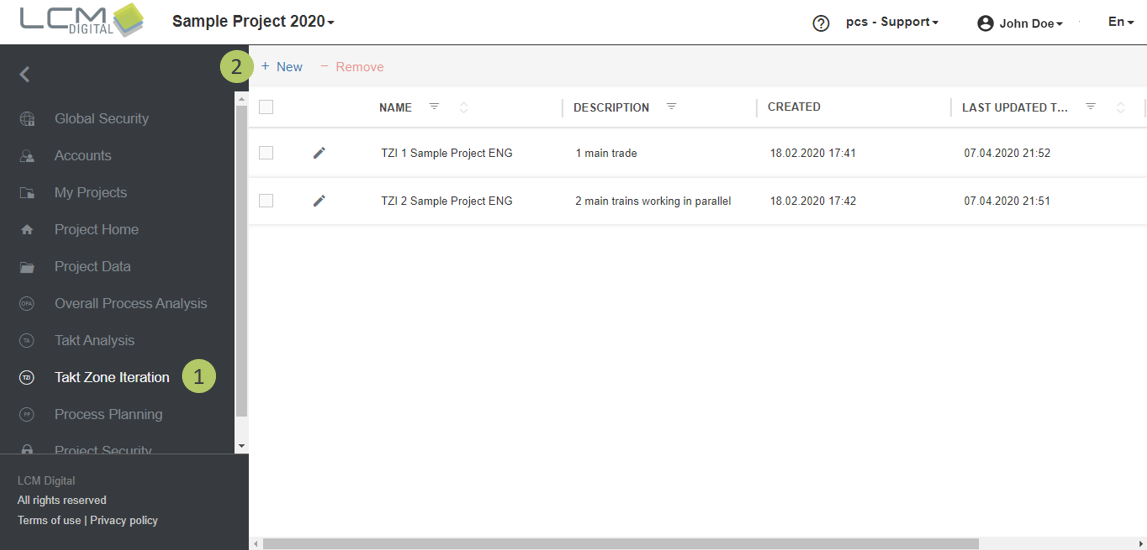
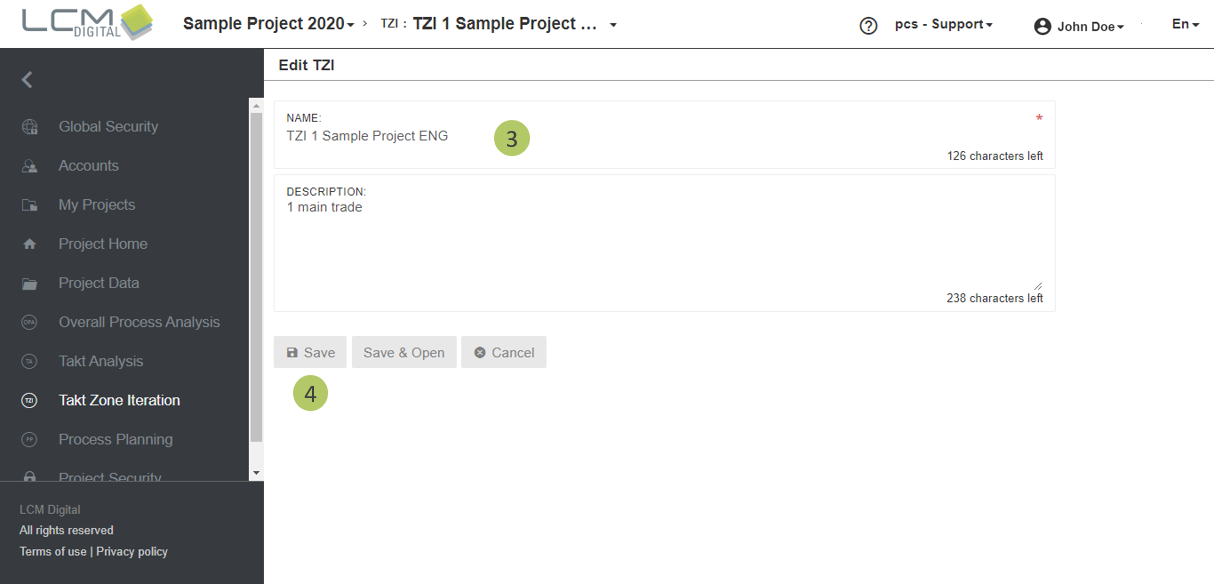
3. Type in the name for this TZI.
4. Click on “Save” to save the information and proceed, or “Save & Open” to be directed to the TZI screen.
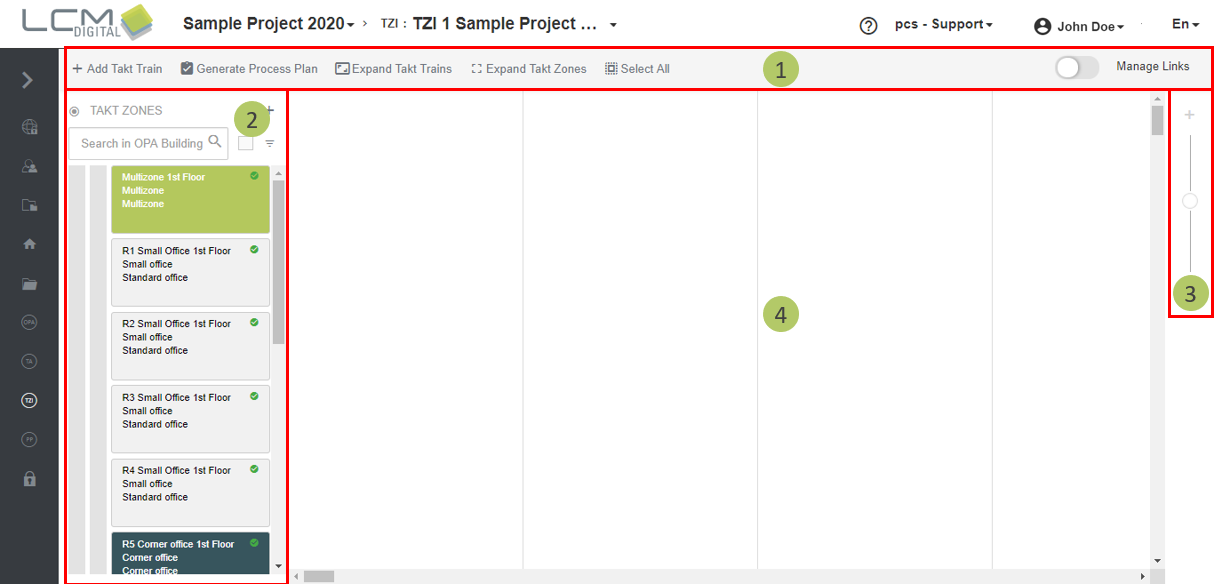
User Interface of the TZI
1. Toolbar
2. Takt Zones panel: view/hide the panel by clicking on this icon .
3. Zoom in/Zoom out
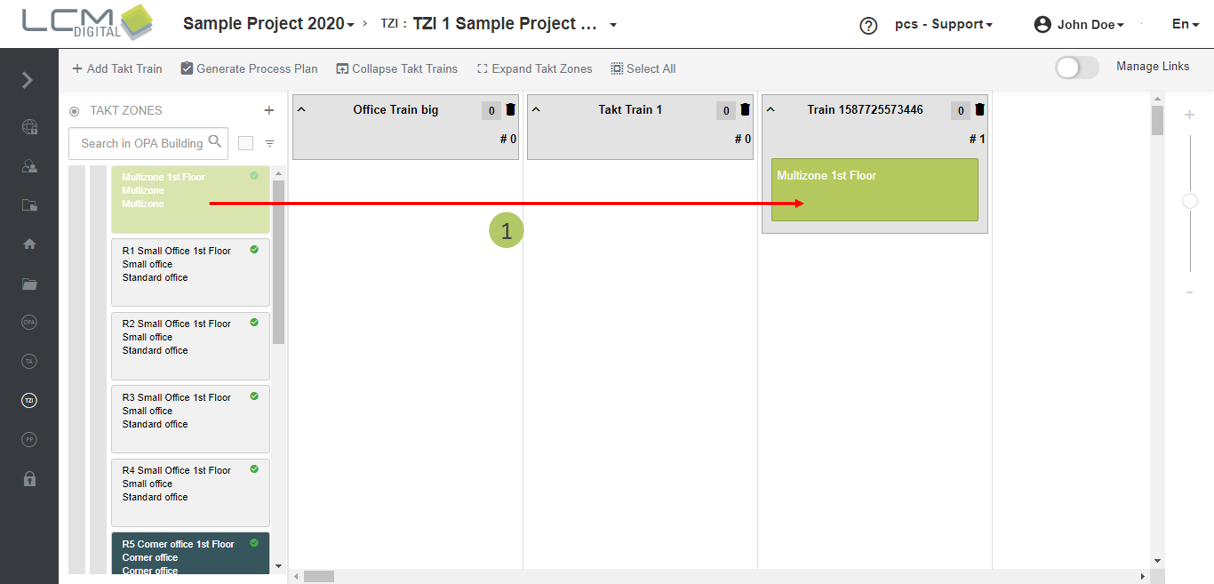
4. Drag and drop Takt Zones into the grid.
Add Takt Trains
Takt Trains can either be imported from the Project Data or be created directly in the TZI.
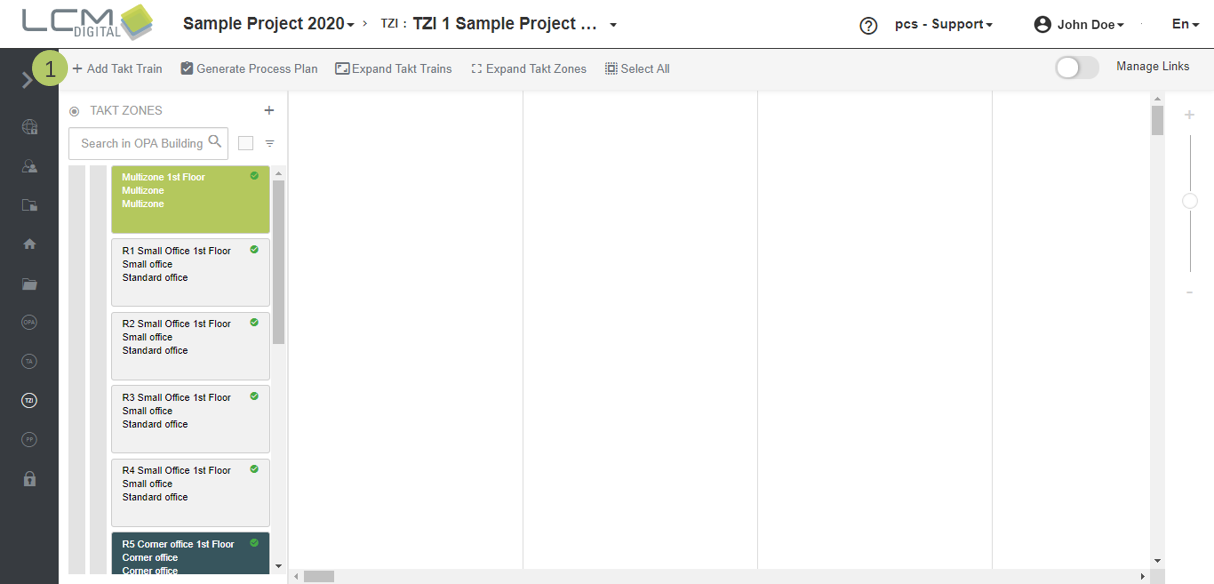
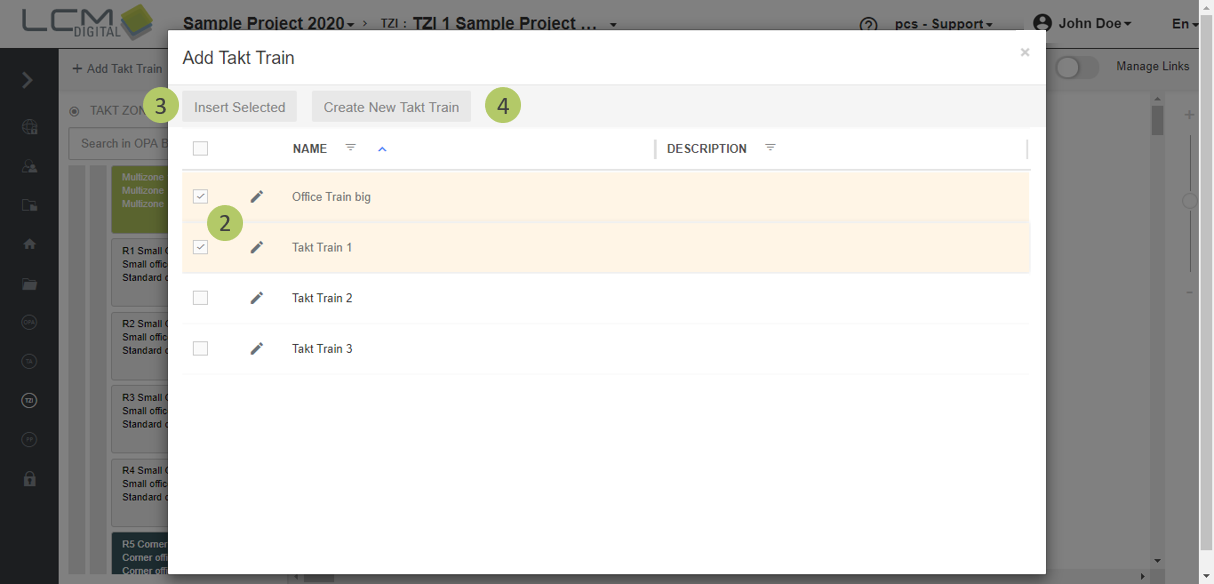
1. Click on “Add Takt Train” to import already defined Takt Trains in Project Data.
2. Select the Takt Train/s to be imported via the corresponding checkboxes.
3. Select “Insert Selected” to import the Takt Train/s and be directed to the TZI screen.
4. If the Takt Train is not yet defined, click on “Create New Takt Train”. The screen will be automatically redirected to the Takt Train library to create a new Takt Train. The procedure is as described in Creating a Takt Train in Project Data.
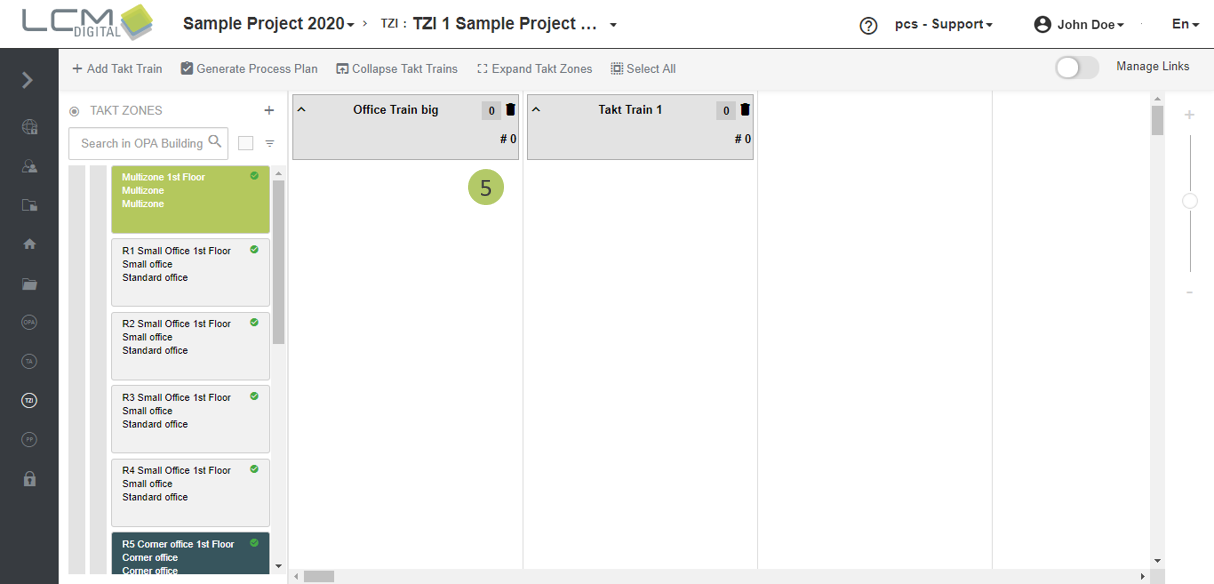
5. The selected Takt Train(s) appear on the TZI screen.
Functions and Properties of Takt Trains
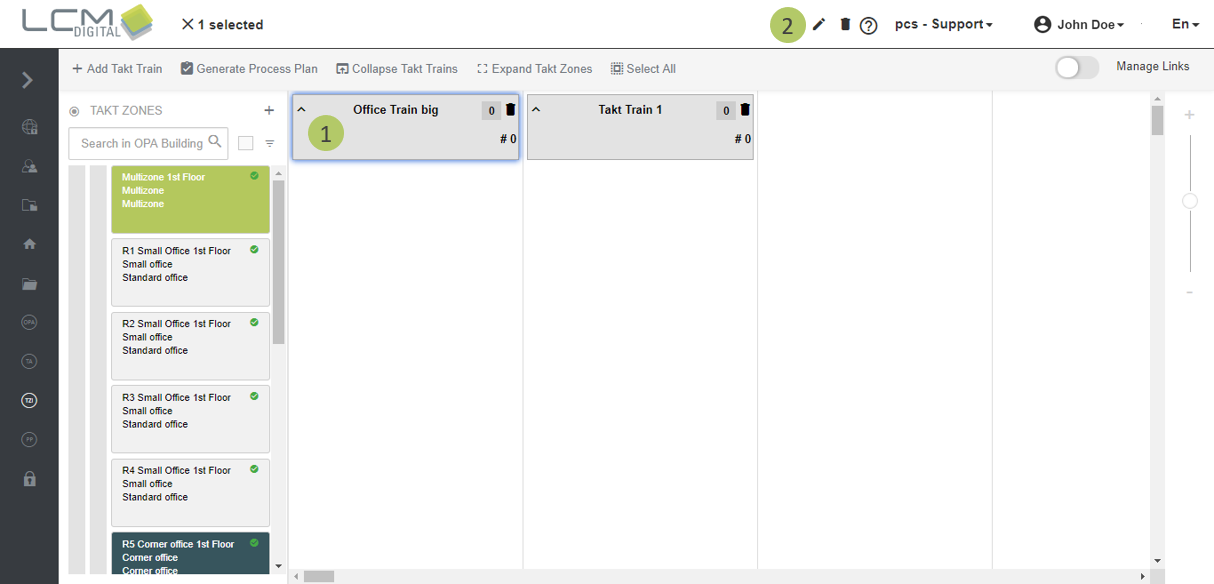
1. Select the Takt Train.
2. Click on the edit icon on the toolbar.
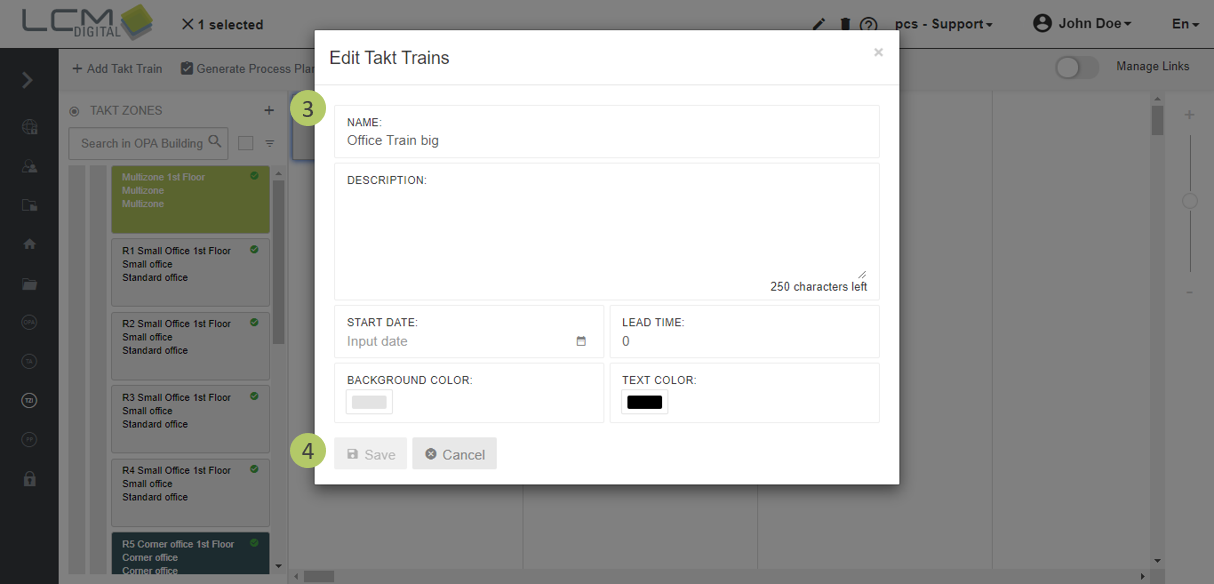
3. Edit the name, set a start date, lead time and color for the Takt Train.
The start date of the first Takt Train indicates the start of the Process Plan. The start date of this Takt Train should be on or after the project start date.
The Lead Time specifies the offset time for a Takt Train moving from one Takt Zone to the other. For instance, this Finishing Works Takt Train starts in Small Hotel Suites on the ground floor and moves to the Small Hotel Suite on the 1st Floor with a Lead Time of 5 days.
4. Click on “Save” to proceed.
Attach Takt Zones to Takt Trains
1. Drag the Takt Zones from the panel and drop them in the Takt Train window.
Create Takt Zones on the TZI screen
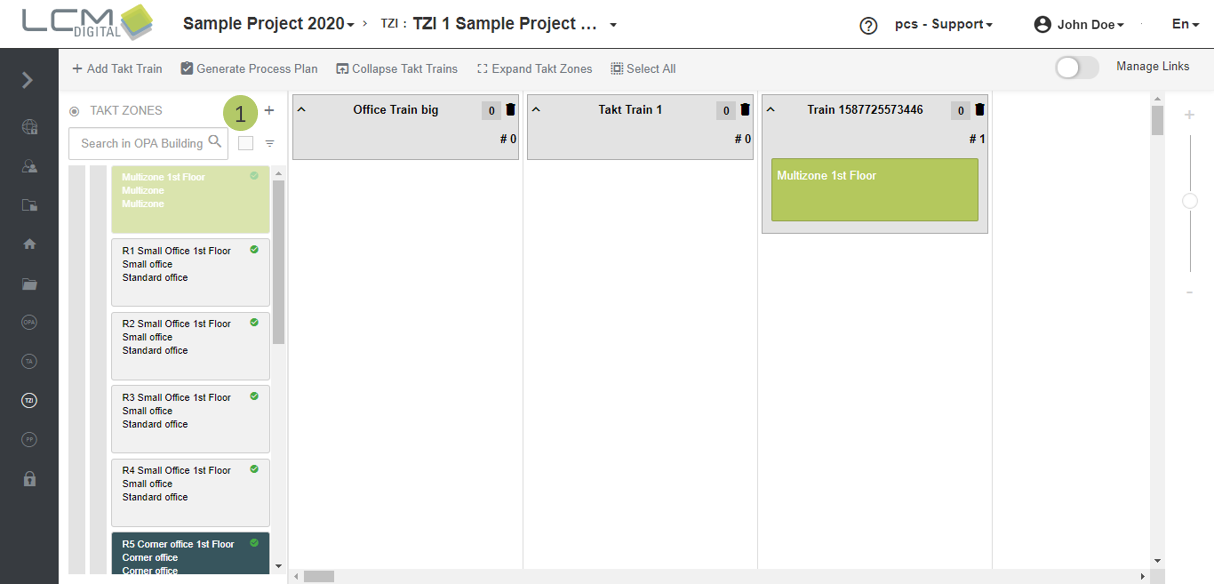
1. Click on this icon to generate a Takt Zone.
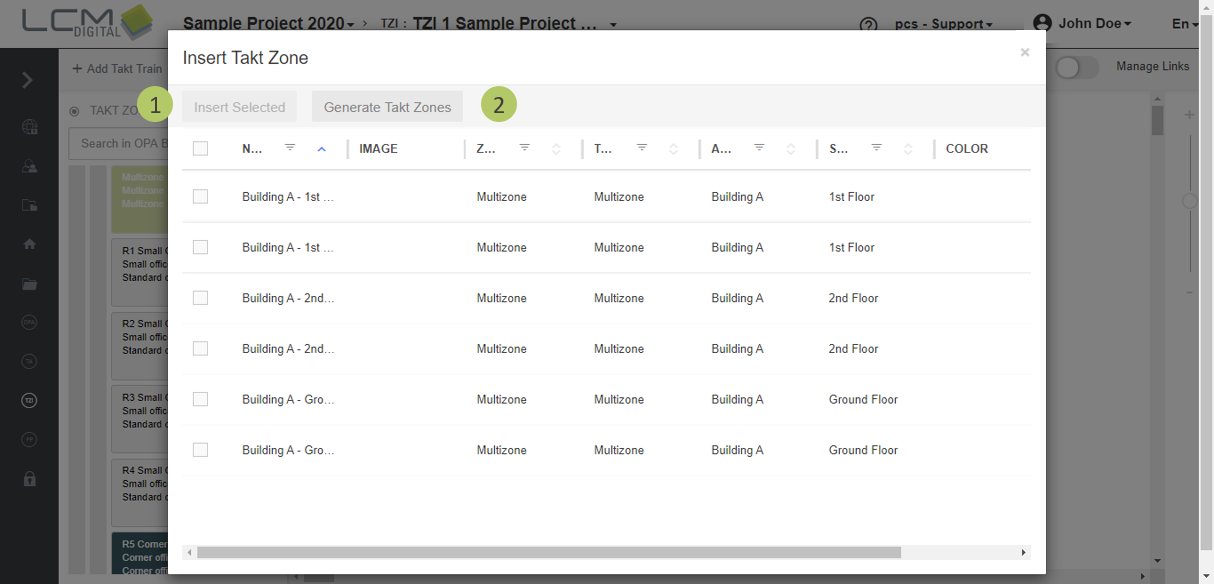
2. Insert Takt Zones, that have already been created.
3. Or click on “Generate Takt Zones”. Follow the same procedure as described in Takt Zones library in Project Data.
Change Lead Time between Takt Trains
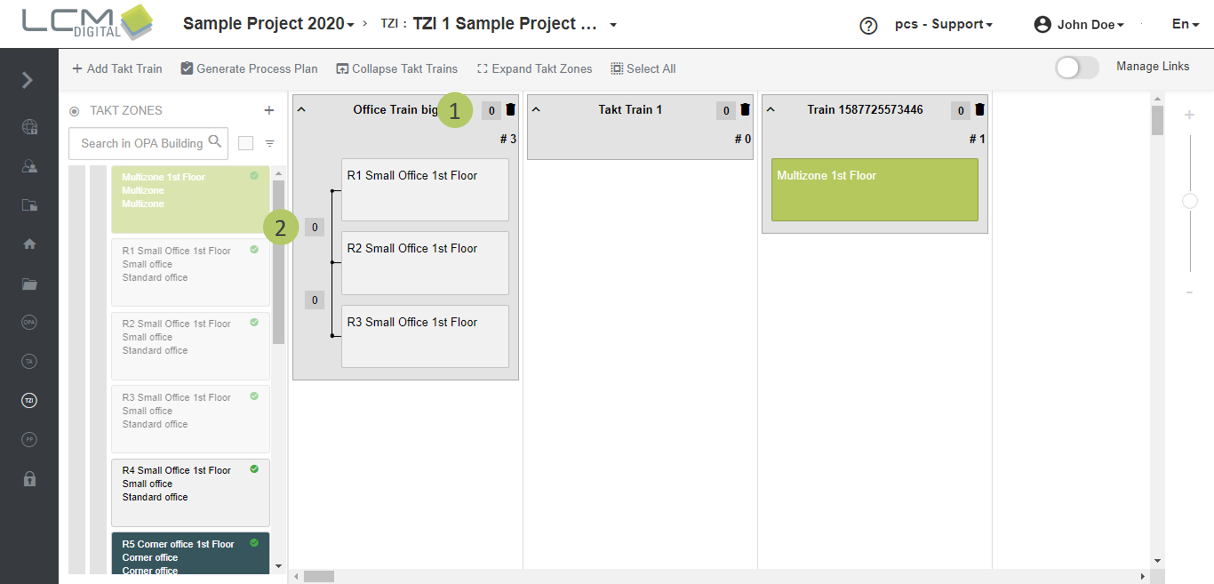
1. Change the overall lead time here. This means the lead time between all Takt Zones in this Takt Train is equal to the number here.
2. If the lead time is individual between Takt Zones in this Takt Train, change the lead time in the box next to the Zone Types. For a start to end dependency insert a dash – in this box.
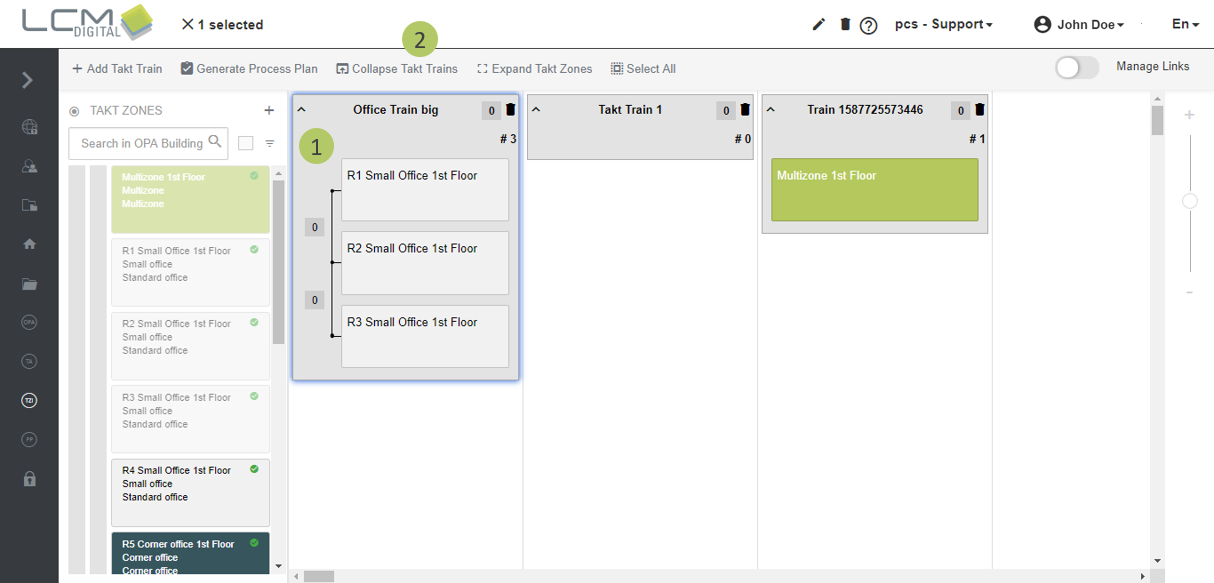
Expand and collapse Takt Trains
Collapsing Takt Trains hides the Takt Zones in that Takt Train.
Takt Trains with this symbol are collapsed. This symbol
shows, that this Takt Train is expanded. You can also click on these icons to expand/collapse single Takt Trains.
1. Select the Takt Train(s) to be collapsed.
2. Click on „Collapse Takt Trains“.
Expand Takt Zones in the TZI
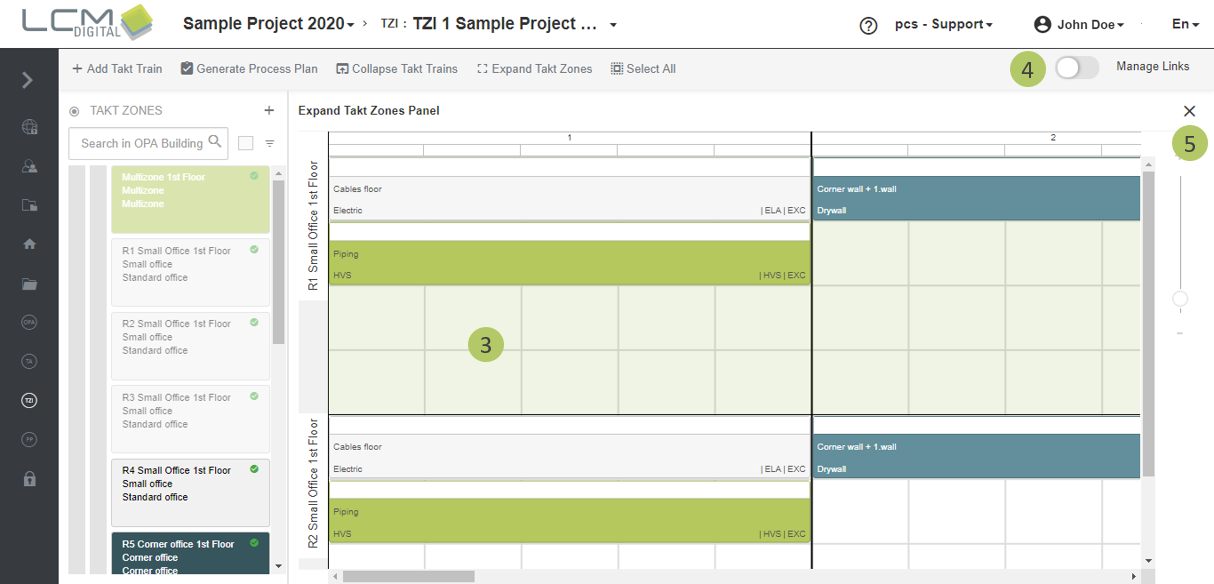
Expanding a Takt Zone helps to view the details of a Takt Zone within the Takt Zone Iteration. Viewing the details of a Takt Zone in the Takt Zone Iteration not only helps to extract information without changing back to the Takt Analysis view but also allows for forming dependencies between Fragnet Steps from different Takt Zones. However, other properties of the Fragnet Steps such as duration, position, name, etc. can only be edited in the Takt Analysis or Process Plan.
1. Select a Takt Zone or Takt Zones by left clicking and pressing the CTRL key.
2. Click on “Expand Takt Zones”.
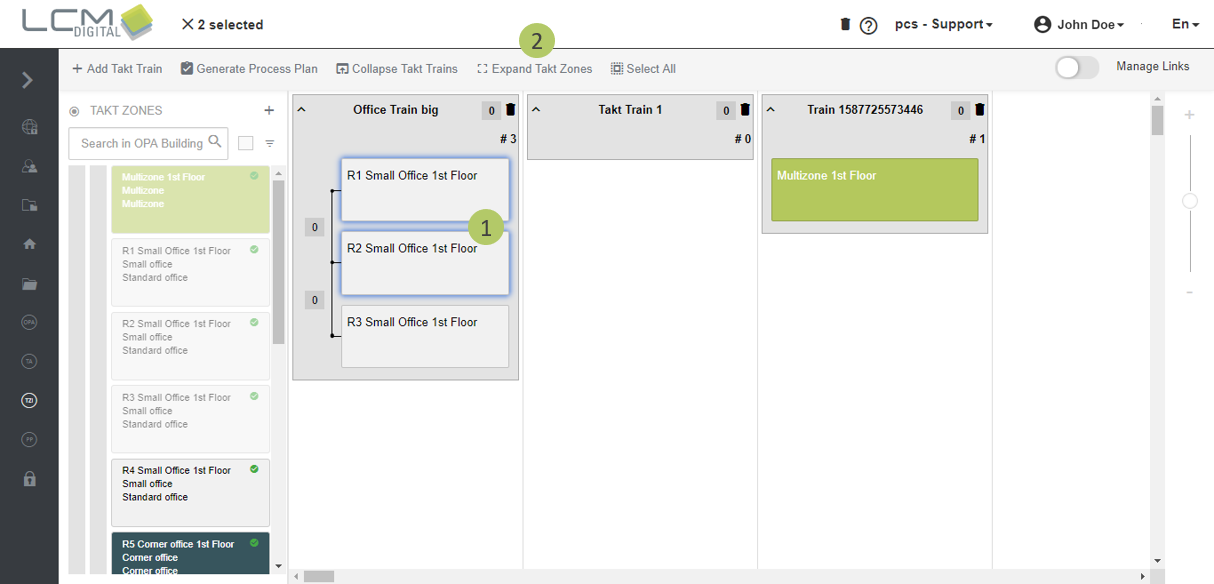
3. Selected Takt Zones are expanded.
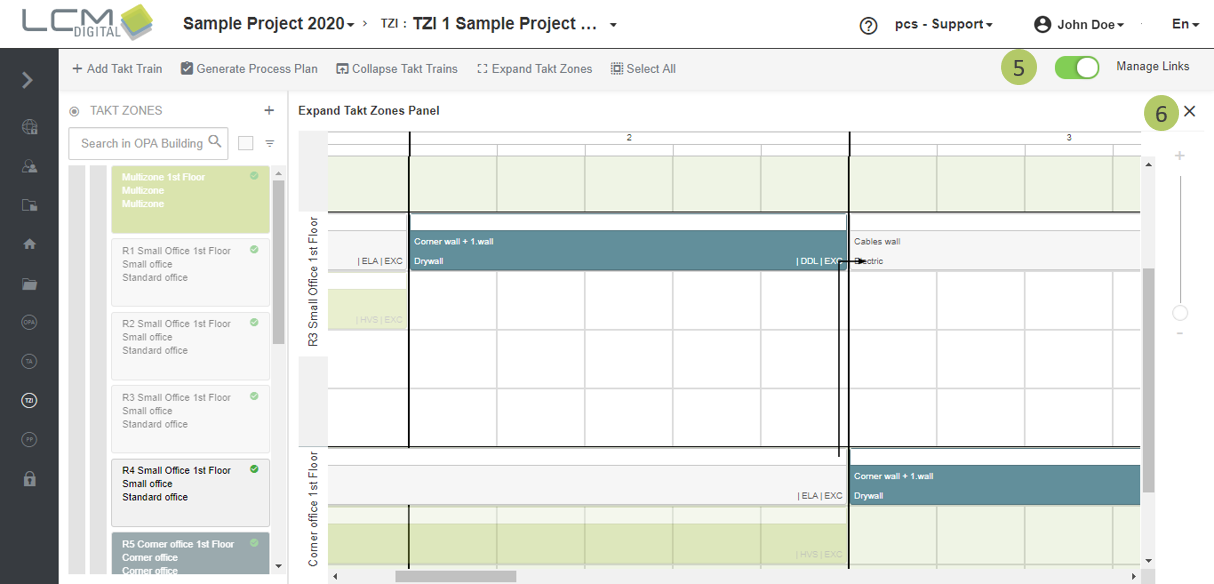
4. Optional: Turn on the manage links to create links between Fragnet Steps from different Takt Zones. Find further information about how to create links between fragnet steps in the TZI in this section.
5. Click on close icon to go back to the TZI screen.
Define links between two Takt Zones
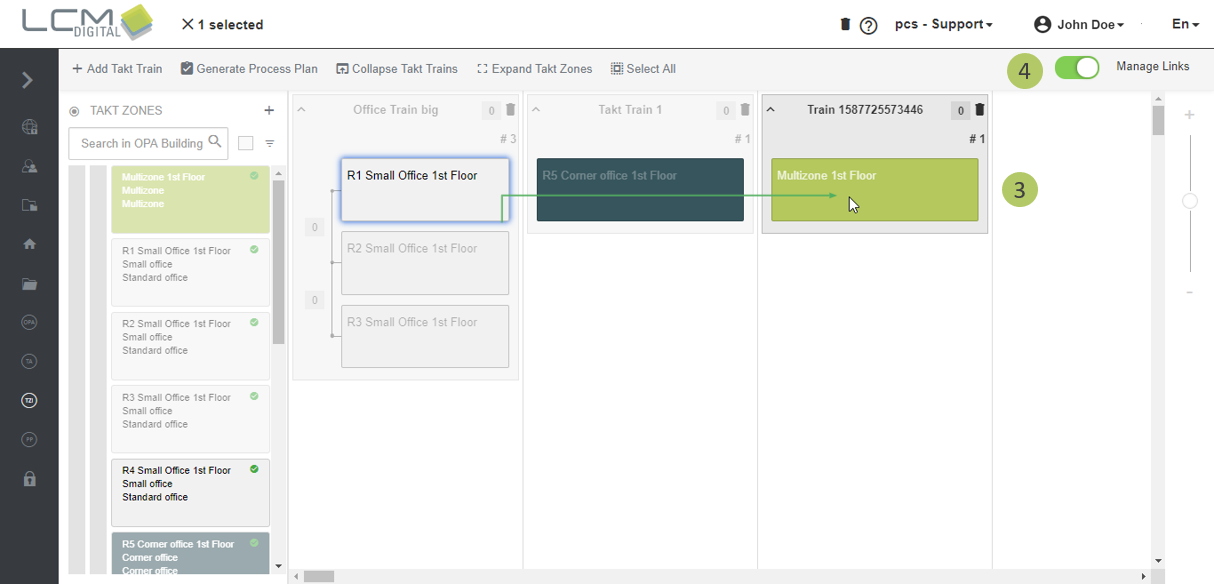
1. Select the Takt Zone that represents the predecessor.
2. Turn on the toggle button to turn on manage links mode (it turns green when it is on).
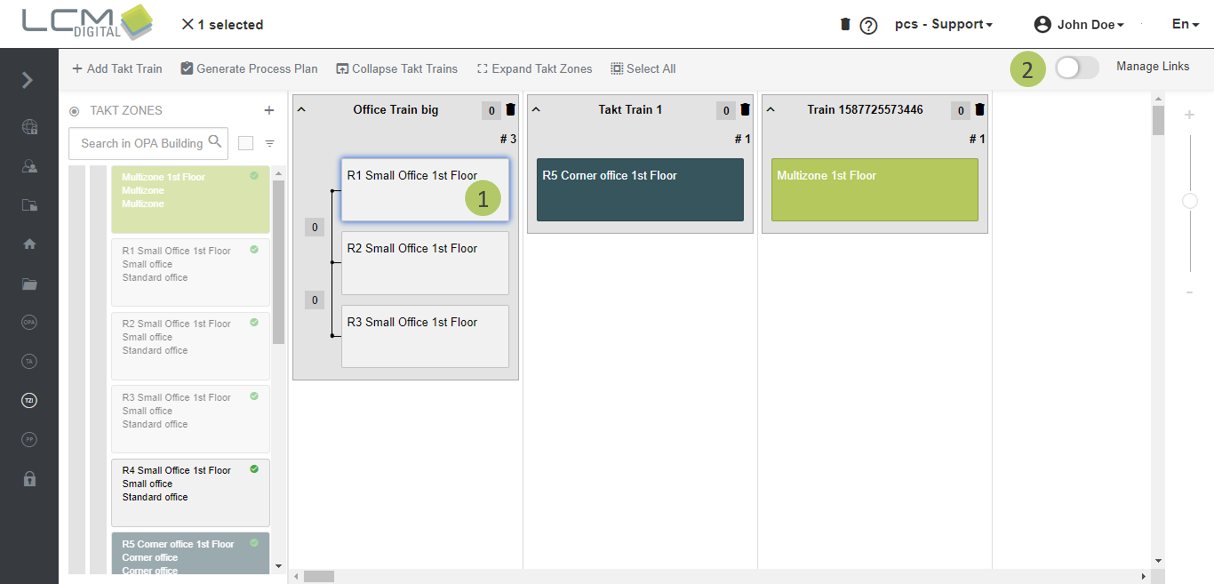
3. Click on the Takt Zone that represents the successor.
4. Turn off the manage links mode when links are created.
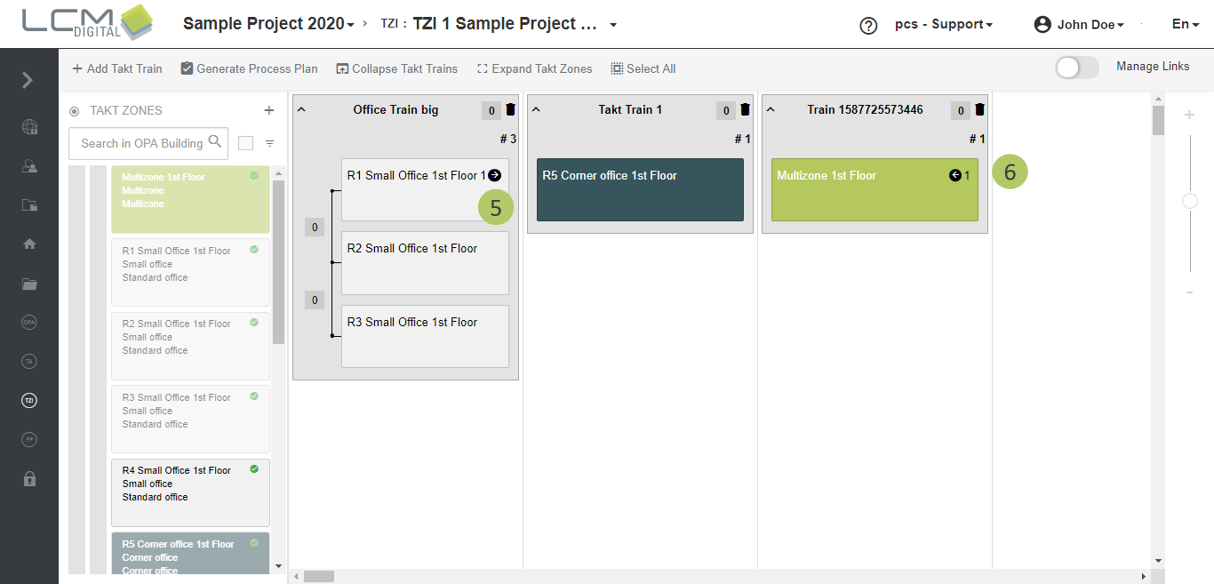
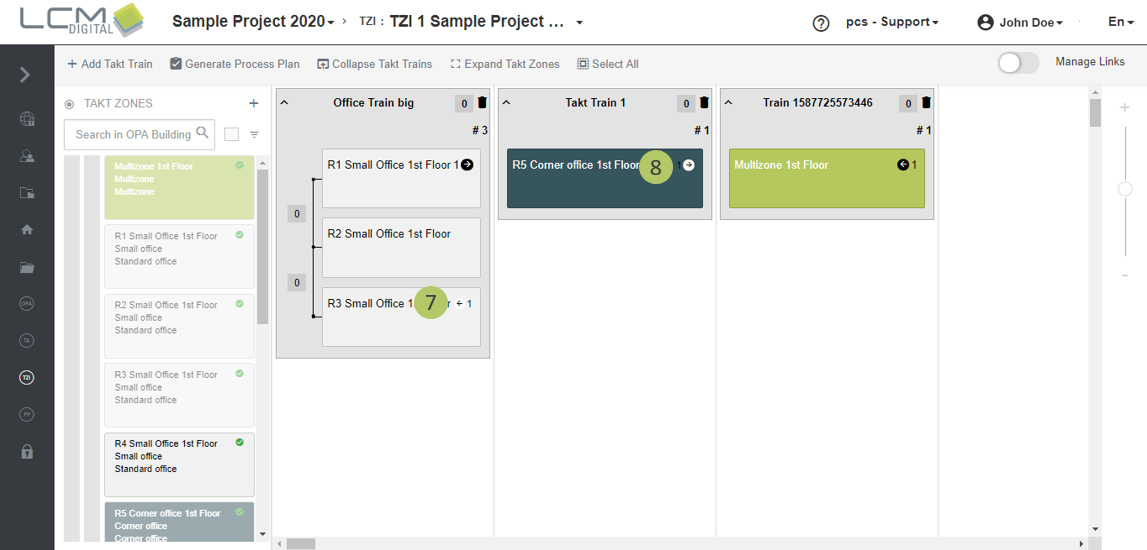
5. The symbols representing the predecessor appears on the corresponding Takt Zone.
6. The symbols representing the successor appears on the corresponding Takt Zone.
Define links between two fragnet steps
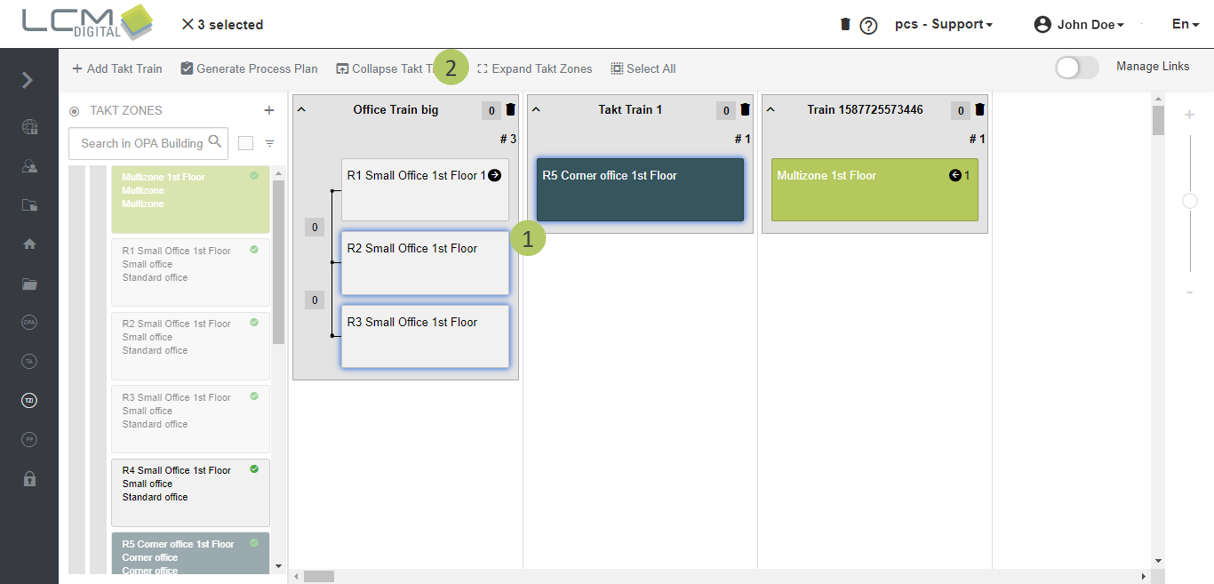
1. Select the Takt Zones that contain the fragnets that you want to link.
2. Click on “Expand Takt Zones”.
3. Turn on the manage links mode.
4. First, click on the fragnet step representing the predecessor. Then click on the fragnet step that should be the successor.
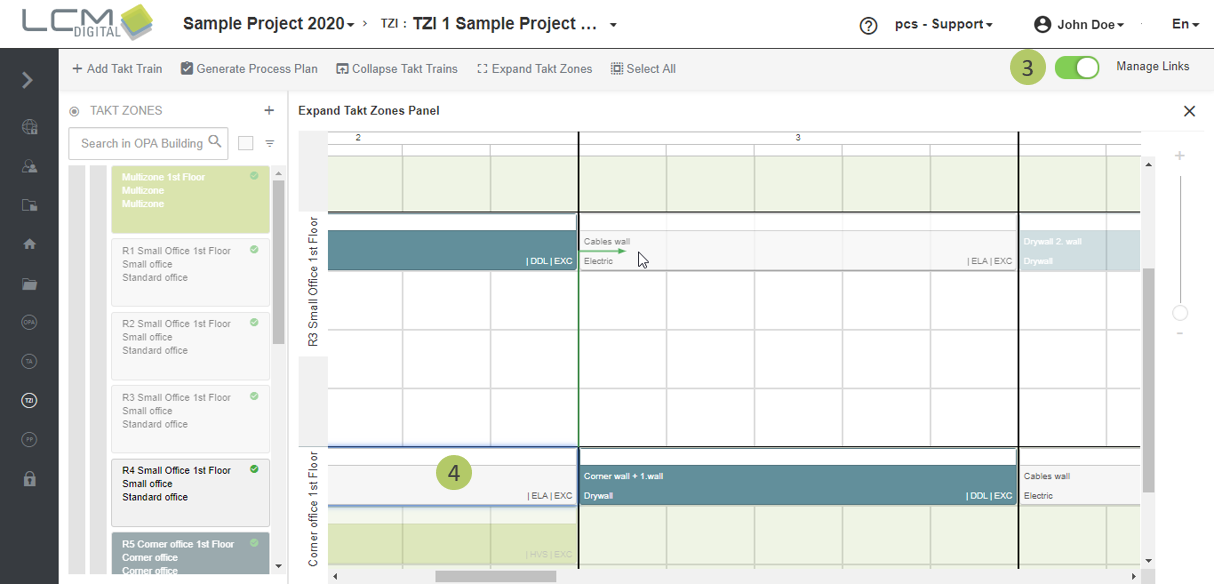
The link between the two fragnet steps in shown as a black arrow.
5. If all links have been created, turn off the Manage Links mode.
6. Click on the close symbol to go back to the TZI screen.
7. The symbol representing the predecessor appears on the Takt Zone containing the linked fragnet step.
8. The symbol representing the successor appears on the Takt Zone that contains the fragnet step.
Generate the Process Plan from the TZI
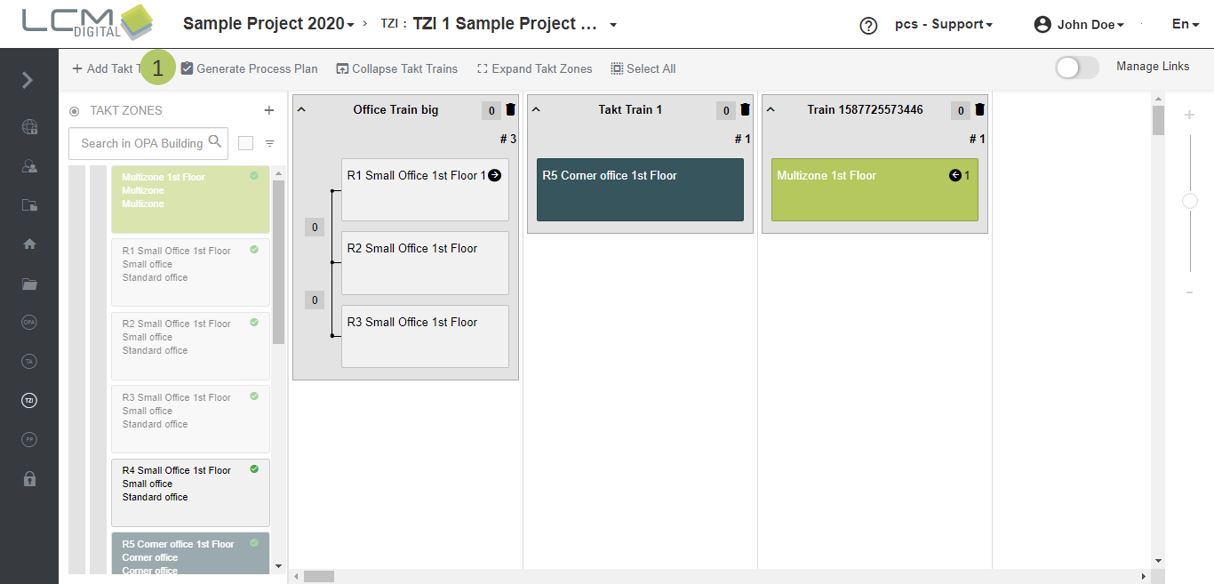
1. Click on “Generate Process Plan”. The screen will be automatically directed to the PP screen.
|
|
Prerequisite for generating a PP from the TZI:
|