|
Video: In the video tutorials you can find a video abou the Process Plan. |
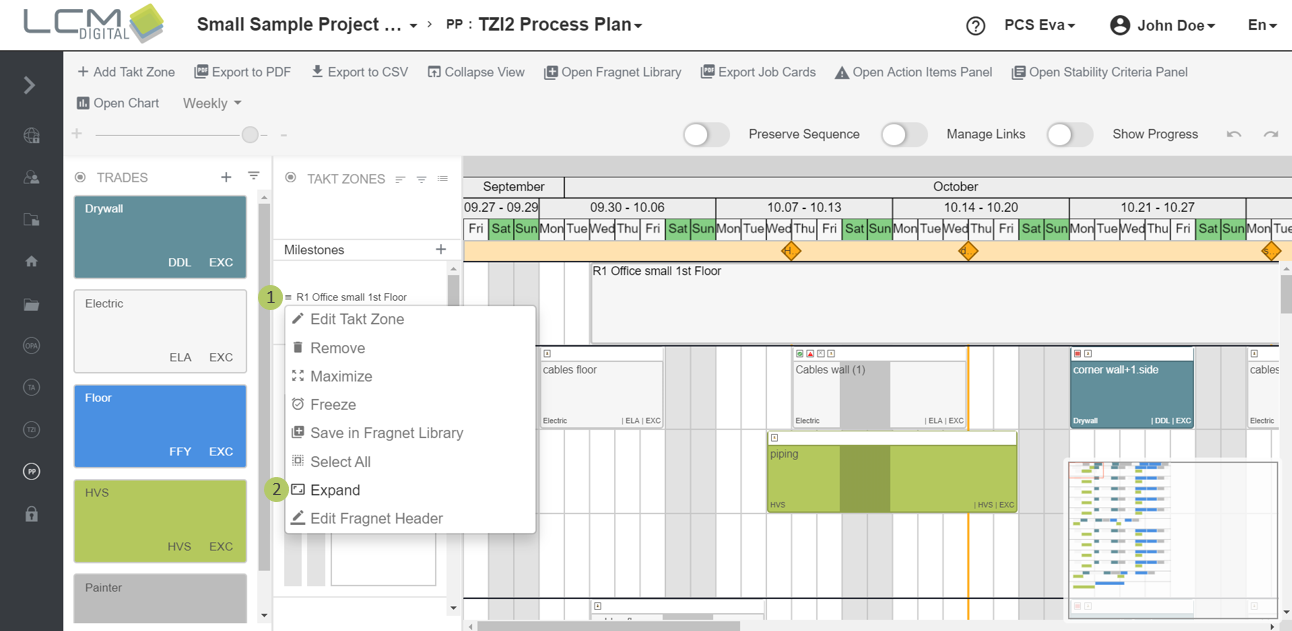
Processes are arranged in the process plan in takt zones that correspond to sections of your construction project, e.g. the rooms.
With the editing functions of the takt zones, you can, for example, save parts of the process chains as a template and reuse them or collapse all processes in a takt zone and move them in their entirety.
- Change the order of Takt Zones
- Insert predefined Takt Zones
- Remove Takt Zones
- Save Takt Zones in the Fragnet Library
- Add new Takt Zones
More information about how to work with Takt Zones in the Process Plan:
- Full screen mode
- Edit Takt Zone names
- Freeze and unfreeze Takt Zones
- Select all processes in a Takt Zone
- Expand and collapse Takt Zones
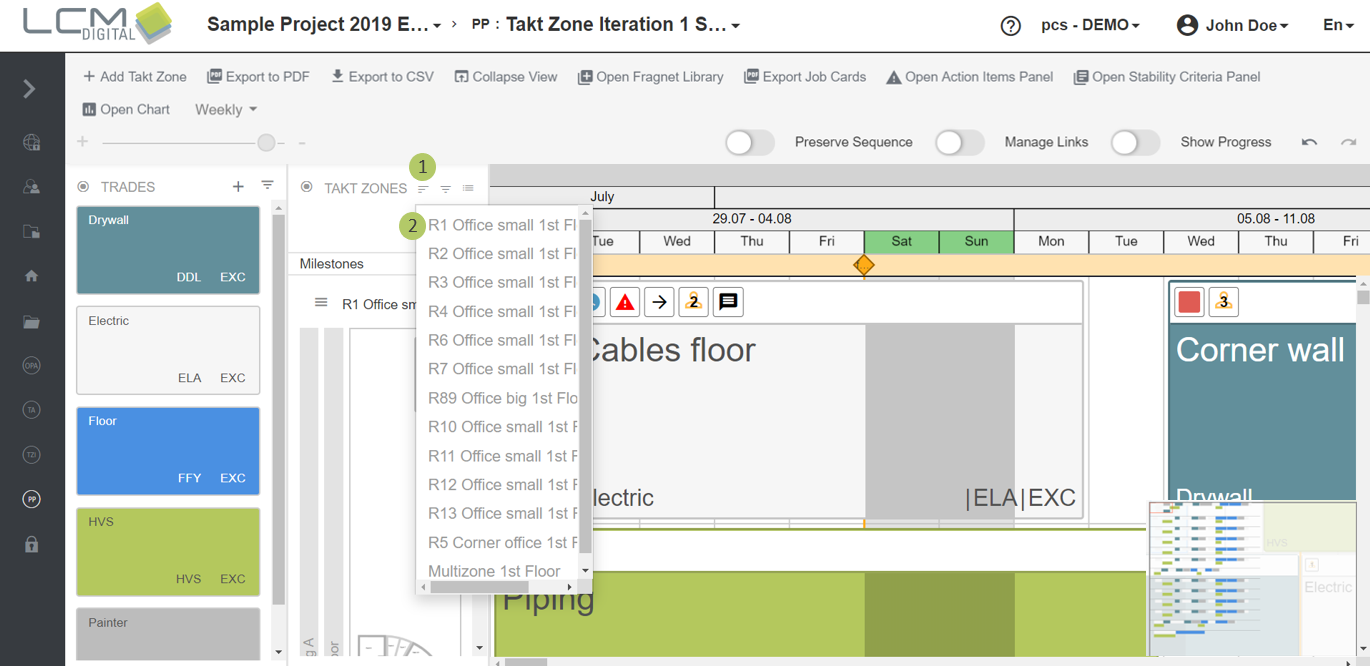
Change the order of Takt Zones
1. Click on this icon  ine the Takt Zone Panel.
2. Drag and drop the Takt Zones into any position (upper on the list or lower) to get the desired order.
Insert predefined Takt Zones
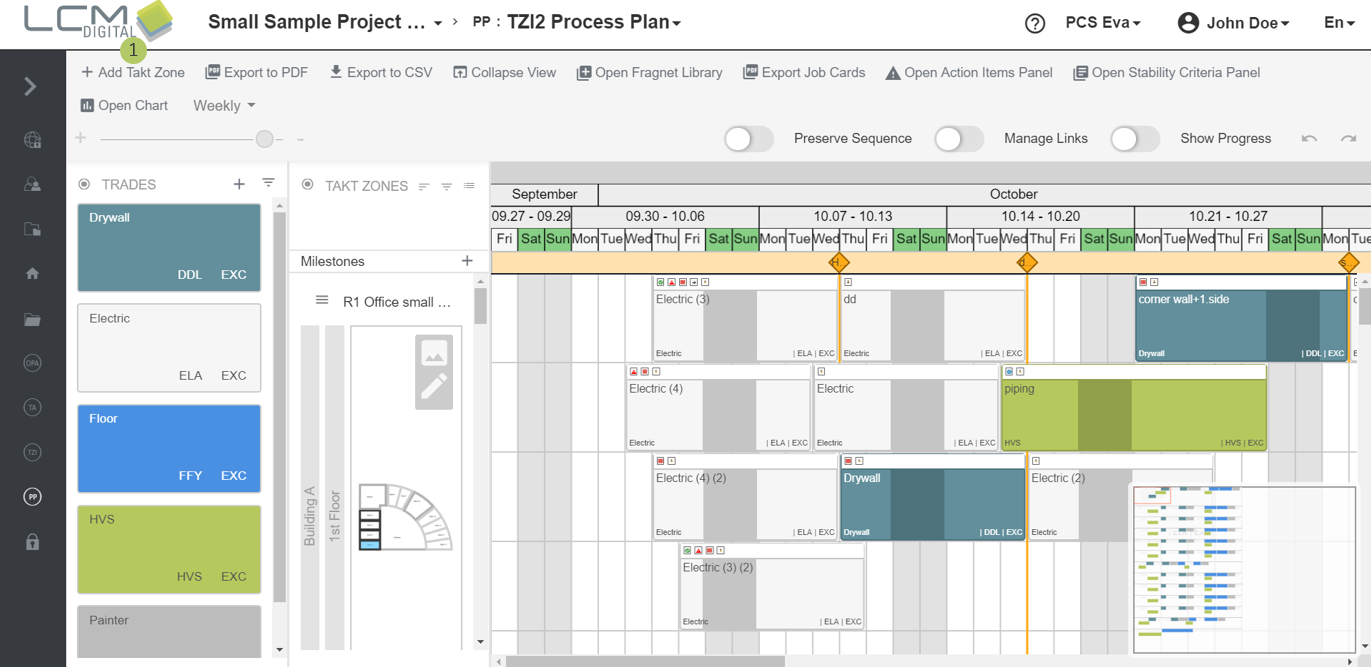
1. Click on "Add Takt Zones" to add already defined Takt Zones from the Project Data, that are not part of the PP yet.
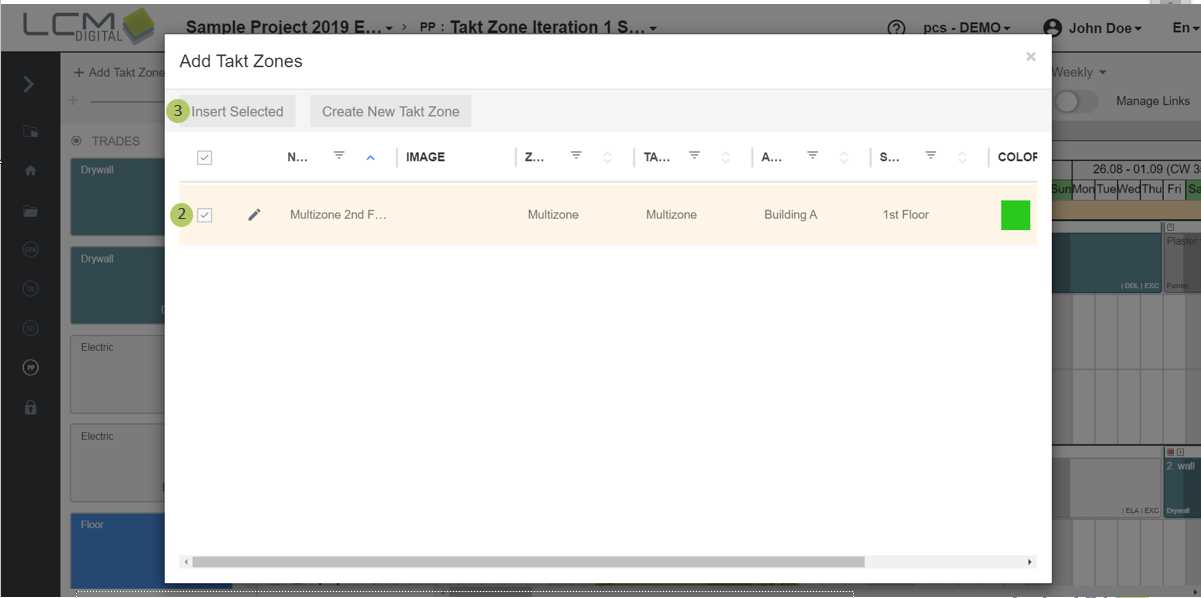
2. Select the Takt Zone/s to be imported.
3. Select "Insert Selected" to import the Takt Zone/s and be redirected to the PP screen.
Remove Takt Zones
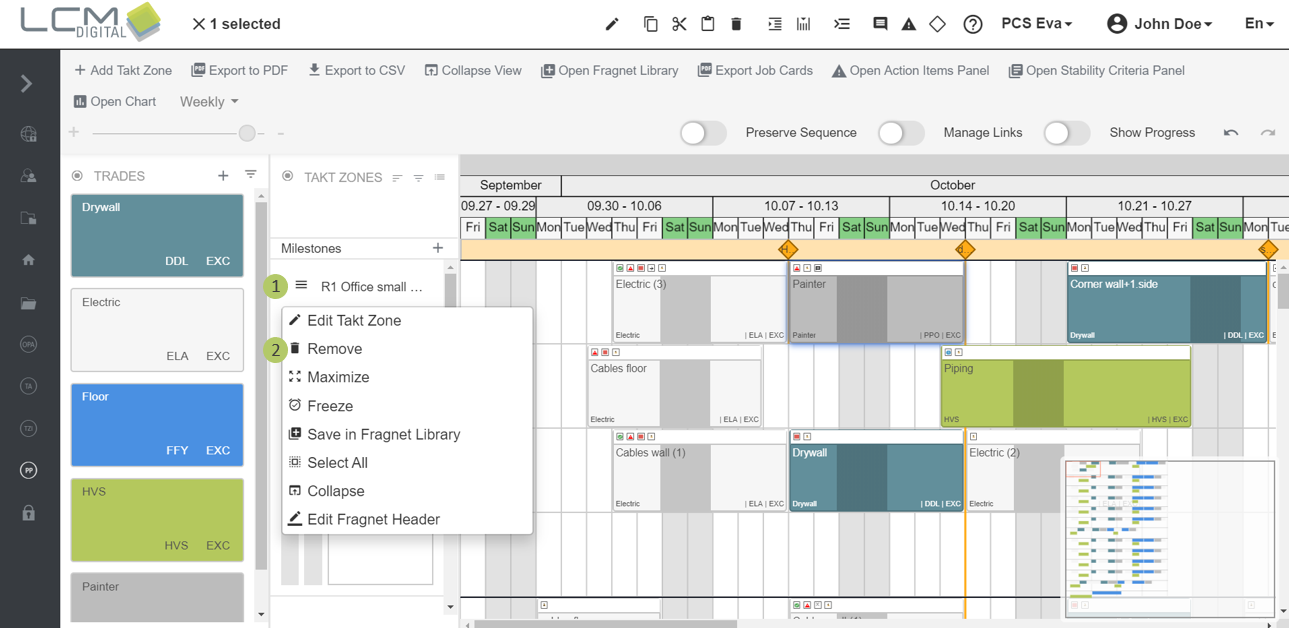
1. Click on this icon  next the Takt Zone’s name.
2. Click on this ico  to remove the Takt Zone.
|
|
Note: When deleted, the Process Plan for the Takt Zone cannot be regenerated here. The Process Plan must be generated again from the Takt Zone Iteration. However, Takt Zones and their Fragnet Steps can be added manually to the Process Plan. |
Save Takt Zones in the Fragnet Library
|
|
You can find further information about how to save Takt Zones in the Fragnet Library and reuse the in your workflow in the article about the Fragnet Library. |
Add new Takt Zones
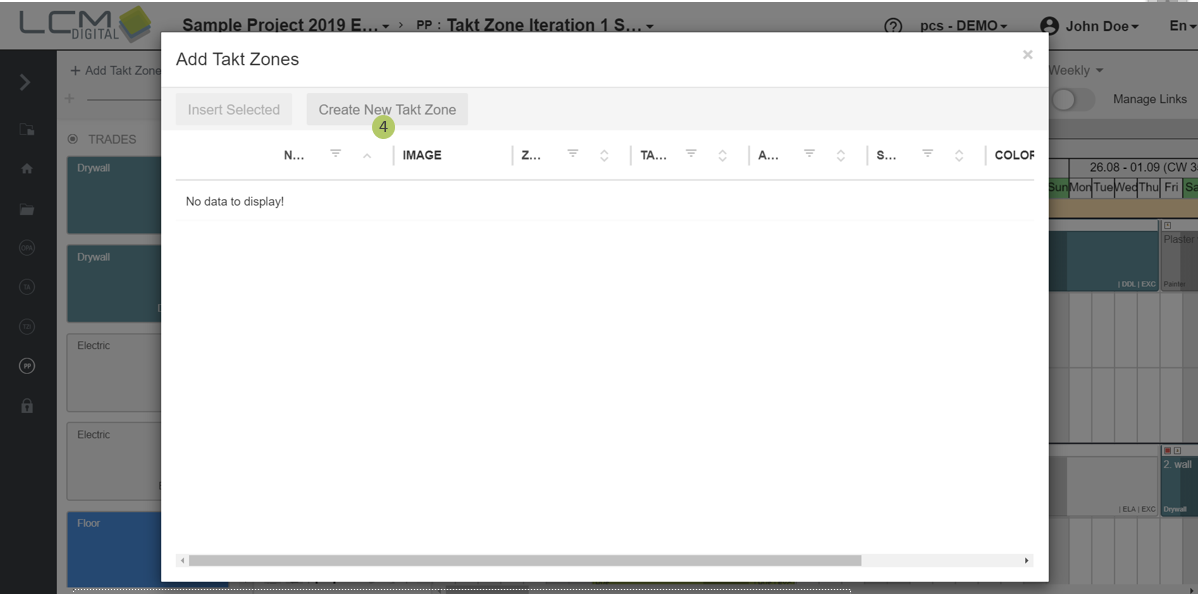
1. Click on "Add Takt Zone".
2. If the Takt Zone is not yet defined, click on "Create New Takt Zone". The screen will be automatically redirected to the Takt Zone library to create a new Takt Zone. The procedure is as described in Creating a Takt Zone in Project Data.
More information about how to work with Takt Zones in the Process Plan
Full Screen Mode
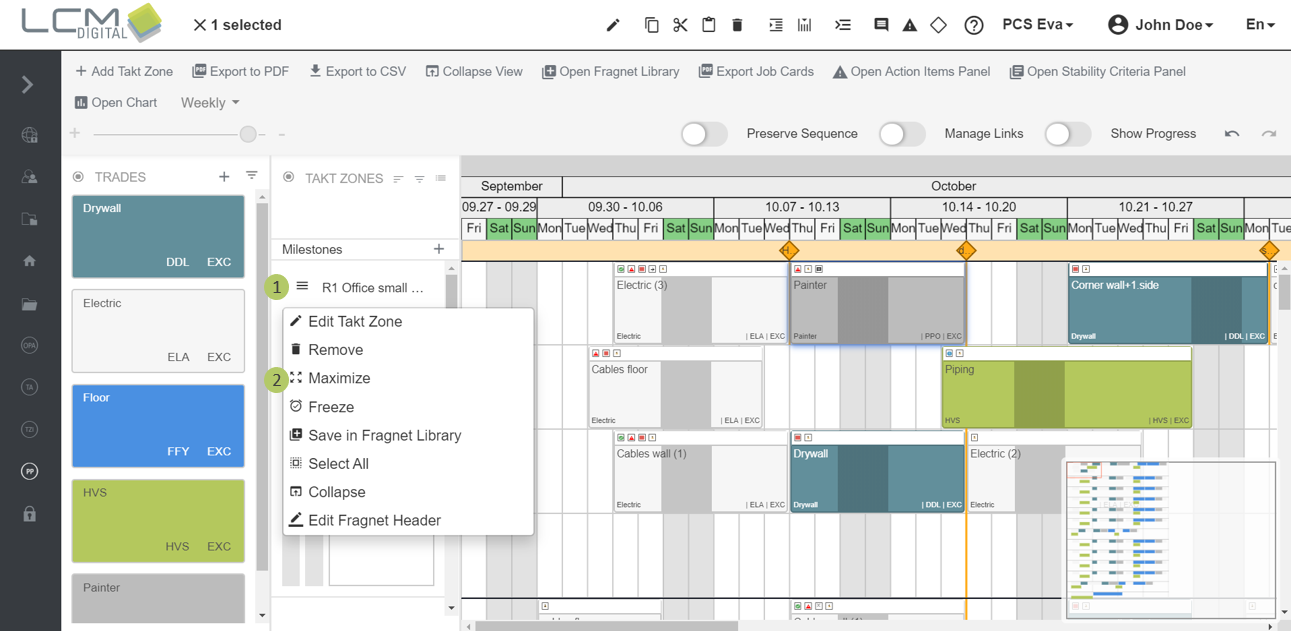
1. Click on this icon next the Takt Zone’s name.
2. Click on this icon  to view the Takt Zone in Full Screen Mode.
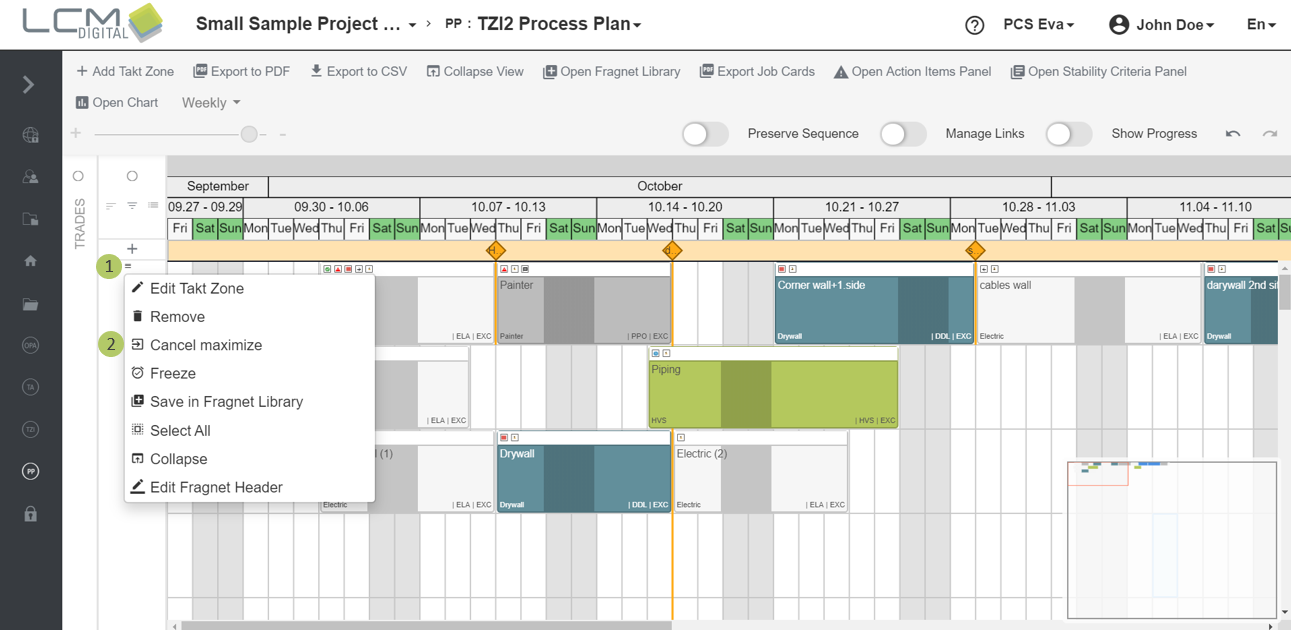
3. Click on this icon next the Takt Zone’s name.
4. Click on this icon  to exit Full Screen Mode.
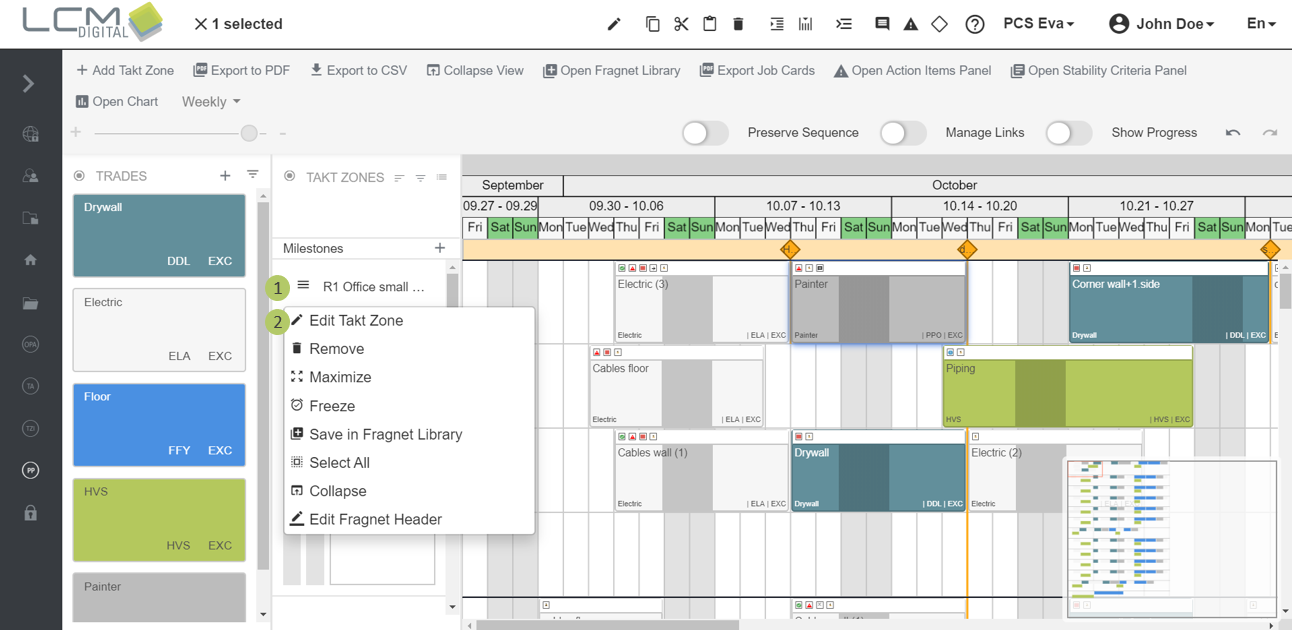
Edit Takt Zone name
1. Click on this iconl next the Takt Zone’s name.
2. Click on this iconl  to edit the Takt Zone.
The screen will be directed to the Takt Zones library in Project Data. Follow this procedure to edit the properties of the Takt Zone.
Freeze and unfreeze Takt Zones
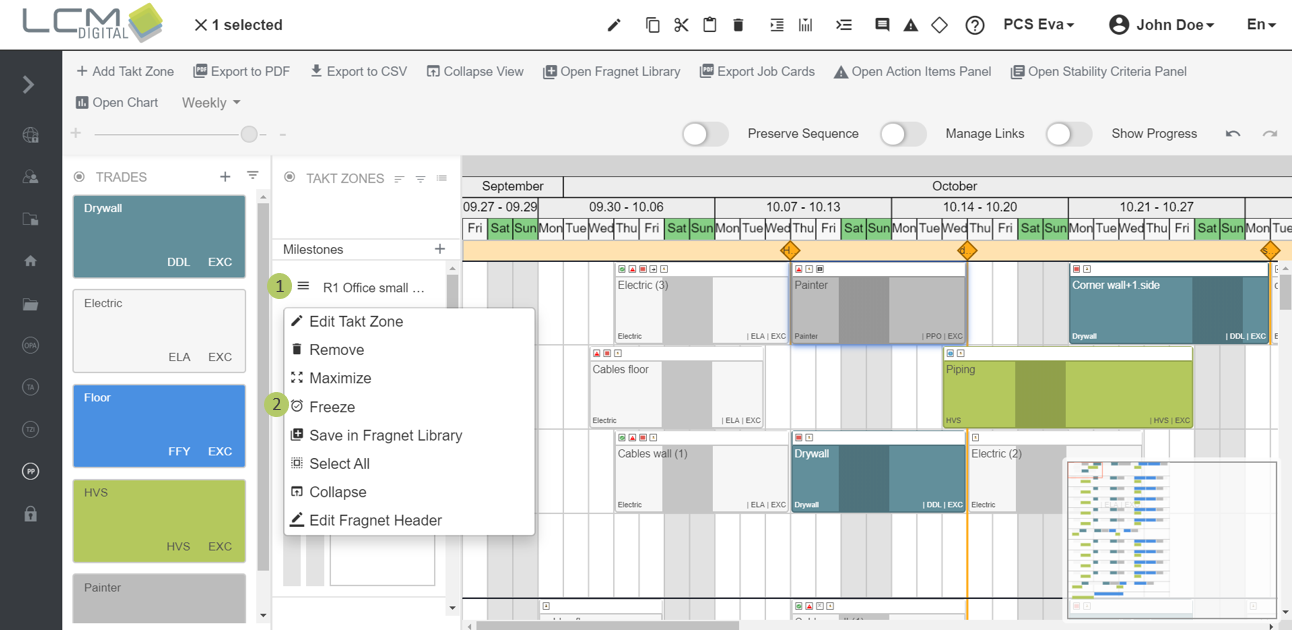
Freezing enables you to dock a Takt Zone at the top of the PP grid. This is useful when you want to view a particular Takt Zone at any time, while working on other Takt Zones simultaneously.
1. Click on this icon next the Takt Zone’s name.
2. Click on this icon  to freeze the Takt Zone and dock it at the top of the screen.
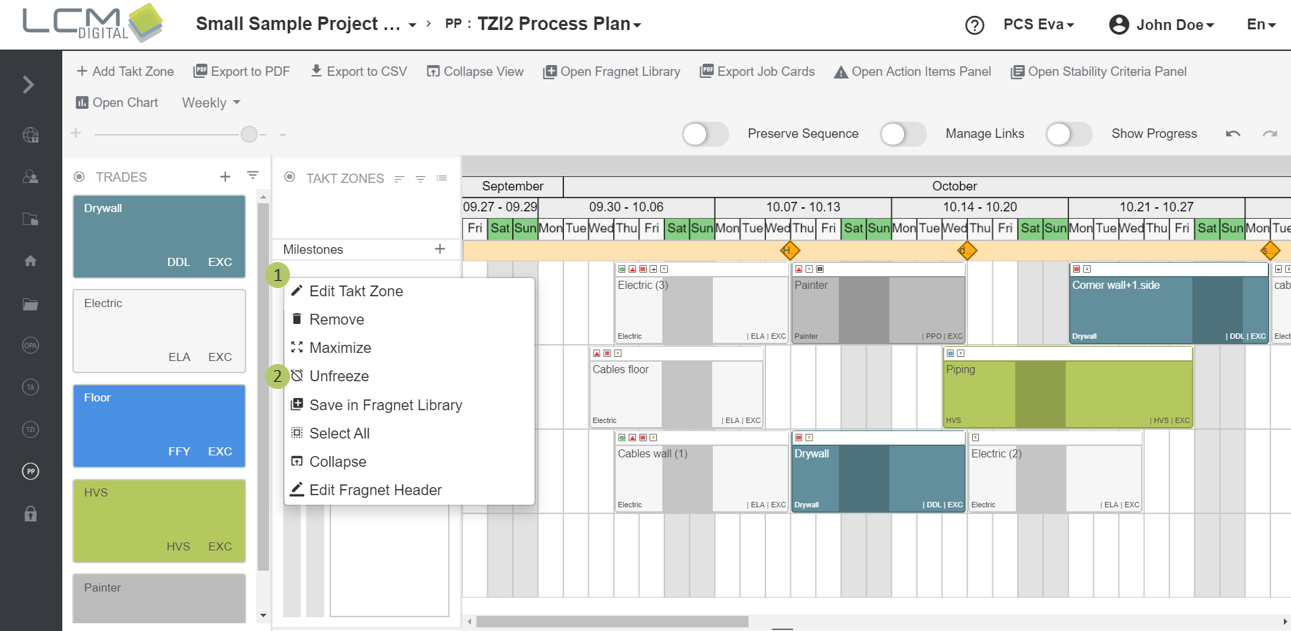
3. Click on this icon next the Takt Zone’s name.
4. Click on this icon  to unfreeze the Takt Zone and undock it at the top of the screen.
Select all processes in a Takt Zone
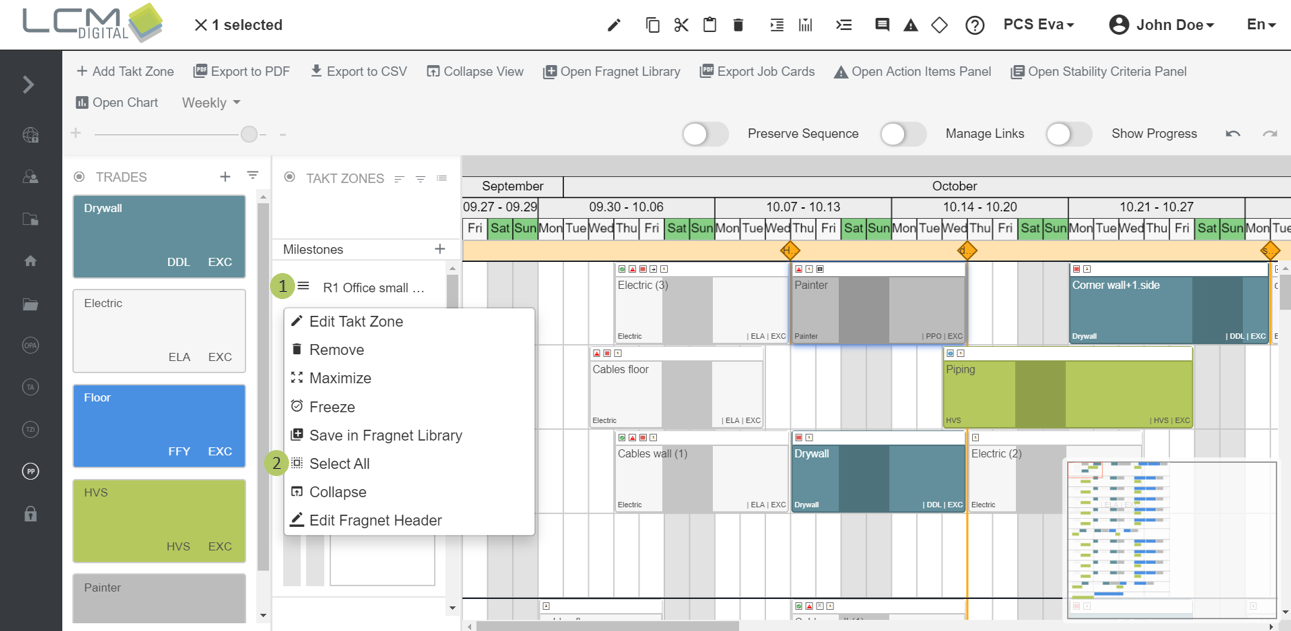
1. Click on this icon next the Takt Zone’s name.
2. Click on this icon  to select all Fragnet Steps in this Takt Zone.
Alternative: Select one Fragnet Step from that Takt Type and hold CTRL and then the A key.
Collapse and Expand Takt Zones
Collapsing a Takt Zone provides a higher-level of its duration, start and end date.
1. Click on this icon next the Takt Zone’s name.
2. Click on this icon  to collapse this Takt Zone.
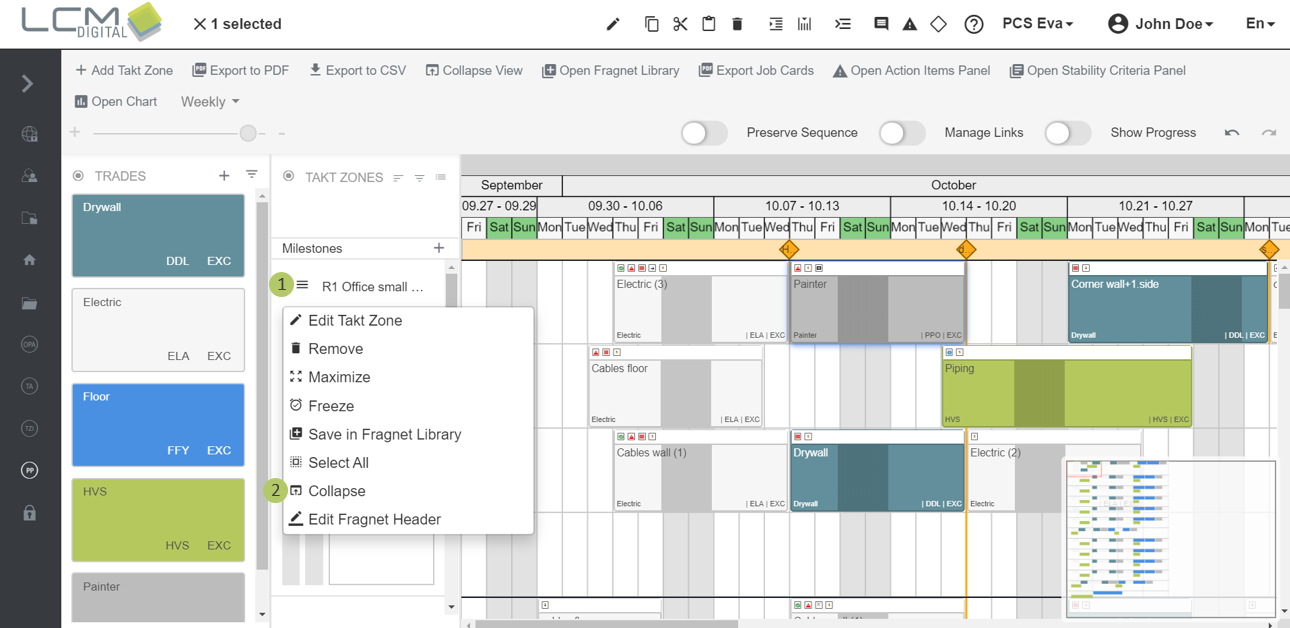
3. Click on this icon next to the Takt Zone’s name.
4. Click on this icon  to collapse this Takt Zone.