|
Video: In the video tutorials you can find a video about the Overall Process Analysis. |
In the Overall Process Analysis, processes are arranged in Zone Types that correspond to sections of your construction project with different process sequences, e.g. the room types.
With the editing functions of the Zone Types, you can, for example, save parts of the process chains as templates and reuse them or lock areas in which final processing statuses are recorded.
- Change the order of Zone Types
- Add predefined Zone Types
- Remove Zone Types
- Save Zone Types in the Fragnet Library
More information about working with Zone Types in the Overall Process Analysis:
- Maximize Zone Types
- Edit Zone Type names
- Freeze and unfreeze Zone Types from the top
- Select all process steps in a Zone Type
- Finalize Zone Types and reopen them for editing

Change the order of Zone Types
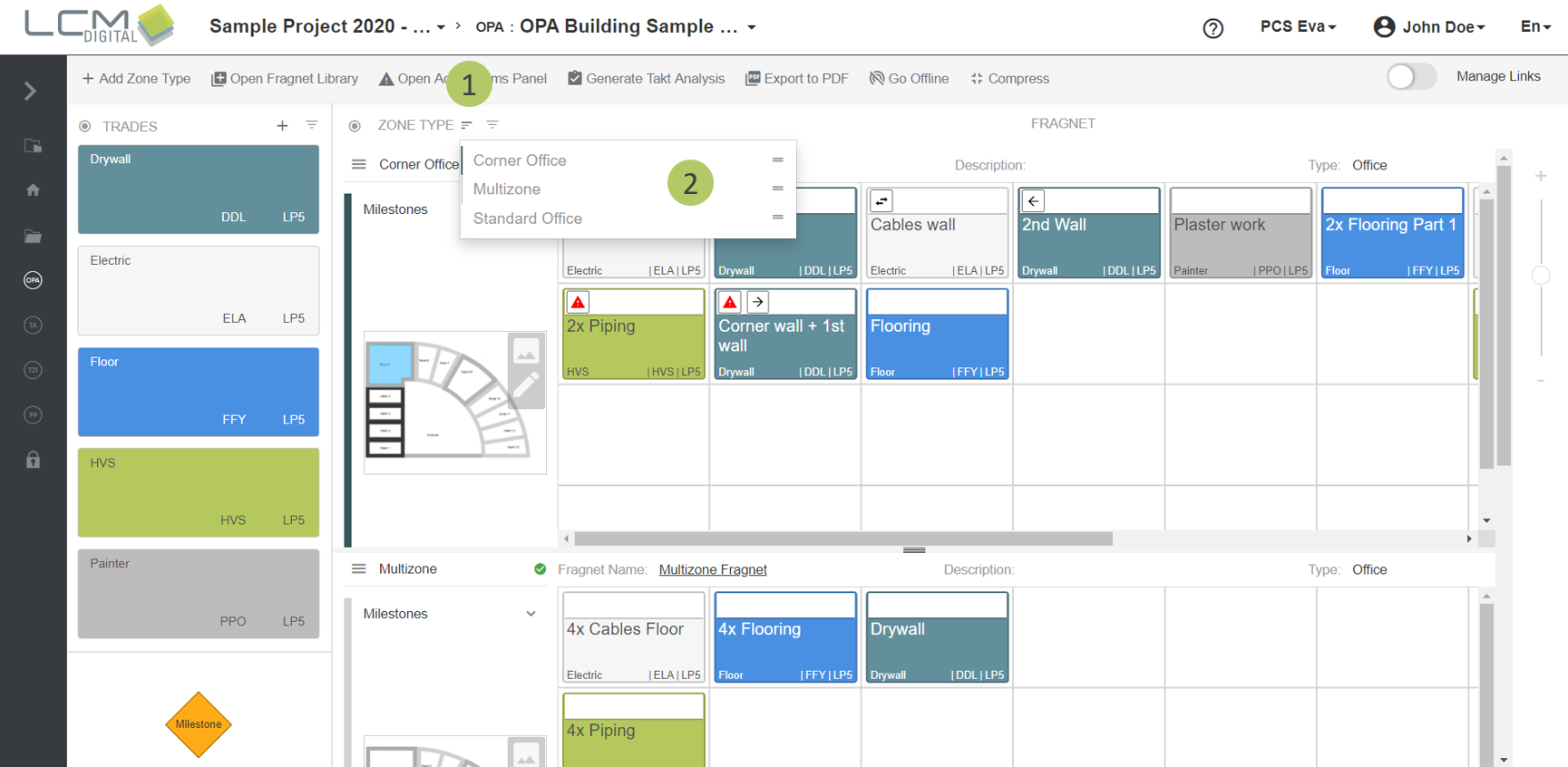
1. To change the order of zone types, click on this icon .
2. Drag and drop the Zone Types into any position (upper on the list or lower) to get the desired order.
Add predefined Zone Types
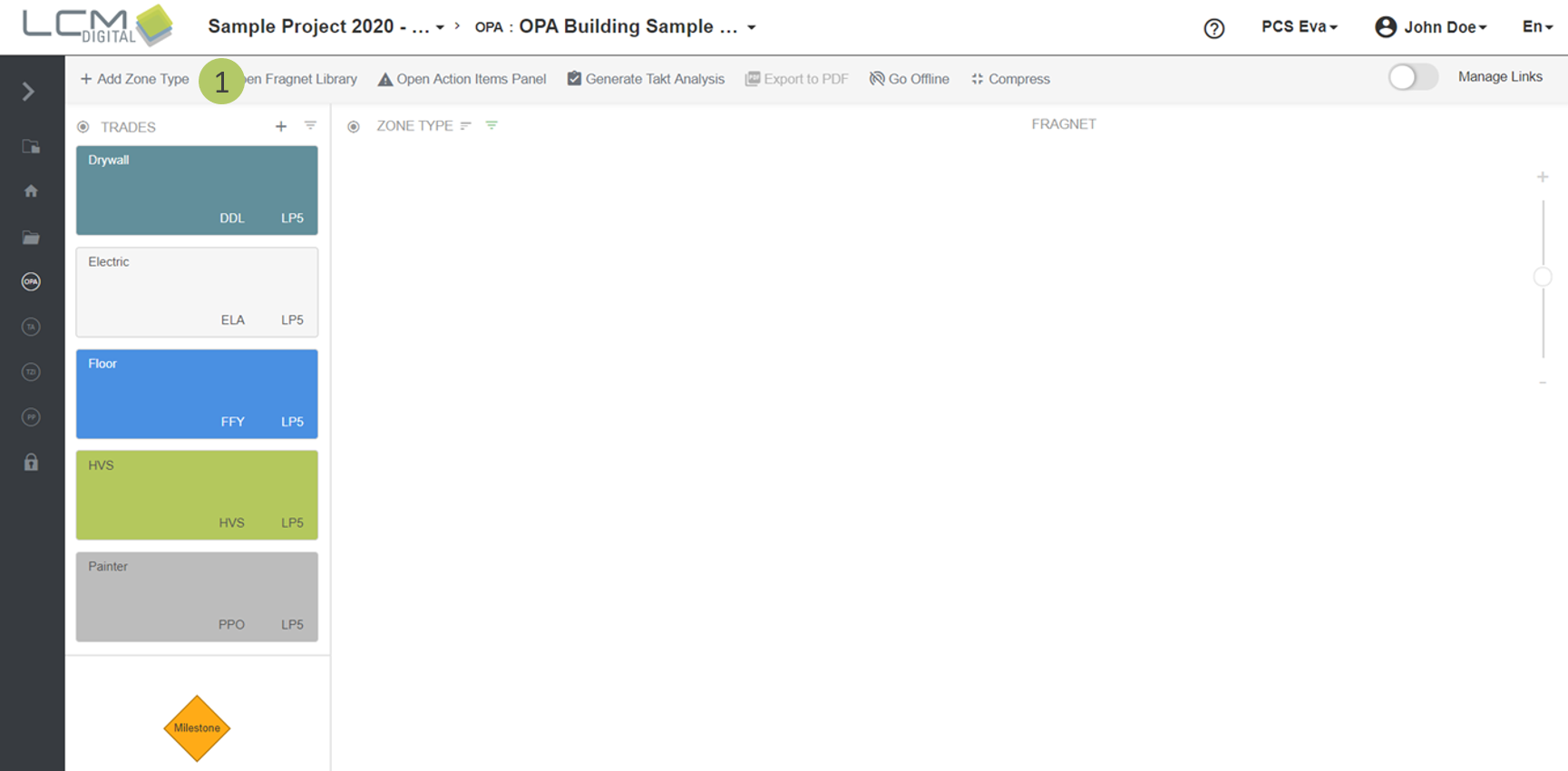
1. Click on “Add Zone Type” to add Zone Types to the OPA.
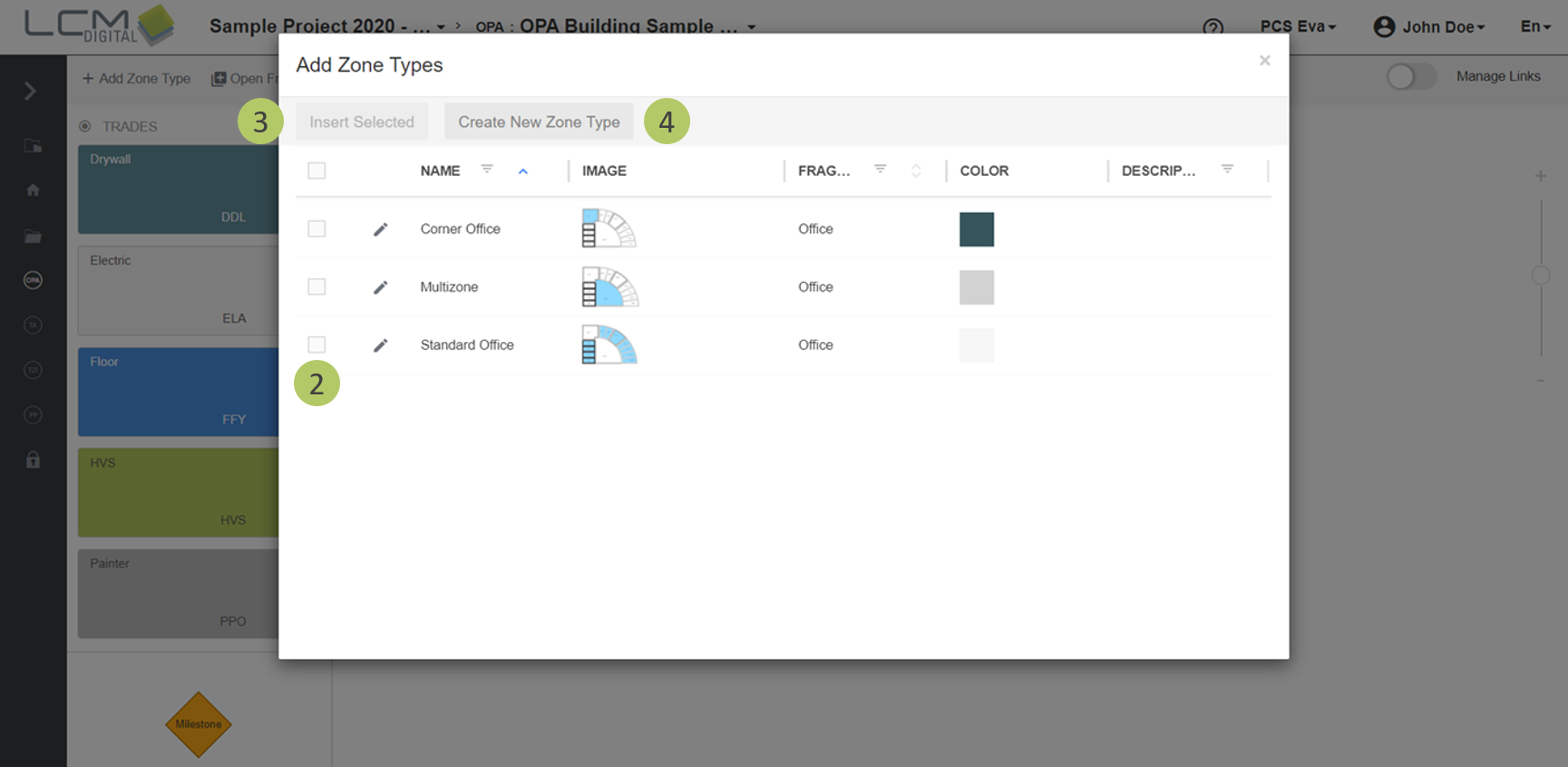
2. Select the Zone Type(s) to be imported.
3. Select "Insert Selected" to import the Zone Type/s and be directed to the OPA screen.
4. If the Zone Type is not yet defined or you want to create a new one, click on “Create New Zone Type”. The screen will be automatically directed to the Zone Type library to create a new Zone Type. After creating the new zone Type and clicking on “Save”, the screen returns back to the OPA screen.
Remove Zone Types
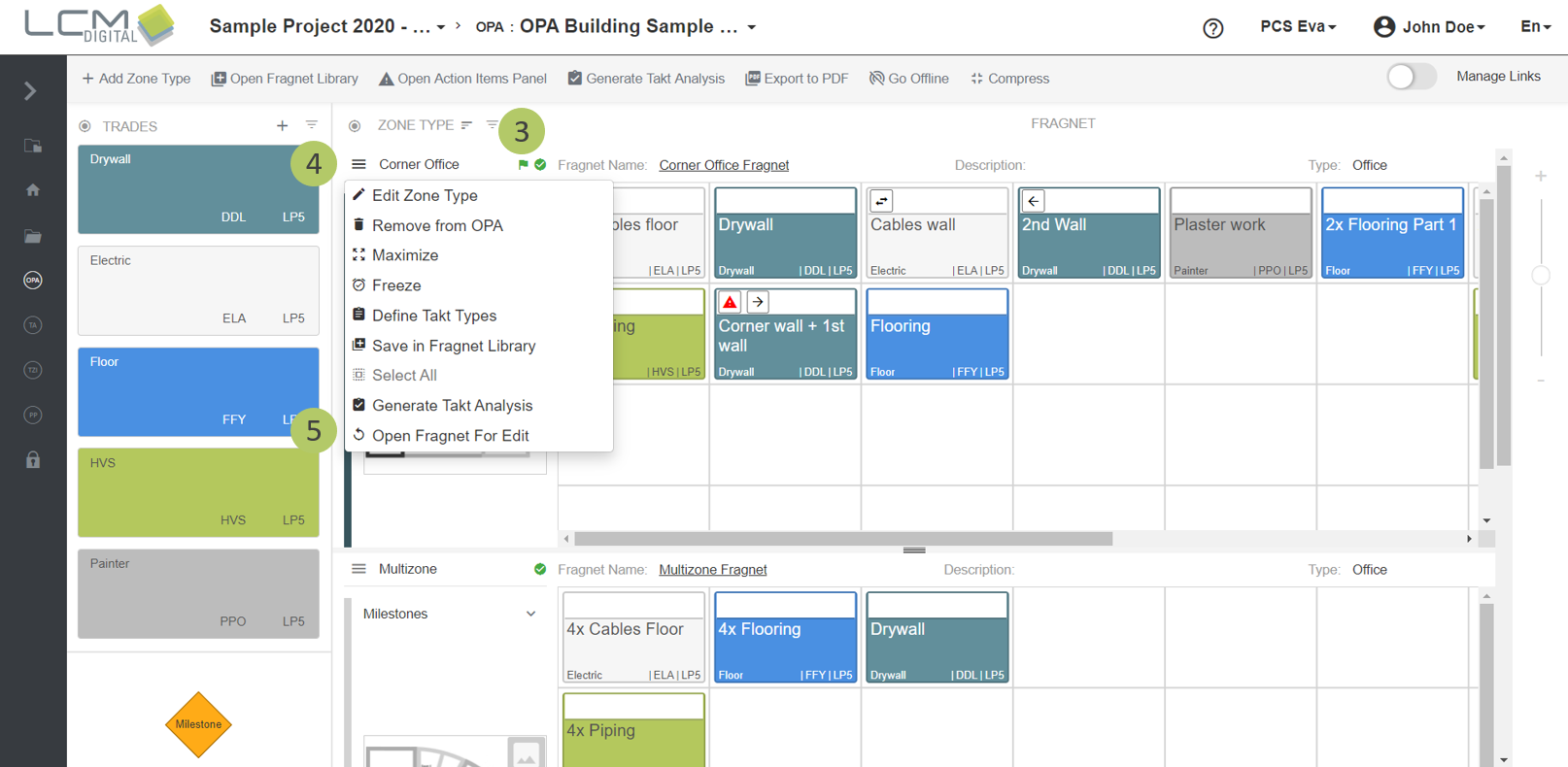
1. Click on this icon next the Zone Type’s name.
2. Click on this icon to remove the Zone Type from the OPA.
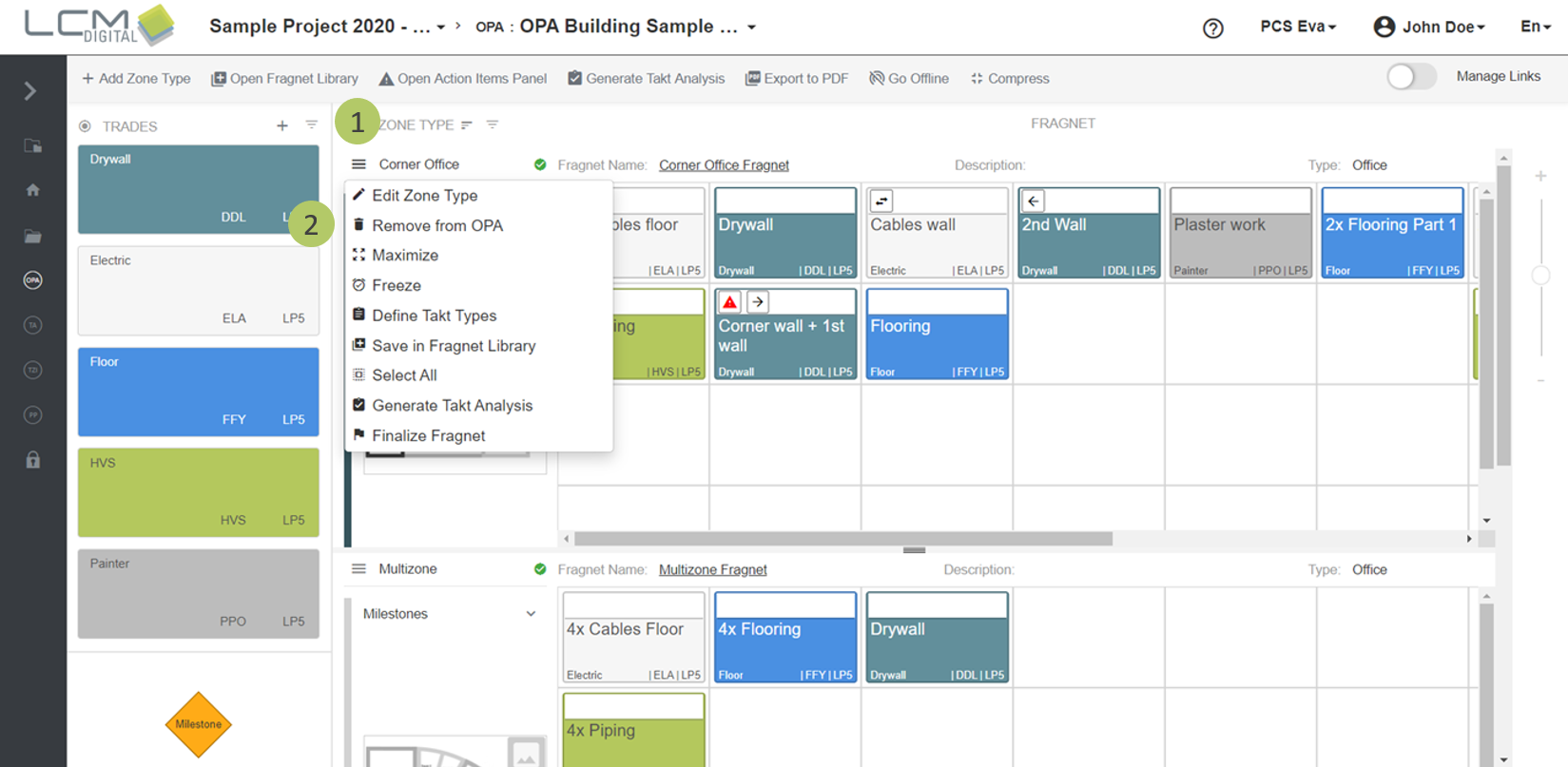
Save Zone Types in the Fragnet Library
|
|
Note: You find information on how to save process sequences in the fragnet library and use the fragnet library in your workflow in the article about the Fragnet Library. |
More information about working with Zone Types in the Overall Process Analysis
Maximize Zone Types
Maximized view can be used to focus only on one Zone Type.
1. Click on this icon next the Zone Type’s name.
2. Click on this icon to change to maximized screen mode.
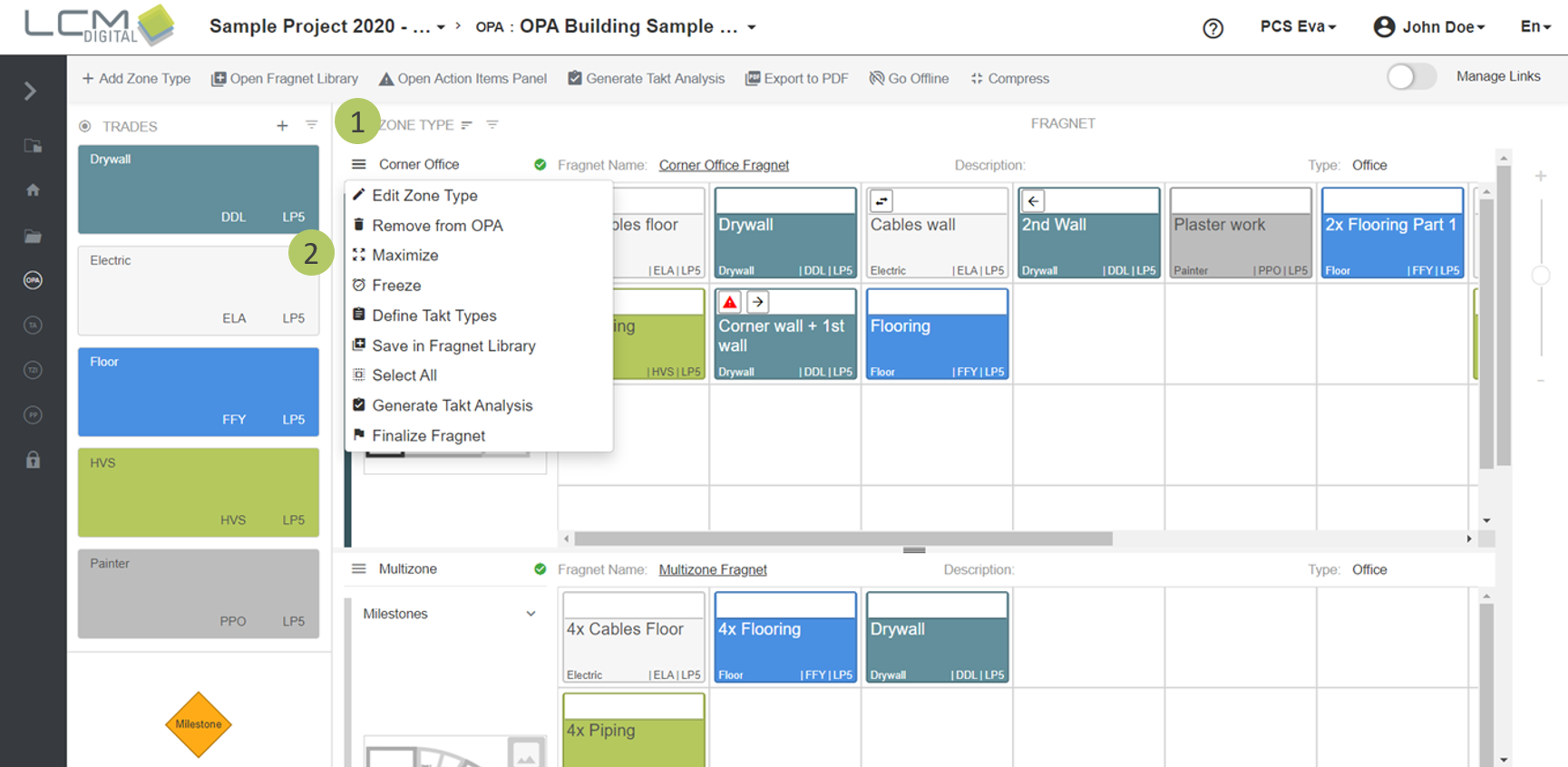
To cancel the maximized view, do the following:
1. Click on this icon next the Zone Type’s name.
2. Click on this icon to cancel maximized screen mode.
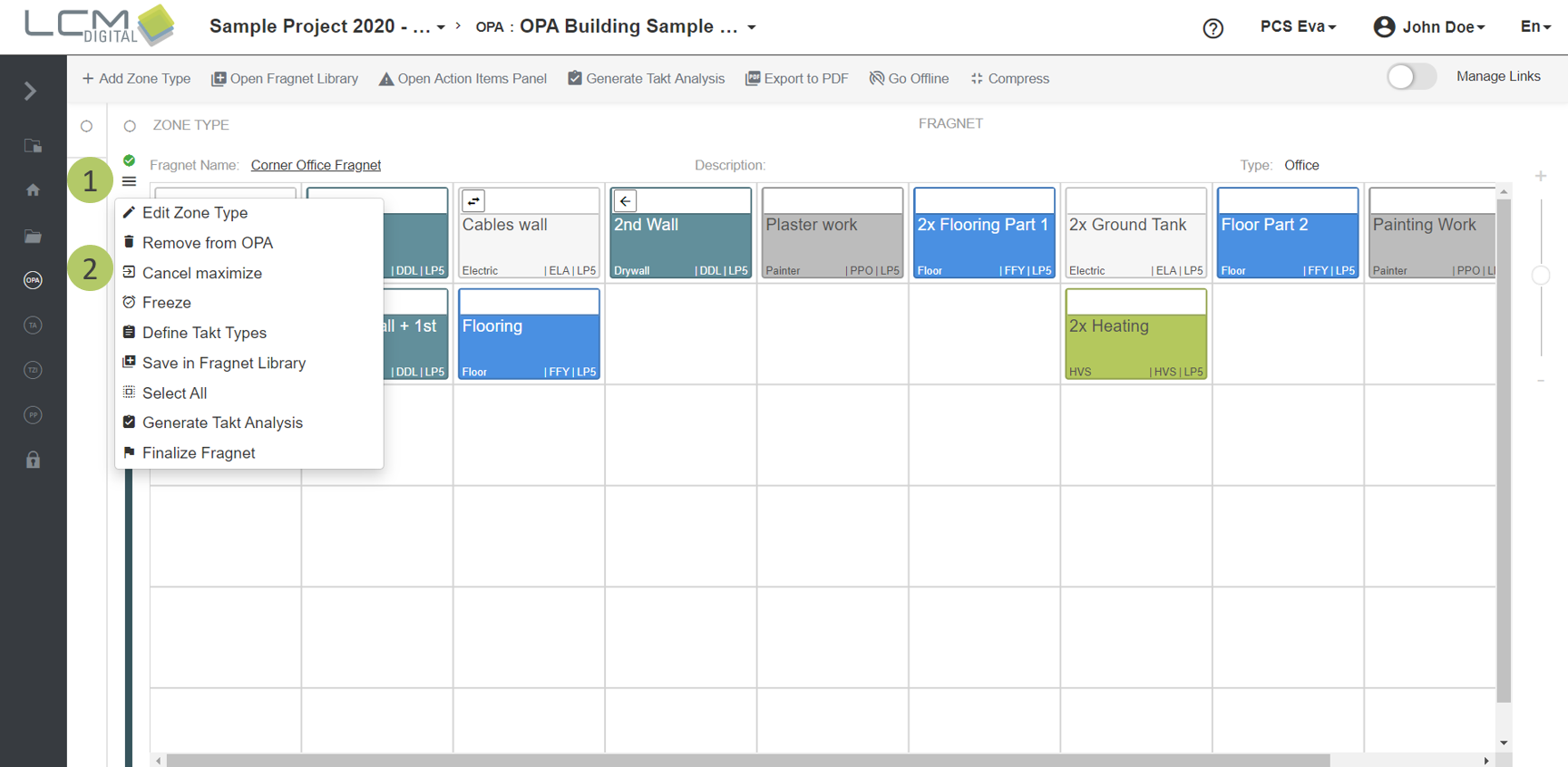
Edit Zone Type names
1. Click on this icon next the Zone Type’s name.
2. Click on this icon to edit the Zone Type’s properties.
3. The screen will be directed to the Zone Types library in Project Data. Follow this procedure to edit the properties of the Zone Type.
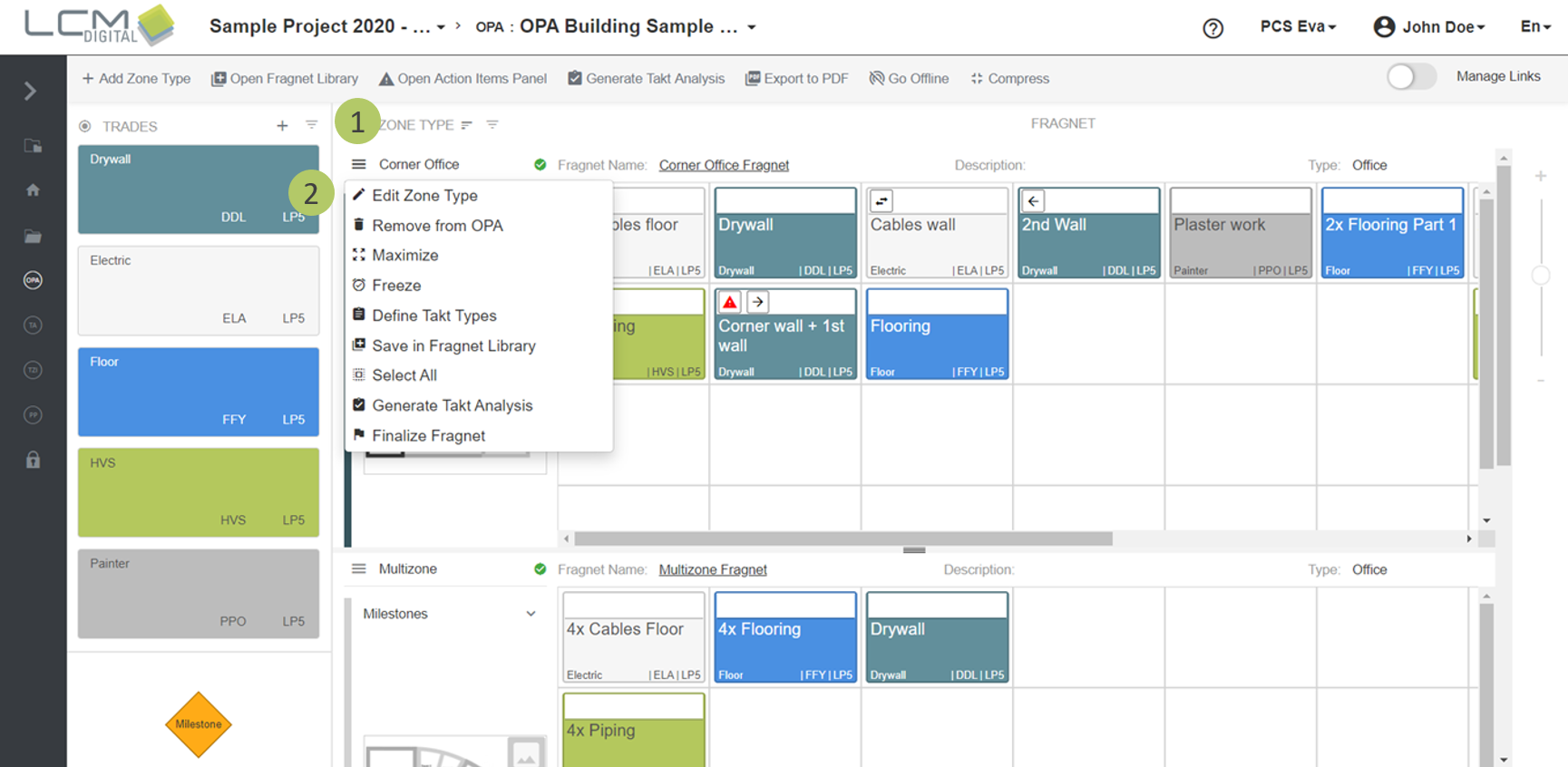
Freeze and unfreeze Zone Types from the top
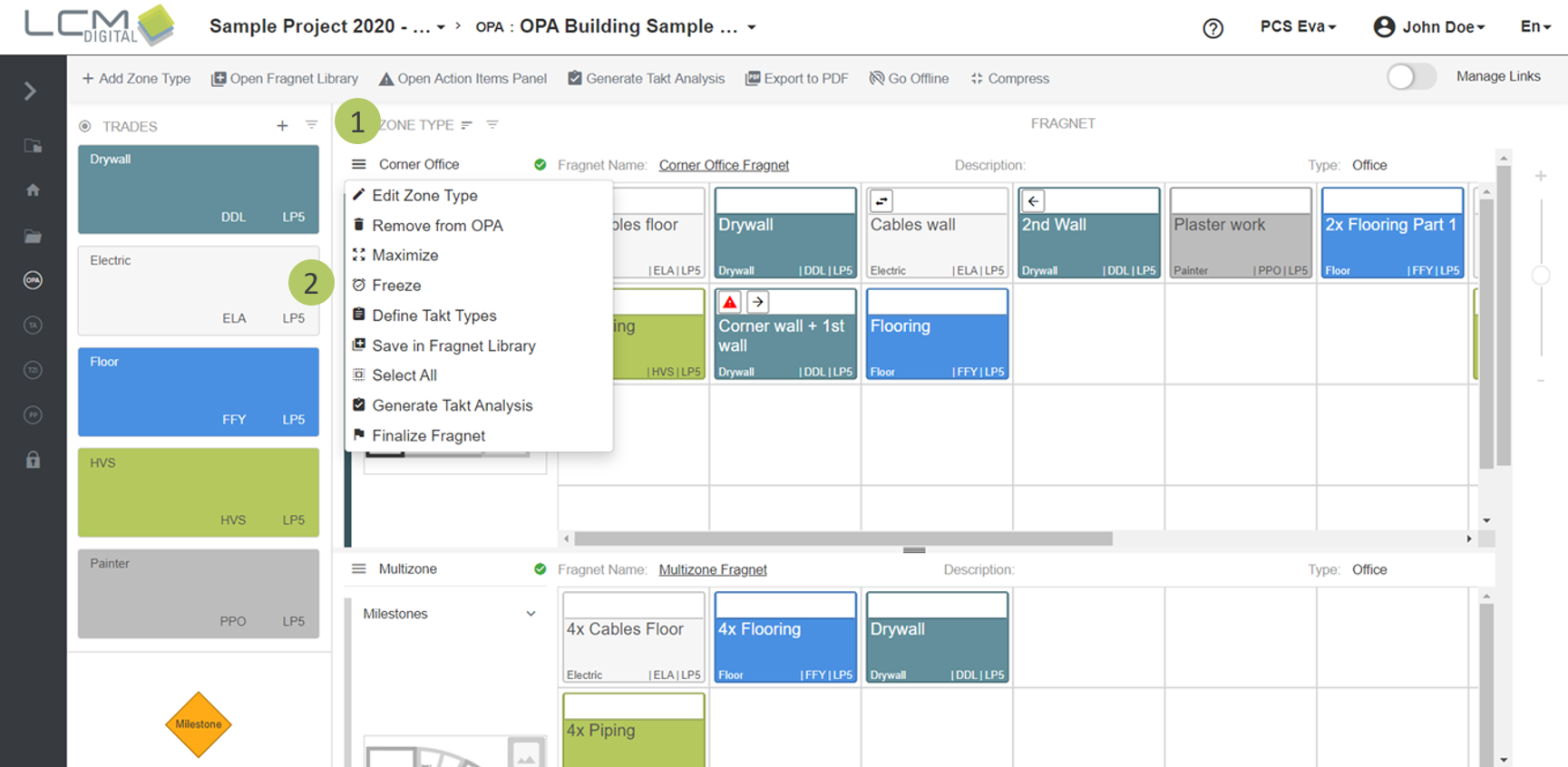
Freezing enables you to dock a Zone Type at the top of the OPA grid. This is useful when you want to view a particular Zone Type at any time, while working on other Zone Types simultaneously.
1. Click on this icon next the Zone Type’s name.
2. Click on this icon to freeze the Zone Type and dock it at the top of the screen.
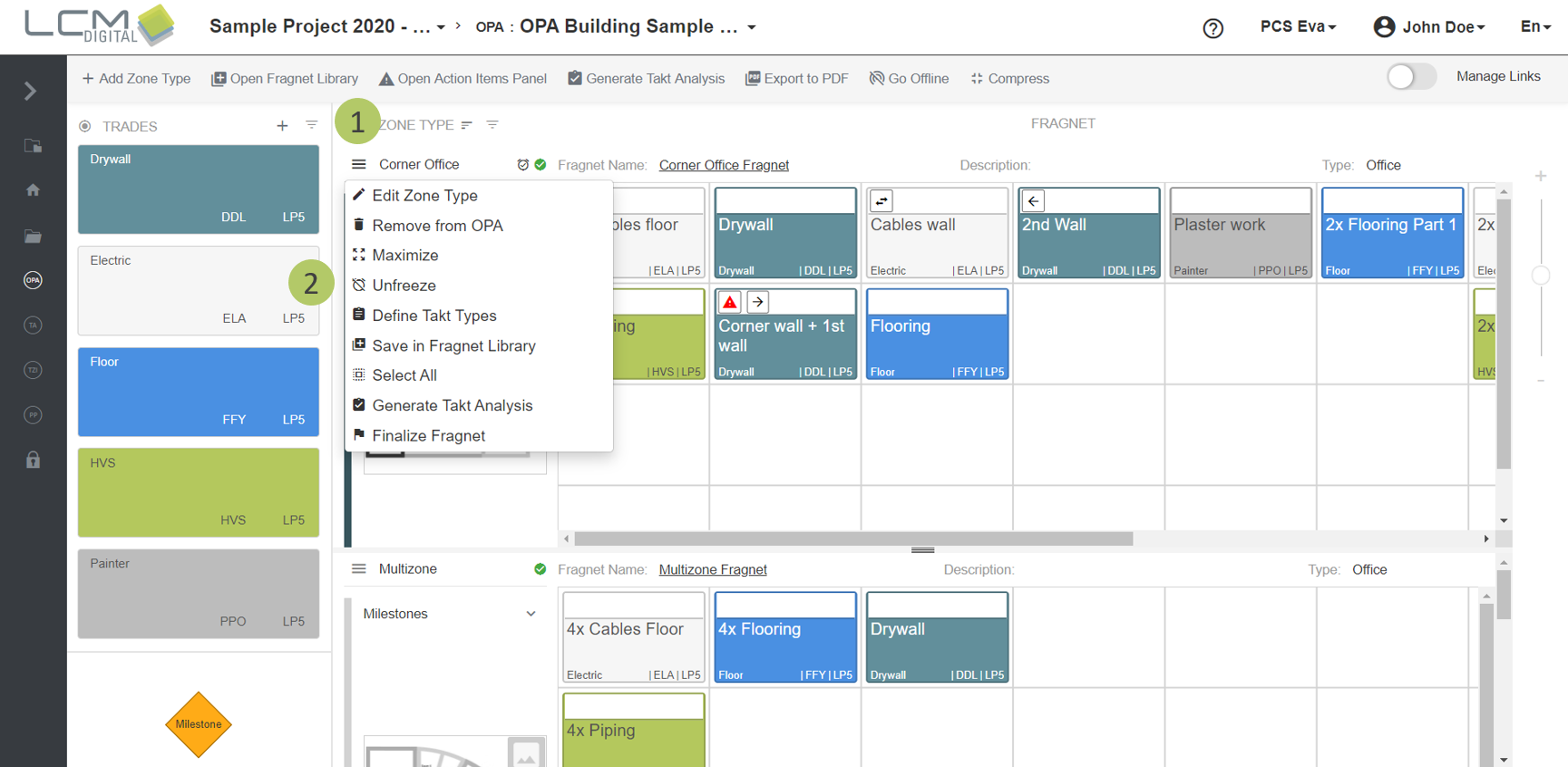
To unfreeze the Zone Type from the top, do the following:
1. Click on this icon next the Zone Type’s name.
2. Click on this icon to unfreeze the Zone Type and undock it at the top of the screen.
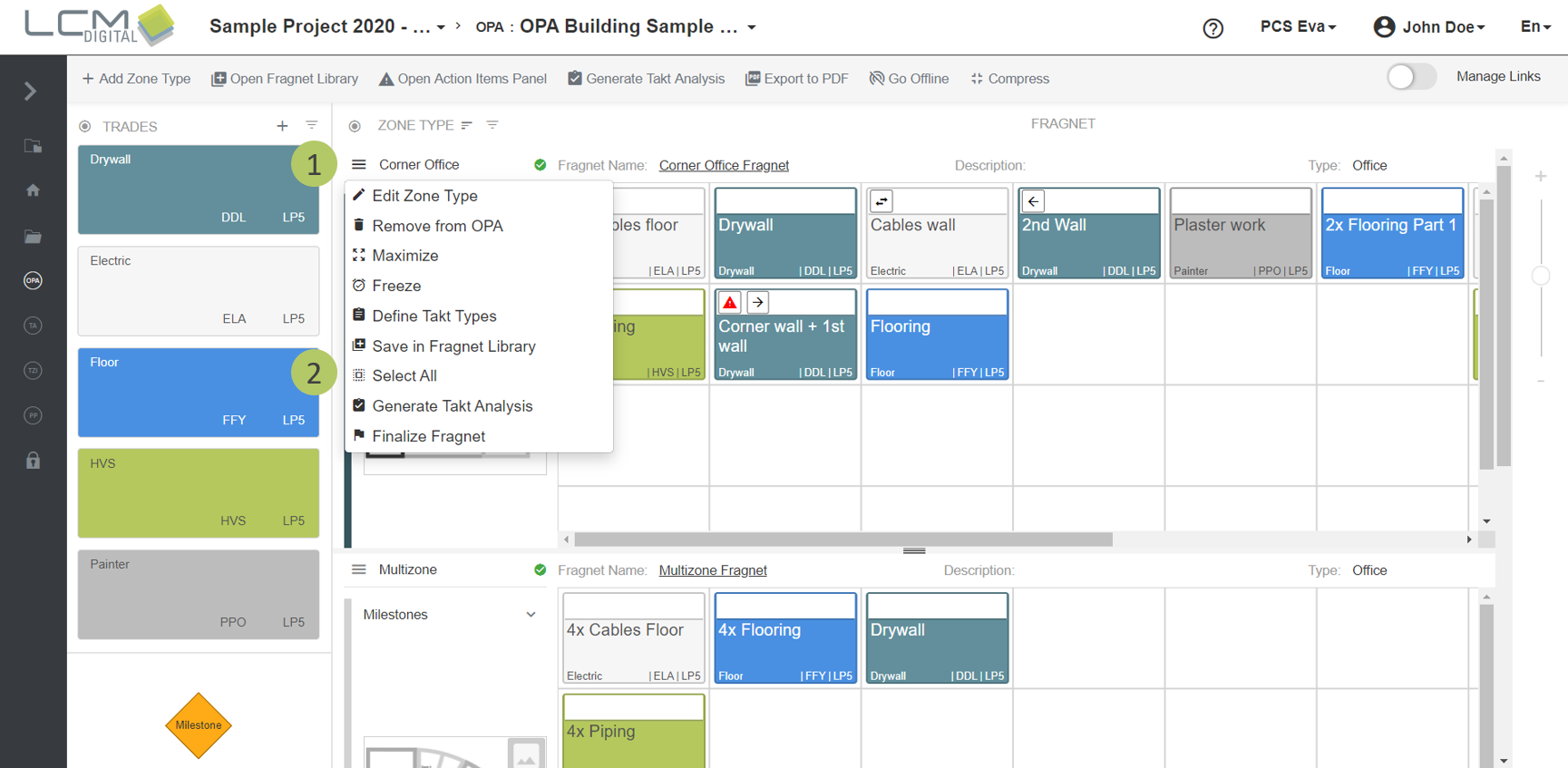
Select all process steps in a Zone Type
1. Click on this icon next the Zone Type’s name.
2. Click on this icon to select all process steps in this Zone Type.
|
|
Note: Alternatively you can click into the grid of a zone type and press CTRL+A to select all Fragnet Steps in this Zone Type. |
Finalize Zone Types and reopen them for editing
If the Zone Type is completely analyzed, the Fragnet can be finalized. When a Fragnet is finalized no changes can be made in it unless it is open for editing.
1. Click on this icon next the Zone Type’s name.
2. Click on this icon to finalize this Zone Type.
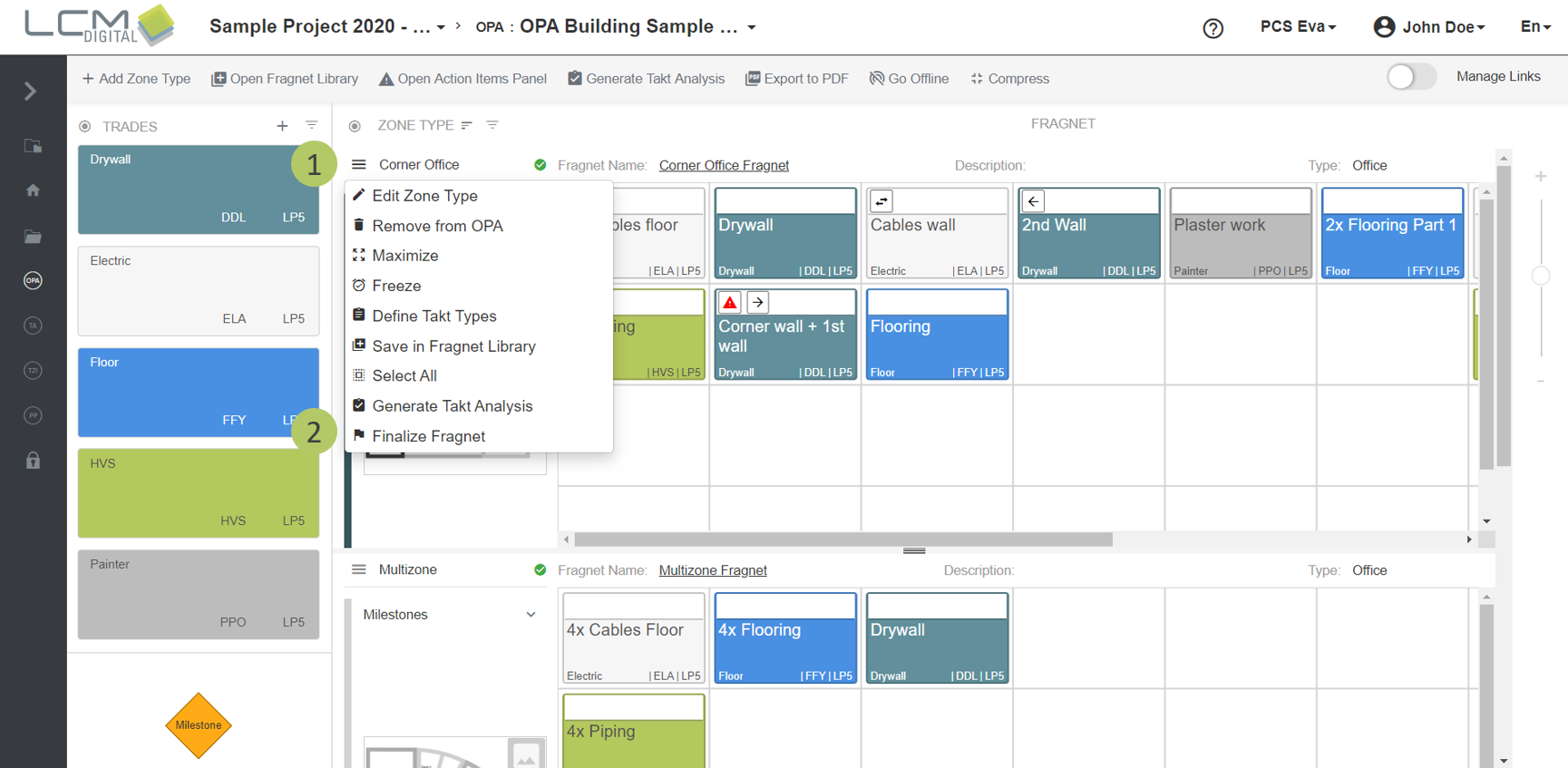
3. You recognize a finalized Takt Zone by this icon .
4. Click on this icon next the Zone Type’s name.
5. Click on this icon to open this fragnet for edit.