oebn
oebn
|
|
You can find general information about trades in this article. |
What is the trade panel?
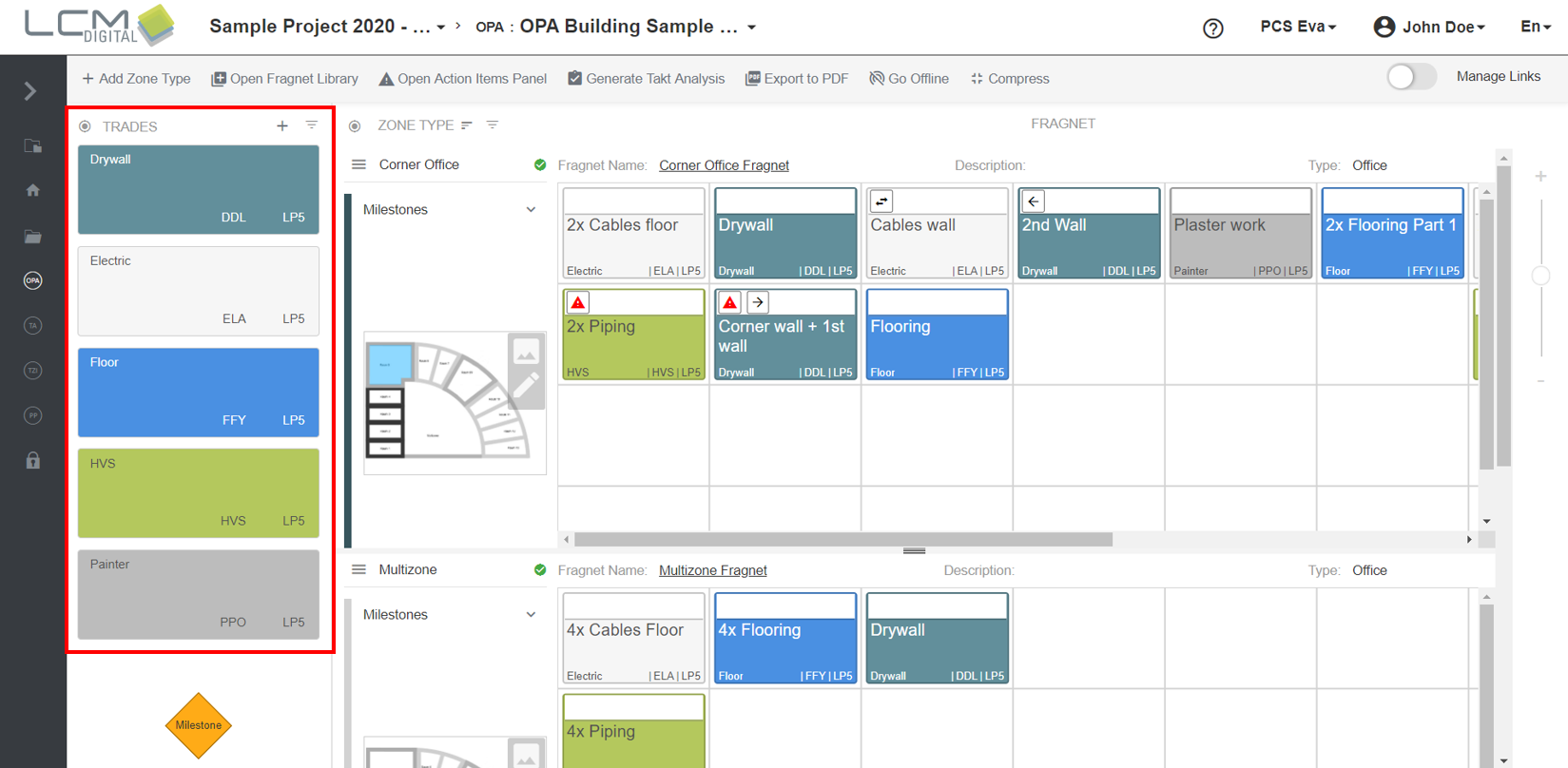
You can find the trade panel in the Overall Process Analysis (OPA), Takt Analysis (TA) and the Process Plan (PP) on the left side of the screen. Its purpose is to create fragnet steps and manage trades. Instructions on how to create fragnet steps are found in the article about fragnet steps.
In the following article, the functionalities of the trade panel are described in the OPA, but the trade panel works the same in the TA and PP

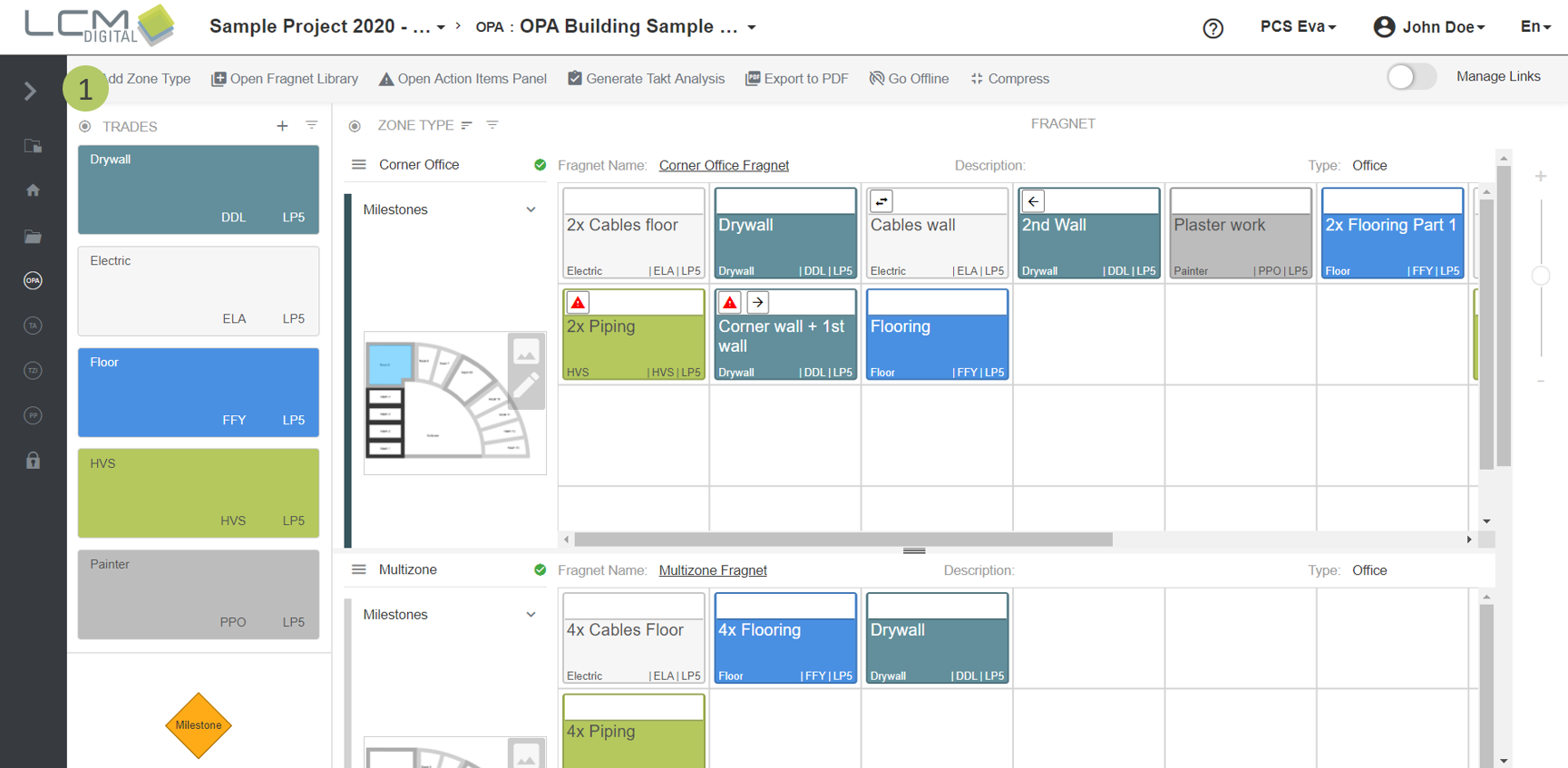
Show and hide the trade panel
1. To show the trade panel, click on this symbol .
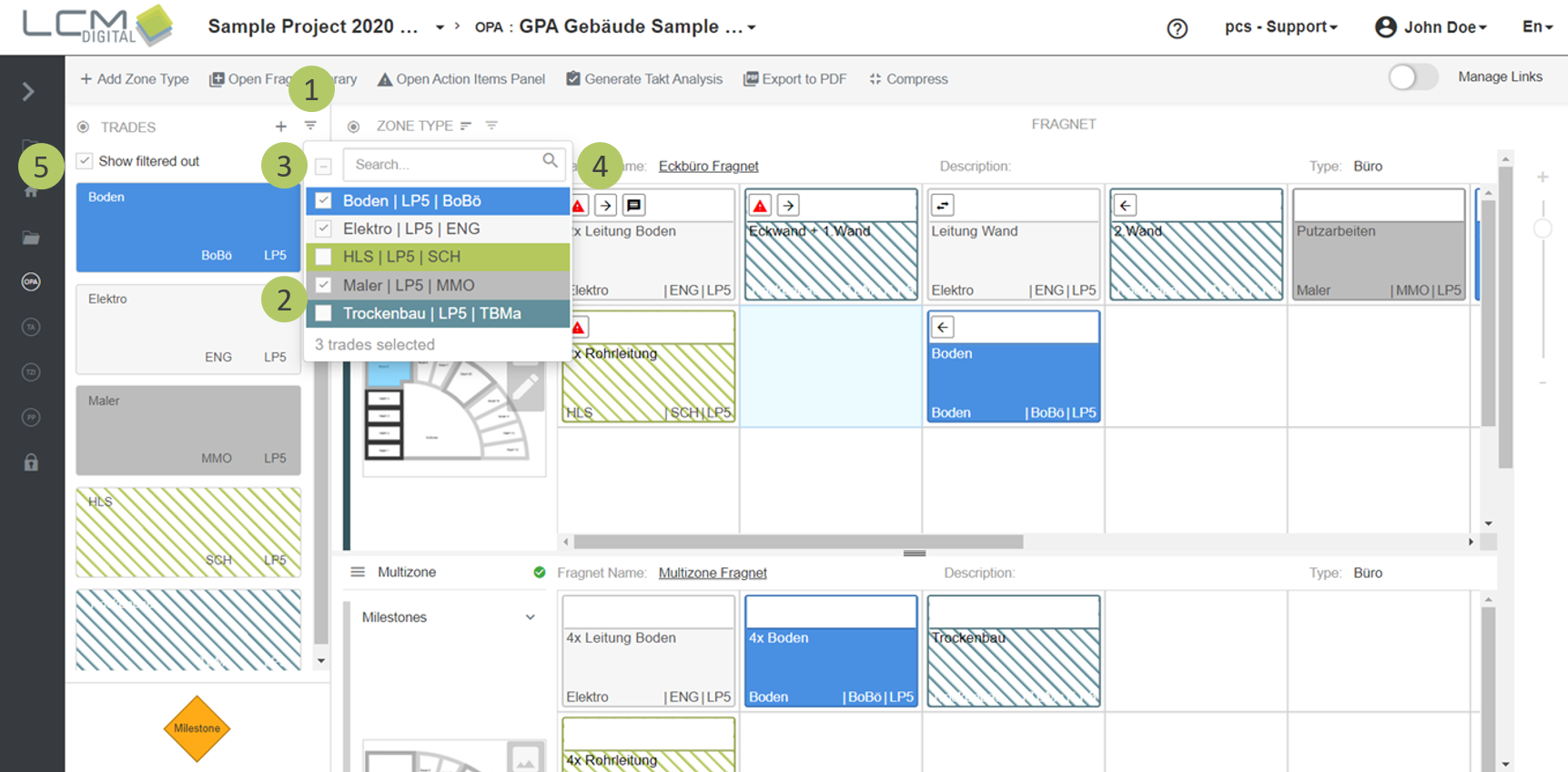
Filter trades
1. Click on the filter icon .
2. Select the Trades to be shown in the Trades Panel.
3. Select/deselect all trades if desired.
4. The filtering can be done directly using the search function. Deselect all Trades and then search for specific Trades by writing their name here.
5. With the checkbox you can decide whether filtered out trades should be shown dashed or not shown at all. If the filtered-out trades are completely hidden, the grid cannot be edited.
Create a new trade
1. Click on the add icon  . The screen will be directed to the Trades library in Project Data. Follow the procedure described in Trades library to create a new Trade.