|
Video: In the video tutorials you can find a video about the Overall Process Analysis. |
For the overall process analysis, you bring your project participants together in collaborative workshops and create process-related procedures in all areas of your project together or from experience. These areas repeat or occur once in the project.
You benefit from the direct and transparent coordination of interface topics of the participants and have directly digitally implemented the results with LCM Digital.
- How is the Overall Process Analysis created?
- Where do I find my Overall Process Analysis?
- User Interface
You will be supported by some functions of the view in your work with the overall process analysis.
To get a baseline of your overall process analysis, you will schedule and edit processes. See here how to create, delete and edit processes.
You can drag and drop process chains that you have already created and want to reuse from the fragnet library into the process plan.

How is the Overall Process Analysis created?
Once you have identified repeatable or unique common areas in your project, create the process chains in one or more overall process analyses with the associated processes and milestones that describe the flow of individual activities.
Save the process chains in fragnet library to reuse them. Transfer to other projects and adaptation is possible with LCM Digital quickly and with little effort.
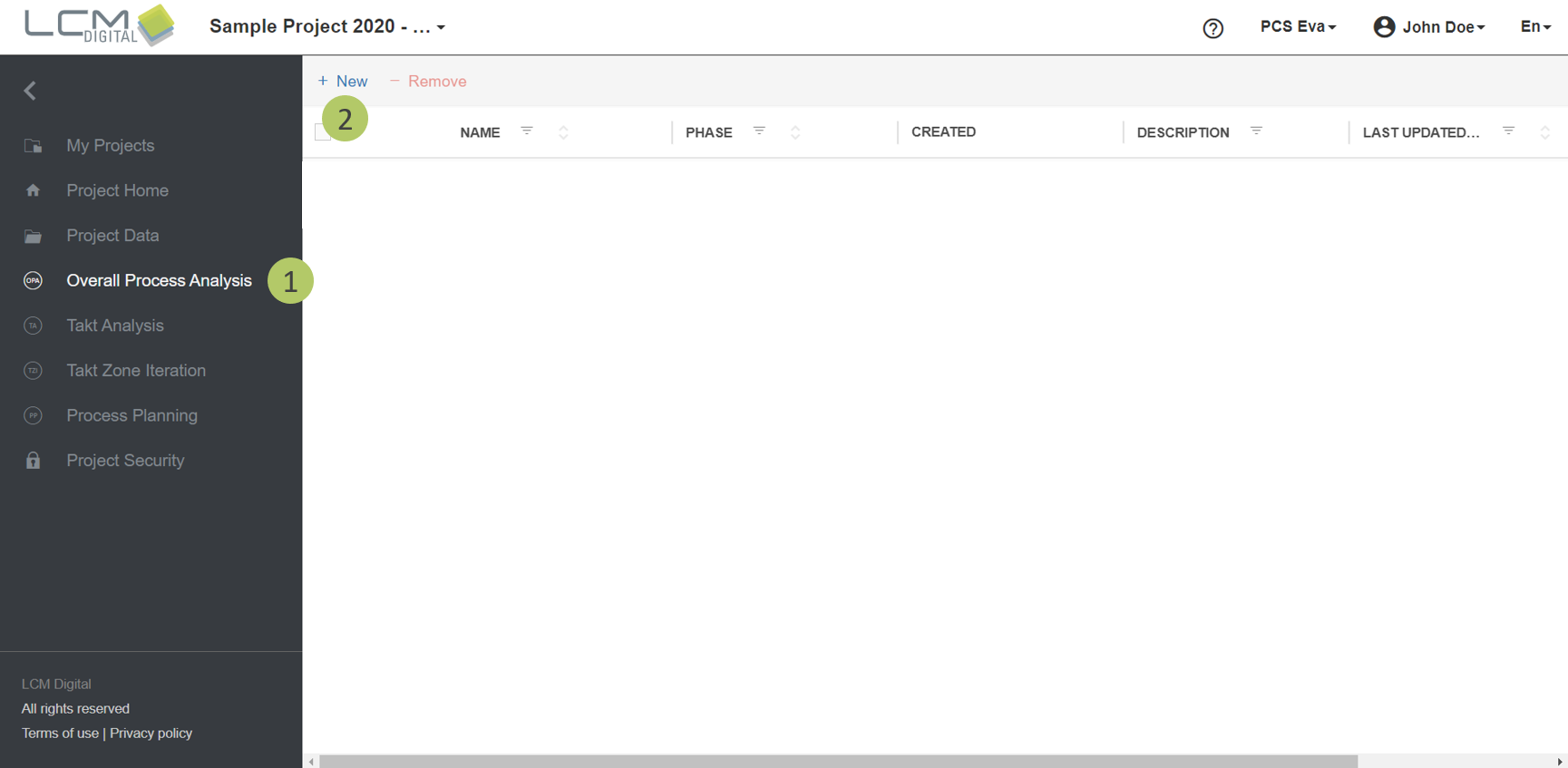
1. Select “Overall Process Analysis” from the Main Menu.
2. Click on “New” to create a new OPA.
Where do I find my Overall Process Analysis?
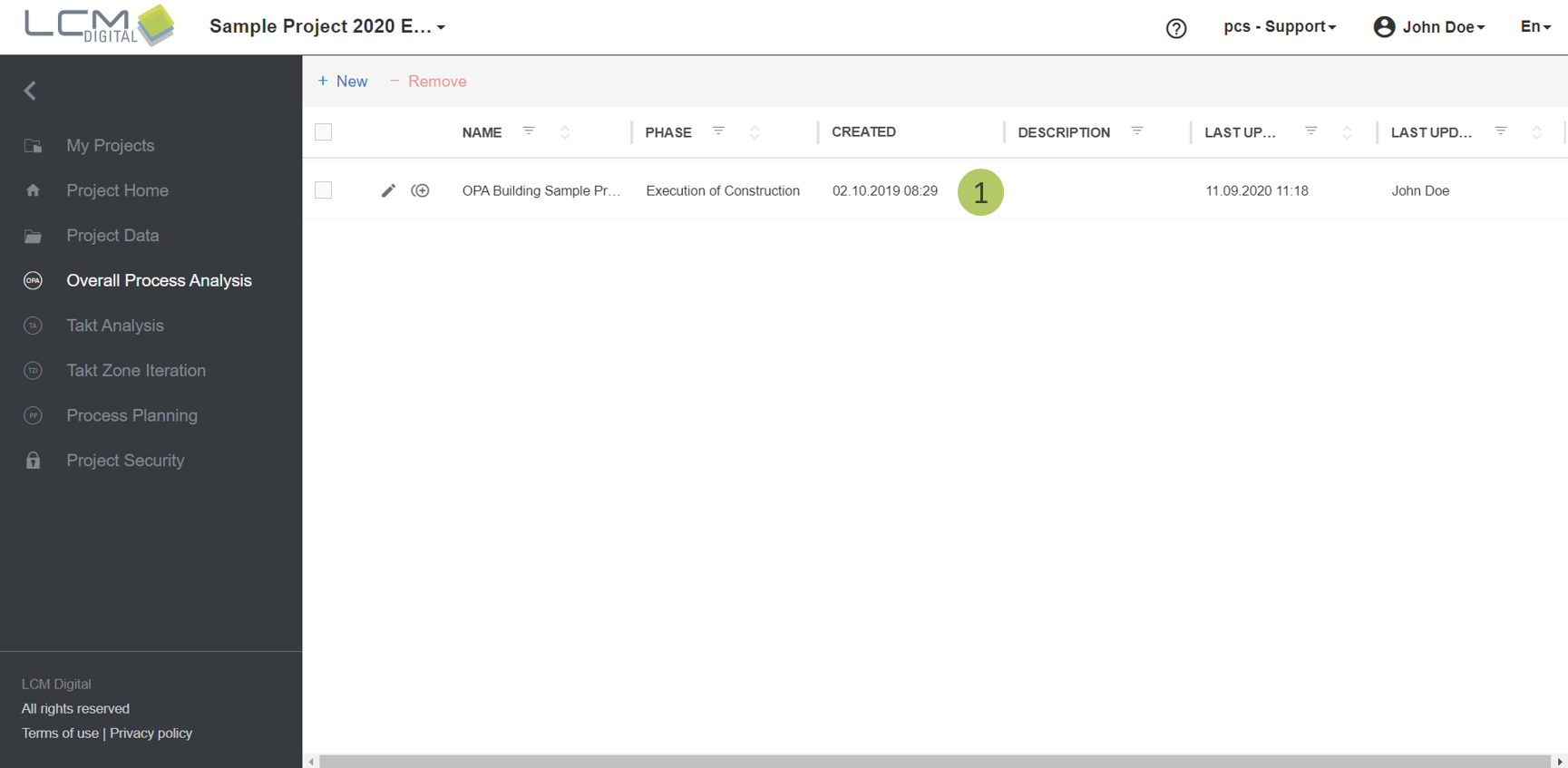
1. Click on the created OPA to open.
User Interface
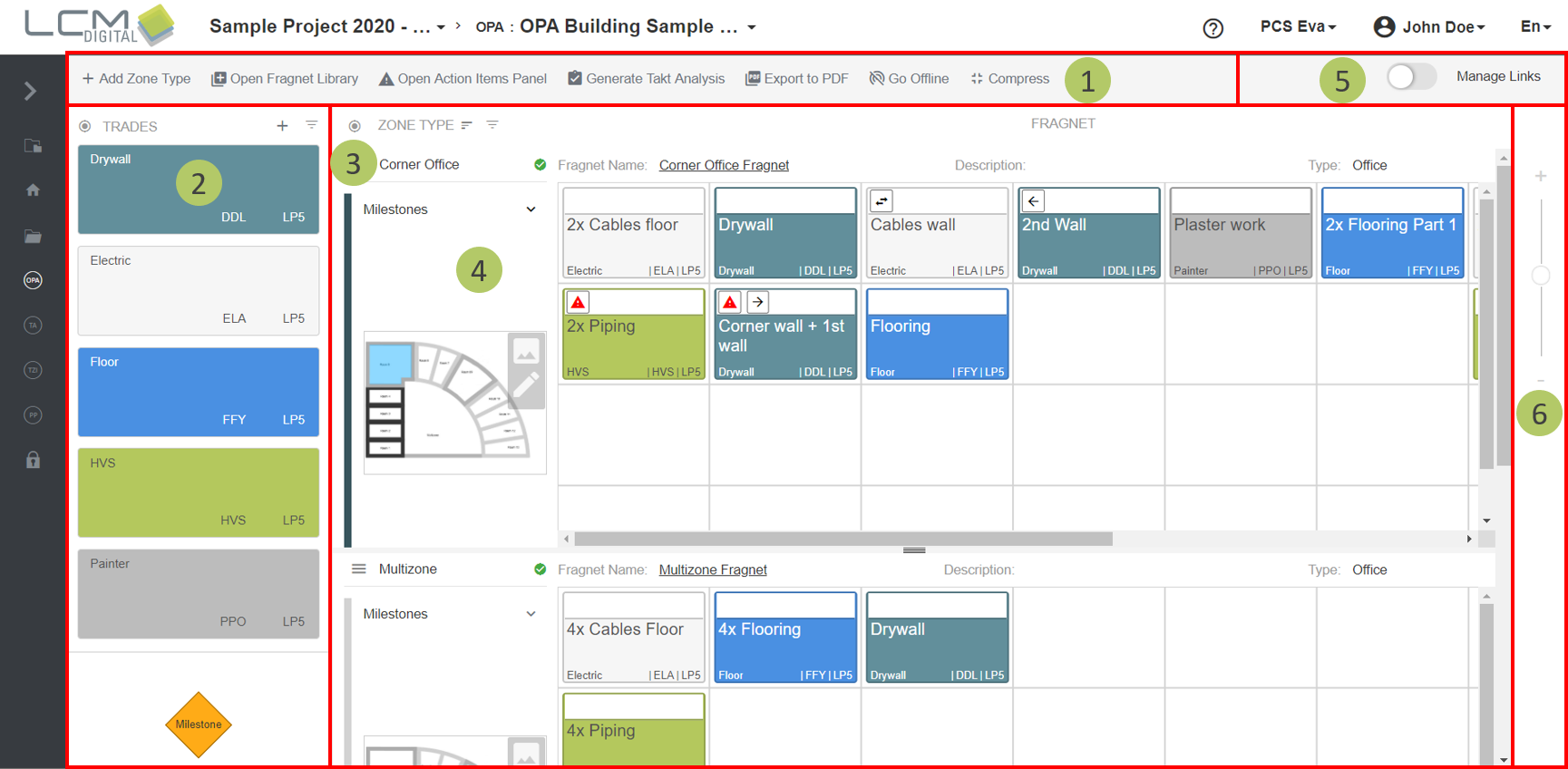
1. Menu bar
2. Trade panel
3. Zone Type panel: view/hide the panel by clicking on this icon .
4. Zone Type
5. Manage links: you can find further information on how to create links between fragnet steps in the article about fragnet steps.
Add process steps to Zone Types
You can find information on how to add process steps to the Overall Process Analysis here.
Close gaps in process chains
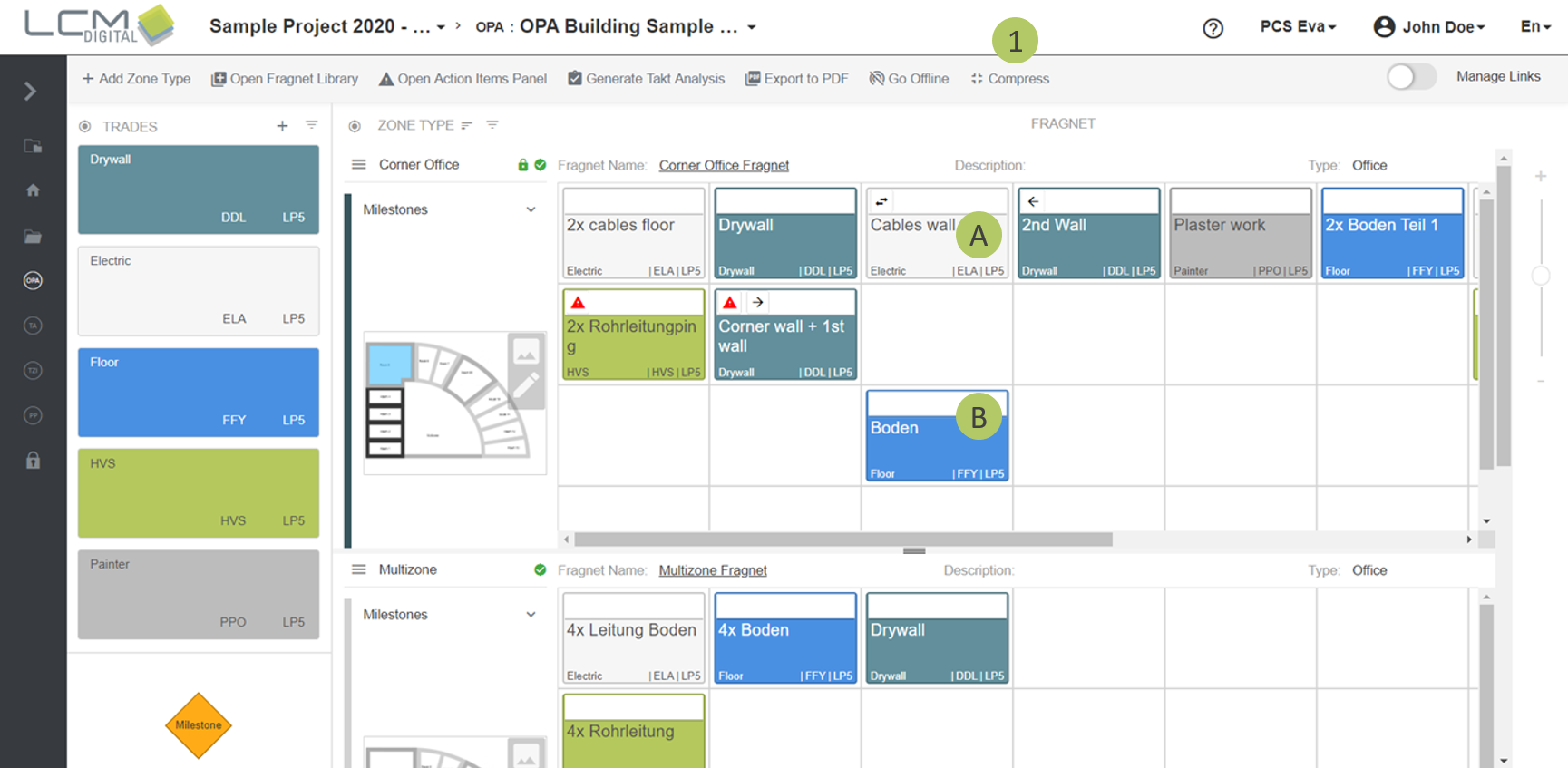
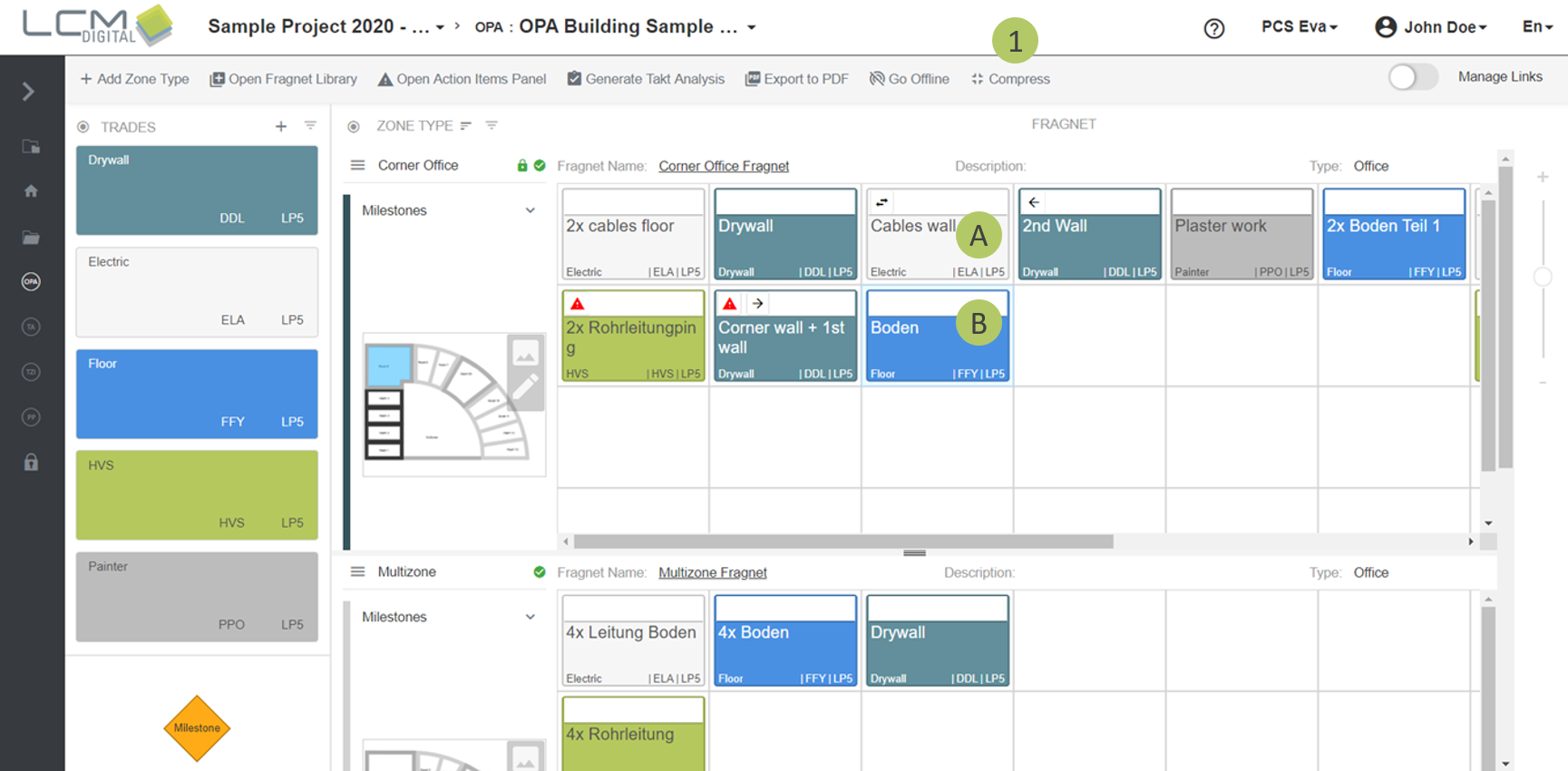
Compress is used to close the gaps (empty cells) between two process steps both horizontally and vertically.
1. Click on "Compress" to close the gap between Fragnet Step A and B.
After compression the gap between Fragnet Steps A and B is closed.
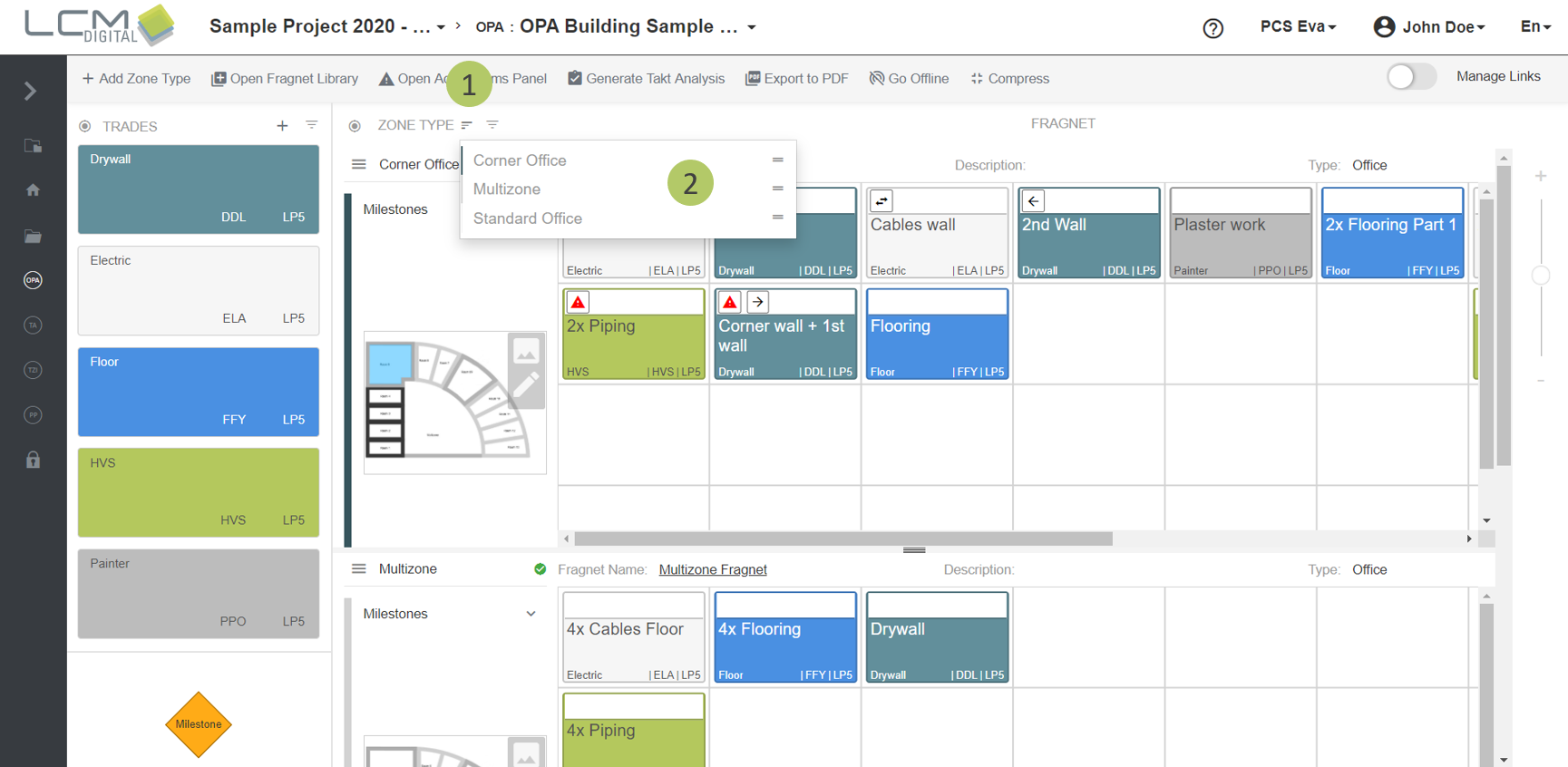
Change the order of Zone Types
1. To change the order of zone types, click on this icon .
2. Drag and drop the Zone Types into any position (upper on the list or lower) to get the desired order.
Search and filter Zone Types
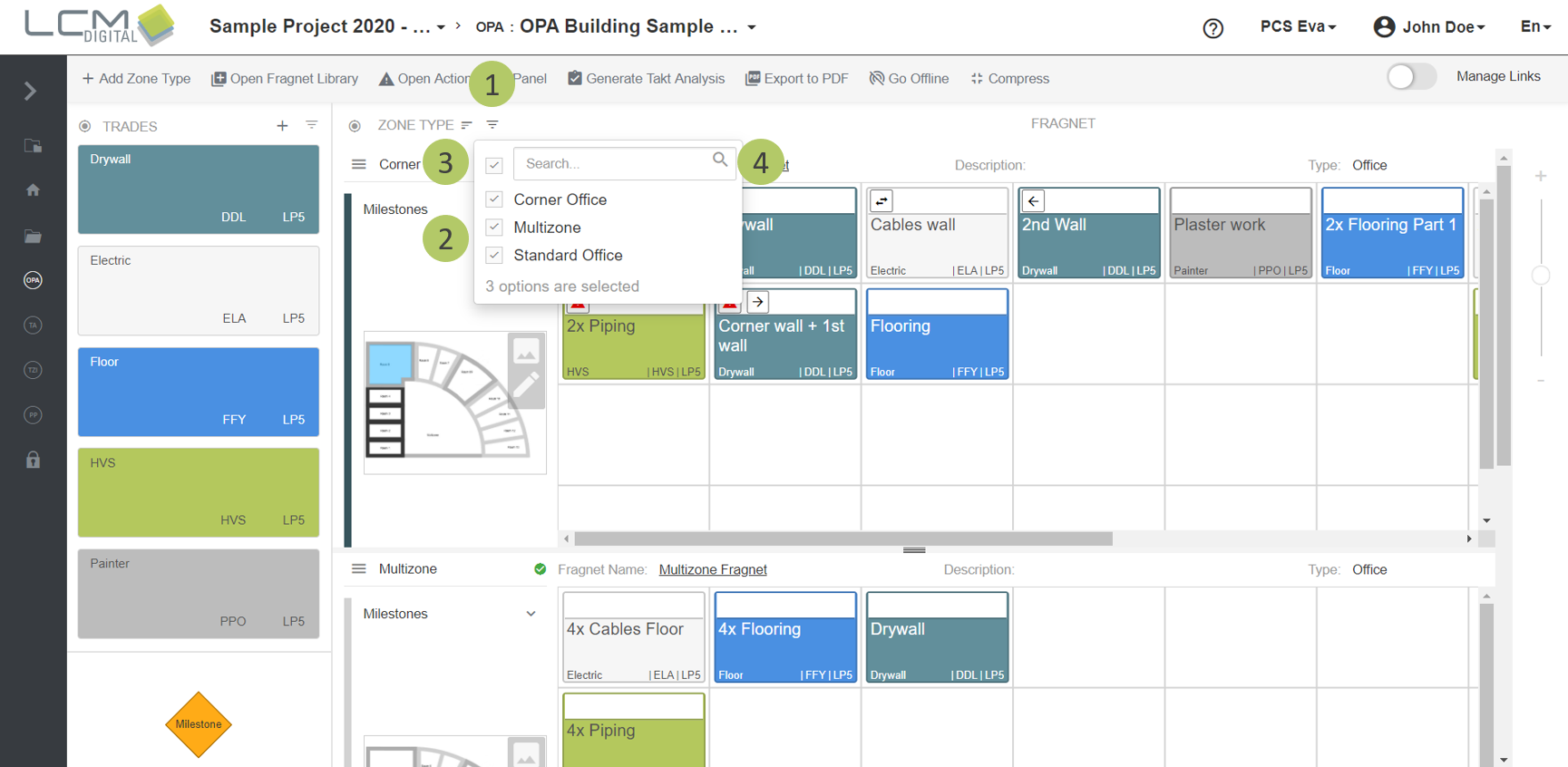
1. Click on this icon to search and filter Zone Types .
2. Select the zone types to be displayed in the Zone Types panel.
3. Select all/no trades, if desired.
4. Filtering can be done directly via the search function. Select all trades and then search for specific trades by entering their names here.