
 |
Video: In the video tutorials you can find a video about the Process Plan. |
Attachments such as plans, photos or videos that you share with the execution team or receive back as information from the construction site are displayed directly to you. (You will find more information about how to attach files via mobile app in this tutorial.) In process planning, attachments can be added to process steps. These attachments can then be managed via the attachments panel.
Related articles:
- Work with Takt Zones in the Process Plan
- Export the Process Plan to PDF
- Import Process Plan from Excel / Export to Excel
- Open and navigate a Process Plan
- Display and change progress of the site in the Process Plan
- Important control functions in the Process Plan
Open the attachments panel
Option 1:
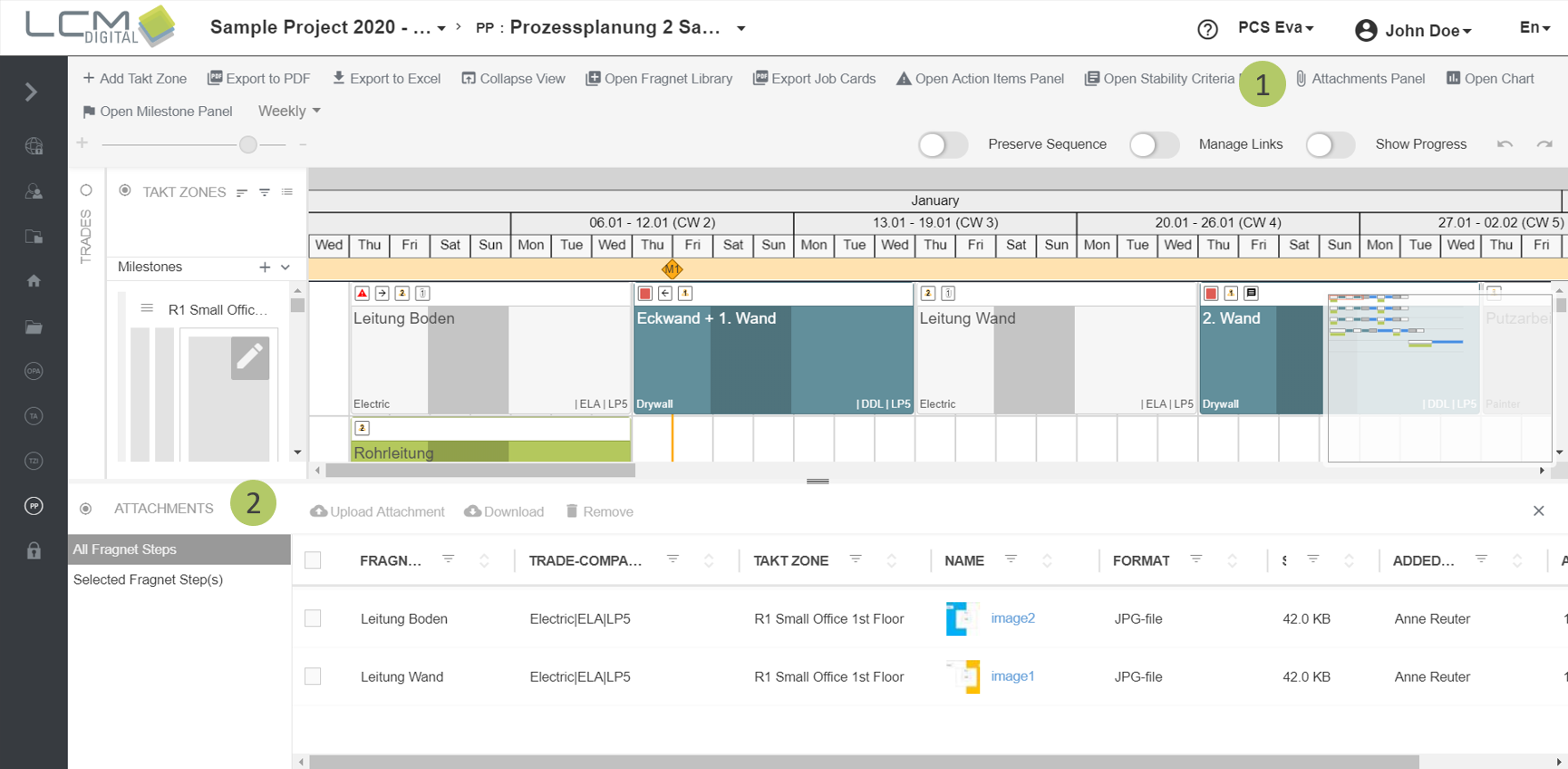
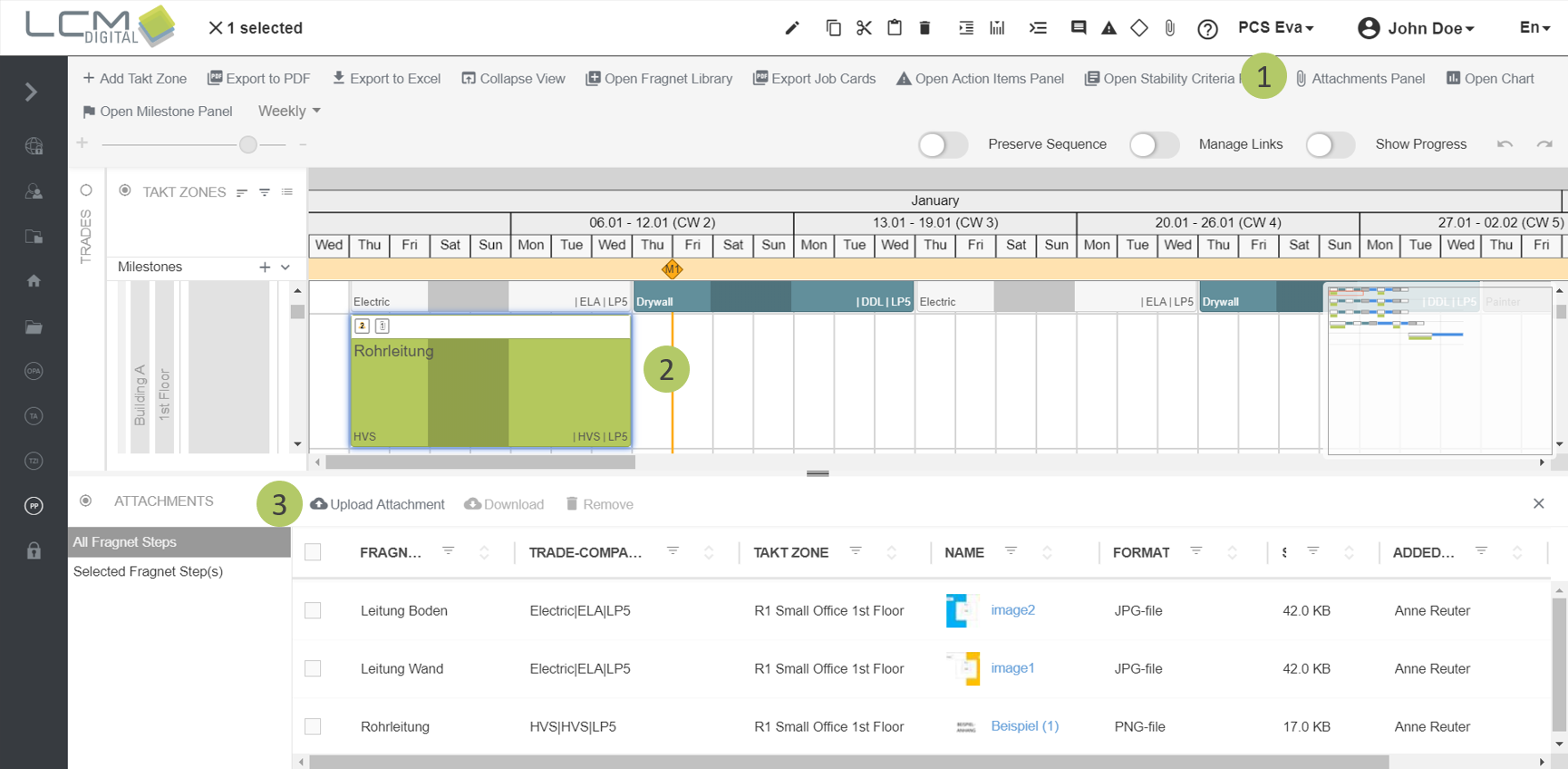
1. Click on "Attachments Panel" in the menu bar.
2. The attachments panel opens at the bottom of the screen. The "All Fragnet Steps" tab is selected which lists all existing attachments of the process plan.
Option 2:
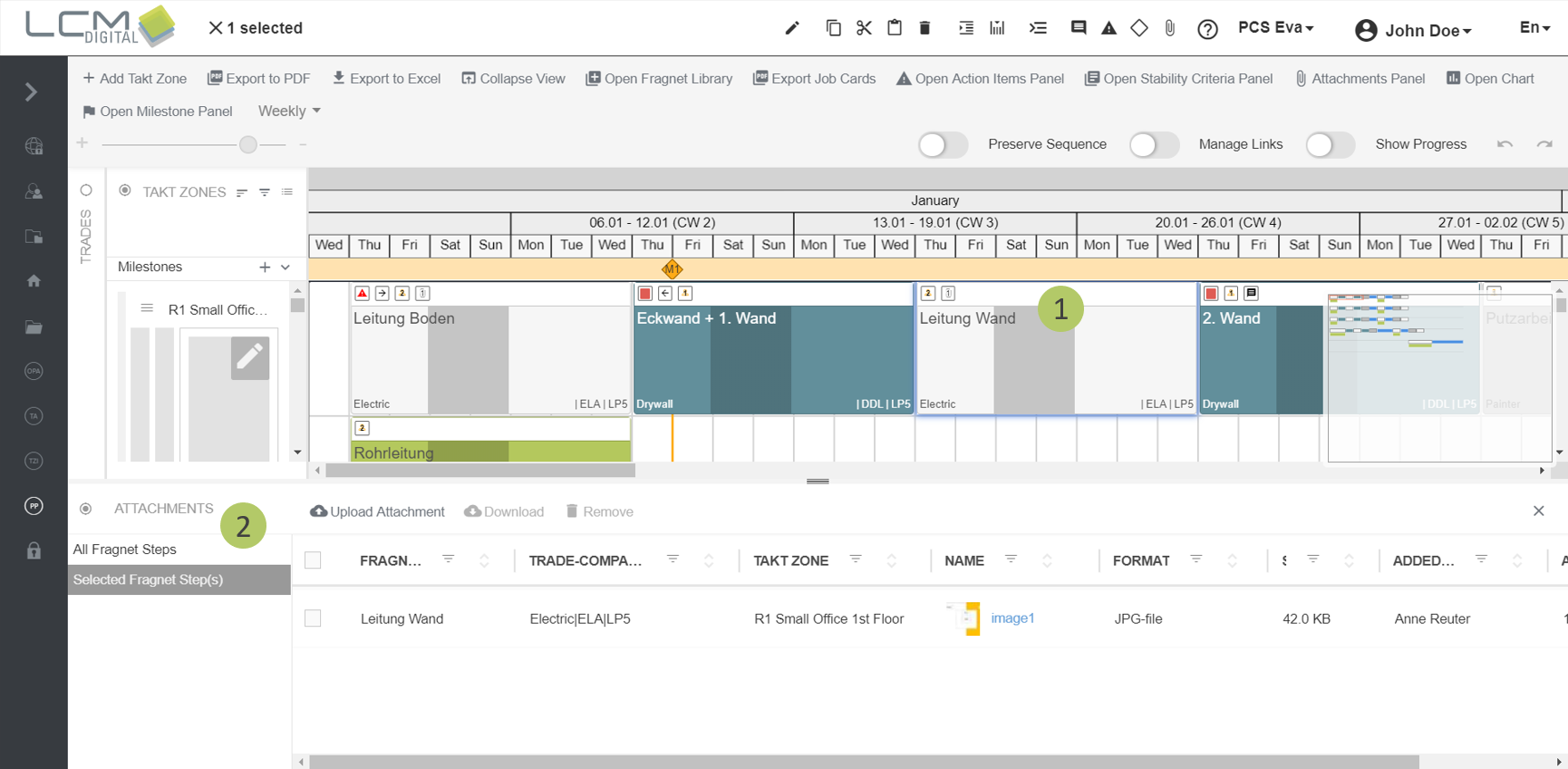
1. If there are already files attached to a fragnet step, you can click on the attachment icon in the header of the corresponding fragnet step.
2. The attachments panel opens at the bottom of the screen. The "Selected Fragnet Step(s)" tab is selected which lists all existing attachments for the selected fragnet step.
Attach files to a fragnet step
Option 1:
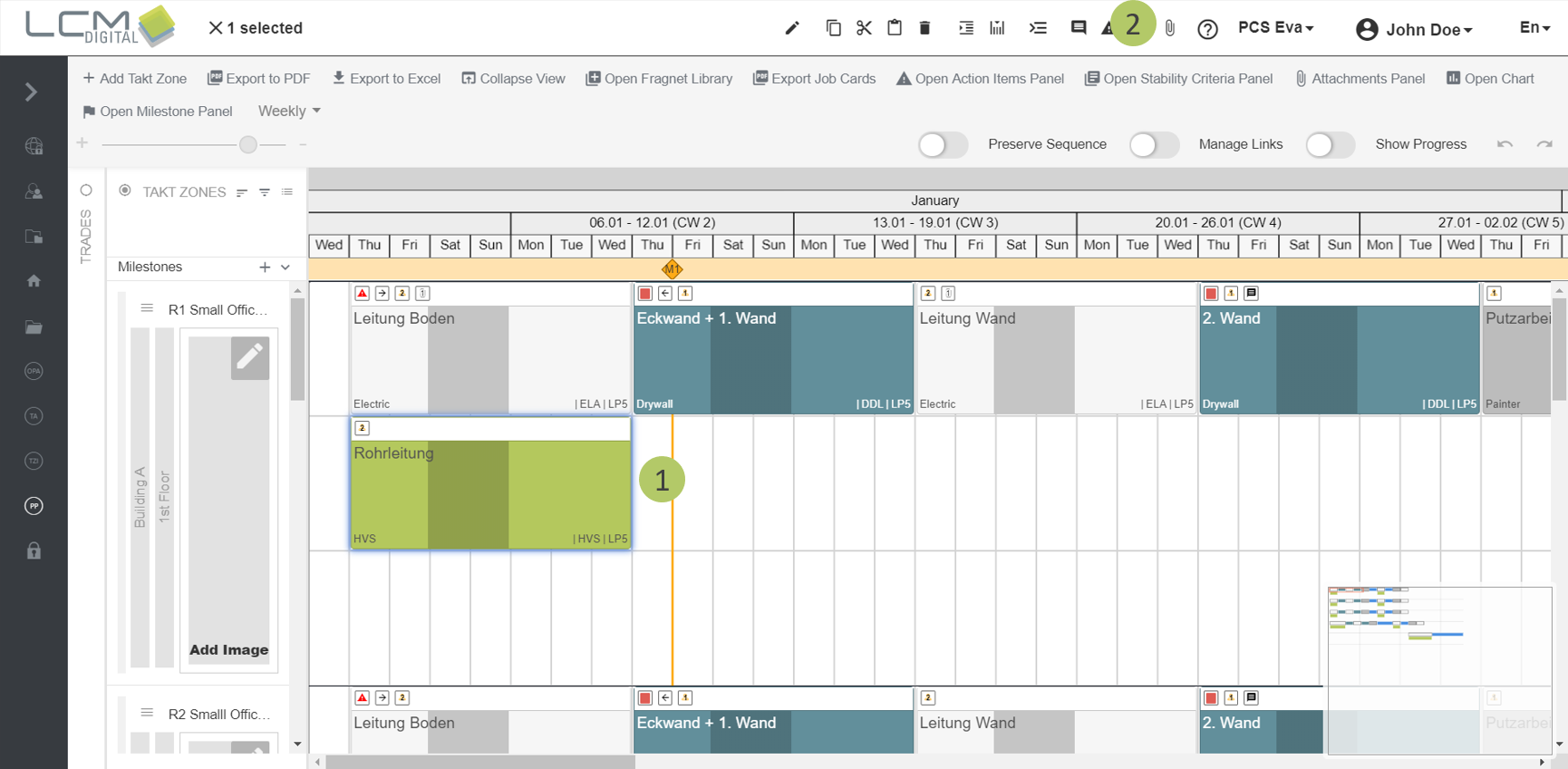
1. Click on the fragnet steps to which you want to attach a file.
2. Click on the attachment icon in the tool bar .
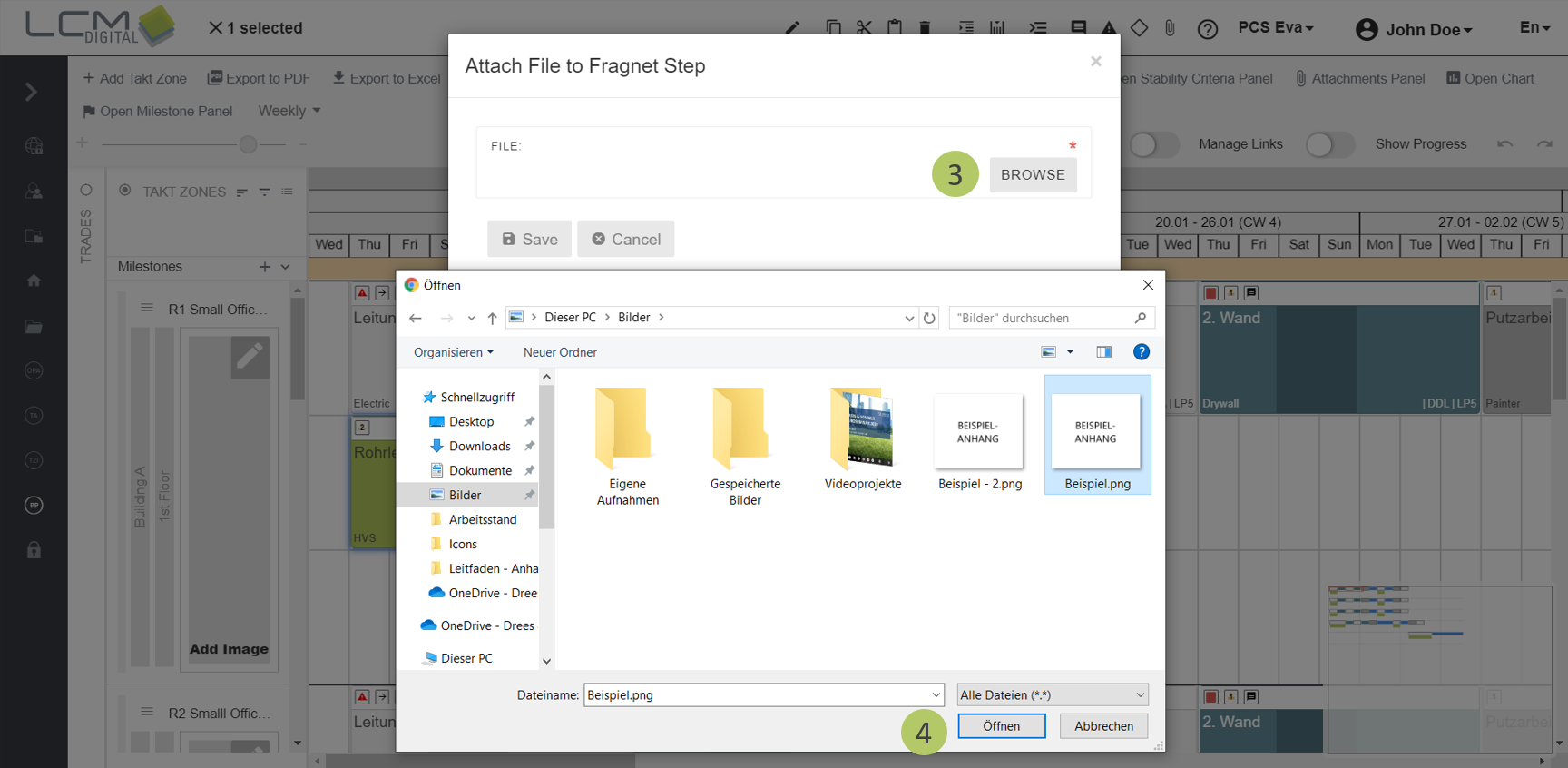
3. Click on "Search" to select the file from your PC you want to upload.
4. Click on "Open" to confirm your selection.
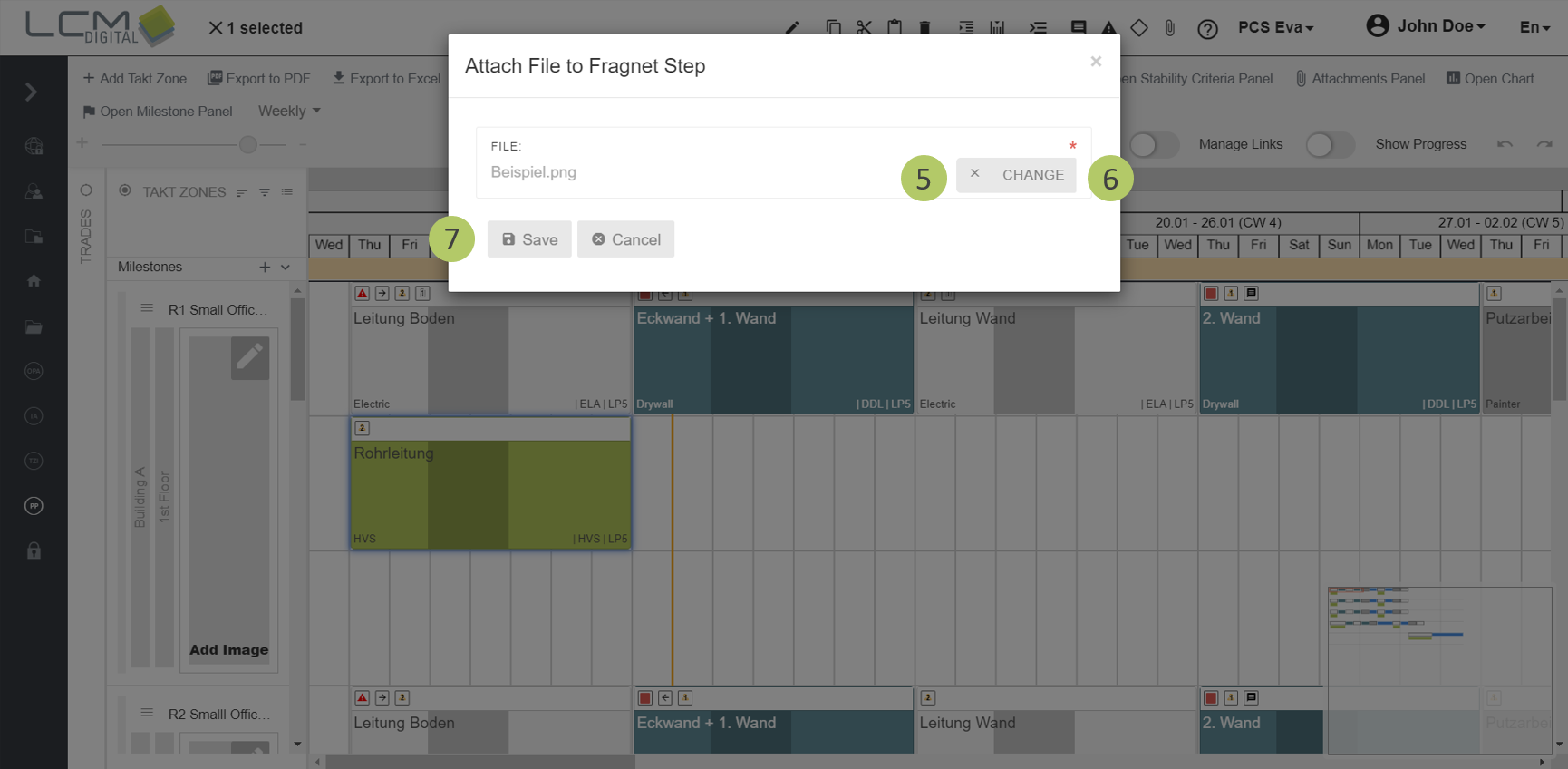
5. Optional: Click on the cross to delete your selection.
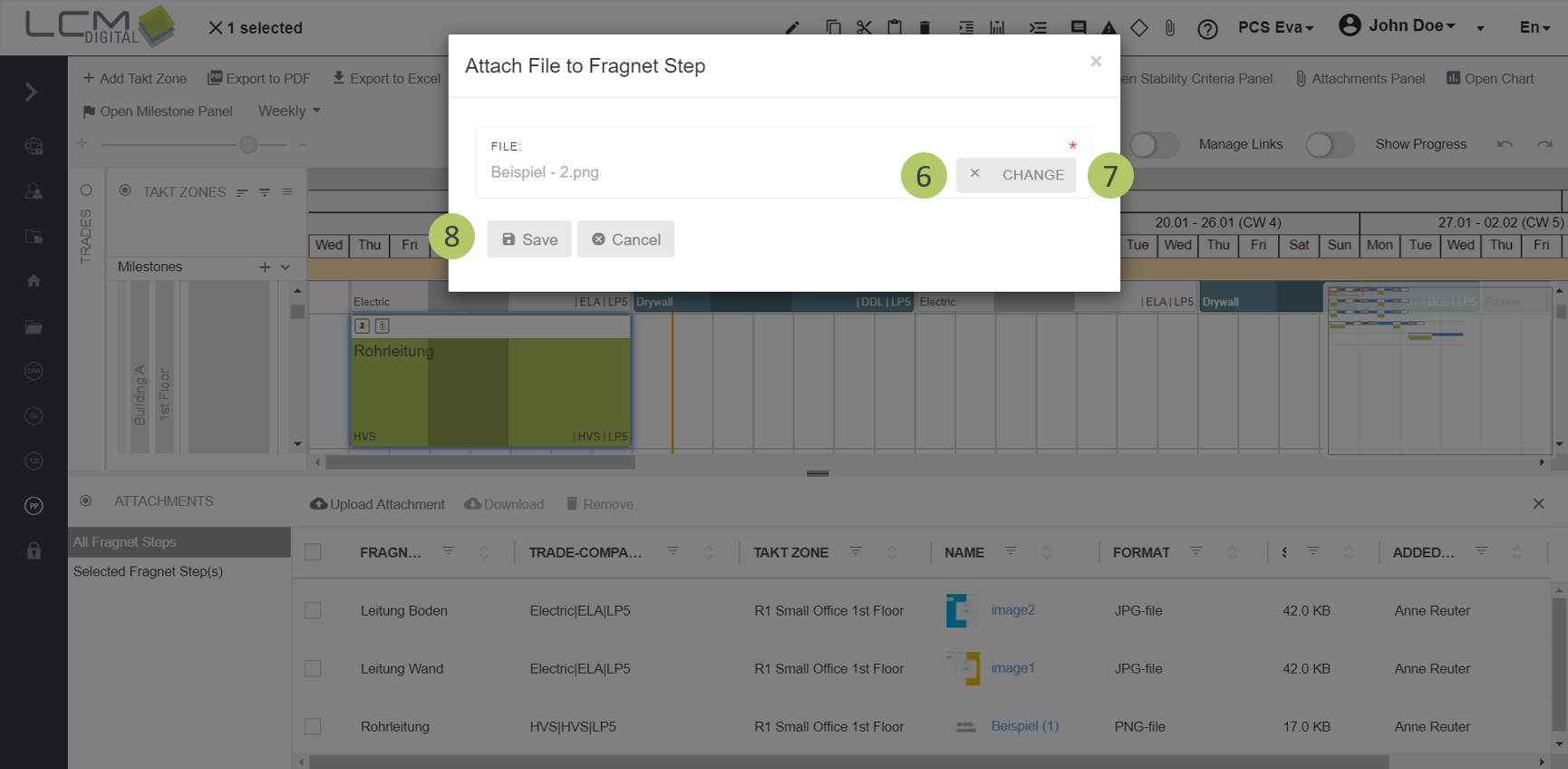
6. Optional: Click on "Change" to change your selection and select a different file from your PC.
7. Click on "Save", to upload the attachment.
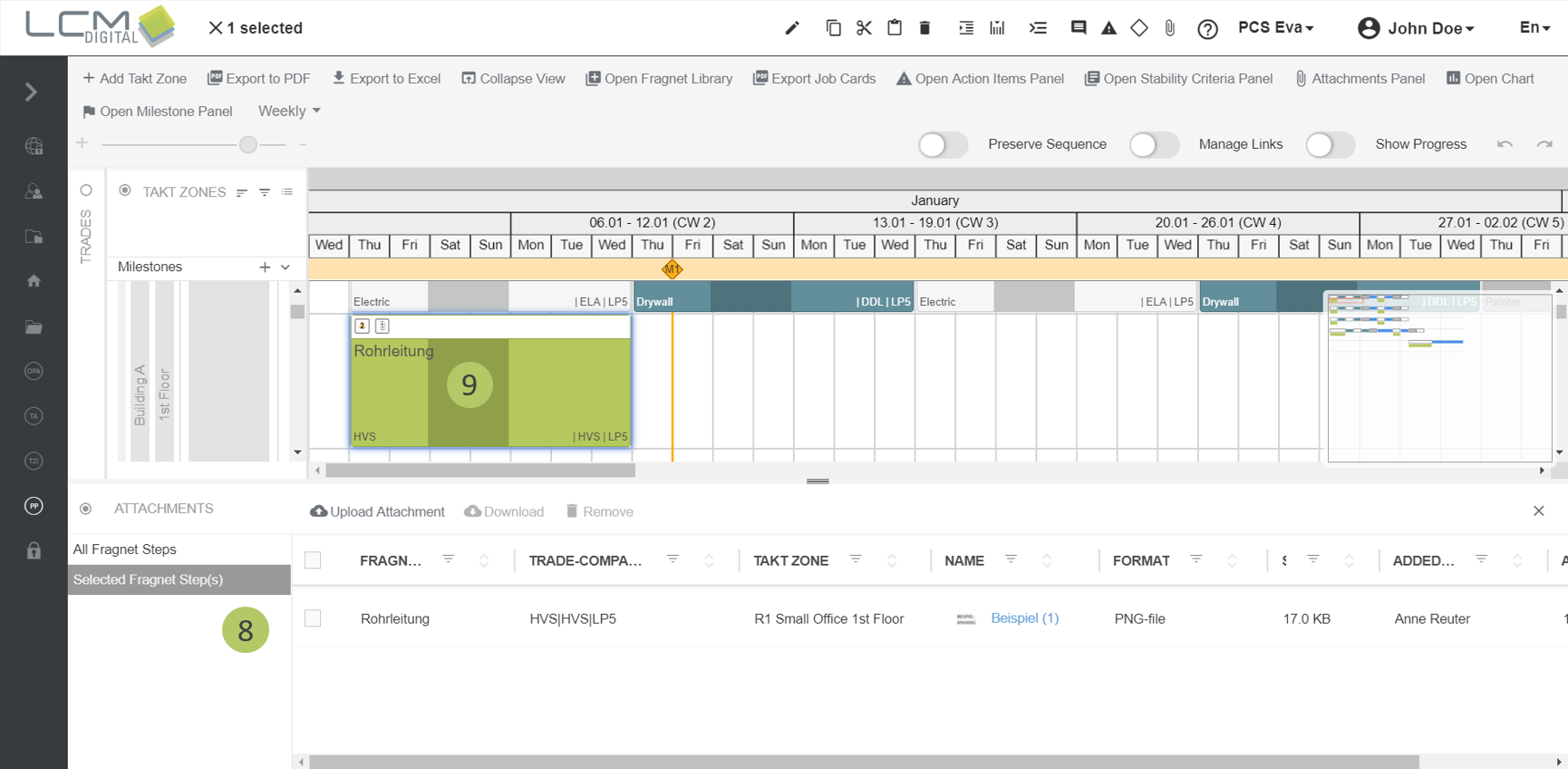
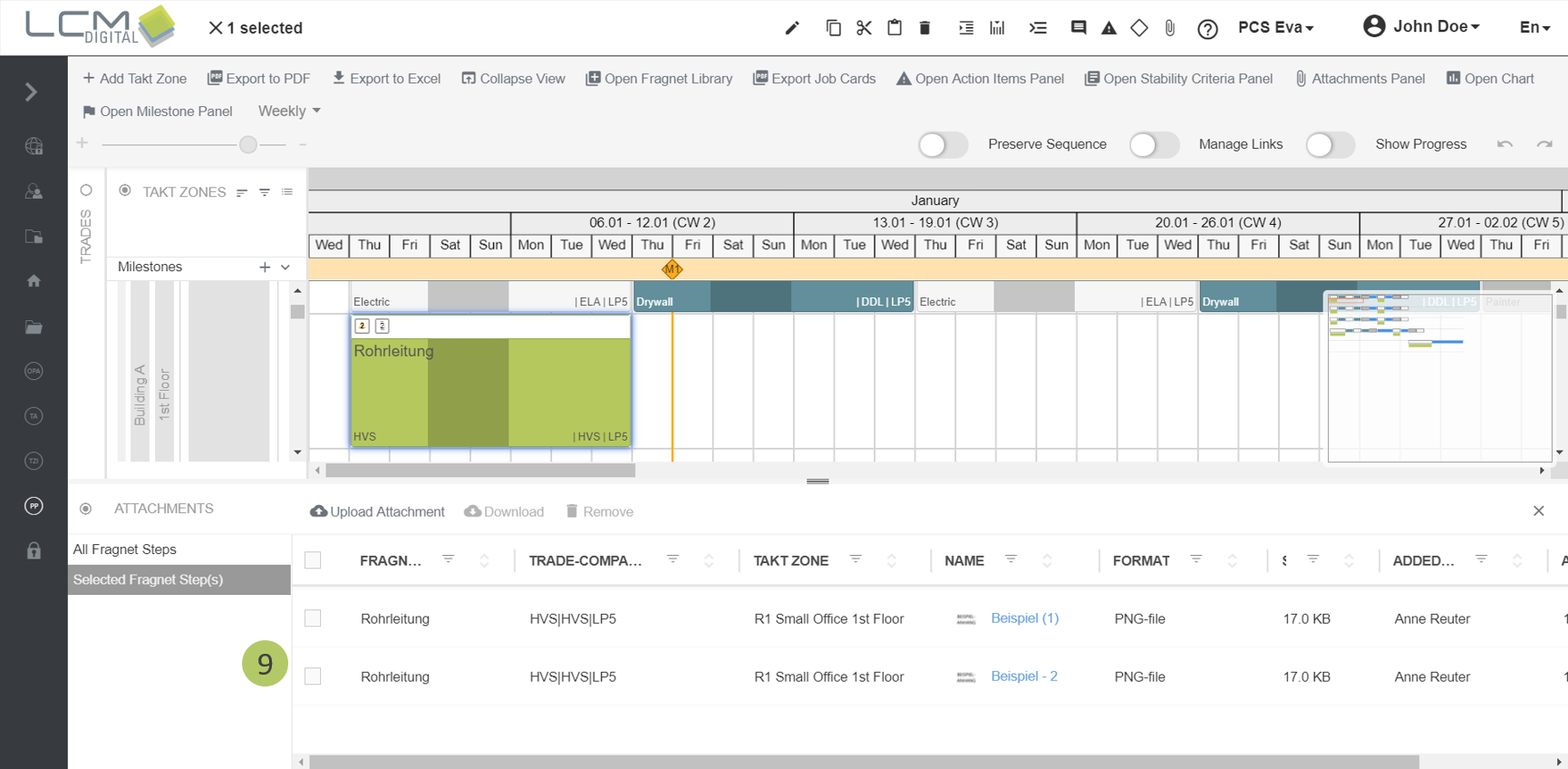
8. The attachments panel opens and the tab "Selected Fragnet Step(s)" shows up. The new attachment is listed here.
9. An attachment icon is displayed in the fragnet step header. The number in the attachment icon indicates the number of attached files.
Option 2:
1. Click on "Attachments Panel" in the menu bar to open the attachments panel.
2. Click on the fragnet step on the grid to which you want to attach a file.
3. Click on "Upload Attachment" in the attachments panel.
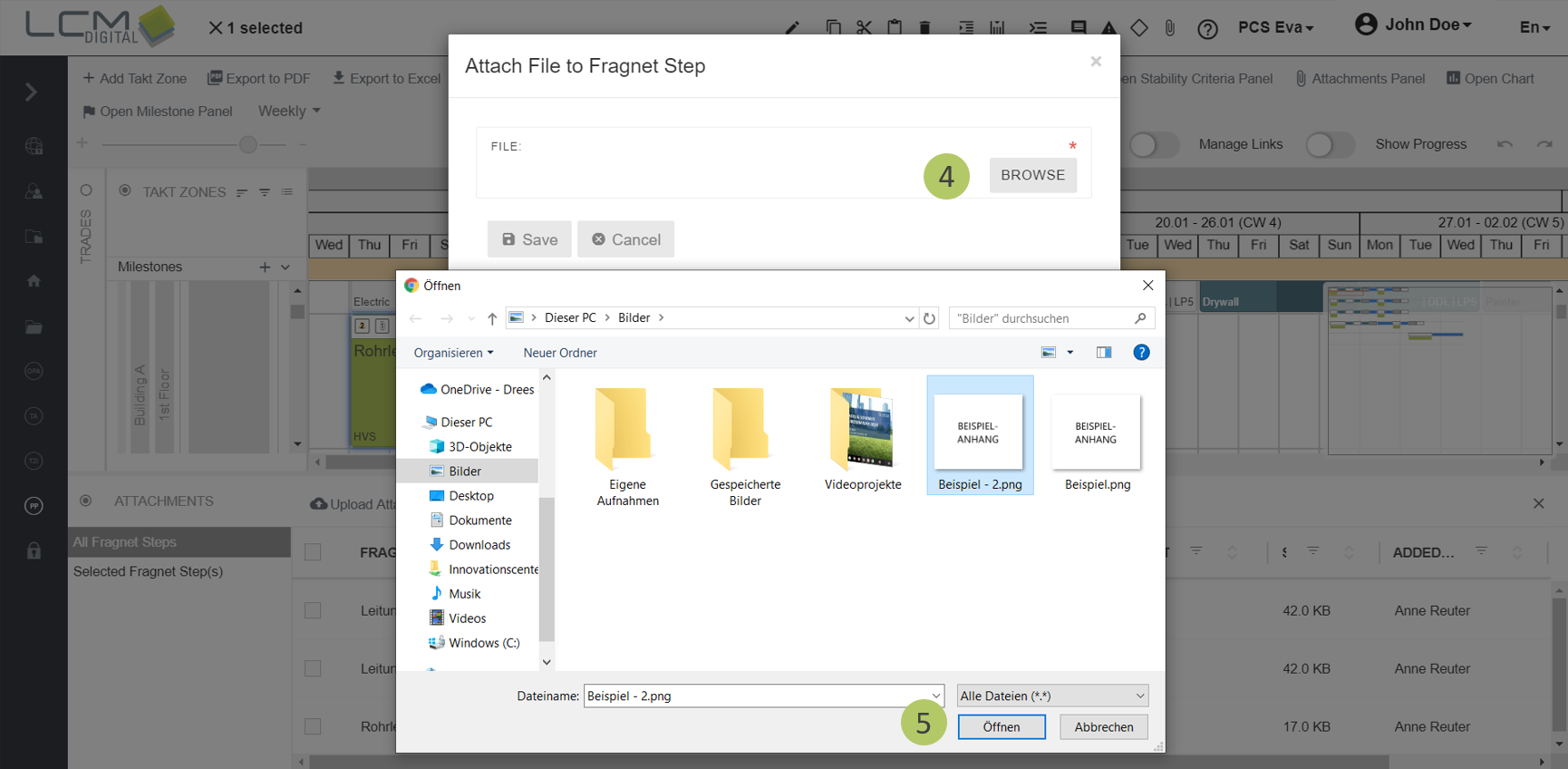
4. Click on "Search", to select a file from your PC you want to upload.
5. Click on "Open" to confirm your selection.
6. Optional: Click on the cross to delete your selection.
7. Optional: Click on "Change" to change your selection and select a different file from your PC.
8. Click on "Save" to upload the attachment.
9. The new attachment is now listed in the "Selected Fragnet Step(s)" tab.
Download attachments
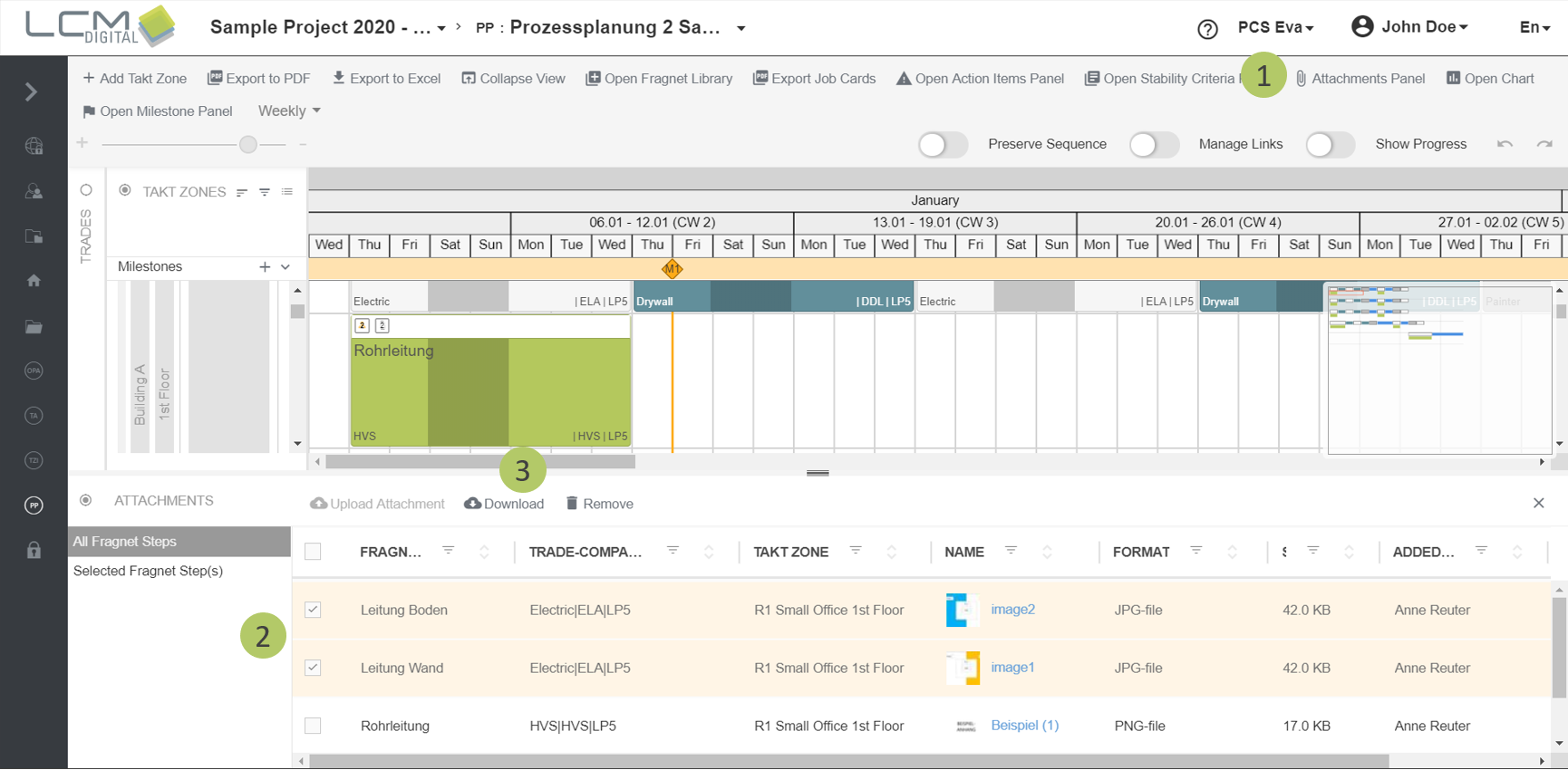
1. Click on "Attachments Panel" in the menu bar to open the attachments panel.
2. Select the attachments you want to download via the corresponding checkboxes.
3. Click on "Download". Your browser downloads the file(s), you can find them in your Downloads folder.
Remove attachments
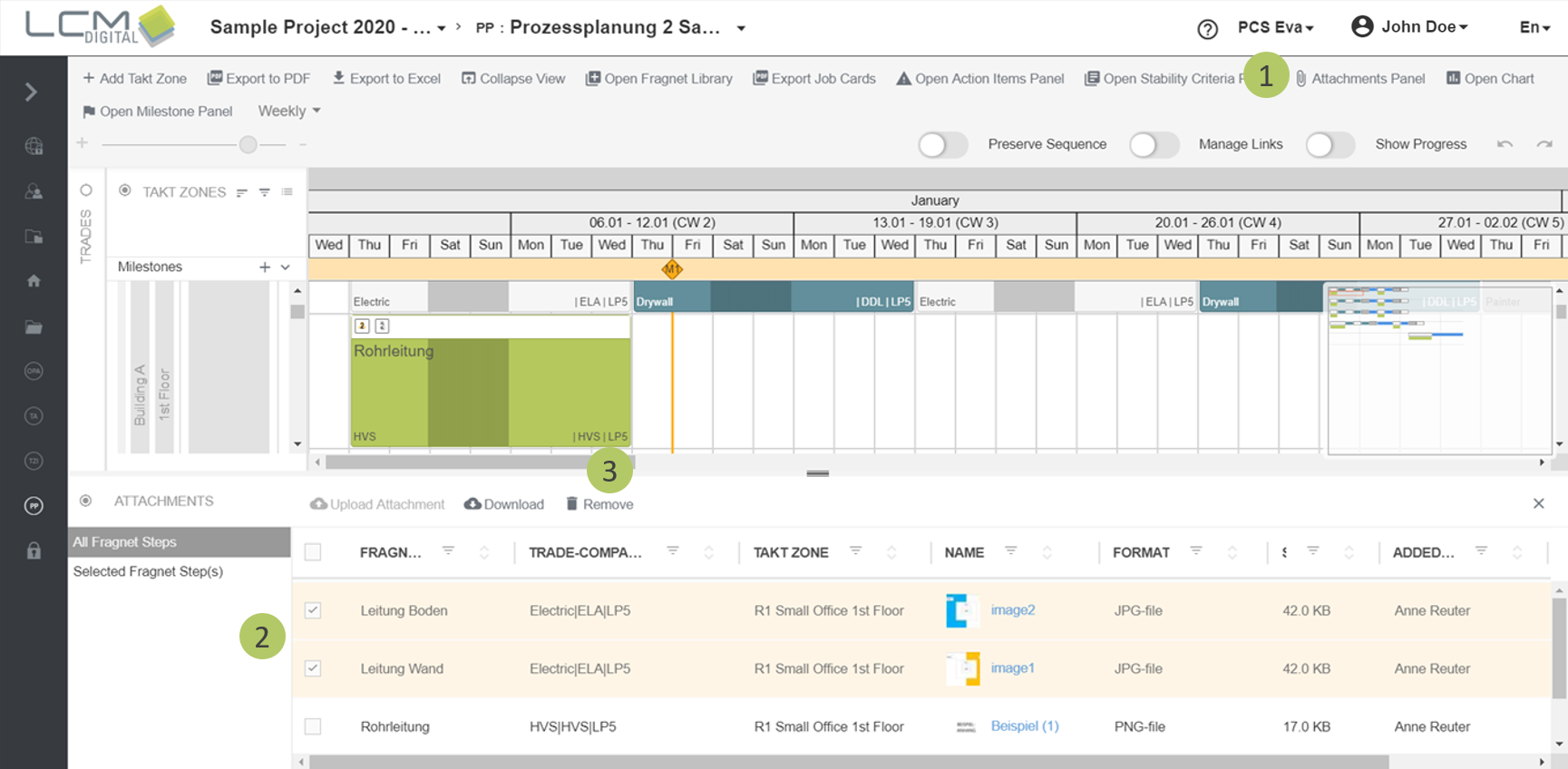
1. Click on "Attachments" in the menu bar to open the attachments panel.
2. Select the attachments you want to remove via the corresponding checkboxes.
3. Click on "Remove" to remove the selected attachments.
Note: You will need a project role with appropriate access rights to be able to edit attachments.