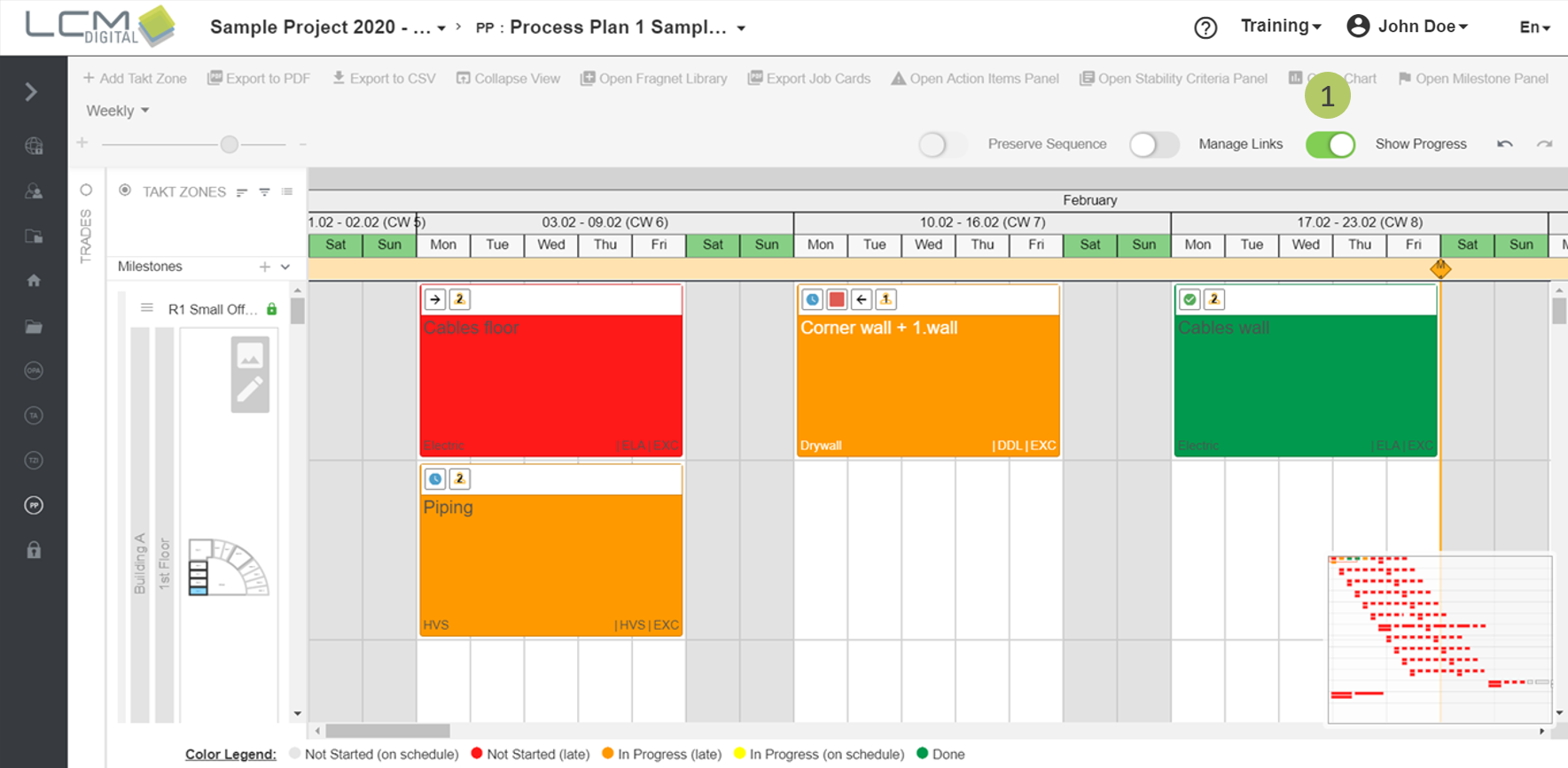
In the process plan, you can see the progress reported back from your job site visually and in traffic light logic. You can also change or report progress of processes in one-touch mode.
The timing of planned and executed processes is exported to Excel with all other information. Find more information here.
Related articles:
- Work with takt zones in the process plan
- Export the process plan as PDF
- Export process plan to Excel / Import process plan from Excel
- Open the process plan and navigate
- How to control your project using functions in the process plan
- Manage attachments (Plans, photos, videos, ...) of processes in the process plan
Progress Mode
1. Activate the „Show Progress“ toggle, to display the progress mode.
There are five different colors the fragnet steps get, according to their progress:
 |
Not Startet (on schedule) |
|
 |
In Progress (on schedule) |
|
 |
Not startet (late) |
|
 |
Done |
|
 |
In Progress (late) |
|
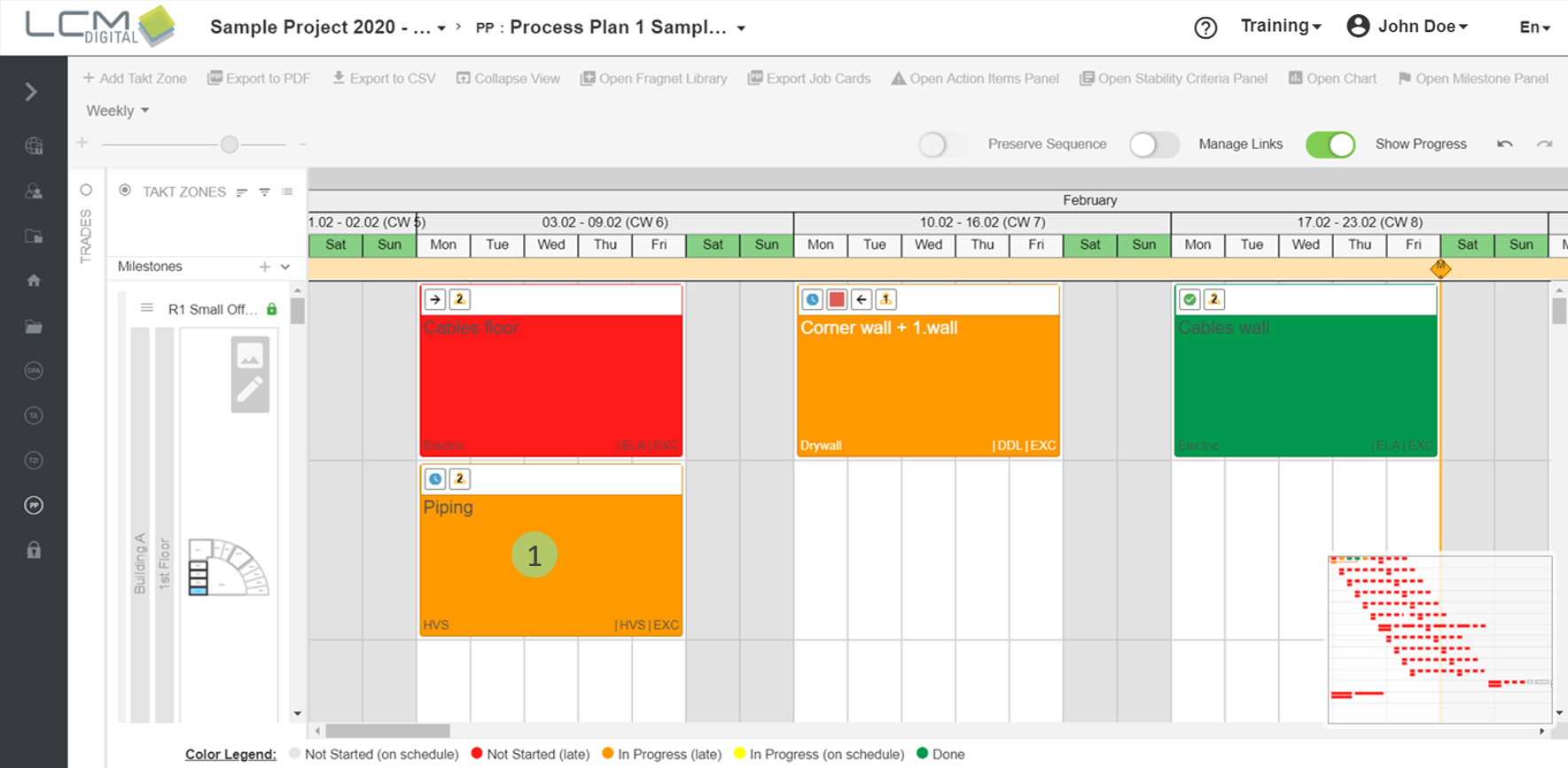
Change the progress of a fragnet step
Option 1:
1. The progress can be changed by clicking on the fragnet step,until the desired progress is reached.
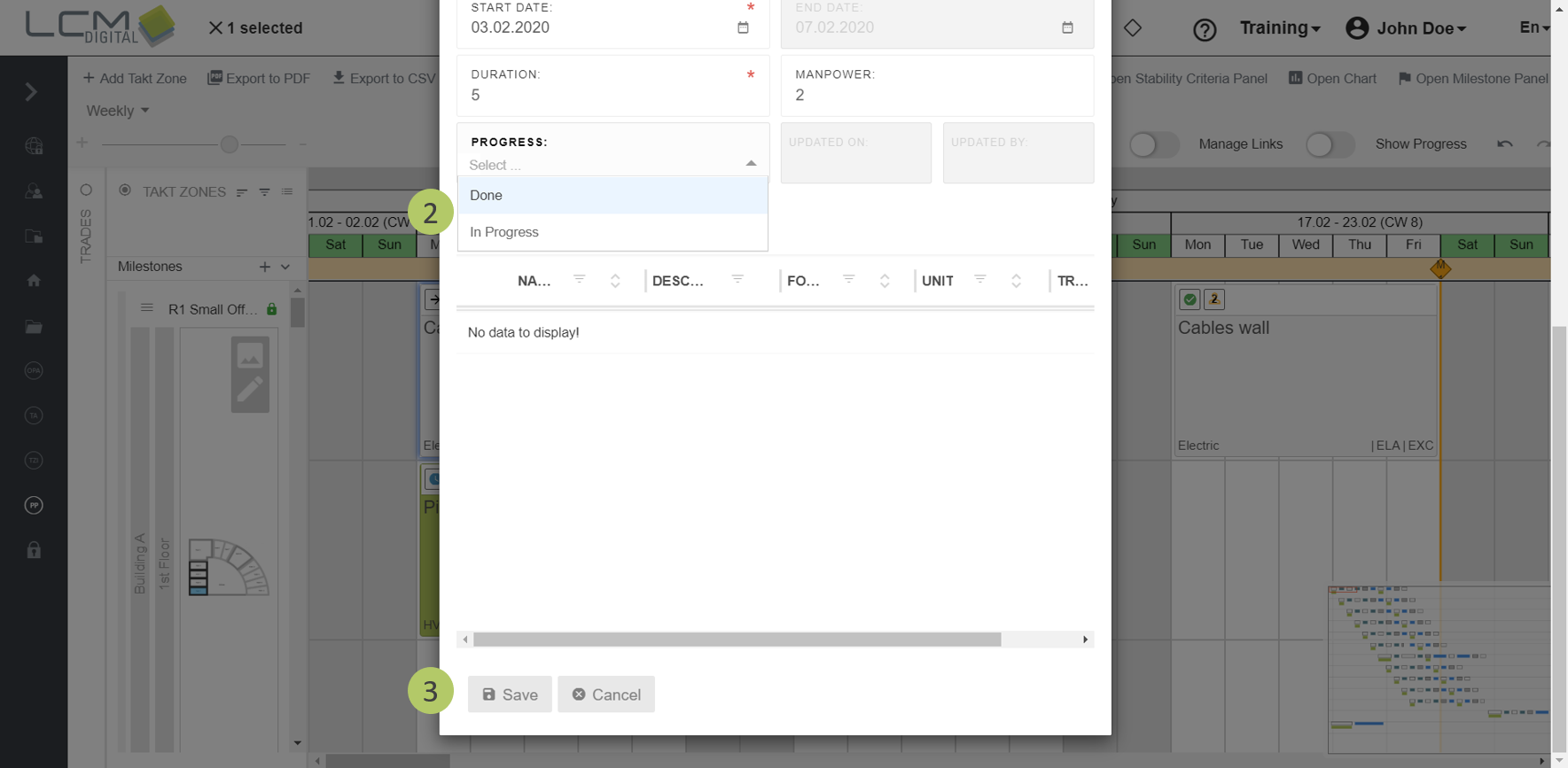
Option 2:
1. Open the editing of a fragnet step as described here.
2. Select the desired status in the dropdown menu.
3. Click on „Save“.