|
Video: In the video tutorials you can find a video about über the Process Plan. |
The Process Plan shows the planned status of your project, is the central element in successful execution and the interface between the planning and control phases in your project.
You are supported by some functions of the view, such as collapse or hide free days, when editing the process plan.
- Collapse and expand the Process Plan
- Hide non-working days and holidays
- Weekly view/Daily view
- Change the order of Takt Zones
To get a basic state of your process planning, you will plan and edit processes. See here how to create, delete and edit processes.
You can drag and drop process chains that you have already created and want to reuse from the fragnet library into the process plan.
Related articles:
- Work with Takt Zones in the Process Plan
- Export the Process Plan to PDF
- Import a Process Plan from Excel / Export to Excel
- How to control your project in the Process Plan
- Display and change the progress of your site in the Process Plan
- Manage attachments (plans, photos, videos, ...) of processes in the Process Plan
You exchange all important information with your construction site team via the mobile app and the planning board (from version 2.0 as digital planning board / daily board). This provides you with the status of execution and, if necessary, you can intervene by making adjustments to the process planning.
How is the Process Plan generated?
The Process Plan can either be generated from the Takt Zone Iteration (TZI) or imported from an Excel file.
Where do I find my Process Plan?
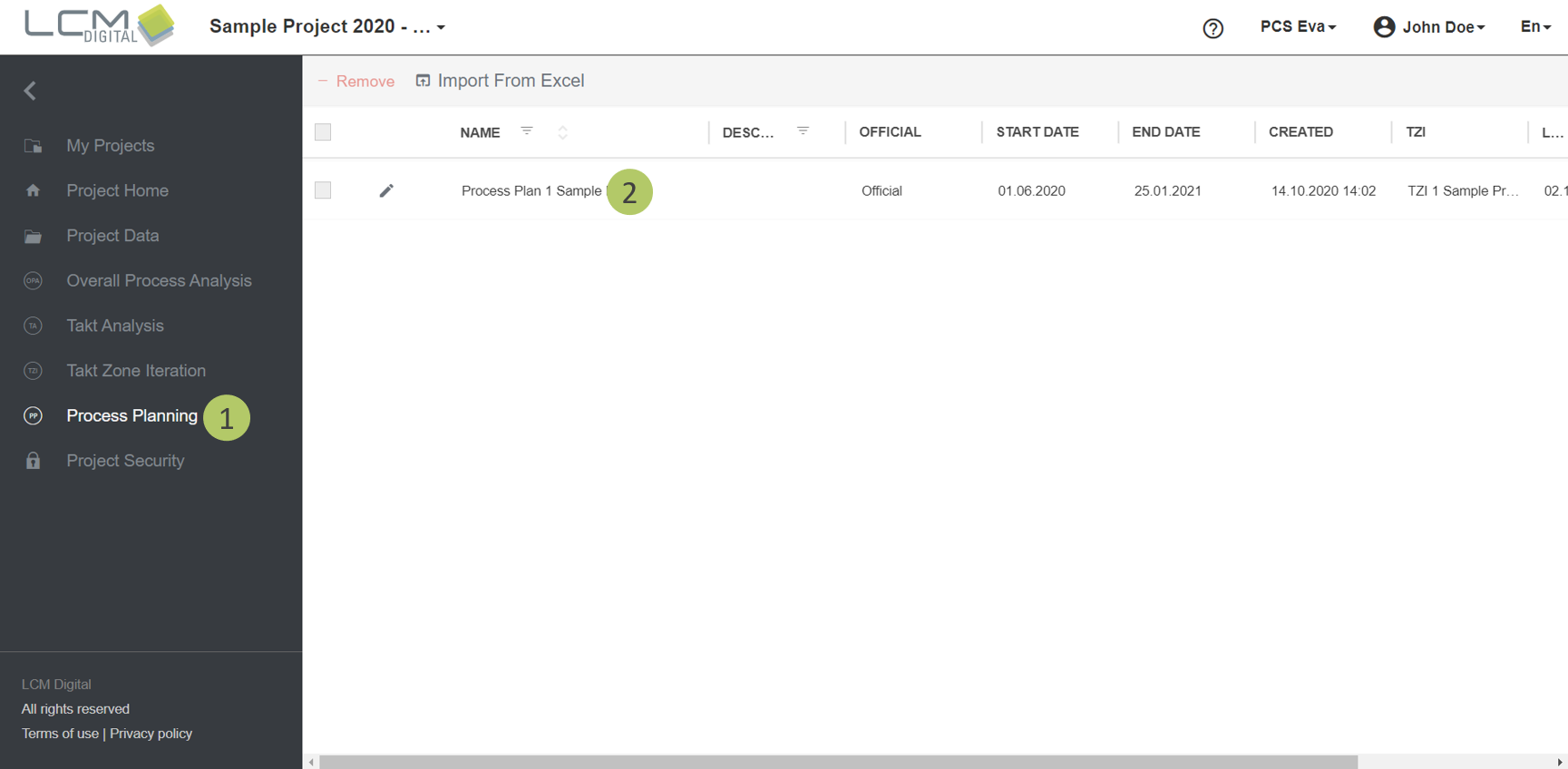
1. Select „Process Planning“ from the main menu
2. Click on a process plan to open it.
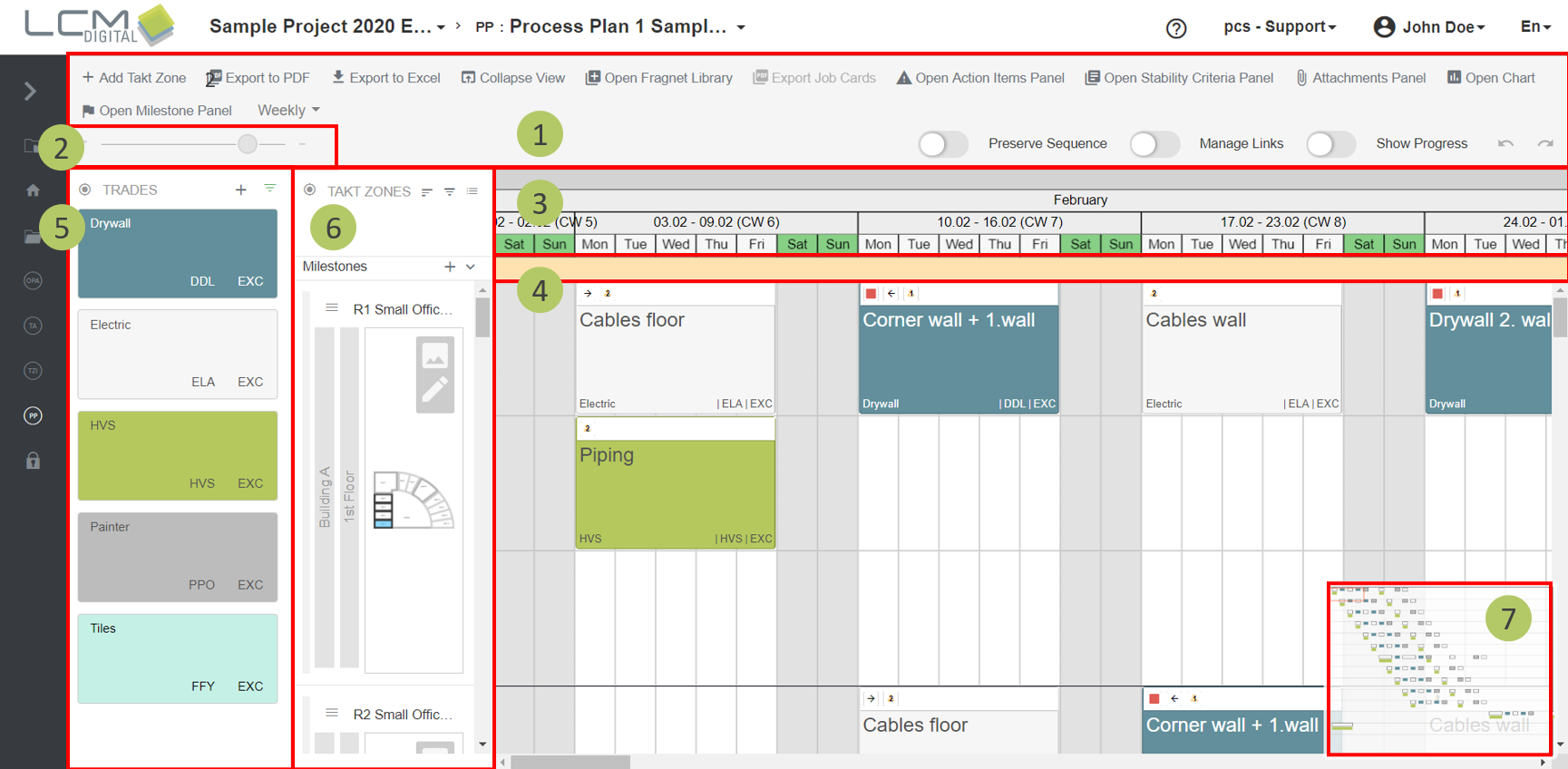
User Interface
1. Tool bar
2. Zoom in / Zoom out
3. Timeline
4. Milestones
5. Tade Panel
6. Takt Zones panel
7. Preview window: The preview window provides a screenshot of the whole display. The frame depends on the current zoom setting. If trades are filtered, the preview window only shows the filtered trades.
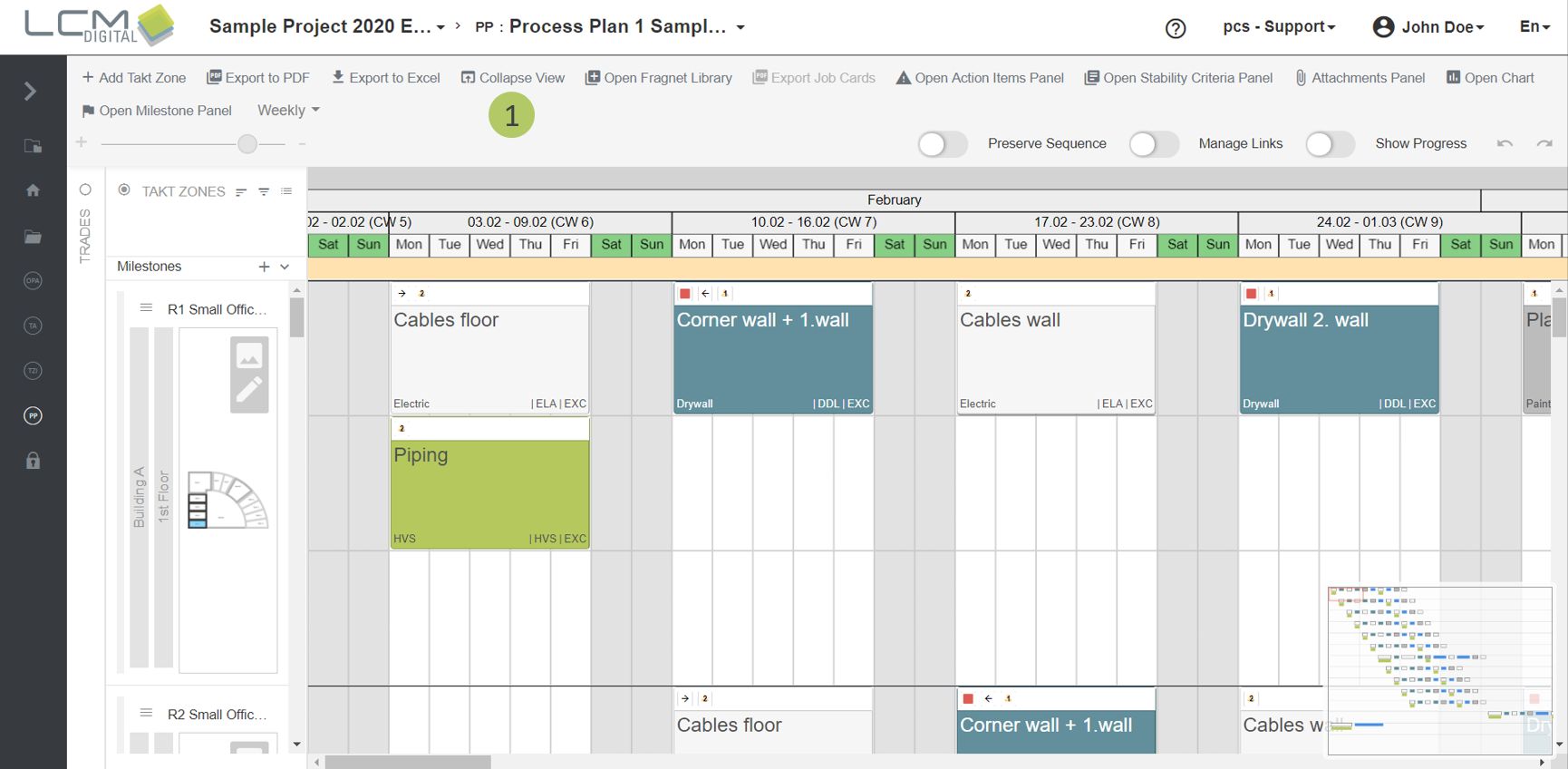
Collapse and expand the Process Plan
Collapsing a the PP provides a higher-level view of Takt Zones their duration, start and end date.
1. Click on "Collapse view".
Hide non-working days and holidays
Hiding non-working days and holidays helps to achieve a more compact view of the process plan.
|
|
Note: To use this function, the project calendar must be the same as the calendar of all companies. |
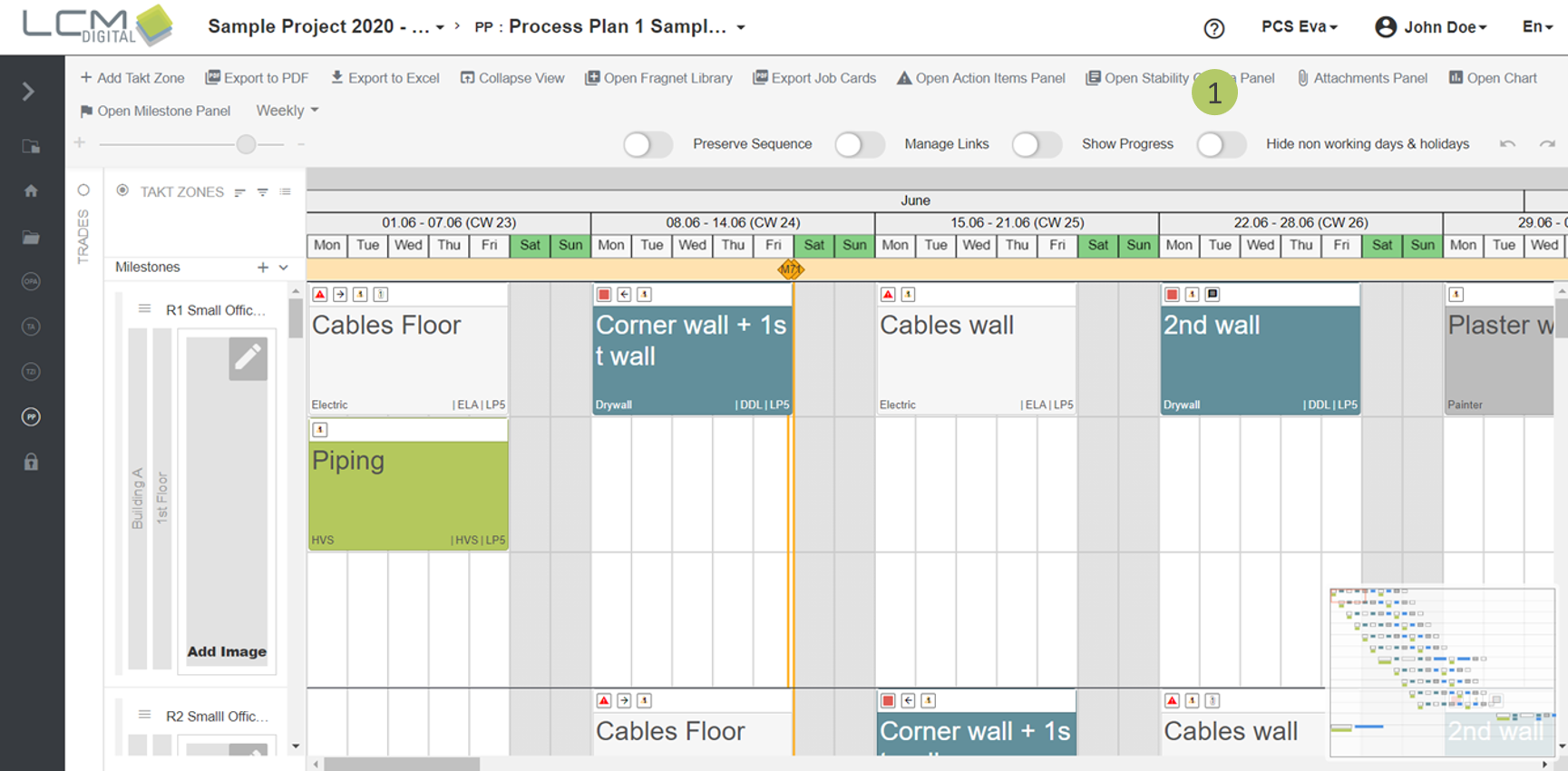
1. Click on “Hide non-working days and holidays”.
Weekly view / Daily view
The purpose of the “Daily/Weekly” Dropdown is to allow the user the switch from „daily“ view to „weekly” view in the Process Plan.
On “weekly” view the dimensions of the cell will be changed.
In comparison to the “daily” view, the “weekly” view provides larger Fragnet Steps however, less number of Takt Zones on the screen (with the same zoom level).
1. To work with the weekly view choose Weekly from this dropdown list.
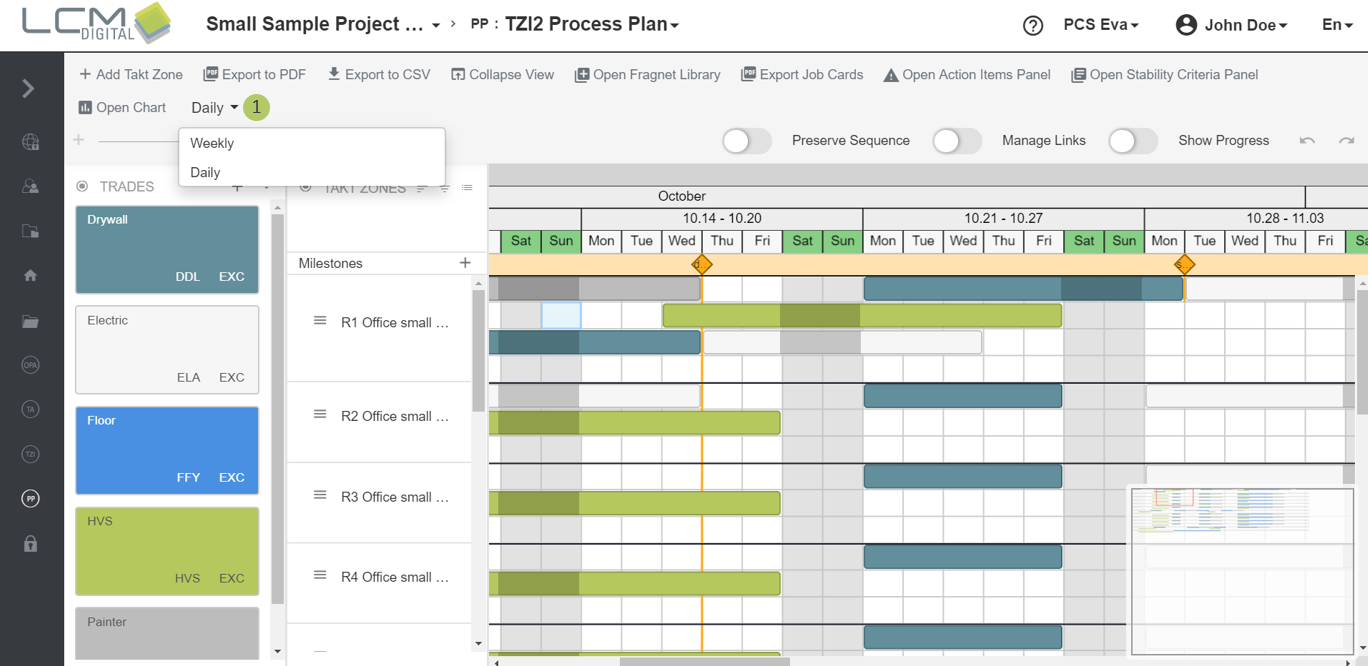
2. To work with the daily view choose Daily from this dropdown list.
You can move your processes as usual.
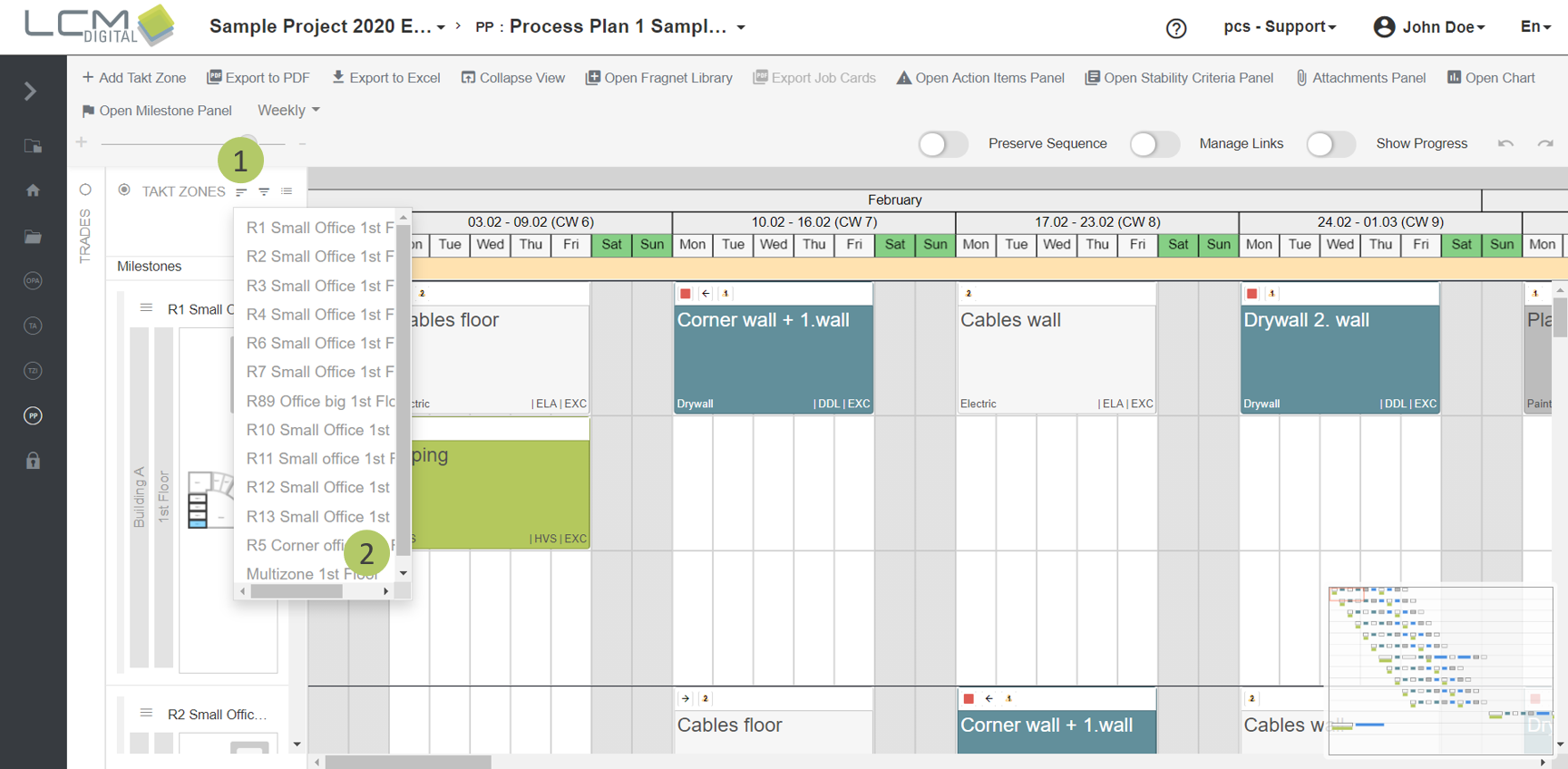
Change the order of Takt Zones
1. Click on this icon next the Takt Zone’s name.
2. Drag and drop the Takt Zones into any position (upper on the list or lower) to get the desired order.